
SharePoint Site Access Reviews: A Practical Guide
 By Vlad Catrinescu Microsoft MVP and MCT · Pluralsight Author
SharePoint Site Access Reviews solve a genuinely hard governance problem. As an admin, you can see that a site is overshared. However, you usually cannot see the files inside it. You also rarely know whether that broad access is a real problem or just how the team works. The people who do know are the site owners. SharePoint Site Access Reviews, a feature of SharePoint Advanced Management, let you hand the cleanup to those owners. Better still, you never look at their file-level content yourself. In this guide, I break down how the reviews work, what the site owner sees, and the limits to plan around.
Key takeaways
- Site Access Reviews let IT admins delegate oversharing cleanup to site owners, who review and update permissions on their own sites.
- In a site access review, admins do not see file-level or item-level detail, which keeps it inside compliance boundaries.
- You can start reviews for up to 100 sites from the web view, and PowerShell handles anything larger.
- Reviews cover SharePoint sites only, not OneDrive, and are unavailable on Microsoft 365 operated by 21Vianet.
- Restricted Content Discovery and Restricted Access Control are sibling controls, and both can be delegated to site admins.
What Are SharePoint Site Access Reviews?
A SharePoint Site Access Review hands a data access governance report to a site owner for cleanup. In other words, the admin flags a potentially overshared site, and the owner does the actual work. The feature lives in the SharePoint admin center, under Data access governance.
The design answers two problems at once. First, compliance rules stop IT admins from seeing the file-level or item-level details in these reports. Second, site owners understand their own content far better than any central admin could. As a result, the owner is the right person to decide who keeps access.
Having worked with SharePoint environments for over a decade, I can tell you this is a meaningful shift. For years, oversharing cleanup landed entirely on the admin. Now the workload moves to the people closest to the data.
Why Delegate Reviews to Site Owners?
The honest answer is scale. I recently sat down with Dave Minasyan, a Principal Product Manager at Microsoft who leads SharePoint Advanced Management. He put it plainly. Many organizations run one SharePoint admin for a thousand users, or even hundreds of thousands. One person cannot know who should access every site.
Delegation fixes that imbalance. The admin still decides which sites need attention. However, the owner makes the call on individual files and permissions. Dave framed the goal as scaling the admin, not replacing them. The admin stays the pivotal person who directs the work, while owners handle the details.
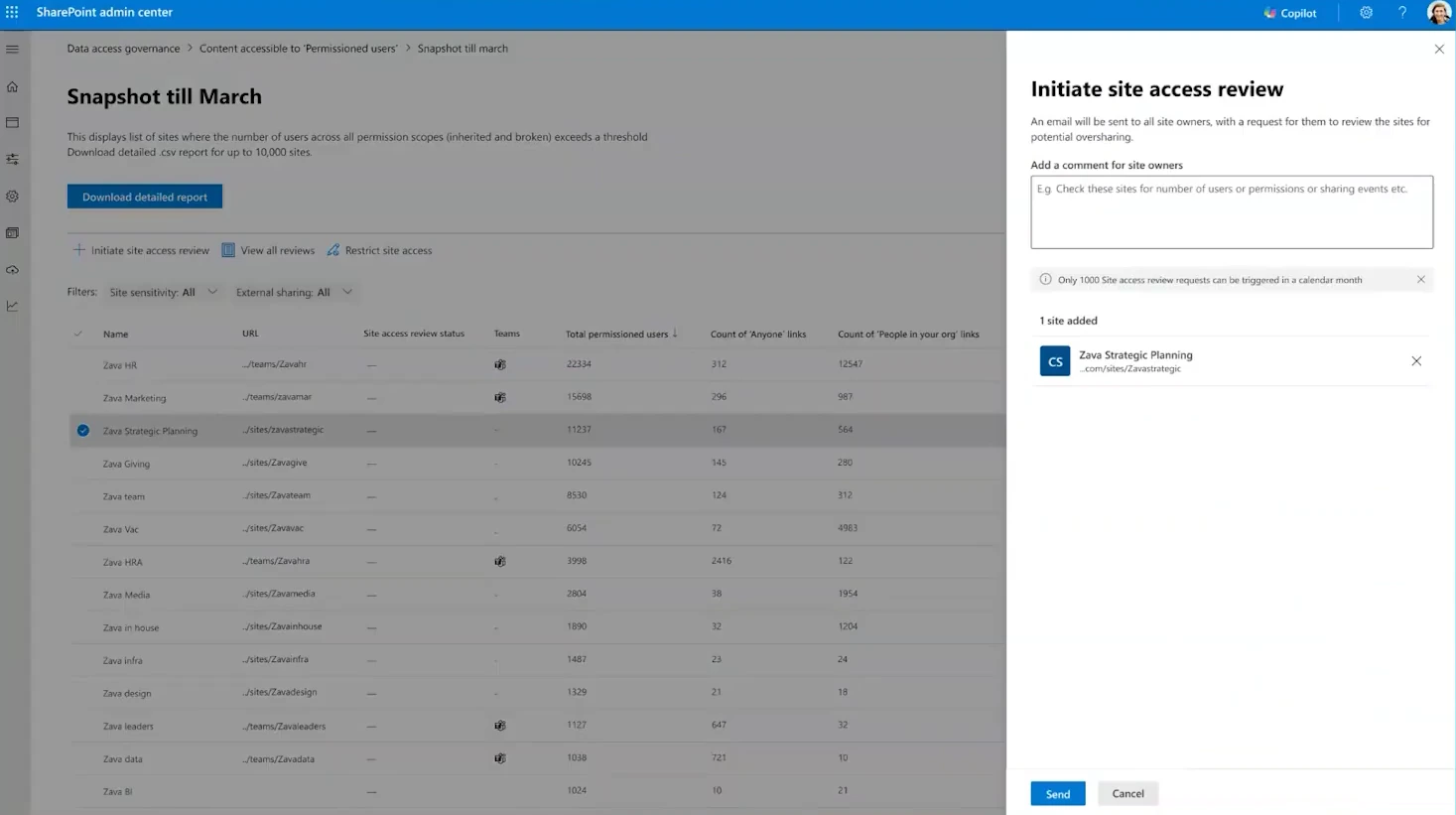
How a Site Access Review Works
The admin side is straightforward. First, sign in to the SharePoint admin center. Next, expand Reports and select Data access governance. Then choose a supported report, select the sites you want reviewed, and select Initiate site access review. Finally, customize the email and send it.
Microsoft documents these supported reports for reviews:
- Sharing link reports (Anyone, People in your organization, and Specific people shared externally)
- Content shared with “Everyone except external users”
- Oversharing baseline report using permissions
Two limits matter here. You can start reviews for up to 100 sites directly from the web view. For a larger batch, you use the Start-SPOSiteReview PowerShell command instead. In addition, one report has a monthly cap. The “Site permissions across your organization” report allows up to 1,000 reviews per calendar month.
Each request becomes an email tailored to the specific issue. For example, a review for the “Everyone except external users” report focuses only on that concern. Dave described the batching benefit well. Instead of fifteen separate emails for fifteen sites, an owner receives one consolidated request. He also noted that the notifications are grouped by category. As a result, an owner typically gets one email for oversharing and one for lifecycle, rather than a flood. Microsoft’s docs confirm the per-report tailored email; the category grouping is how Dave described it.
Once you send a review, you track it from the My review requests tab. The status stays “pending” until the owner finishes. After completion, the reviewer’s name and a timestamp appear. If the owner’s email is invalid, the review is marked as failed.
The Site Owner Experience and the Governance Hub
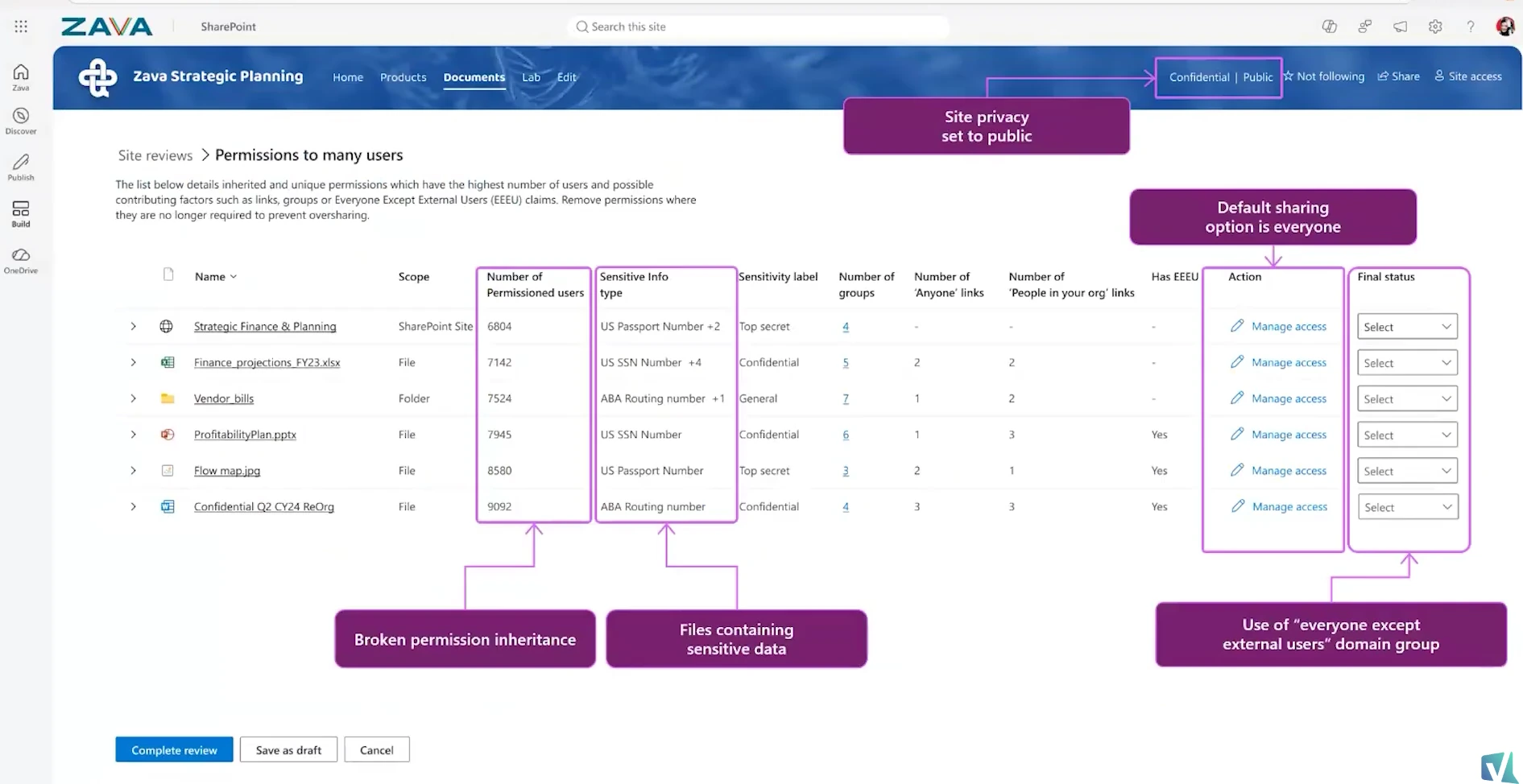
When a review starts, the site owner receives an email with a link to a detailed review page. That page is scoped to the exact issue the admin flagged. The owner never has to hunt through the whole site.
On that page, the owner can act in two areas. First, they can review SharePoint groups to see which ones contain “Everyone except external users.” Then they remove that group where it does not belong. Second, they can review individual files, folders, and lists shared broadly in the last 28 days. A Manage access button lets them remove users, adjust group membership, delete links, and change permissions. When the work is done, the owner selects Complete review, adds comments, and submits. Those comments flow back to the admin automatically.
Microsoft also gives owners a single place to see everything asked of them. It is called the Site reviews page. Owners reach it two ways: from the review email, or from the site’s gear icon under Site settings. From there, they handle multiple pending reviews in one view.
This consolidated page is what Dave and I call the “Governance Hub” in the video. It is worth being precise here. Microsoft does not brand it that way today. In fact, Dave was candid that the name is not final. So treat “Governance Hub” as a useful shorthand for the owner’s consolidated review experience, not an official product name.
Site Access Review Limits You Should Know
Every governance feature has edges, and this one is no exception. Plan around these documented limits before you roll it out:
- SharePoint sites only. Site access reviews currently do not support OneDrive accounts.
- The 100-site web cap. You start up to 100 reviews from the web view, then move to PowerShell for more.
- No file-level view in the review. Compliance keeps IT admins out of file-level and item-level detail here, which is exactly why owners run the review.
- Not available on 21Vianet. Microsoft 365 operated by 21Vianet does not support site access reviews, even with the required licenses.
- SharePoint Advanced Management license required. Site access reviews depend on it.
How Site Access Reviews Fit with RCD and RAC
Site Access Reviews are one part of controlling content access. Two policies sit alongside them: Restricted Content Discovery (RCD) and Restricted Access Control (RAC). They solve related but distinct problems, so it helps to keep them straight.
Restricted Content Discovery keeps a site’s content out of organization-wide search and Microsoft 365 Copilot discovery while you review it. It also removes AI entry points from the site. Examples include the Copilot button and the option to create agents or pages with AI. Importantly, RCD does not change permissions. People who already have access keep it, and RCD does not remove content from the search index. Think of RCD as protection that buys you time. The content stays usable for the right people, yet it will not surface in those experiences until you are ready. One caveat: the setting propagates across the index, so it is not instant. For very large sites, above 500,000 items, full effect can take more than a week. RCD applies to SharePoint sites only.
Restricted Access Control takes the stronger step of gating who can open a site at all. You point RAC at one or more groups, either Microsoft Entra security groups or Microsoft 365 groups. You can add up to 10 groups per site. People outside those groups cannot open the site or its content, even if they previously had a direct permission or a link. Members still need their own content permission as well. Search and Copilot honor the boundary too, though on large sites they can take time to reflect the change. One more gotcha: a policy on a Teams-connected site does not automatically cover its shared or private channel sites, which are separate site collections that need their own configuration. In short, RCD hides content from discovery, while RAC controls who can reach it.
Both controls can also be delegated to site admins, which matches how the review model works. RCD is the clearest example. An admin turns on delegation with a tenant setting, Set-SPOTenant -DelegateRestrictedContentDiscoverabilityManagement $true. After that, site admins manage the setting for their own sites and provide a justification for each change. This delegation is the feature Dave highlighted at the end of the interview. He noted it starts from PowerShell, which is accurate. The tenant toggle is a PowerShell command, while the per-site control lives in the UI.
Automating Reviews with the SharePoint Admin Agent
The SharePoint Admin Agent adds a conversational layer over all of this. It requires the SharePoint Advanced Management Administrator role. With it, an admin asks questions in natural language. One example: “Which sites are overshared and what are the risk levels for these sites?” The agent then gathers the data, offers analysis, and recommends next steps. Microsoft lists controlling access to content, including site access reviews, among the governance tasks the agent supports.
Dave went further and shared where this is heading. He described a future where the admin starts a review through the agent. The agent understands the intent behind it, and then helps the site owner take action. He also mentioned extending the agent to site owners. Those are roadmap ideas from the interview, not documented capabilities today, so treat them as direction rather than fact.
One design principle is worth calling out, because it explains the guardrails. Dave was clear that the agent runs “on rails.” It will not perform destructive actions like deleting sites. Archiving, on the other hand, is supported, because you can reverse it.
The archive numbers back that up. Microsoft 365 Archive keeps a newly archived site in a “Recently archived” state for seven days. During that window, reactivation is instantaneous. After seven days, reactivation can take up to 24 hours. On top of that, Microsoft eliminated the SharePoint reactivation fee on March 31, 2025. Reactivating an archived site is now free. Two caveats apply. Re-archiving reactivated content is blocked for four months. Also, the free reactivation does not extend to OneDrive accounts. So archive is a safe, reversible cleanup lever, which is the point Dave made.
Licensing and Availability
Licensing trips people up, so let me be specific. SharePoint Advanced Management needs one of these base subscriptions:
- Office 365 E3, E5, or A5
- Microsoft 365 E1, E3, E5, or A5
- The GCC, GCC-High, and DoD equivalents
You then unlock SharePoint Advanced Management in one of three ways. First, assign at least one Microsoft Copilot license in the tenant. Second, add the SharePoint Advanced Management Plan 1 add-on to a SharePoint K, P1, or P2 subscription. Third, use Microsoft 365 E7, the Frontier Suite, which includes Copilot. For E3 and E5 tenants, the Copilot add-on is the usual route.
There is one nuance worth calling out. An admin with Microsoft 365 E5 alone can access Data access governance reporting. However, the other SharePoint Advanced Management features stay locked. In that E5-only state, you get no snapshot reports and no remedial actions. Activity reports also return up to 10,000 sites. In practice, full Site Access Reviews need SharePoint Advanced Management, not E5 by itself.
Finally, the 21Vianet exclusion is broad. All three features are unavailable on Microsoft 365 operated by 21Vianet: Data access governance reports, site access reviews, and Restricted Access Control reports. That holds even when the required licenses are present.
Where to Go Next
Site Access Reviews are the collaborative side of content access governance. They pair naturally with the reports that find oversharing and the policies that contain it. As a Microsoft MVP who works with organizations on their rollouts, I’ll keep my advice simple. Start with a small set of sites. Learn the owner experience, then scale.
Want to get your tenant Copilot-ready? Start with the reports that surface the risk, then delegate the cleanup with Site Access Reviews. For the bigger picture, read three related posts. My overview covers what is new in SharePoint Advanced Management for 2026. You can also read the five pillars of Microsoft 365 content governance and where to begin with a SharePoint content assessment.
Frequently asked questions
Can I run a site access review on a OneDrive account?
No. Site access reviews support SharePoint sites only, and OneDrive accounts are not included today. If oversharing lives in OneDrive, you need a different tool, such as Restricted Access Control for OneDrive.
How many sites can I review at once?
You can start reviews for up to 100 sites directly from the web view of a data access governance report. For a larger batch, use the Start-SPOSiteReview PowerShell command. Separately, the “Site permissions across your organization” report allows up to 1,000 reviews per calendar month.
Do site owners see everything on the site during a review?
No, and that is by design. The owner sees only the items the report flagged. Examples include files shared with “Everyone except external users,” or the sharing links created in the last 28 days. This keeps the review focused, and it keeps IT admins out of file-level detail for compliance reasons.
Is Restricted Content Discovery the same as Restricted Access Control?
No. Restricted Content Discovery hides a site’s content from organization-wide search and Copilot, without changing permissions. Restricted Access Control controls who can open the site at all, by limiting access to specific groups. You often use them together, but they solve different problems.
Does the SharePoint Admin Agent run the reviews for me?
Not automatically today. The agent helps you identify overshared sites and recommends actions, including running a site access review. Deeper automation is roadmap direction Dave shared in the interview. That includes the agent starting a review and coaching the site owner.

