
SharePoint Content Resilience: Backup, Archive & Multi-Geo
 By Vlad Catrinescu Microsoft MVP and MCT · Pluralsight Author
SharePoint content resilience comes down to one question: when something goes wrong with your content, can you get it back? Microsoft answers with a small stack of features. Now it is wiring them into the SharePoint Admin Agent, so you can reason over them in plain language.
In Part 8 of my SharePoint Advanced Management 2026 series, Microsoft’s Dave Minasyan walked through where this is heading. Dave is a Principal Product Manager at Microsoft. This post is the standalone version. As a Microsoft MVP who works in these tenants every day, I will keep it practical. You will learn what each piece does, what it costs, and where the limits are.
Key takeaways
- Microsoft defines content resilience as Baseline Security Mode, Microsoft 365 Backup, and version history. Archive and Multi-Geo sit next to it under lifecycle and data residency.
- The SharePoint Admin Agent can now check Baseline Security Mode and surface recovery options in plain language. The Multi-Geo prompts are still in preview.
- Backup and Archive are pay-as-you-go and need an Azure subscription. Multi-Geo is a separate paid add-on with a five percent minimum.
What SharePoint Content Resilience Means
Content resilience is the protection side of content governance. In other words, it is how you keep content safe, recoverable, and in the right place. Microsoft Learn is specific about the term. On the SharePoint Admin Agent page, content resilience means three things: Baseline Security Mode, Microsoft 365 Backup, and version history.
Two other features come up in the same conversation. Microsoft 365 Archive is technically part of content lifecycle, not resilience. Multi-Geo is filed under data residency compliance. I cover all of them here because they answer the same real question. How do you protect and control your content? Still, it helps to know how Microsoft groups each one. Each is also licensed very differently.
The SharePoint Admin Agent’s New Resilience Skills
Most of these capabilities already exist in the admin experience. What is new is that the SharePoint Admin Agent (opens in a new tab) can now reason over them. As Dave put it, the team is hooking the resilience areas into the agent. Now you can ask questions instead of hunting through pages.
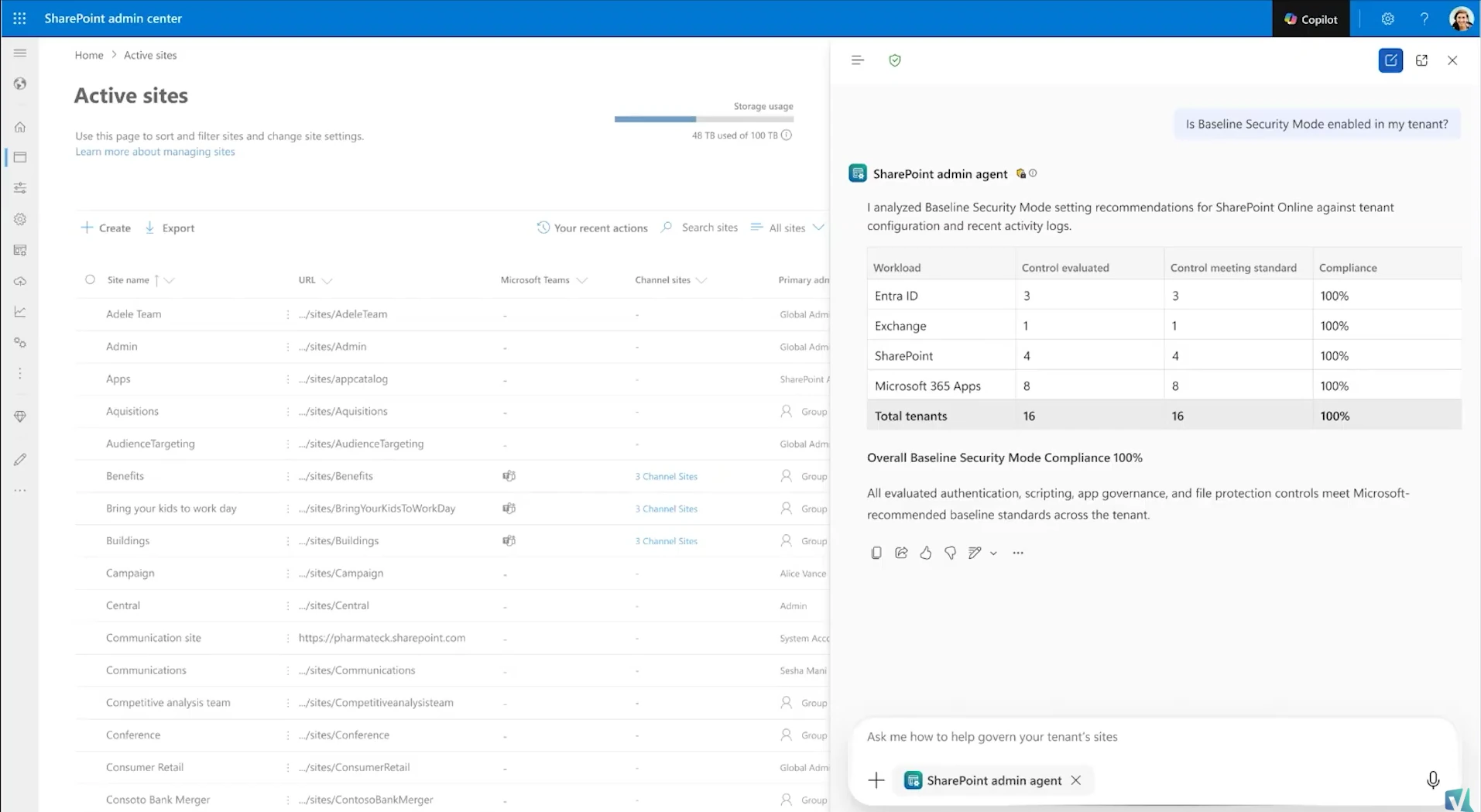
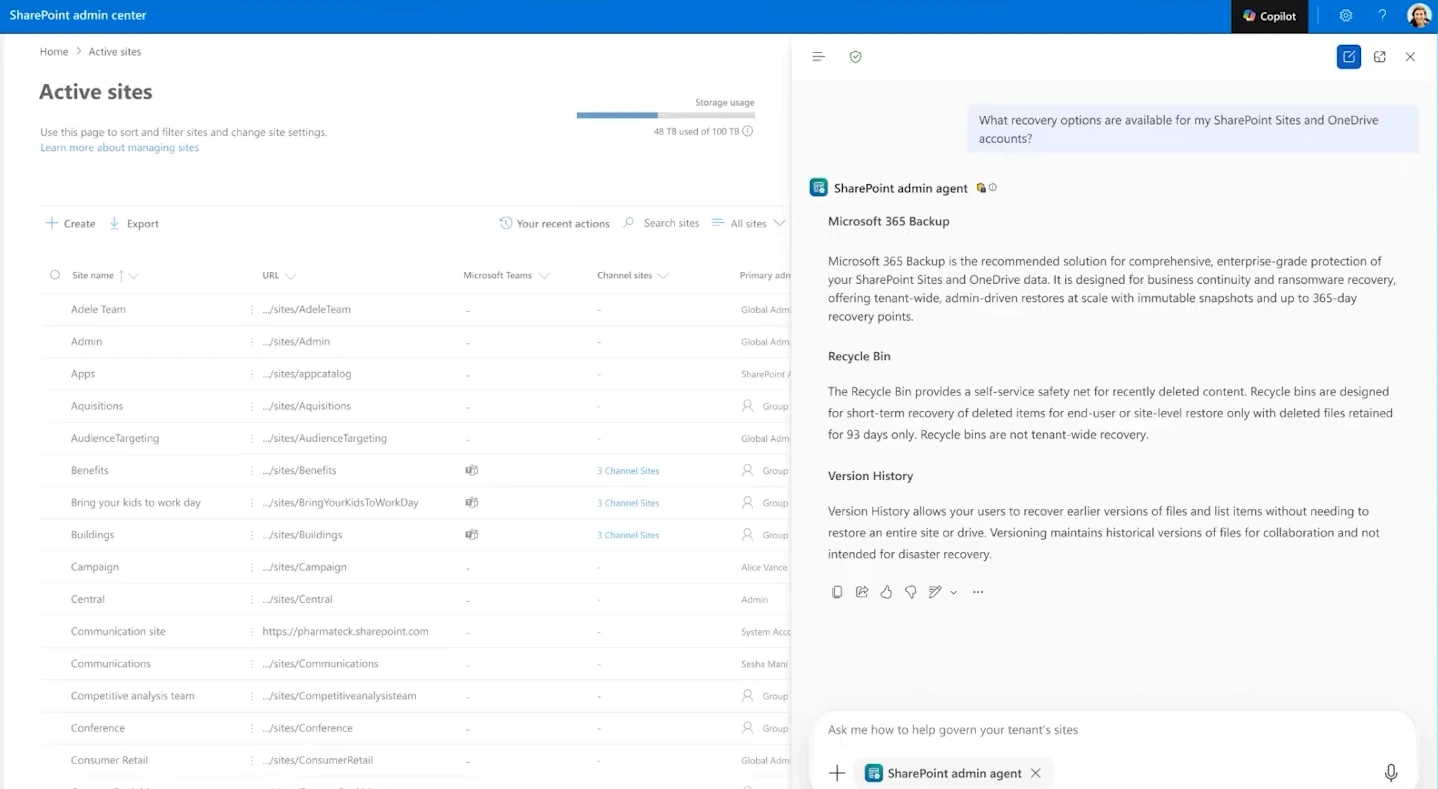
Microsoft Learn backs this up. The SharePoint Admin Agent page lists content resilience as a supported capability. It also publishes ready-to-try prompts. Two of them are generally available today. The first is “Is Baseline Security Mode enabled in my tenant?” The second is “What recovery options are available for my SharePoint and OneDrive sites?” On camera, Dave described the backup piece as something the team was “building out right now.” By the time of writing, that recovery prompt is already live. So treat it as here, not coming.
The agent also honors your role. On camera, Dave showed that a SharePoint admin sees only the SharePoint state in the agent, not vulnerabilities in another workload like Microsoft Entra ID. That is the agent scoping the view to your role. The Baseline Security Mode page works in a related way. The settings area is visible to several workload admins, but each one can manage only their own settings. Dave also shared some numbers on camera, though he hedged them. He estimated the skill covers around 45 tenant settings today. The team has identified roughly 250 so far, with about 60 data points behind the analysis. Those figures are his estimate, not a documented count, so use them directionally.
Baseline Security Mode, Checked for You
Baseline Security Mode (opens in a new tab) is a set of security settings you turn on in the Microsoft 365 admin center. You find it under Org Settings, in the Security and Privacy tab. That admin center home is why Dave calls this the organizational settings area. It brings settings that used to live only in PowerShell into a single page.
Here is a detail worth knowing. Baseline Security Mode works on all Microsoft 365 subscriptions and plans, so there is no extra license gate. Access is role-based instead. A SharePoint admin manages the SharePoint and OneDrive settings. Other workloads stay with their own admins.
Microsoft recommends a phased approach, and it matches the agent’s report card. First, you run an impact report for each setting. Next, if the report shows zero impact, you turn the setting on. Finally, if critical dependencies exist, you fix those before you commit. The agent is essentially putting a conversation in front of that same workflow.
Microsoft 365 Backup: Point-in-Time Restore
Microsoft 365 Backup (opens in a new tab) gives you fast, point-in-time restore for SharePoint sites, OneDrive accounts, and Exchange mailboxes. It is built inside the Microsoft 365 trust boundary, so your data never leaves it. Backups are append-only. That means the service can add new restore points but cannot alter old ones.
The recovery window is configurable per policy. Your choices are three months, six months, one year, or two years. Existing policies default to one year. Restore points are frequent too. For a full SharePoint site or OneDrive account, you get a restore point every ten minutes for the prior two weeks. File and folder restore points are roughly daily in that window. After that, weekly snapshots run from two to 52 weeks back.
Billing is where people get caught. Microsoft 365 Backup is pay-as-you-go, not a per-user license. At the time of writing, Microsoft Learn lists the rate at 0.15 US dollars per gigabyte per month. Restores are free. Because it is pay-as-you-go, you need an Azure subscription and resource group in the same tenant. You also need a billing policy in the Microsoft 365 admin center. One warning from the docs: only disconnecting the payment method stops billing. Reaching your budget alert does not pause the service. Prices change, so confirm the current rate on Microsoft Learn before you plan a budget.
A few more useful facts. If you ever offboard, a 90-day grace period lets you recover your backups. Microsoft 365 Backup is now available for Government Community Cloud. It also supports Multi-Geo tenants across both central and satellite locations.
Microsoft 365 Archive: Cold Storage That Stays in Place
Microsoft 365 Archive (opens in a new tab) moves inactive SharePoint sites and files into a cold storage tier. Crucially, it keeps them inside SharePoint. The site keeps its metadata, permissions, and searchability, and you can reactivate it later. Microsoft files this under content lifecycle. The site lifecycle management policies in SharePoint Advanced Management can even move sites into the archive tier automatically.
The pricing model rewards cleanup. At the time of writing, archived storage is billed at 0.05 US dollars per gigabyte per month. Standard storage over quota costs 0.20. Better still, the archive meter only charges you once your archived plus active storage exceeds your licensed SharePoint quota. Below that quota, archived data adds no cost. Reactivation of archived SharePoint content is also free now, since Microsoft removed that fee in March 2025. Unlicensed OneDrive accounts are the exception, and they still carry a reactivation charge.
The limits matter too. Some site types cannot be archived, including publishing sites and certain legacy templates. Sites with private or shared Teams channels are only partially supported. You cannot archive them from the SharePoint admin center, though PowerShell or Graph can archive the main site. Certain file types are excluded as well, such as OneNote, SharePoint pages, and SharePoint agents. Finally, once you reactivate content, you cannot archive it again for about four months. Plan around that before you reactivate a large site.
Version History: The Everyday Safety Net
Version history is the resilience feature you already use without thinking about it. It is part of Microsoft’s built-in data protection in SharePoint and OneDrive. When a file changes, you can view a previous version, restore it, or see who changed what.
It is also your first line of defense against small disasters. An accidental overwrite can often be undone by rolling a file back to a clean version. The same is true for many ransomware changes. Backup handles the big recovery scenarios, while version history handles the everyday ones.
Multi-Geo: Keeping Data in the Right Country
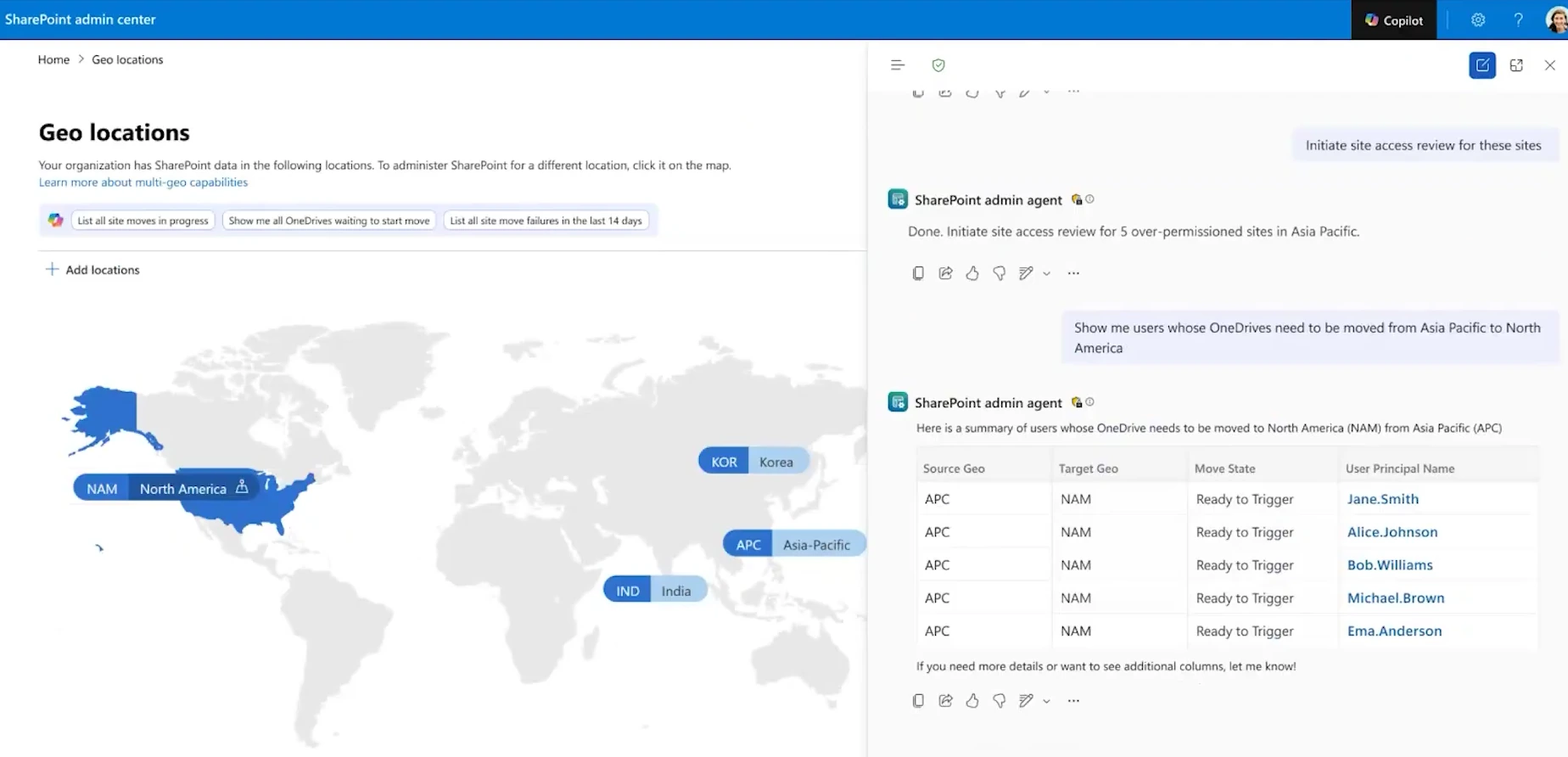
Multi-Geo (opens in a new tab) lets one Microsoft 365 tenant store data in multiple geographies to meet data residency needs. A user’s data lives in a preferred data location, and admins manage it all from a single tenant. In the episode, Dave showed the agent starting to track geo moves. So when someone changes countries, you can follow the move from one place. The related agent prompts for cross-geo moves are still in preview, so treat that tracking as early.
Licensing is the big catch here, because Multi-Geo is a separate paid add-on. You buy it through an Enterprise Agreement, Web Direct, or CSP. It layers on specific base plans, such as Microsoft 365 F1, F3, E3, E5, and E7. Equivalent Office 365, SharePoint, OneDrive, Exchange, and Teams plans also qualify. Small Business plans do not. There is also a minimum. Enterprise Agreement and CSP customers must buy Multi-Geo for at least five percent of their eligible users. One more note from the docs: tenants that use Multi-Geo fall outside the EU Data Boundary scope.
Licensing and Availability, Product by Product
This episode is the trickiest in the series for licensing, because each piece is billed differently. Here is the short version.
First, the SharePoint Admin Agent itself needs SharePoint Advanced Management. That means a qualifying base plan, plus one of three things. You need a Microsoft Copilot license, the SharePoint Advanced Management Plan 1 add-on, or Microsoft 365 E7. The agent itself requires the SharePoint Advanced Management Administrator role.
After that, the resilience features are on their own terms. Baseline Security Mode is included on all plans. Microsoft 365 Backup and Microsoft 365 Archive are pay-as-you-go. So they need an Azure subscription and a billing policy, not a license tier. Multi-Geo is the separate add-on described above.
Government and sovereign clouds are a mixed picture, so check your own environment. Microsoft Learn documents Backup and Archive for commercial and Government Community Cloud tenants. It does not list them for GCC High, DoD, or the 21Vianet cloud in China. So do not assume coverage there. Multi-Geo is offered in the commercial geographies listed on Microsoft Learn. The sovereign clouds are not part of that list.
Bring Resilience Into Your Governance Plan
SharePoint content resilience is not a single product. At its core, it is Baseline Security Mode, Backup, and version history. Archive and Multi-Geo sit close by, and the SharePoint Admin Agent is starting to tie them together. Start by confirming what you actually have licensed. Then decide which gaps are worth closing.
If you want the bigger picture, my guide to the five pillars of Microsoft 365 content governance puts resilience in context. To automate the move of stale sites into the archive tier, see SharePoint site lifecycle management. And for everything the suite added this year, read what is new in SharePoint Advanced Management for 2026.
Frequently asked questions
Does the SharePoint Admin Agent Back Up My Data?
No. The agent does not run the backup. Microsoft 365 Backup does the actual work of creating restore points. The agent reads your backup state and helps you find recovery options in plain language. Microsoft Learn documents that recovery prompt as generally available.
Do I Need Microsoft 365 Backup If I Already Have Version History and the Recycle Bin?
They solve different problems. Version history and the recycle bin cover everyday mistakes and short-term deletes. Microsoft 365 Backup covers large-scale recovery, such as a ransomware event or a mass deletion. It restores across sites and mailboxes to a point in time. Many organizations use both.
How Much Does Microsoft 365 Archive Cost, and When Is It Worth It?
At the time of writing, Microsoft Learn lists archived storage at 0.05 US dollars per gigabyte per month. Standard storage over quota costs 0.20. The archive meter only starts once you exceed your licensed SharePoint quota. So Archive pays off most when a tenant is over quota and holding large volumes of inactive content.

