
How Agent Approval Works in Microsoft 365
 By Vlad Catrinescu Microsoft MVP and MCT · Pluralsight Author
Your users are already building agents in Microsoft 365, but what happens when somebody’s experiment becomes available to everyone? You need to know how and why, because agent approval in Microsoft 365 depends on the type of agent, and each type gets there differently.
Key takeaways
- SharePoint agents no longer have an approval process, and the site owner decides which agent is the main agent for the site.
- By default, anyone can share an Agent Builder agent with the whole organization without admin approval, and an admin can change that setting.
- A Copilot Studio agent needs an admin to approve it before everyone in the organization can use it.
- An agent only responds with knowledge each user already has access to, except for files uploaded directly to an Agent Builder agent.
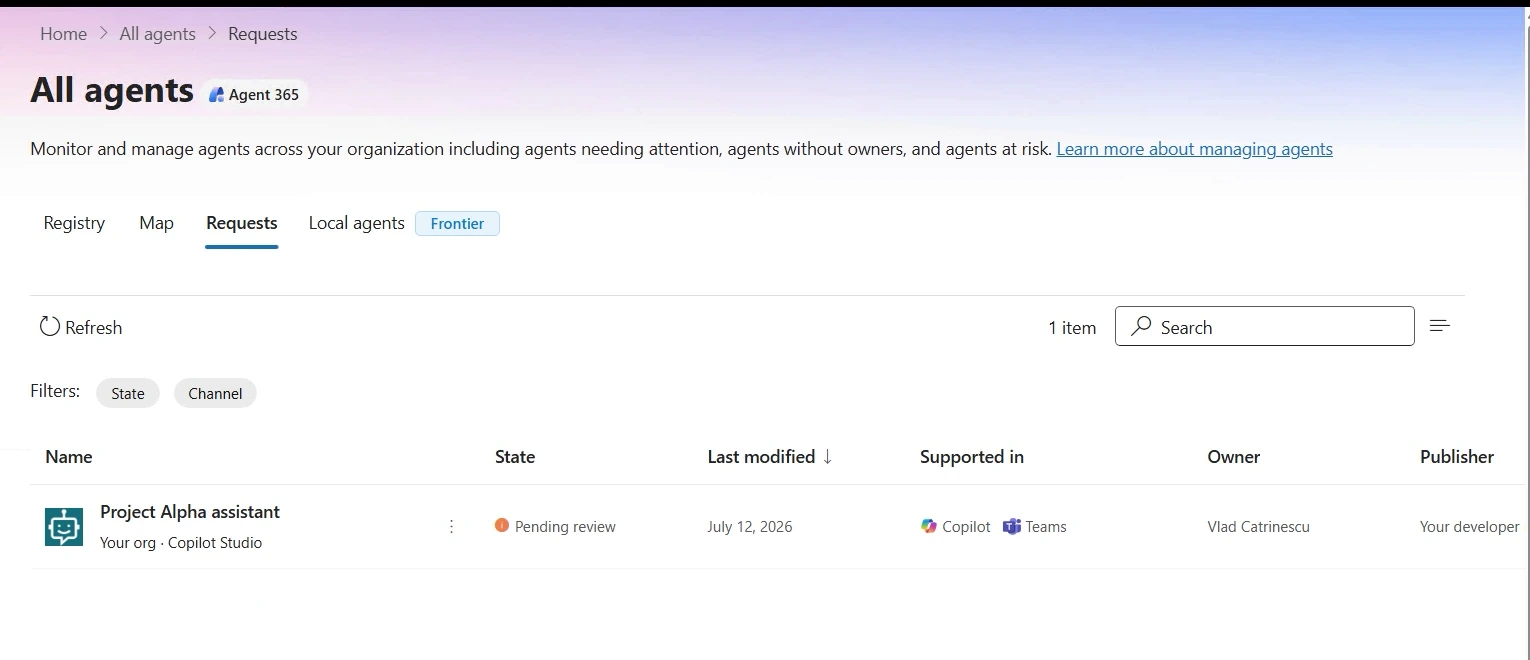
- Admins approve agent requests in the Microsoft 365 admin center, under Agents, All agents, Requests.
Agent approval in Microsoft 365 depends on the type of agent
How an agent goes from being built by a maker to being available for everyone depends on the type of agent:
- SharePoint agents are managed by the site owner.
- Agent Builder agents in Microsoft Copilot can be shared with specific users or with the whole organization, without any admin approval. That’s the default behavior if you just deployed Copilot and didn’t change anything, and an admin can change it.
- Copilot Studio agents can be shared with specific people without an approval. To share one with the whole organization, the maker needs an administrator to approve it.
If you’re preparing for the AB-900 exam, remember the default approval process for every type of agent. The AB-900 study guide lists understanding the approval process for agents as one of the skills measured.
SharePoint agents don’t have an approval process anymore
There is no approval process for SharePoint agents anymore. There used to be one, but it was removed in June 2026. You’ll still find the Approved folder in the site’s Site Assets library, but it doesn’t have the same purpose it did before. It’s just another folder now, and if you want, you can still put your agents in there so you know where your approved agents are.
The closest thing to an approval process is the Site AI pane. A site owner can open it and choose the main agent for the site, and there can only be one per site. To highlight more agents, site members, or anyone with edit permissions or higher, can add the agent link web part to any page, like the home page.
If you’re responsible for SharePoint agents more broadly, I cover the reports and policy levers in SharePoint agent governance.
Agent Builder: the sharing default that surprises most admins
A maker can share an Agent Builder agent either with specific users they choose, or with anyone in the organization. By default, that second option is enabled, so anybody can share an agent with everyone in the organization without an approval. That’s the default that surprises most admins.
I know that can sound a bit scary, but remember that the agent will only respond with knowledge the end user has access to. If the agent’s knowledge includes a SharePoint site that another user can’t access, Copilot won’t use that site to answer that user, because it always respects the user’s permissions. If you want the full picture of how that works, I explain it in how Microsoft Copilot accesses your work data.
There is one thing to remember for Agent Builder. If you upload a file directly to the agent, that file travels with the agent itself, so everyone who has access to the agent can get answers from the uploaded file.
Copilot Studio agents need an admin to approve them
Copilot Studio has a more defined workflow. A maker submits the agent to the organization catalog, and an administrator needs to approve it before other users can see it.
Copilot Studio also has many ways to configure knowledge sources, whether through service accounts or by connecting as the user talking to the agent. So what a user can reach really depends on how the agent was configured. But as an admin, you still have that approval step before it’s available organization wide.
An admin can approve agents in two admin centers: the Microsoft 365 admin center, where Microsoft Agent 365 lives, and the Teams admin center. For the AB-900 exam, focus on the Microsoft 365 admin center. That’s where Microsoft has been unifying its agent management capabilities, and the unified agent inventory is part of that same story.
How each approval flow looks in practice
Set the main agent on a SharePoint site
As a site owner, go to the site settings and open Site AI. Under Main agent, pick the agent visitors open from the agent icon in the header, and decide whether to show the Copilot button to site visitors. Save, and that agent becomes the default agent for the site. You can only set one default for the whole site.
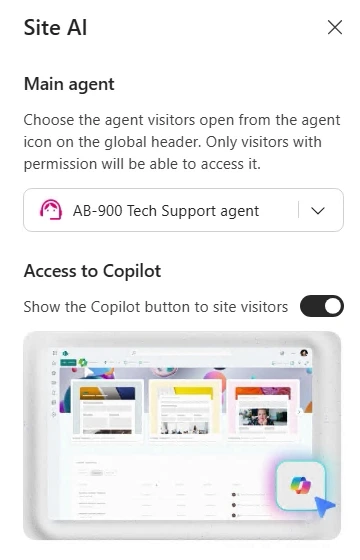
To showcase more agents, edit a page and add the agent link web part. You can select any other agent in your organization, and your users can click the web part to chat with that agent.
Share an Agent Builder agent
Open the agent in Agent Builder, select Share, and choose who it’s available to: only you, specific users in your organization, or anyone in your organization. Then copy the link, select Apply, and anyone in the organization can start using the agent from that link.
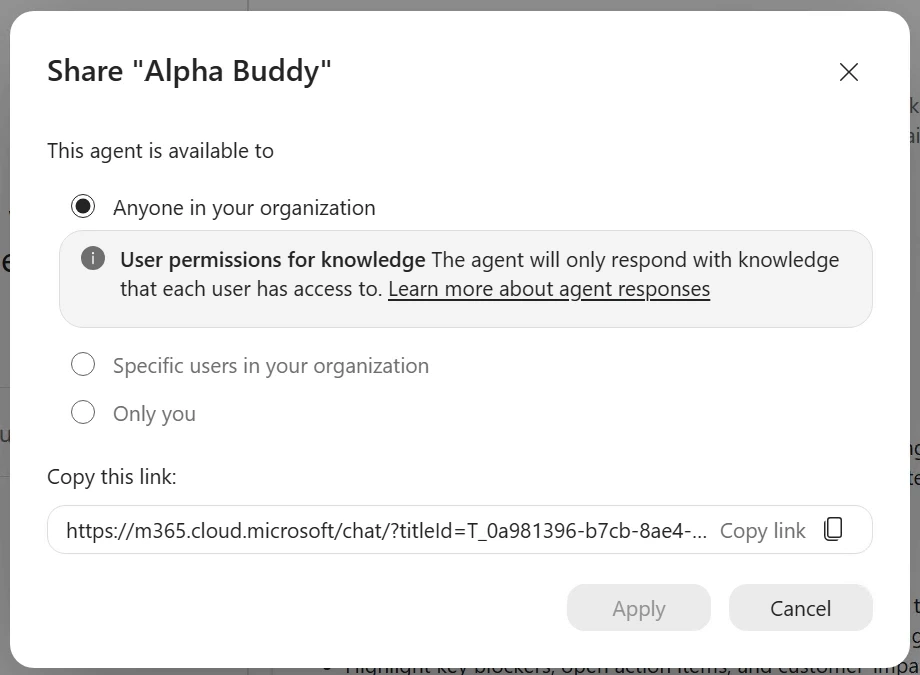
Remember that the agent will only respond with knowledge each user has access to, and that applies to SharePoint agents as well.
Submit a Copilot Studio agent to the org catalog
Copilot Studio is the more advanced one, and the exact steps to send an agent for approval aren’t on the exam. Once the agent is published to the Microsoft Copilot and Microsoft Teams channel, the maker can submit it to the organization catalog to give everyone access. The agent then waits in an approval queue, pending admin action.
Approve or reject the request in the Microsoft 365 admin center
As an admin, here’s how to review the request:
- In the Microsoft 365 admin center, go to Agents, then All agents.
- Open the Requests tab. Select Refresh if the agent doesn’t show up yet.
- Select the agent to open its details.
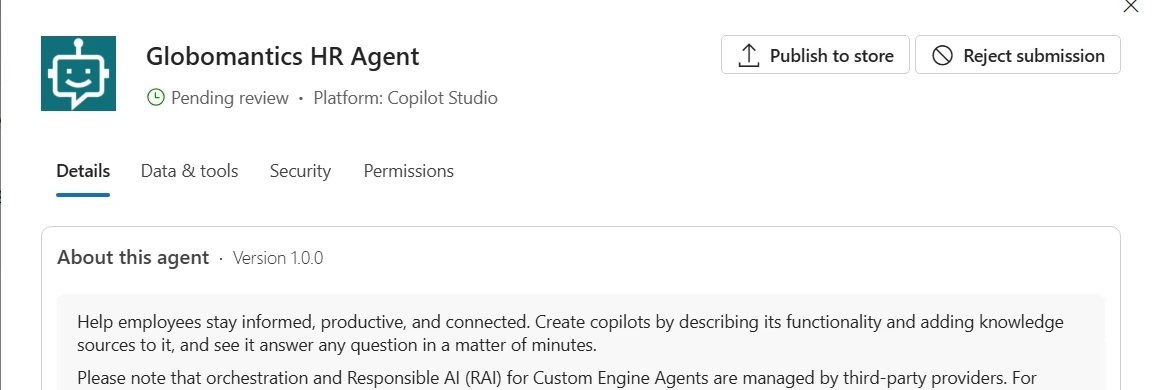
- Choose Publish to store or Reject submission.
Before you decide, you have access to the information about the agent: when it was created and last updated, its channels, its data and tools, insights from Microsoft Purview and Microsoft Defender, and the Microsoft Entra Agent ID permissions when the agent uses one.
When you publish it to the store, you choose who gets the agent, such as all users, and whether to pre-install it for them. You can also apply a policy template to it, which is a Microsoft Agent 365 feature. Once you make it available, the agent is available for everybody in the organization.
What this means for you
So who approves an agent? It depends on the agent type, and the Microsoft 365 admin center is where you stay in control. SharePoint agents follow the site owner, Agent Builder agents follow a sharing setting that’s open by default, and Copilot Studio agents wait for you in the Requests tab.
Go take a look at what agents are already live in your tenant. Check whether the Agent Builder sharing setting (opens in a new tab) is what your organization wants, and know who’s watching the Requests tab so Copilot Studio submissions don’t sit in the queue. And remember that a file uploaded directly to an Agent Builder agent is available to everyone who can use that agent.
If you’re studying for the AB-900, make sure you can name the default approval process for each type of agent, and spend your time in the Microsoft 365 admin center rather than the Teams admin center.
Ready to get AB-900 certified? This walkthrough comes from my three-course AB-900 path on Pluralsight, which covers the core Microsoft 365 services, data protection and governance, and the basics of Copilot and agent administration. Start with my AB-900 path on Pluralsight (opens in a new tab), and keep the AB-900 study guide open while you study.
Frequently asked questions
Can I stop users from sharing Agent Builder agents with the whole organization?
Yes. In the Microsoft 365 admin center, the agent sharing setting lets you allow all users (the default), only specific users or groups, or no users to share agents with the whole organization. The change only applies to new sharing, so agents that are already shared stay available until their sharing is updated.
Can Agent Builder agents go through admin approval too?
Yes, if the maker chooses to. A maker can submit an Agent Builder agent to the org catalog, and an admin reviews it in the Microsoft 365 admin center before it shows up under Built by your org in the Agent Store. Sharing the agent directly still works without that review unless you restrict sharing.
Does sharing an agent give people access to content they couldn't see before?
Not through its knowledge sources: an agent only responds with knowledge each user already has access to. The exception is a file uploaded directly to an Agent Builder agent, which travels with the agent, so everyone who can use the agent can get answers from it. For Copilot Studio agents, it depends on whether the knowledge sources connect as the user or through a service account.
What does the AB-900 exam expect me to know about agent approval in Microsoft 365?
Know the default approval process for each type of agent: SharePoint, Agent Builder and Copilot Studio. The study guide lists understanding the approval process for agents as a skill measured, and a lot of the exam focuses on the Microsoft 365 admin center, so that's where to spend your study time.
Can I approve Copilot Studio agents in the Teams admin center?
Yes, the Teams admin center is the second place an admin can approve agents. Microsoft has been unifying agent management in the Microsoft 365 admin center, though, so that's the one to learn first, and the one the AB-900 exam focuses on.

