
SharePoint Agent Governance: Monitor and Control Access
 By Vlad Catrinescu Microsoft MVP and MCT · Pluralsight Author
SharePoint agent governance is not about switching agents on and off. It is about controlling what your agents can reach once they exist. That distinction trips up almost every admin who opens the agent reports for the first time. Microsoft’s own product team goes out of its way to correct it. Here I cover the two reports that share a menu, what each one measures, the policy levers you have today, and where those levers stop working.
Key takeaways
- SharePoint Advanced Management governs what agents can access. Agents in SharePoint do not require activation, so there is no per-agent on switch in SharePoint itself.
- Two different reports sit under Reports > Agent insights. One counts agents created, the other tracks agents accessing content. They read different audit events and use different cmdlets.
- The agent access report shows the top 100 sites, and the top 20 agents for any single site. Downloaded reports scale to 1 million sites.
- Two policies apply directly from the report: Restricted Content Discovery and Restricted Access Control. Restricted Content Discovery works on SharePoint sites only.
- You need SharePoint Advanced Management either way. If your entitlement comes from a Microsoft Copilot license rather than the add-on SKU, you must also switch on audit data collection before any report will run.
What SharePoint agent governance actually controls
Start with the boundary, because it explains everything else. SharePoint Advanced Management does not turn agents on or off. It governs the content those agents can reach.
Dave Minasyan, Principal Product Manager at Microsoft, stopped mid-demo to make this point. Customers kept misreading the report:
I want to emphasize the fact that we are not managing agents in the sense where you can turn on off an agent in SharePoint. What we’re managing is what these agents can have access to.
Microsoft documents that agents in SharePoint do not require activation, so there is no per-agent switch inside SharePoint. There are still user-level controls, though, and they are easy to miss. You govern who can use agents through Microsoft Copilot license assignment. Admins can also turn the Microsoft Copilot for SharePoint service plan off for an individual user. That disables agents in SharePoint for them, along with Copilot in OneDrive and SharePoint page authoring. Organizations on pay-as-you-go billing scope access through the security group attached to the billing policy instead.
Separately, there is a block control in the Microsoft 365 admin center, under the Agents section of the Copilot Control System. That area was formerly known as integrated apps.
Blocking behaves differently depending on how the agent was built, and Microsoft’s two pages read differently on this. The SharePoint documentation says flatly that blocking affects only availability in Copilot Chat, and does not yet apply to OneDrive, SharePoint, or Teams. The Microsoft 365 admin center documentation is narrower. It scopes that Copilot Chat limit to agents created in SharePoint or Microsoft Foundry, and says blocking an Agent Builder or Copilot Studio agent also reaches Outlook, Teams, and other Microsoft 365 apps. Assume the Copilot Chat behavior for agents built in SharePoint, and test before relying on it elsewhere.
Dave’s mental model for the rest is simple. It is his framing rather than a Microsoft definition:
The way I look at agents is essentially it’s just another type of a file.
Two reports, one menu, very different data
This is where the documentation gets genuinely confusing, so it is worth slowing down. Two separate reports live under Reports > Agent insights in the SharePoint admin center. Their names are nearly identical. Their data is not.
| Insights report on agents in SharePoint | Agent access insights report | |
|---|---|---|
| Measures | Agents recently created | How agents access content |
| Audit signal | FileCreated and FileRenamed events | Reading, searching, and interacting |
| Where | Reports > Agent insights | Reports > Agent insights > Agent access |
| Generate with | Start-SPOCopilotAgentInsightsReport | Start-SPOM365AgentAccessInsightsReport |
| Download with | Get-SPOCopilotAgentInsightsReport -ReportId -Action Download | Export-SPOM365AgentAccessInsightsReport -ReportId <ReportId> -Action Download |
| Answers | Which sites spawn the most agents | Which agents read which sites |
Both reports draw on Microsoft 365 unified audit data. They differ in which events they read, not in the underlying source.
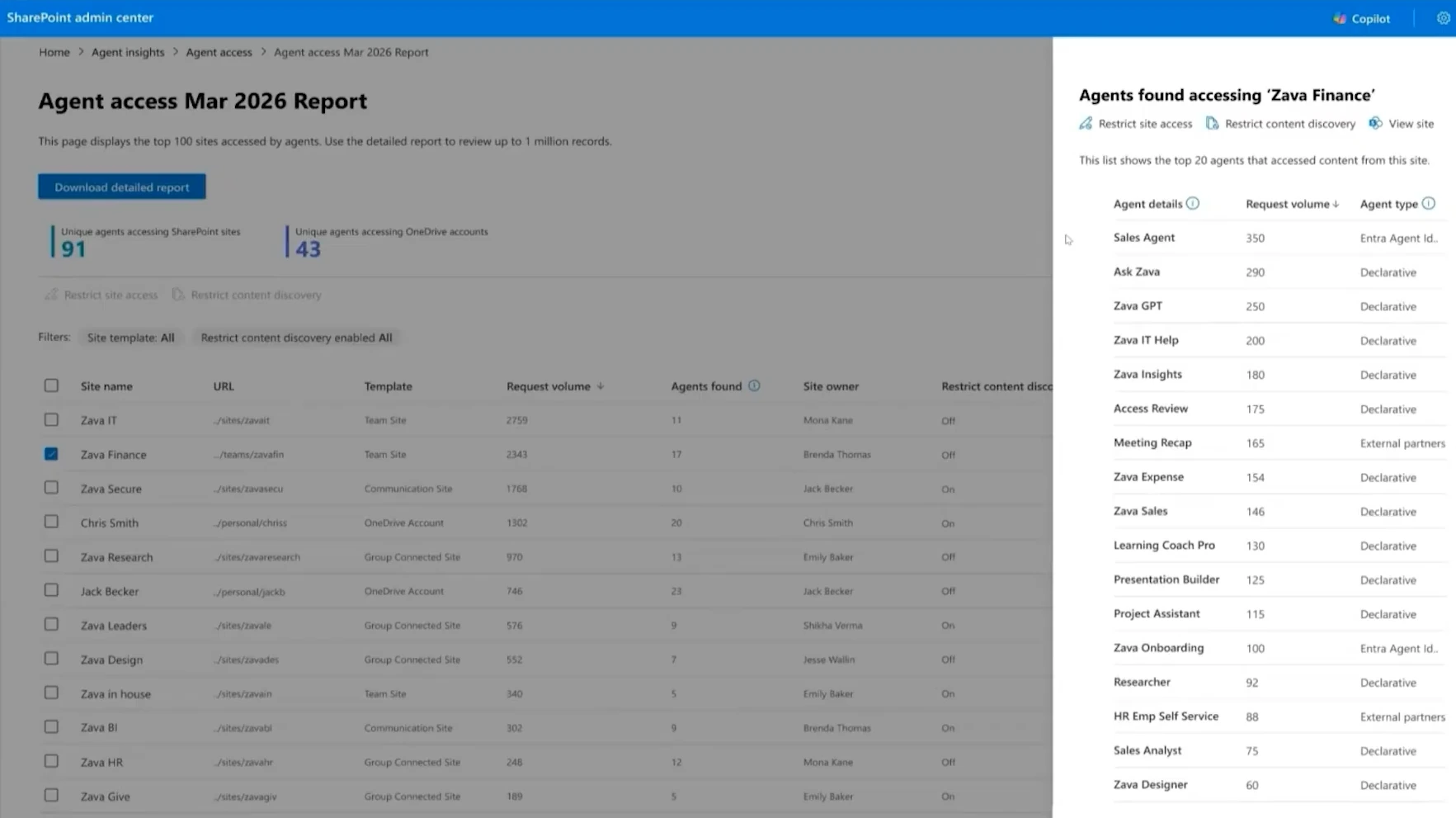
The access report is the one Dave demonstrates. It is also the one that matters most for SharePoint agent governance. Knowing an agent was created tells you little. Knowing it read a finance site last Tuesday tells you a lot.
One documentation wrinkle to know about. The access report page describes its main view as sites “hosting the highest number of agents”, which is really creation-report language. Read that column as agent presence on the site. The top 20 view per site is the reliable access signal.
What the agent access insights report shows you
The report covers registered and activated agents across every SharePoint and OneDrive site in the organization. Microsoft names three categories explicitly, then adds “and more”. Those three are agents created in SharePoint, declarative agents, and custom agents.
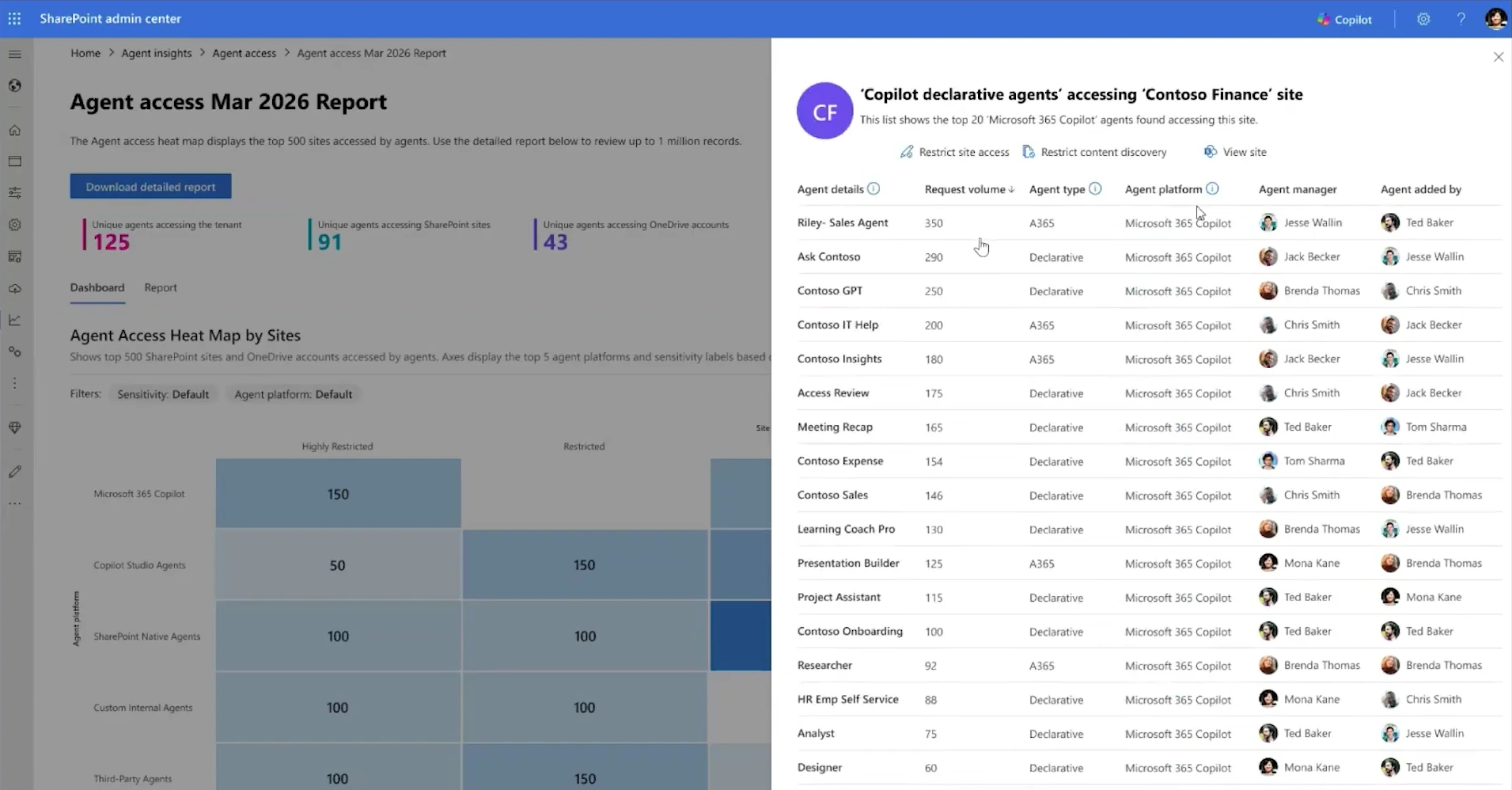
In the browser, you get three views. First, a list of the top 100 sites. You can filter that list by site template and by governance policy. Second, the top 20 agents accessing any single site you select. Third, a distribution view split into Unique Agents found in SharePoint Sites or Unique Agents in OneDrive Account.
That third view is the heat map Dave calls his favorite part of the area. Both the browser and PowerShell cap their display at 100 sites. A downloaded report, however, can contain up to 1 million sites. Exports are therefore where large tenants should live.
The limits nobody mentions on camera
These are documented, and they shape how you schedule the work:
- Report durations are fixed at 1, 7, 14, or 28 days.
- Only one report can exist per duration, so you can hold a maximum of four at a time.
- Generating a new report for a duration replaces the previous one. Download first if you want to keep it.
- You can only run a report 24 hours after the last one generated.
- On large tenants, data can take up to 48 hours to become available.
- Reports draw on unified audit data, which Microsoft notes might not include every audit event.
One more catches people out. Apply a policy to a site directly from the report, and the policy status on that existing report does not refresh. Select the policy to see its latest status, or open the site’s Active site panel and check the settings there.
Turning on data collection
If your SharePoint Advanced Management entitlement comes from a Microsoft Copilot license rather than the add-on SKU, you have to switch collection on first. The cmdlets differ between the two reports, which is easy to get wrong.
For the agent access report:
Start-SPOAuditDataCollectionForActivityInsights -ReportEntity M365AgentInsights
Get-SPOAuditDataCollectionStatusForActivityInsights -ReportEntity M365AgentInsights
For the creation report, run the same cmdlets without -ReportEntity. Status comes back as NotInitiated, InProgress, or Paused, and you can generate reports once it reads InProgress.
Which agents actually show up
Microsoft’s documented list has three entries, as above. On camera I added a fourth practical category, and that grouping is mine rather than Microsoft’s published taxonomy. An agent carrying its own Microsoft Entra agent identity was provisioned through a registered blueprint. That tells you something about how it was created, though not necessarily that a developer built it, because Copilot Studio creates agent identities too.
The underlying model is worth knowing. Microsoft Entra Agent ID represents an agent identity as a service principal with servicePrincipalType set to ServiceIdentity. Three object types make up the model. Those are an agent identity blueprint, the agent identity itself, and an optional agent’s user account. That third object is currently available only to tenants in the Frontier preview program.
Agent identities hold no credentials of their own. They can also only be issued tokens in the tenant where they were created. One documented cap applies as well: non-Microsoft management platforms using app-only permissions are limited to 250 agent identities per blueprint. Delegated calls and Microsoft-owned platforms such as Foundry and Copilot Studio are exempt.
Restricted Content Discovery is the main lever, and it has edges
Spot an agent you do not recognize, and Restricted Content Discovery is what most admins reach for. Two policies apply directly from the agent access report. The other is Restricted Access Control, which limits site access to users in up to ten specified Microsoft 365 or Microsoft Entra security groups.
Here is what Restricted Content Discovery does. It limits discovery of a site’s content in organization-wide search and in Microsoft Copilot responses. It also strips the AI entry points out of the site. Users no longer see the Copilot button, the AI actions menus including agent creation, or Create pages with AI. A Restricted tag then appears on the site.
Here is what it does not do. This list is the more useful half:
- It does not change permissions. Anyone with access keeps their access.
- It does not remove content from the Microsoft 365 search index, so Purview eDiscovery and auto-labeling keep working.
- It does not affect searches that originate from site context, nor Microsoft 365 Feed and Recommendations.
- It does not work on OneDrive. Microsoft supports it for SharePoint sites only.
On camera, I asked Dave the obvious follow-up. His answer was one word:
But you block it at the site level, not the agent level. Correct?
Correct.
That holds for this lever. You restrict the site an agent is reading, which buys you time to investigate. Microsoft frames the feature the same way. The documentation describes it as a temporary governance control rather than a permanent posture. It also cautions that excessive use can reduce the content available to organization-wide search and to Copilot, which affects the completeness and relevance of results.
Timing matters too. The setting has to propagate across indexing systems. Microsoft documents that sites with more than 500,000 items can take more than a week to fully reflect the change.
Delegation is available if you want site administrators to manage it themselves. Turn it on with Set-SPOTenant -DelegateRestrictedContentDiscoverabilityManagement $true. Site administrators must then supply a justification whenever they change the setting.
Licensing and availability limits
Check this before you plan anything. The entitlement is easy to assume and easy to get wrong.
You need a qualifying base subscription first. Microsoft lists Office 365 E3, E5, or A5; Microsoft 365 E1, E3, E5, or A5; and Microsoft 365 GCC, GCC-High, or DoD. A base license alone is not enough, though. On top of it, one of three conditions must be true:
- At least one user in the organization is assigned a Microsoft Copilot license. That user does not need to be an administrator.
- Your subscription includes SharePoint K, P1, or P2, and you buy the SharePoint Advanced Management Plan 1 add-on.
- Your organization has Microsoft 365 E7, the Frontier Suite. It bundles Microsoft 365 E5, Microsoft Copilot, Microsoft Entra Suite, and Microsoft Agent 365.
Those three routes are not equivalent. Microsoft documents some features, restricted site creation among them, as requiring the Plan 1 add-on regardless of Copilot licensing.
Microsoft 365 E5 on its own is the trap. Microsoft documents that E5 administrators can access data access governance reporting, but cannot view or use the other SharePoint Advanced Management features. Those E5 reports also come without snapshot reports and without remedial actions, and activity reports return only up to 10,000 sites.
Restricted Content Discovery carries its own requirement on top. Microsoft lists a Microsoft Copilot license as a prerequisite, because the feature is intended for Copilot deployment and governance scenarios.
For roles, you need either SharePoint Administrator or the broader SharePoint Advanced Management Administrator role. The SharePoint Admin Agent is stricter. It requires the SharePoint Advanced Management Administrator role specifically, and your organization must have SharePoint Advanced Management.
Government clouds deserve a separate look. For Copilot-licensed tenants, Microsoft documents Restricted Content Discovery and Restricted Access Control as available across commercial, GCC, GCC-High, and DoD. That same table lists a row called SharePoint agent insights, but it links to the Get AI insights button rather than to either agent report. Neither agent report has its own row, so treat their government cloud availability as undocumented rather than confirmed.
Microsoft 365 operated by 21Vianet needs care. Microsoft flags three exclusions outright, in each case even with the required licenses. Data access governance reports are unavailable there. Site access reviews are unsupported. Restricted access control reports are unavailable too. The agent insights pages carry no equivalent note. Treat 21Vianet as unconfirmed for agent reporting and check with your account team.
What is not there yet
This is the part where the recording has aged, so lead with the documentation.
Microsoft now publishes a SharePoint Admin Agent prompt that returns exactly this data. It reads: Show me a list of the top 10 agents that are accessing my SharePoint and OneDrive content. So some integration already exists. On camera Dave described that integration as still being worked towards, which was accurate when we recorded and is now partly overtaken.
The same applies to oversharing. Microsoft documents data access governance reports as a current SharePoint Admin Agent capability, not a future one. Dave presented it as coming.
His caution about file-level data still holds, and Microsoft gives a reason for it. Site access review documentation states that compliance reasons prevent administrators from accessing file-level or item-level details.
Owner and creator details remain undocumented. Dave noted the team is working on surfacing the agent owner, and it was not yet displaying during the demo. That one is his statement rather than a published commitment.
Where to go next
Ready to see which agents are already reading your content? Open the SharePoint admin center, expand Reports, select Agent insights, then select Agent access. If you have never generated one, start with a 28-day report so you have a full window to look at. Remember you cannot regenerate it for another 24 hours.
Good SharePoint agent governance starts with knowing what is out there. For the wider picture of what shipped this year, read my breakdown of what’s new in SharePoint Advanced Management for 2026. If you need to find agents across the whole tenant rather than just SharePoint, my write-up on Microsoft’s unified agent inventory covers the Microsoft 365 admin center side. And if your reports come back as an undifferentiated wall of sites, SharePoint catalog management is the piece that gives them structure.
Frequently asked questions
Can I use Restricted Content Discovery on OneDrive?
No. Microsoft documents Restricted Content Discovery as applicable to SharePoint sites only. It explicitly states the feature is not supported for OneDrive sites. To limit access to OneDrive content, you need a different control, such as restricting OneDrive sites with security groups.
Can I block one specific agent instead of restricting a whole site?
Not from the agent access report. The two policies it exposes both apply at site level, which is what Dave confirms on camera. There is one documented exception outside the report. It applies to Agent 365 agent instances that carry their own Microsoft Entra identity. For those, Microsoft documents Restricted Access Control being used so that only specified agent instances can reach a site and its content. Microsoft also documents a permissions report listing every site a given agent can access. For agents that are simply .agent files, site level remains your only lever.
Do I need a SharePoint Advanced Management license to see agent access data?
Yes. Microsoft states that to generate and view these reports, your organization needs the SharePoint Advanced Management add-on SKU or a Microsoft Copilot license. Enabling audit data collection is an extra step, not a way around the entitlement. If you hold the add-on SKU, collection is already handled. If your entitlement comes from Copilot instead, switch collection on, wait 24 hours, and note that data is stored for 28 days. If no report runs at least once in three months, collection pauses, and you have to enable it again.
How long does Restricted Content Discovery take to work?
It depends on the size of the site. Microsoft states that propagation varies with item count and with concurrent updates. Sites holding more than 500,000 items can take more than a week to fully process.

