
SharePoint Catalog Management: Group Sites by Department
 By Vlad Catrinescu Microsoft MVP and MCT · Pluralsight Author
SharePoint catalog management groups every site in your tenant into categories like department, region, or cost center, so admin reports and AI-driven insights come back organized the way your business actually works. Without it, the SharePoint Admin Agent sees a flat list of thousands of sites with no idea which ones matter to you. This guide covers the built-in categories you get for free, the three ways to build your own, and the refresh schedules that trip people up.
Key takeaways
- Catalog management lives in the SharePoint admin center under Reports > Catalog management, and is part of SharePoint Advanced Management.
- Five built-in categories are populated automatically with no configuration and refresh every hour.
- You can add your own categories three ways: a CSV site list, a custom site property, or a Microsoft Entra ID extension attribute.
- Each category can hold up to 20 groups, and a single site can belong to multiple categories at once.
- Custom property and Entra ID categories scan up to 20,000 sites, refresh within 24 hours, then update every two weeks.
- The structure you build directly determines how specific the SharePoint Admin Agent’s answers can be.
What SharePoint catalog management actually does
Most tenants are unstructured by default. Sites get created over years by different teams for different reasons, and nothing in SharePoint records which business unit owns what. That is fine until you try to govern at scale, or until you point an AI agent at the environment and ask it a question that requires business context.
This is the problem catalog management solves. It reads metadata that already exists in your Microsoft 365 tenant and uses it to sort sites into categories (high-level classifications like department or region) and groups (the values inside a category, like Marketing, Sales, or Finance). Nothing is created or invented. Catalog management surfaces structure that is already implied by your data.
The distinction that matters: categories are the question, groups are the answers. “Department” is a category. “Finance” is a group inside it.
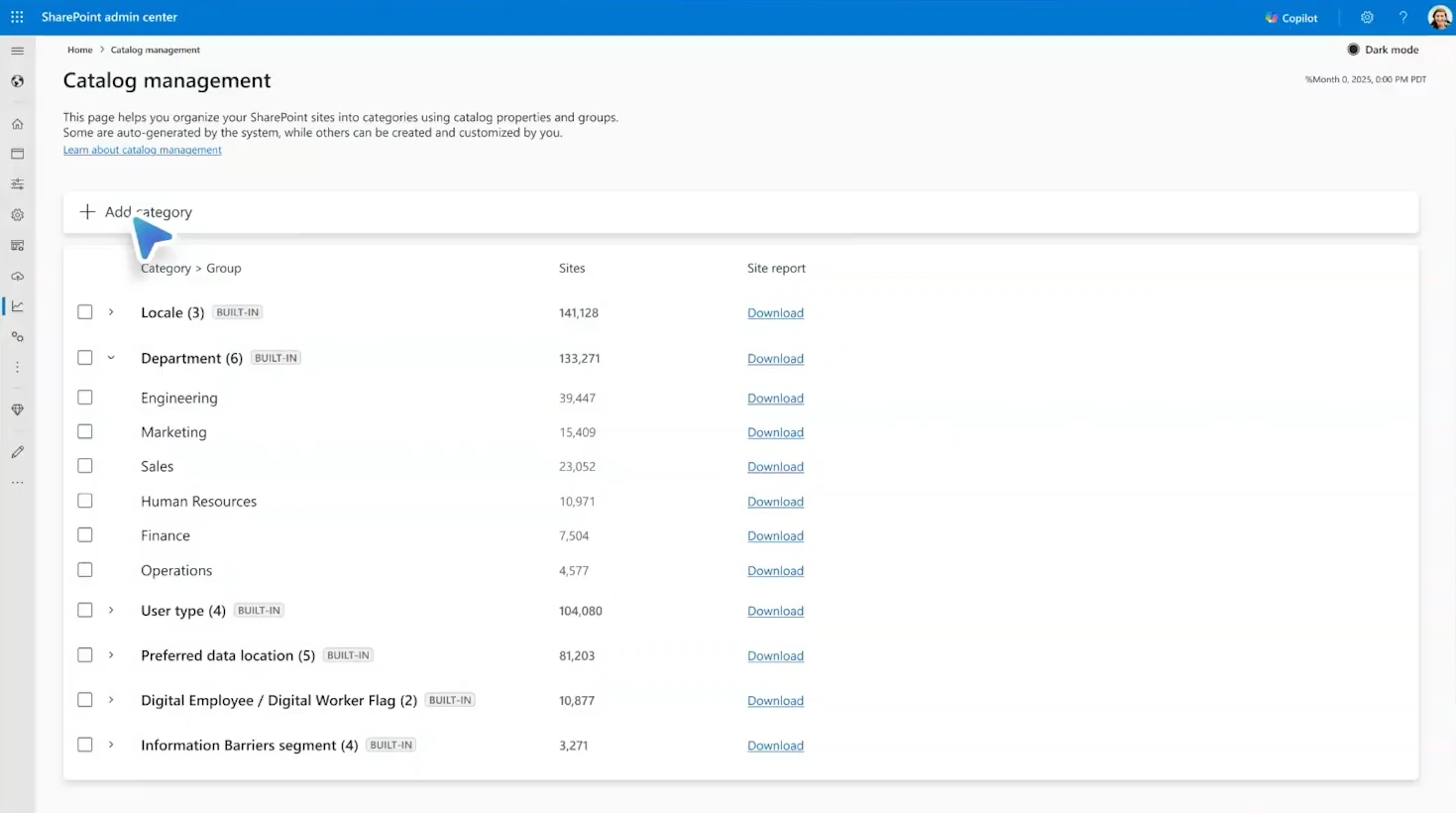
Right now catalog management covers sites only. That includes any site that appears in your active sites list, so group-connected sites, team sites, channel sites, and communication sites are all in scope.
The built-in categories you get with no setup
Five categories are populated automatically and require no configuration at all:
- Locale — the region where content is hosted
- Department — the organizational unit associated with the site
- User type — guest or non-guest
- Preferred data location — for multi-geo tenants
- Information barriers segment — for organizations using information barriers policies
These refresh every hour, which makes them the fastest-moving data in the entire feature.
The Department category is the one worth understanding, because it works indirectly. Catalog management looks at every site, identifies the owners, checks whether those owners have a department attribute set in Microsoft Entra ID, then buckets each site under its owner’s department. There is real logic behind it too: when a site has multiple owners, the system weighs the majority of active owners rather than picking the first one it finds.
That indirection has a consequence worth planning for. Your site categorization is only as good as your Entra ID user data. If half your site owners have no department attribute set, half your sites land nowhere useful.
What the “Other” bucket tells you about your tenant
Sites whose owners have no department set in Microsoft Entra ID get collected into a group called Other. Every group in catalog management has a download button, so you can export that list and see exactly which sites are affected.
Treat the size of that Other bucket as a health metric. A large Other group is not a catalog management problem, it is an identity data problem showing up somewhere visible for the first time. The fix is upstream, in Entra ID, and every site you fix there improves both your governance reporting and the quality of answers you get from AI tools that depend on this structure.
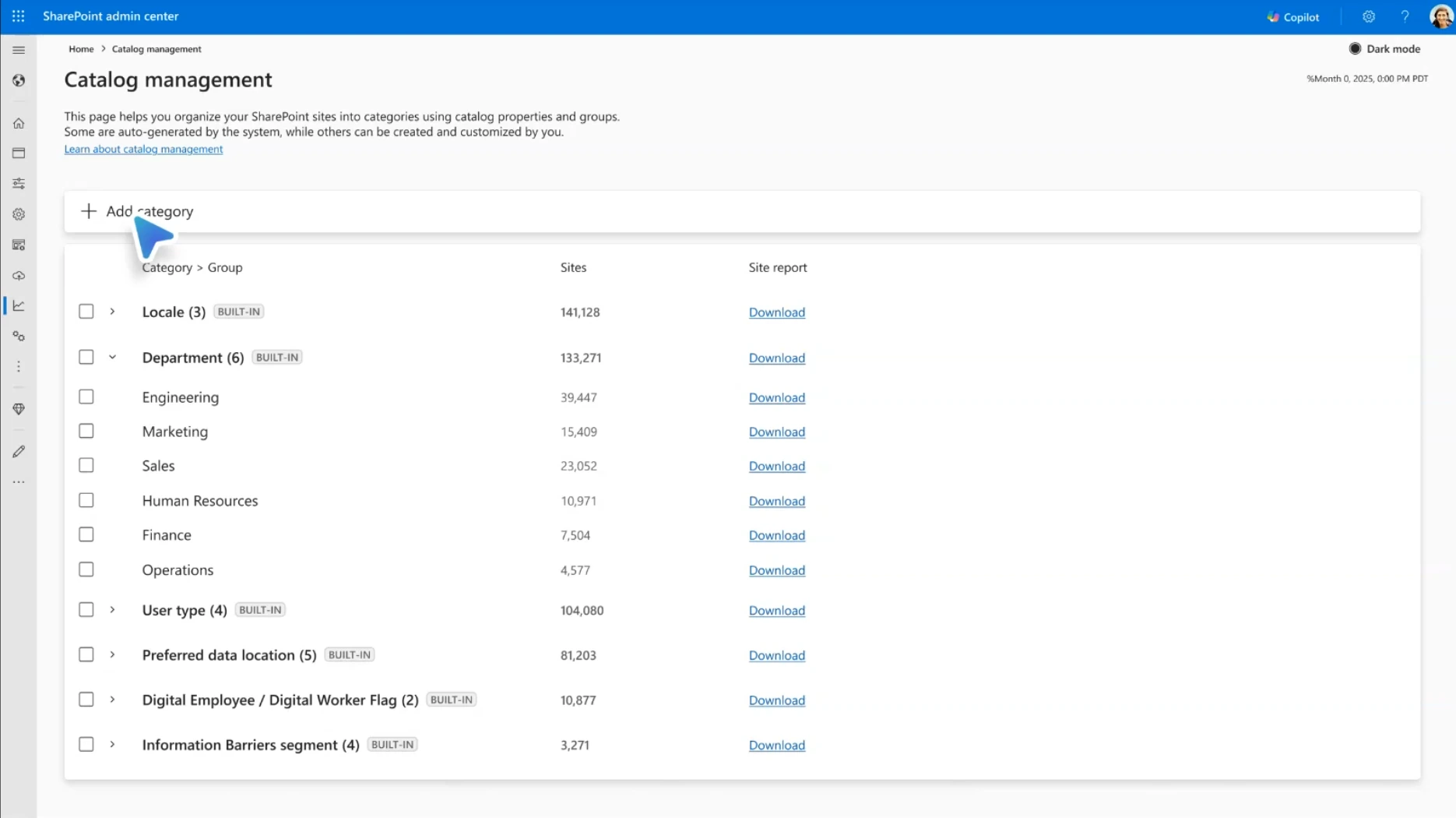
Here is the quickest health check you can run, and it takes about ten seconds. Compare the site count in Locale against the count in Department. Locale should cover essentially every site, because every SharePoint site has a region. Department only covers sites whose owners have a department attribute. So the gap between those two numbers is, near enough, your uncategorized estate.
In the Microsoft demo tenant used in the video, Locale showed roughly 141,000 sites while Department came in about 7,000 lower. Those are invented figures in a demo environment, not a benchmark to measure yourself against, but the shape of the problem is real, and it is the first thing to look at in your own tenant. A gap that size means several thousand sites whose owners cannot be resolved to a department, and every one of them lands in Other.
Three ways to build your own categories
The built-in categories are a starting point. Larger organizations almost always want structure that reflects their own operating model, and the ability to add your own categories is rolling out now.
There are three methods, each with a different label in the admin center so you can tell at a glance where a category came from.
Upload a CSV site list
Best when you already know exactly which sites belong together and no existing metadata captures it. The classic example is executive content: a set of sites that need to be governed differently from everything else, with no property that identifies them.
Download the CSV template, create one file per group, and upload. Categories appear almost immediately, and this method carries the UPLOADED label.
One important caveat: an uploaded category is a snapshot, not a live query. New sites that should belong to the group will not appear on their own. You have to update the list manually. If you go this route for something that changes often, plan the maintenance.
Use a custom site property
Best when your organization already writes classification data into the SharePoint site property bag, typically as part of a site provisioning process.
Point catalog management at a property name such as CostCenter, and it opens each site, reads that property’s value, and creates a group for every distinct value it finds. Five cost center values produce five groups, populated automatically. You can specify up to 20 properties in a single category, and despite the name, this works with any property in the property bag, not just custom ones.
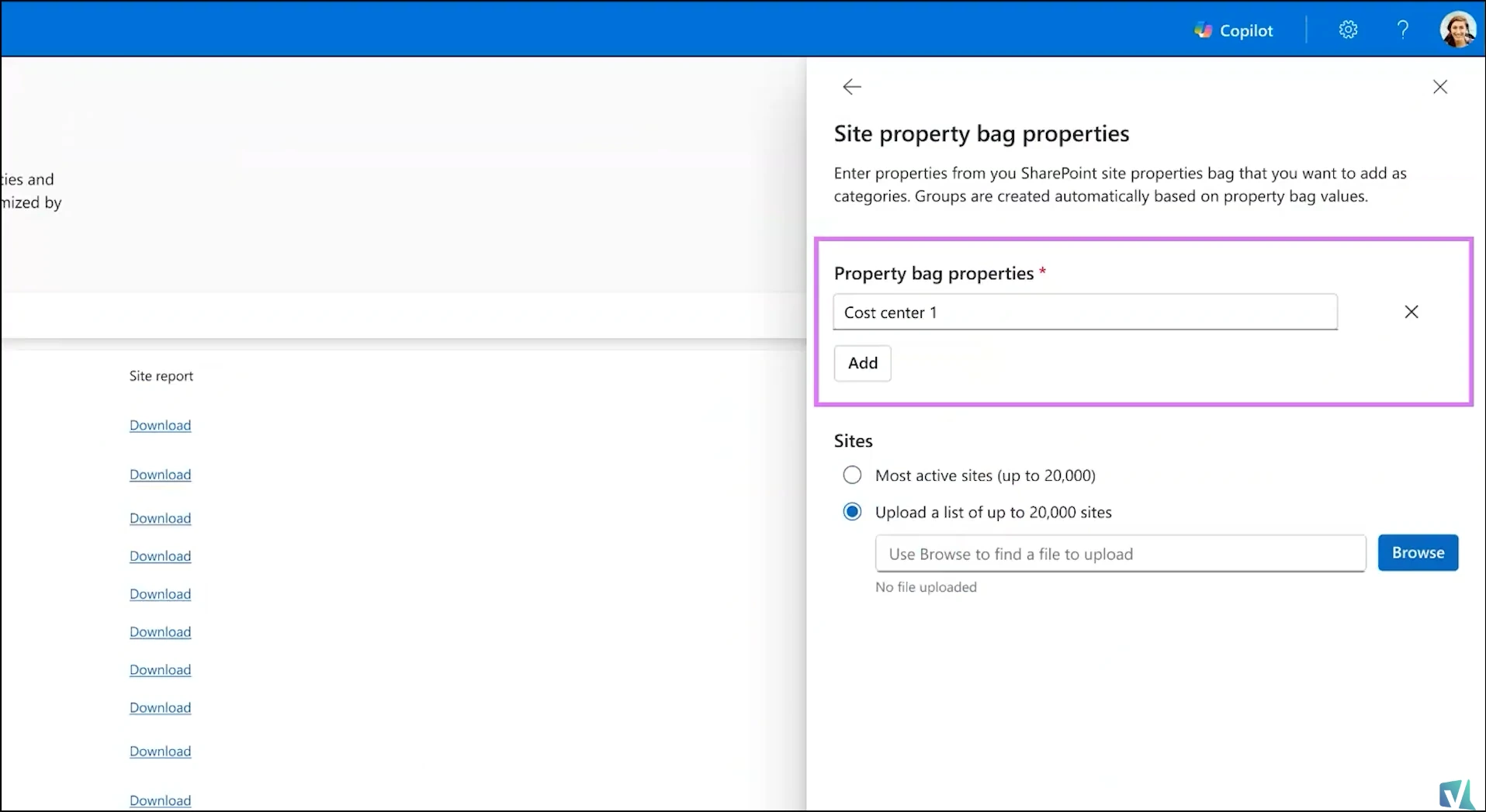
This is where the tool becomes genuinely powerful for organizations with a custom provisioning process. Write the classification at creation time and every new site is categorized from day one, rather than being tagged reactively months later.
Scope is capped at 20,000 sites, either the most active sites or a list you supply. This is a cost boundary rather than a technical one, since scanning sites and reading their contents is expensive, and Microsoft has signalled it intends to raise it.
Use a Microsoft Entra ID extension attribute
Best when your business classification lives in identity rather than in SharePoint. If your organization populates extensionAttribute1 through extensionAttribute15 with things like business unit, operating model, or compliance boundary, you can turn any of those into a catalog category.
Like the built-in Department category, this groups sites by their owners’ attribute values, and groupings update as attributes or site ownership change.
How often each category type refreshes
SharePoint catalog management refreshes on a different schedule for each category type, and this catches people out more than any other detail in the feature.
| Category type | First data | Ongoing refresh |
|---|---|---|
| Built-in | Immediate | Every hour |
| Uploaded CSV | Immediately after upload | Manual only |
| Custom properties | Within 24 hours | Every two weeks |
| Entra ID extension attributes | Within 24 hours | Every two weeks |
The practical consequence: if you set up a custom property category and see nothing an hour later, nothing is broken. Wait a day. And if you fix a batch of Entra ID attributes on Monday expecting the catalog to reflect it, you may be waiting up to two weeks.
What the SharePoint Admin Agent does with the structure
This is the payoff, and it is the reason catalog management exists rather than being a nice-to-have reporting feature.
Once sites are categorized, the SharePoint Admin Agent can reason across those categories instead of across an undifferentiated pile of sites. Rather than reporting total tenant storage, it can break storage down by department. It can combine two categories at once, comparing a region against a department to find where a specific business unit’s content actually sits. It can surface a growth rate, project how long you have before you run out of storage, and flag anomalies, all scoped to the structure you defined.
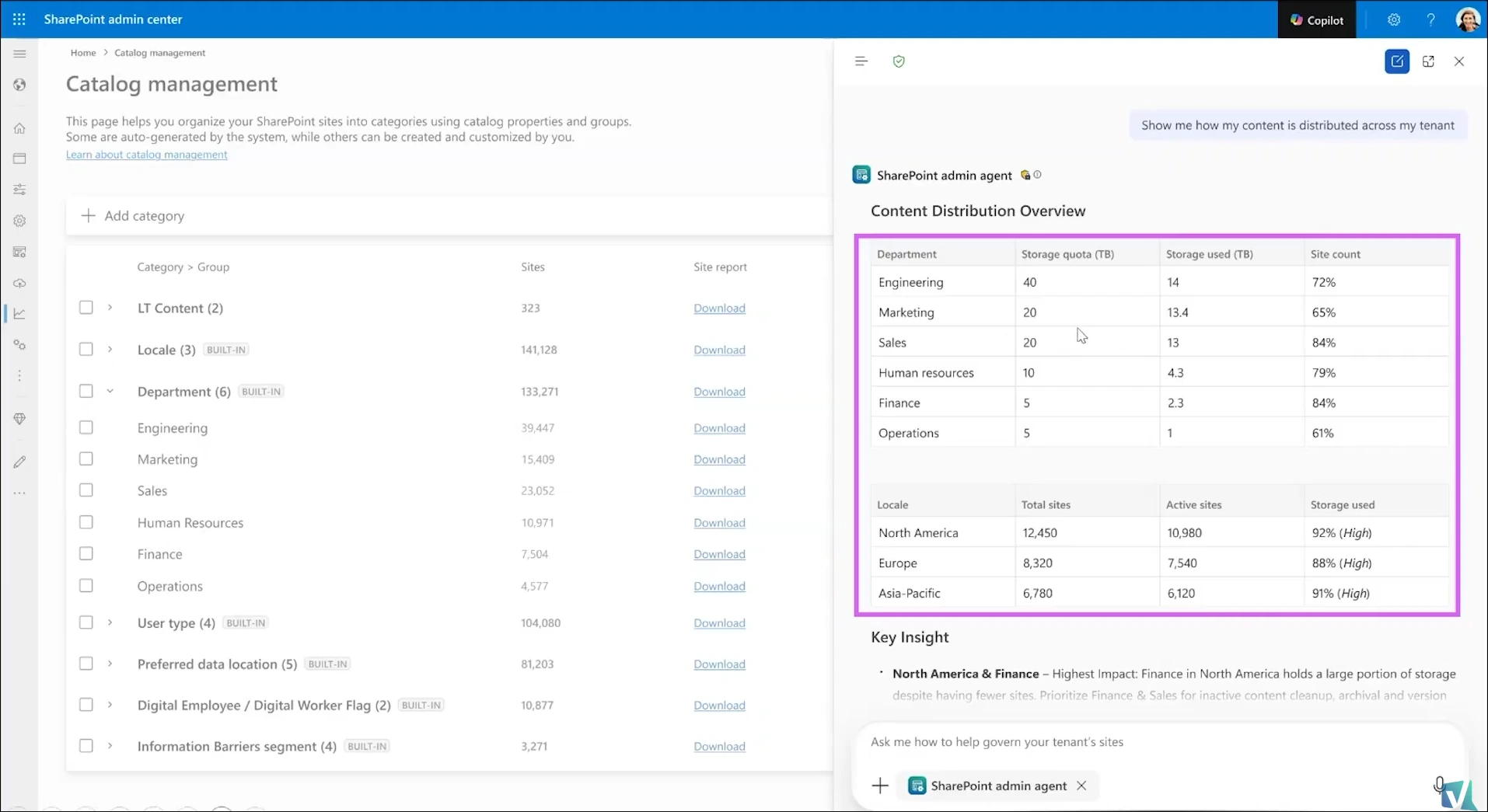
Everything the agent produces here is technically available today. You could export the reports, write the scripts, and build the Power BI workbook yourself. The difference is that the agent does it in seconds from a typed question, and it does not require you to know how to build any of that.
A point Dave Minasyan, Principal Product Manager at Microsoft, returned to twice during our conversation is worth stating plainly, because it explains why the setup work falls to you:
We do not train the agents that we have or the LLMs that we have with your data.
The agent has no prior knowledge of how your organization is structured and never will. It waits for the data to be available and then answers the question you ask. That is precisely why catalog management asks you to define the structure yourself, and why the quality of your answers depends on the quality of your setup.
What this means for you
If you already have SharePoint Advanced Management, whether through a Microsoft 365 Copilot license or the standalone add-on, the built-in categories are live in your tenant right now. Go and look at them before you plan anything. The gap between your Locale and Department site counts will tell you more about your governance readiness in thirty seconds than a week of report exports.
Your first real task is probably not in SharePoint at all. If a large share of your sites land in the Other bucket, fix the department attributes in Microsoft Entra ID first. That single upstream change improves the built-in Department category, any extension attribute categories you build later, and every answer the SharePoint Admin Agent gives you.
For custom structure, the sequencing matters. Organizations with a custom provisioning process should add classification properties to that process now, so new sites are categorized from creation. Retrofitting via PowerShell across an existing estate works, but expect to let it run overnight on a large tenant. As a Microsoft MVP who has spent a lot of time on SharePoint governance tooling, my honest read is that the property bag approach is the one worth investing in, because it is the only method that stays accurate without ongoing manual effort.
On timing, the setup itself is not the hard part. Microsoft reports that mid-size to large customers it has worked with generally complete their catalog setup within a day or two. Deciding what your categories should be is the part that takes longer, and it is worth doing properly, because most organizations set this up once and rarely change it.
Where to go next
Ready to get your tenant organized before you scale governance further? Start by opening Reports > Catalog management in the SharePoint admin center and comparing your Locale and Department site counts. If you want the wider context on what shipped this year, read my breakdown of what’s new in SharePoint Advanced Management for 2026, and for the governance features that sit alongside this one, see my overview of content governance in SharePoint Premium. If storage is what is driving your interest here, my guide to managing SharePoint Online storage covers the fundamentals the agent is reporting on.
Frequently asked questions
Does SharePoint catalog management work with group-connected and Teams sites?
Yes. Any site that appears in your active sites list is supported, which covers group-connected sites, team sites, channel sites, and communication sites. There is no distinction between standalone SharePoint sites and group-connected sites for the purposes of categorization.
Can one site belong to more than one category?
Yes, and overlap is expected rather than a problem. A site can appear under a Locale group and a Department group simultaneously. Categories are independent lenses on the same set of sites, not a filing system where each site has one home.
Does catalog management cover OneDrive and SharePoint Embedded containers?
Not yet. Coverage is limited to sites today. Microsoft has confirmed that container support is actively in progress with the SharePoint Embedded team, and that the longer-term goal is content governance across Microsoft 365 rather than SharePoint alone, including files, OneDrive, and potentially Teams and channel management.
Is there a limit on how many sites I can upload in a CSV?
The custom property scan is capped at 20,000 sites. For CSV site lists, Microsoft states you can have up to 20 groups per category but does not document a site-count cap, and Dave Minasyan confirmed on camera that the upload path has no limit. If you are planning a very large upload, verify against your own tenant before committing to the approach.

