

SharePoint Skills FAQ: Your Webinar Questions Answered
 By Vlad Catrinescu Microsoft MVP and MCT · Pluralsight Author
The Teams gremlins held my camera hostage for part of my Getting Started with SharePoint Skills webinar, but the questions kept coming, and I ran out of time before I ran out of questions. This SharePoint skills FAQ answers every question from the Q&A panel and the chat, including the ones I answered live, double-checked against Microsoft Learn and Microsoft’s latest updates. If you missed the live session, you can watch the full SharePoint skills webinar recording on my YouTube channel.
Key takeaways
- A skill is not a saved prompt. It’s a shared, multi-step workflow that everyone on the site can trigger in plain English, and Copilot in SharePoint doesn’t have saved prompts anyway.
- Skills run when someone asks for them in the Copilot in SharePoint chat. They can’t run on a schedule, on a file event, or from Power Automate today.
- Personal skills live in your OneDrive and are for you only. To share a skill with your team, create it as a site skill on the team’s SharePoint site.
- You protect skill files like any other SharePoint content: break inheritance on the Agent Assets library, and people with View access can still run the skills.
- There’s no official application lifecycle management (ALM) for skills yet, so keep a copy of business-critical skills in a central repository and use PnP PowerShell or Microsoft Graph PowerShell for inventory.
- A SharePoint agent answers questions about content. Copilot in SharePoint with skills takes action on that content.
- Microsoft just announced (opens in a new tab) that Copilot in SharePoint has hit General Availability and also clarified the billing model!
Skills vs Saved Prompts and Other Tools
Why Is a Skill Different From a Saved Prompt?
Microsoft 365 Copilot does let you save prompts in the Copilot Prompt Gallery (opens in a new tab) from Copilot Chat, Teams, and Outlook, but Copilot in SharePoint doesn’t have saved prompts, so on a SharePoint site a skill is the way to package a request people can reuse. There is some overlap in the idea, since both save you from retyping the same instructions. The difference is everything a skill adds on top.
A skill lives on the site, so everyone with View access can run it. Nobody has to find the prompt in a Notepad file or a OneNote page. People just ask in natural language, and Copilot in SharePoint matches the request to the skill through its description. A skill can also chain several steps, load reference files, and call other skills, so it handles long-running tasks a single prompt can’t.
The biggest difference is consistency. A saved prompt behaves differently depending on who runs it, because each person’s memories and customizations shape the answer. A skill documents the process once, so everyone gets the same steps and the same output. Microsoft’s skills documentation (opens in a new tab) says skills let Copilot in SharePoint perform tasks “more consistently than one-off prompts.”
When Should I Use a Skill Instead of a Power Automate Flow, a Copilot Studio Agent, or a SharePoint Agent?
Use a skill when the work stays inside SharePoint and benefits from judgment: reading documents, classifying them, checking them against a rule, and updating lists or libraries based on what it finds. Skills are no-code, multi-step, and use AI to understand intent, but today they can’t connect to external systems or run custom code. That first limit is about to loosen: Copilot in SharePoint is getting support for plugins from your enterprise store, and a plugin can bundle skills and Model Context Protocol (MCP) servers that connect to other systems. It’s in preview and scheduled to roll out worldwide in December 2026, according to the Microsoft 365 roadmap (opens in a new tab).
The other three options each fit a different job:
- A Power Automate flow is deterministic. It follows the exact same path every time, connects to third-party systems through connectors, and handles formal processes like approvals through Outlook. When the process must never vary, or it has to reach outside Microsoft 365, use a flow.
- A SharePoint agent answers questions. It’s grounded in your SharePoint content, but it doesn’t take action on that content.
- A Copilot Studio agent is for scenarios beyond SharePoint. Custom engine agents built in Copilot Studio can reach other systems and even trigger actions automatically, without a user asking. They’re also more work to build, deploy, and maintain.
This is exactly the question my October 20 webinar goes deeper on, with scenarios for each option. The registration link is at the end of this post.
Running Skills
Can Skills Run on a Schedule, When a File Is Added, or From Power Automate?
Not today. A skill runs when someone asks for it in the Copilot in SharePoint chat, either with a matching request or by naming the skill. You can’t trigger a skill from a file event, run it on a schedule, or call it from a Power Automate flow.
If what you need is a simple reaction to a file event, SharePoint’s built-in workflows for lists and libraries now cover some of it. In its September 2026 update (opens in a new tab), Microsoft added workflows that post a Teams message when files are added or metadata changes, and workflows that route approval requests. Those are separate from skills, but they might cover the event-driven part of your scenario.
Is There a Limit to How Many Documents a Skill Can Classify, and Can It Handle 10,000 Files?
I haven’t found a published limit on how many files a skill can process, and I haven’t tested a 10,000-file library myself. I’m checking with the product team and will update this post when I hear back.
What is documented is the usage limit. During the preview, according to the Copilot in SharePoint get-started guide (opens in a new tab), Copilot in SharePoint applies daily and weekly usage limits to each user. The limits are individual, not shared across your organization, and when you hit one, Copilot features pause until the limit resets automatically. A classification run across thousands of files does a lot of work, so plan for it:
- Test the skill on a few selected files first, then on a single folder.
- Run large libraries in batches, folder by folder, instead of in one request.
- For files that keep arriving, look at autofill columns in SharePoint, which extract metadata as files are uploaded, so you only run the skill once on the backlog.
In the blog post from September 25th, Microsoft has announced the ability to work with Copilot in SharePoint to operate across large content collections (opens in a new tab), but I do not know yet what large means!
Can a Skill Create Site Pages From a Template and Add Quick Links Web Parts?
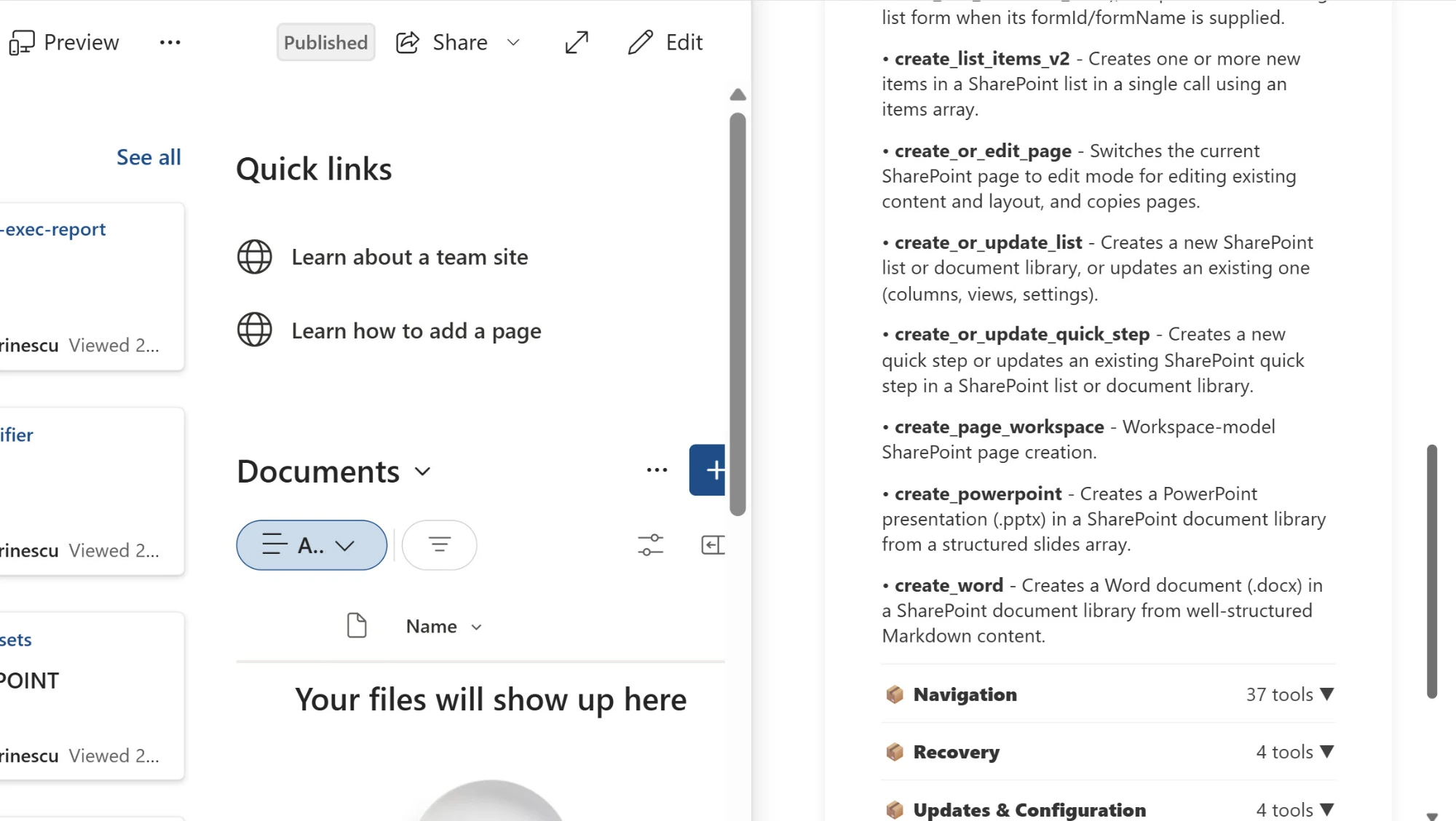
Creating pages, yes. Copilot in SharePoint can create pages, and a skill chains Copilot in SharePoint’s built-in capabilities, so page creation can be one of the steps. Whether it can also add and configure a Quick Links web part that points to related pages depends on the page tools available in your tenant.
The quickest way to check is to type --agenttools in the Copilot in SharePoint chat, which lists every action Copilot in SharePoint can run on that site, and look through the page-related tools. The list of tools differs from tenant to tenant, so check yours rather than relying on someone else’s screenshot. Then test the skill on one page before running it across a site.
Sharing and Protecting Skills
Why Can’t I Share a Skill I Created in a Shared OneDrive Folder?
A skill you create in OneDrive is a personal skill, and personal skills are designed to be yours alone. That’s why you got the message that the skill doesn’t support sharing with everyone who can access the folder. So yes, it comes down to OneDrive instead of SharePoint, though the real distinction is personal versus site scope.
Personal skills are saved as Markdown files in your own OneDrive, under Documents, Copilot, Agent Assets, Skills, and they follow you across every SharePoint site and OneDrive. They’re perfect for your own way of working, like how you want long documents summarized. They rolled out in preview in August 2026 and roll out worldwide in December 2026. Microsoft announced them in its September update, but the Microsoft Learn skills article only covers site skills so far.
To share a skill with your teammates, create it as a site skill instead. Open the Copilot in SharePoint chat on your team’s SharePoint site and create the skill there. It’s saved to that site’s Agent Assets library, and everyone with View access to the site can run it.
How Do I Protect the Skill Files in the Agent Assets Library?
You protect them the same way you protect any other SharePoint content. By default, anyone with Edit permission on the site can create a skill, and anyone with View permission can run one, which means every member of a team site can change the skill files. If you want a tighter model, Microsoft’s documentation (opens in a new tab) points you to breaking permission inheritance on the Agent Assets library and applying more restrictive permissions.
In practice, that means giving members Read on the Agent Assets library and keeping Edit for the owners and the few people who author skills. Members can still run every skill, because running a skill only needs View access. Retention, sensitivity labels, and auditing apply to skill files too, and the library keeps version history, so you can roll a skill back if someone breaks it.
You already spotted the trade-off: once members can’t edit the library, they can’t create skills on that site anymore. The same library holds your SHAREPOINT.md file, so locking it down protects your site context too. The library also holds a Plans folder, so after you change the permissions, sign in as a member and run a skill to confirm everything still works the way you expect.
Governance and Lifecycle Management
Can I Maintain SKILL.md Files With Azure Pipelines in Azure DevOps?
Not officially, and I’ll be honest, this is one of the more disappointing parts of the preview. Skills are managed at the site level, and Microsoft doesn’t offer a supported way to deploy or update them from a pipeline.
In the meantime, a few things help:
- Version history. Skills are files in a document library, so every change is versioned and you can restore an earlier version.
- Built-in skills that improve your skills. Microsoft ships built-in skills to create, check, and improve skills. In September 2026 they added measured evaluations, where Copilot suggests tests, evaluates the current results, and recommends changes before you share a skill more broadly.
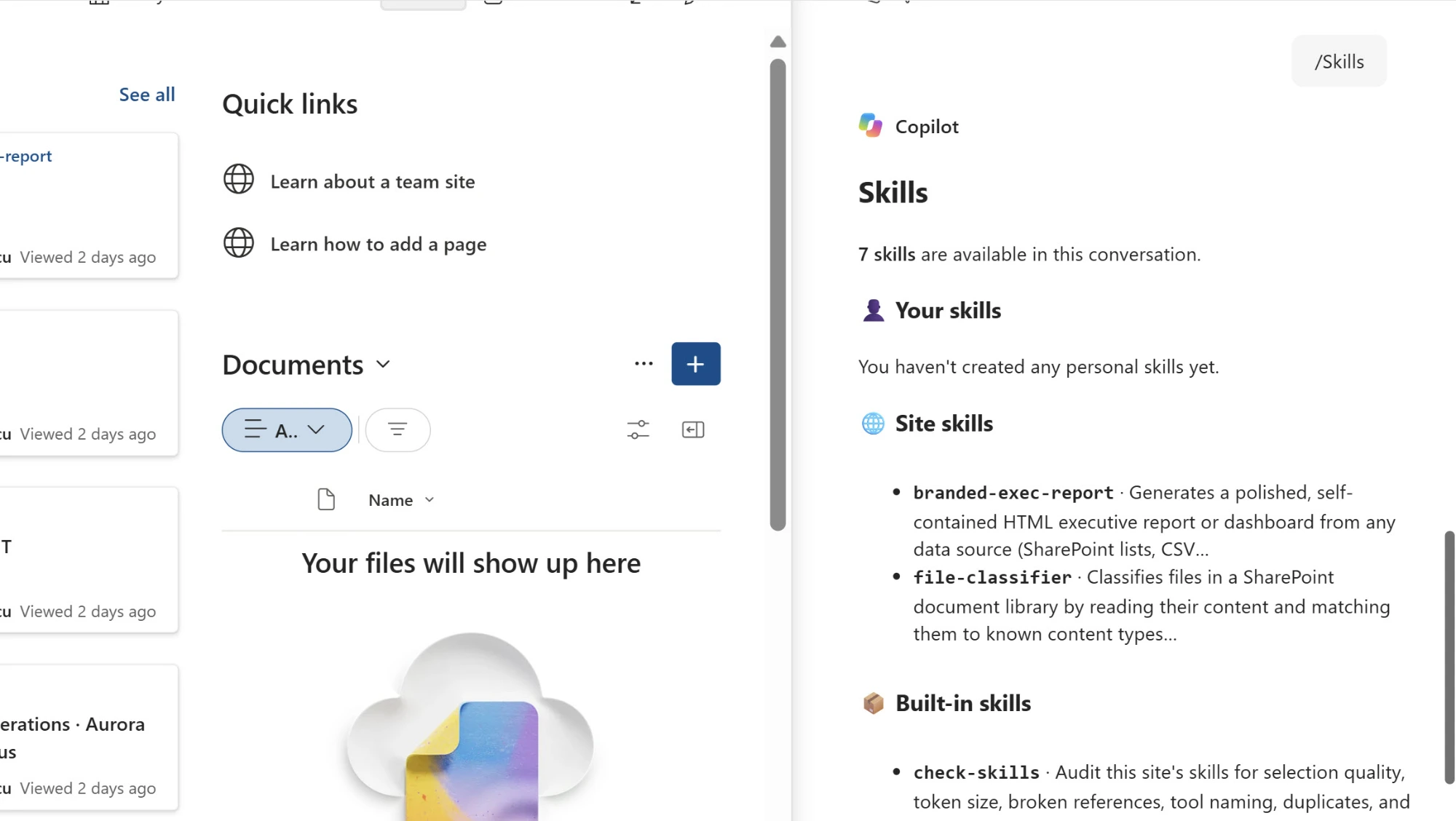
- A preview of what’s coming. When you type
/skills, the list includes a section for enterprise skills. It was empty in my tenant during the webinar, but it shows where Microsoft is heading for centrally managed skills. - Plugins from your enterprise store. A plugin can bundle skills, and an admin can install it tenant-wide, so once plugin support rolls out you’ll have a governed way to distribute the same skills across sites.
Until then, my recommendation is simple: when a skill becomes business-critical, keep a copy in a central repository you control. That gives you a source of truth even without an official process.
Until Enterprise Skills Arrive, Is PnP PowerShell the Way to Govern Skills?
Yes. Since skills are Markdown files stored in each site’s Agent Assets library, PnP PowerShell (opens in a new tab) works well for building an inventory: loop through your sites, look in the Skills folder of the Agent Assets library, and each subfolder with a SKILL.md file is one skill. Microsoft Graph PowerShell works too. Auditing also applies to skill files, the same as other SharePoint content.
I can’t wait for Microsoft to give us proper governance for skills. Governance for SharePoint skills and agents would make a great future webinar topic too.
SharePoint Agents vs Microsoft 365 Copilot Agents
What’s the Difference Between the Default SharePoint Agent and a Custom Agent, and Can You Share Them?
Every SharePoint site comes with a ready-made agent that answers questions based on that site’s content. People with Edit permission can also create custom agents, which are saved as .agent files in the site’s Site Assets library, scoped to the sites, folders, or files you choose, and tailored with your own instructions.
Custom agents don’t automatically appear in any list, so you share them like any other file. People can open the .agent file, and you can also share a SharePoint agent in Teams group chats and meetings. Site owners also decide what opens when people select the agent icon, either Copilot in SharePoint or a custom agent, and access always follows the site’s permissions.
Keep in mind that SharePoint agents answer questions, while Copilot in SharePoint is the experience that runs skills and takes action. My step-by-step guide to creating SharePoint agents walks through building one.
Is a SharePoint Agent the Same as an Agent Created in Microsoft 365 Copilot?
No. A SharePoint agent lives in its SharePoint site and only uses SharePoint content. An agent you build with Agent Builder in Microsoft 365 Copilot can use knowledge from SharePoint, Teams, Outlook, public websites, and Microsoft 365 Copilot connectors, and you can share it across the organization or submit it to your organization’s catalog.
Where you build it depends on where the content lives and what the agent needs to do:
- Build it in SharePoint when the content lives on one site and the audience is that site’s members.
- Build it with Agent Builder when the agent needs content from several places, like Teams and Outlook as well as SharePoint. My guide to building Copilot agents with no code in Agent Builder covers the basics.
- Build it in Copilot Studio when the agent needs to take actions in other systems or run without a user asking.
Agent Builder agents can do a lot more, but they’re also a bit more work to maintain and deploy.
What This Means for You
Most of these questions come down to the same thing: skills are still a preview feature, and the parts around them, like scheduling, lifecycle management, and governance, haven’t caught up yet. That doesn’t make them less useful today. It means you should be deliberate about where you use them.
If you’re an admin, decide who can edit the Agent Assets library on your important sites before skills spread, and start keeping business-critical skills in a central repository now. If you’re a builder, pick one repetitive task that stays inside SharePoint, build it as a site skill so your whole team can use it, and test it on a small set of files before pointing it at a large library.
Ready to take SharePoint skills further? On October 20, Microsoft MVP Gokan Ozcifci and I are running a free webinar on automating content in SharePoint with Copilot, covering more advanced skills, SharePoint agents, and autofill, and when to reach for each one. Save your seat for the October 20 webinar (opens in a new tab).
Frequently asked questions
Do SharePoint Skills Cost Extra?
No. Skills are part of Copilot in SharePoint, which Microsoft says is included with a Copilot license (opens in a new tab) during the preview and at general availability, at no extra cost. The catch is the per-user daily and weekly usage limits during the preview.
Do I Have to Call SHAREPOINT.md Manually in My Prompts?
No. Copilot in SharePoint reads SHAREPOINT.md from the root of the Agent Assets library automatically, for every interaction on the site, whether or not a skill runs. The chat even shows that the file was loaded, so you can confirm your site context is being used.
Can I Use the Same SharePoint Skill on More Than One Site?
A site skill only works on the site where it lives, so today you need a copy on each site. If the skill is for your own work rather than your team's, create it as a personal skill instead, and it follows you across all your SharePoint sites and OneDrive. For organization-wide skills, keep an eye on enterprise store plugins, which can bundle skills and be installed tenant-wide.

