

Copilot in SharePoint FAQ: Your Agents, Skills and Autofill Questions Answered
 By Vlad Catrinescu Microsoft MVP and MCT · Pluralsight Author
Fellow Microsoft MVP Gokan Ozcifci and I ran over time in our Copilot in SharePoint webinar, probably because I went about 15 minutes over the 20-minute slot he gave me. That left a lot of your questions unanswered, so as I promised at the end, I’ve answered every one of them here. Everyone who registered gets the recording by email, and if you didn’t, you can still watch the recording and get the slides.
Key takeaways
- Copilot in SharePoint needs a Microsoft Copilot license (formerly Microsoft 365 Copilot) for each user. General availability started rolling out on September 30, 2026, so it can take a little longer to reach your tenant.
- Everyday work, like creating skills and using autofill, is included with that license. Advanced work, like image generation, analytics, real-time autofill and anything at scale, uses Copilot Credits, through a spending policy your admin sets up.
- Classic SharePoint agents saved as .agent files keep working until the end of March 2027, and starting in mid-November 2026, you build new agents for SharePoint with Agent Builder.
- Copilot in SharePoint runs on a Microsoft-managed reasoning model from OpenAI that you can’t change, but you can pick the model for an agent you build in Copilot Studio.
- Autofill columns are library columns that work with managed metadata, and there’s no supported way yet to reuse one in other libraries or sites.
- Restricted Content Discovery, which your Copilot licenses unlock through SharePoint Advanced Management, keeps Copilot in SharePoint and agents off a site without changing who can open it.
- Copilot in SharePoint isn’t available in GCC, GCC High or DoD yet.
Getting Copilot in SharePoint in your tenant
How do I know when Copilot in SharePoint is available in my tenant?
Look for the Copilot in SharePoint button in the lower-right corner of your SharePoint pages and document libraries. General availability started rolling out on September 30, 2026, and Microsoft’s get started guide for Copilot in SharePoint (opens in a new tab) says the capabilities may appear in your tenant after that date as the rollout progresses. So if you don’t see it yet, don’t worry. As Gokan said during the webinar, it’s still rolling out.
And yes, it’s the paid license. Each user needs a Microsoft Copilot license, and with it the everyday features are included at no extra cost, with no opt-in step. Copilot Credits don’t replace the license either. They pay for advanced work on top of it, which I cover below.
As for the pay-as-you-go option I mentioned in the chat, there’s no pay-as-you-go way to use Copilot in SharePoint without the license. SharePoint agents pay-as-you-go only applies to .agent files, which stop working after March 2027, and Microsoft’s upgrade guidance for agents in SharePoint (opens in a new tab) says it doesn’t apply to Copilot in SharePoint. For autofill columns you set up with Copilot in SharePoint, new files are covered by the Copilot license, even when the library is connected to a pay-as-you-go meter. Pay-as-you-go isn’t gone from Copilot altogether: as the .agent files retire, unlicensed use of agents moves to Copilot app pay-as-you-go.
If you’re an admin, the preview PowerShell settings, KnowledgeAgentScope and its list of sites, are only honored until November 1, 2026. After that, you manage where Copilot in SharePoint shows up with the Site AI settings and Restricted Content Discovery. If you used those settings to limit Copilot in SharePoint to a pilot, or to turn it off, plan for it to appear on every site for every licensed user after that date. If you excluded sites, decide which of them truly need Restricted Content Discovery, because it also hides them from organization-wide search and Copilot responses across Microsoft 365.
Does Copilot in SharePoint work in GCC?
Not yet. Microsoft’s get started guide says GCC, GCC High, DoD, Office 365 air-gapped cloud environments and Microsoft 365 operated by 21Vianet don’t currently support Copilot in SharePoint. Message Center post MC1511052 says it’s coming soon to the government clouds, without a date. Copilot Credits aren’t an option there yet either, because usage-based billing isn’t supported in GCC or GCC High.
Microsoft says the agent changes I cover below also apply to its government clouds, and upgrading to Agent Builder is supported there, though Agent Builder isn’t currently available for declarative agents in DoD. Converting an agent to a skill has to wait until Copilot in SharePoint arrives.
What is Site AI?
Site AI is the settings panel where site owners decide how people use AI on their site, Copilot in SharePoint included. You open it from Settings > Site AI, and it’s the panel I showed in the demo for setting the site’s main agent. From there, a site owner can:
- Choose which agent opens from the agent icon in the header, either Copilot in SharePoint or a custom agent.
- Hide the Copilot button on site pages for site visitors only.
- Turn on advanced document processing, which today means a site admin sharing their own Copilot Credits so autofill uses advanced processing across the site.
On my demo site, Copilot was the main agent and credit sharing was off, so autofill there uses standard processing, which the Copilot license covers.
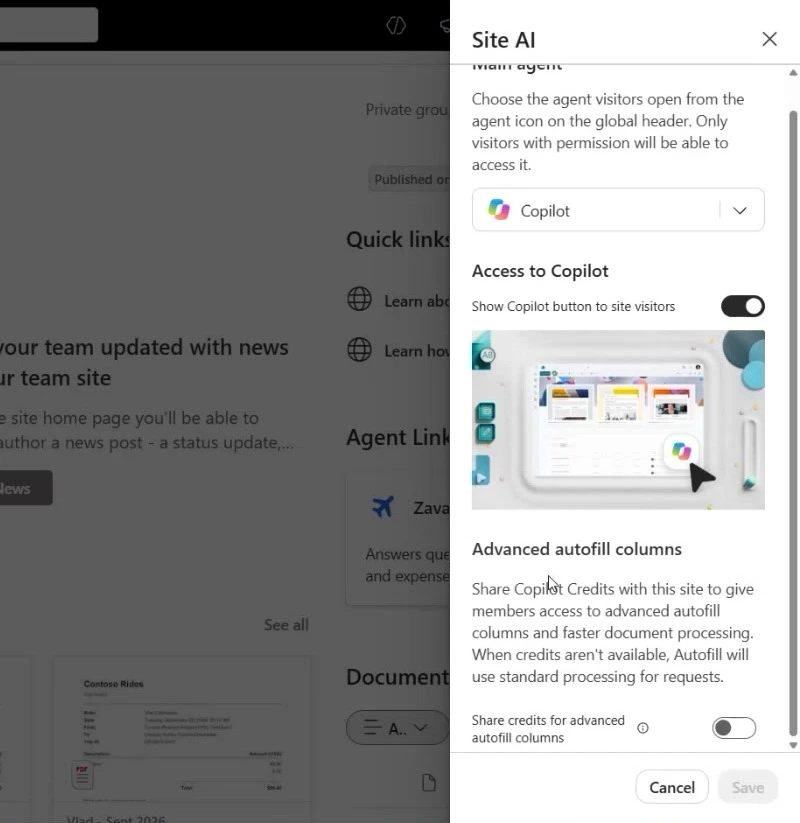
Hiding the button only applies to visitors, so to take Copilot in SharePoint off a site completely, admins turn on Restricted Content Discovery instead. The main agent choice also has an end date: after March 2027, Copilot is the only main agent a site can have, and Microsoft will remove that setting.
What the Copilot license covers, and when you need Copilot Credits
Does creating a skill cost extra?
No. Creating and managing skills is on Microsoft’s list of everyday work that the Copilot license covers, so a skill like the expense policy check I built in the demo costs nothing extra to create. Whether it uses credits depends on the work it does when it runs. Microsoft calls this a hybrid model, and its get started guide lists the everyday work the license includes:
- Asking questions, finding content and catching up
- Creating HTML, Word, Excel or PowerPoint files
- Creating and editing pages, libraries or lists
- Simple rules, approvals and deterministic workflows
- Renaming and sharing individual files
- Creating and managing skills
- Using autofill metadata
Copilot Credits, through usage-based billing, pay for the advanced work:
- Working across large or unbounded content sets
- Creating entire sites and solutions
- Creating and editing files, pages, libraries and lists at scale
- Multistep, complex AI workflows, like skills in scheduled AI automations
- Real-time autofill metadata
- Generating new images and editing existing ones
- Analytics on how sites, pages, news and documents perform
That’s the same split Gokan showed on his licensing slide, with his advice on who needs what along the bottom:
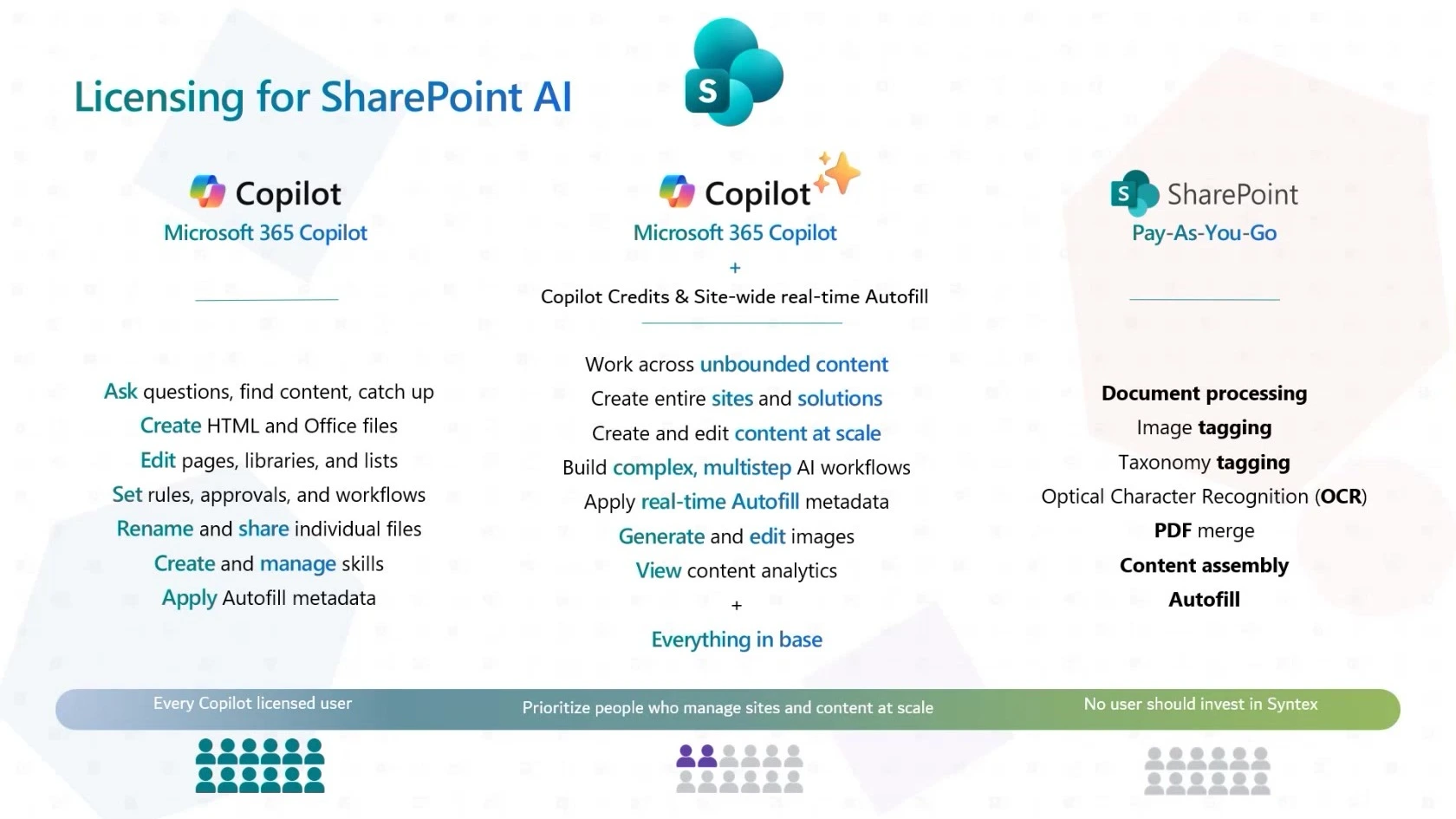
The “No user should invest in Syntex” line at the bottom of the slide is only Gokan’s and my opinion. Microsoft hasn’t announced that Syntex is being deprecated, and its pay-as-you-go services are still available under a new name, document processing for Microsoft 365 (opens in a new tab).
Microsoft’s rule of thumb is that credits apply when a job “spans more content than you can work through yourself, needs to run on its own, or has to keep pace as content arrives.”
The 10,000 files I mentioned come from Microsoft’s Copilot Credits Guide (opens in a new tab), where it’s one of the heavy examples. Its medium examples, like re-tagging the documents in a project folder of 500 files, need credits too. Microsoft doesn’t publish a file count where “at scale” starts. Instead, when a prompt crosses that threshold, Copilot asks you to approve credit use before it continues. If you don’t have credits, it completes what it can and asks you to start a new chat. If you missed my first skills webinar, you can watch the Getting Started with SharePoint Skills recording for the basics.
Your admin turns on the advanced work in the Microsoft 365 admin center under Copilot > Cost management. You add a spending policy, choose all users or specific security groups, select Advanced work in SharePoint under Agents and services, then set limits and alerts and a billing method. If you already have spending policies, review them, because a policy that allows new agents and services as they become available can pick up Advanced work in SharePoint automatically.
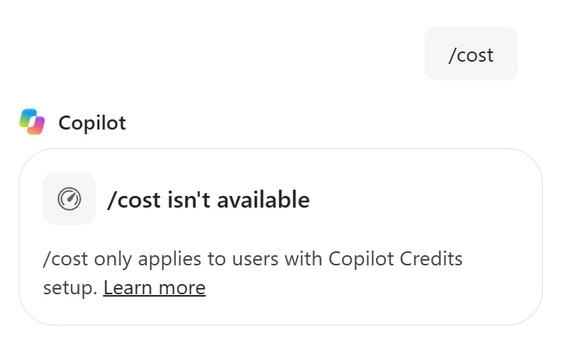
Until a spending policy covers you, you only get the everyday work. Even /cost, the command that shows how many credits a task used, isn’t available yet, as I found on my demo site:
Gokan’s advice was to license everyone for the everyday work and give credits only to the people who manage content at scale. Microsoft’s guidance agrees: it prioritizes content managers and site managers, and says most other SharePoint users likely don’t need credits.
Will the prebuilt SharePoint page and list agents need Copilot Credits?
Nothing Microsoft has published ties them to credits, so the answer Gokan and I gave live holds: they need the Copilot license. The SharePoint list agent left the Frontier program and became generally available in February 2026, and it requires a Copilot license. The SharePoint page agent, a Frontier preview, is being retired between mid-October and mid-November 2026, according to Message Center post MC1481325. Gokan mentioned live that Microsoft had deprecated one agent a few weeks earlier, and that notice went out on September 29, 2026.
The same notice says you can keep creating and refining pages and news posts with Copilot in SharePoint. That’s everyday work the license covers, since creating and editing pages, libraries and lists is on the included list. Only doing it at scale needs credits.
Can everyone use an agent I put on a site?
They need either a Copilot license or pay-as-you-go that your admin sets up. With the license, using agents grounded in your organization’s content is included at no extra cost. For people without one, it depends on how the agent was built:
- A classic SharePoint agent, the .agent file, uses SharePoint agents pay-as-you-go. Your admin creates a billing policy, and only users in the security group assigned to it can use agents. Microsoft lists the pay-as-you-go price (opens in a new tab) at $0.01 per message, and a successful interaction uses 12 messages.
- An Agent Builder agent that uses SharePoint content is billed through pay-as-you-go, consumed as Copilot Credits. Agents like that are off by default for Microsoft Copilot Chat (formerly Microsoft 365 Copilot Chat) users.
As the .agent files retire, Microsoft consolidates unlicensed use under Copilot app pay-as-you-go. For SharePoint content, people need permission to both the agent and the content it uses, so an agent won’t surface a SharePoint file someone couldn’t already open. The exception is files a maker uploads into an Agent Builder agent: anyone who can use that agent can get answers from them.
Does testing an agent in the preview pane use credits?
Not if you have a Copilot license, which is how I tested the Zava Travel Assistant in the demo. Testing an agent is interactive use, and Microsoft includes interactive use of agents by Copilot-licensed users at no extra cost.
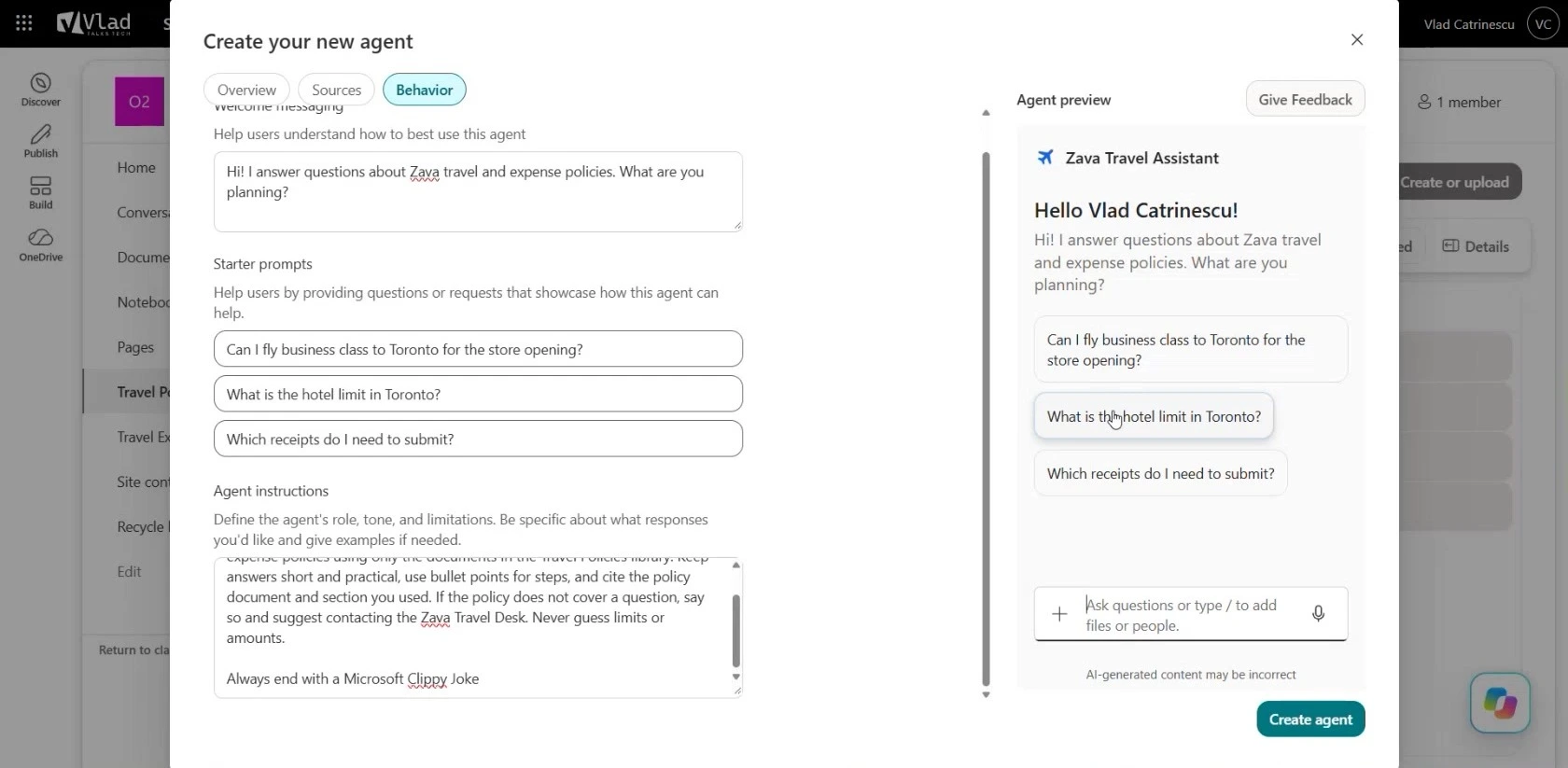
Microsoft doesn’t document whether the preview pane in SharePoint, or the Try it tab in Agent Builder, is billed for someone who builds on pay-as-you-go without a license. If that’s you, I’d plan as if a test that reads SharePoint content is metered like any other use.
The only place Microsoft spells it out is Copilot Studio, where testing an agent in the test chat doesn’t consume Copilot Credits for the agent’s own activity. The exceptions are AI prompts or models inside agent flows, and agents built on the GitHub Copilot harness, which bill while you test.
SharePoint agents are moving to Agent Builder
Is a SharePoint agent basically an Agent Builder agent now?
Yes, and from mid-November 2026 that’s exactly what it will be. Today’s SharePoint agents, which I called classic agents in the demo (my naming, not Microsoft’s), are declarative agents saved as .agent files on the site. Microsoft’s upgrade guidance says that starting in mid-November 2026, you’ll use Microsoft Copilot Agent Builder to create agents for SharePoint and OneDrive, and creating an agent no longer saves a .agent file. You still pick SharePoint and OneDrive content as knowledge, and Agent Builder adds sources like Teams chats and meetings, Outlook email and Copilot connectors.
Microsoft’s timeline, which I put on one slide in the webinar, gives you until the end of March 2027 to move your classic agents:
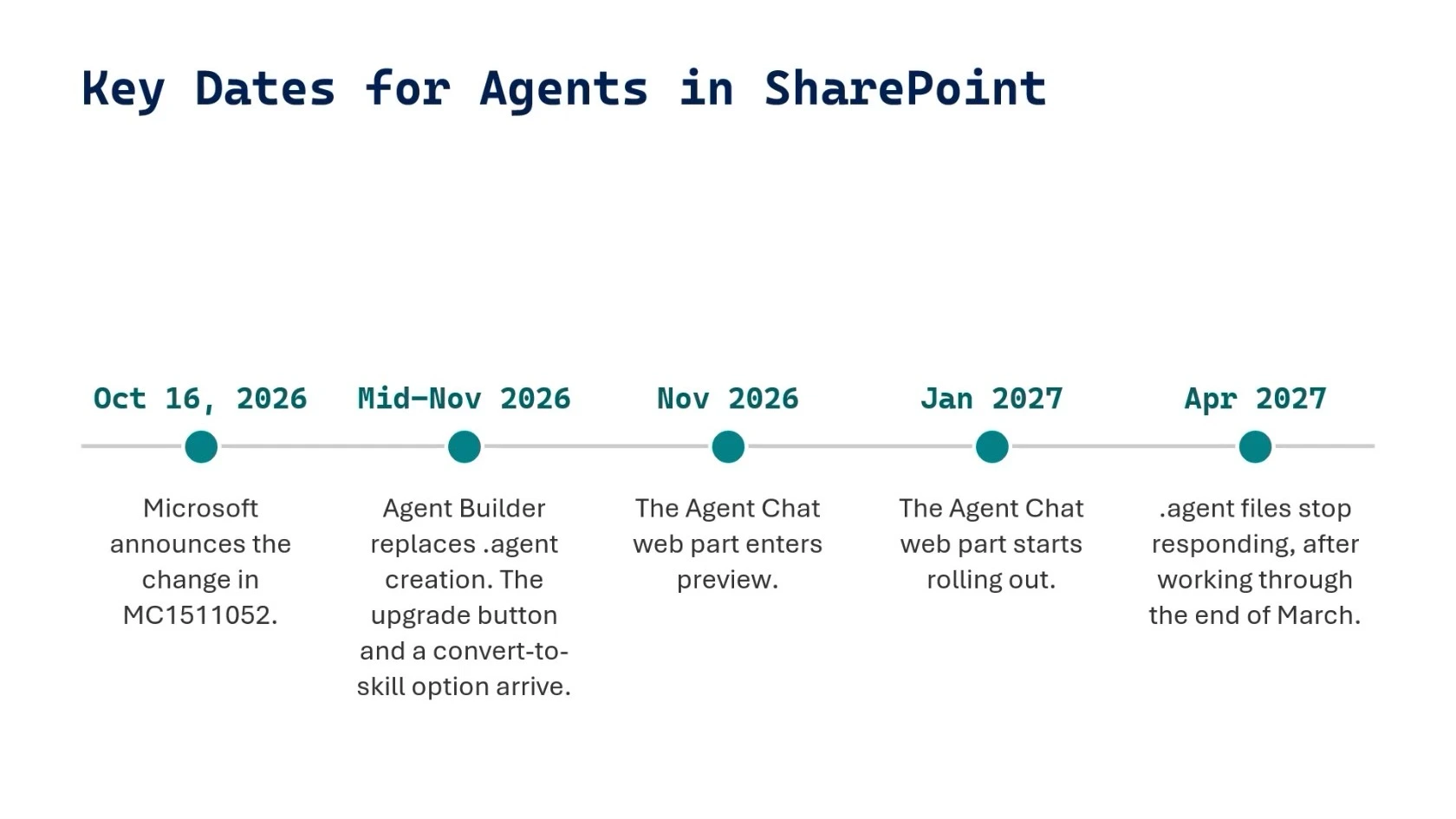
- In mid-November 2026, new agents for SharePoint are created with Agent Builder, an Upgrade to Microsoft 365 agent button appears in the builder, and the convert-agent-file-to-skill skill arrives in Copilot in SharePoint.
- In November 2026, the Agent Chat web part, which puts an agent’s chat right on a SharePoint page, starts its preview, with general availability planned for January 2027 on the Microsoft 365 roadmap (opens in a new tab).
- After March 2027, .agent files stop responding in SharePoint, Teams and the Copilot app.
There’s no automatic upgrade, so plan each one. An agent that mostly answers questions about its own site can be replaced by Copilot in SharePoint. One that runs a repeatable task becomes a skill, and a named Q&A or retrieval experience becomes an Agent Builder agent. Permissions don’t carry over, because an Agent Builder agent is shared on its own instead of following SharePoint file permissions. Unless the original was shared with everyone in your organization, the upgraded agent starts out private to you, and the .agent file’s usage history doesn’t transfer.
Why did the agent in my navigation disappear?
It hasn’t been removed: .agent files keep working until the end of March 2027. My best guess is a change in what the agent icon opens. For Copilot-licensed users, Copilot in SharePoint replaced the ready-made site agent. Unless a site owner picks a custom agent as the main agent in the Site AI settings, Copilot is now the main agent for the site.
Two other things can hide it too: Restricted Content Discovery is turned on for the site, which removes the agent icon from the header, or you don’t have a Copilot license and your organization hasn’t set up pay-as-you-go for agents. And if you mean the Copilot app rather than SharePoint, Microsoft is replacing its Agents entry point with Plugins, and upgraded agents show up in the plugin store.
Does a SharePoint agent get a Microsoft Entra ID, and does it show up in Agent 365?
No to the first, yes to the second. Microsoft’s agent identity documentation (opens in a new tab) says Agent Builder agents currently don’t use or require app registration IDs or Agent IDs. Of the tools in this post, it’s new agents you create in Copilot Studio that get a Microsoft Entra Agent ID automatically. Microsoft doesn’t mention one for classic SharePoint agents either, and their answers depend on each user’s permissions to the agent’s sources.
For admins, agents show up in the agent registry in the Microsoft 365 admin center, under Agents > All agents > Registry. It lists agents with or without a Microsoft Entra agent identity, and SharePoint is one of its agent types. For classic agents, the registry gives you an overview of the agents that have been used in Copilot Chat, and blocking one there only affects its availability in Copilot Chat.
Agent Builder agents, including the ones you’ll create for SharePoint from mid-November, are integrated with Microsoft Agent 365 automatically. Viewing the registry doesn’t need a specific license, while Agent 365’s observability and policy features need Microsoft 365 E7 or an Agent 365 license.
Can an agent answer only from approved documents?
For your readers, mostly yes. People who can read a library but can’t see drafts get the last approved, major version of a file, and SharePoint search doesn’t return files that only exist as a minor version. So a visitor who only sees the published version gets answers from the published version.
The exception is the library’s Draft Item Security setting. If it’s set to “Any user who can read items”, everyone can see drafts, including the account that crawls for search. Editors and approvers can see drafts in the library too, so test the agent with an account that can’t.
For policies, I’d still keep it structural: keep final, approved documents in their own library or folder, keep work in progress somewhere else, and point the agent only at the final location. Someone in the chat suggested adding “only published documents” as a condition in the agent’s instructions. That’s fine as extra guidance, but don’t rely on it, because instructions aren’t a security boundary.
Can I choose the model Copilot in SharePoint uses?
Not in Copilot in SharePoint. Microsoft’s get started guide says it currently runs on a Microsoft-managed reasoning model from OpenAI, that Microsoft selects and manages the model, and that the specific model might change over time. So my answer holds, and I still wish we could choose. Microsoft doesn’t document a model picker for Agent Builder either, because those agents run on the same models Copilot uses.
Gokan’s workaround from the webinar is the one that works today: build the agent in Copilot Studio, add your SharePoint site as knowledge, and select the agent’s model (opens in a new tab) from the dropdown, which includes Anthropic Claude models.
External models have to be turned on in both the Power Platform admin center and the Microsoft 365 admin center, where the Anthropic setting is on by default for most commercial customers outside the EU, EFTA and the UK. Anthropic models are also currently excluded from the EU Data Boundary, so check with your compliance team. Then publish the agent to the Microsoft Copilot app, so you can put it on a page with the Agent Chat web part. Publishing it to the SharePoint channel creates a .agent file, which stops working after March 2027.
Autofill columns
Do autofill columns work with site columns and the term store?
The term store, yes. Site columns, not officially. Autofill works with managed metadata columns, so you can map an autofill column to a term set from your term store, as I showed in my video on autofill columns with managed metadata. Microsoft’s autofill documentation (opens in a new tab) notes that it only uses the first 100 terms of a mapped term set, and when a preferred term or a synonym matches, it saves the preferred term.
Besides managed metadata, autofill supports text, multiple lines of text, number, yes/no, date and time, choice, hyperlink and currency columns. It doesn’t support person or group, location, image or lookup columns.
The autofill column itself is a library column. You write its prompt in that column’s settings, and the values it extracts are saved to the column, so like other column data they can be indexed and used to trigger workflows. As Gokan said, there’s no supported way to reuse an autofill column in another library or site today. The site column workaround I mentioned is real, and the credit goes to Kasper Larsen. He showed how to reuse autofill prompts across libraries that share a content type (opens in a new tab) with PnP PowerShell, building on Leon Armston’s earlier work. It relies on settings Microsoft hasn’t documented, so treat it as unsupported.
Does turning on autofill add the column to every library on the site?
No, only to the library you’re working in. Autofill columns are created one library at a time: Copilot in SharePoint can configure document libraries only, and even when you start from a folder, the configuration applies to that whole library. So keeping autofill in one library is simply a matter of creating autofill columns only in that library, and each column has its own toggle if you want to switch it off later.
In Gokan’s demo, Copilot suggested the columns for the one library he had open, showed a value for each invoice, and asked which columns to keep:
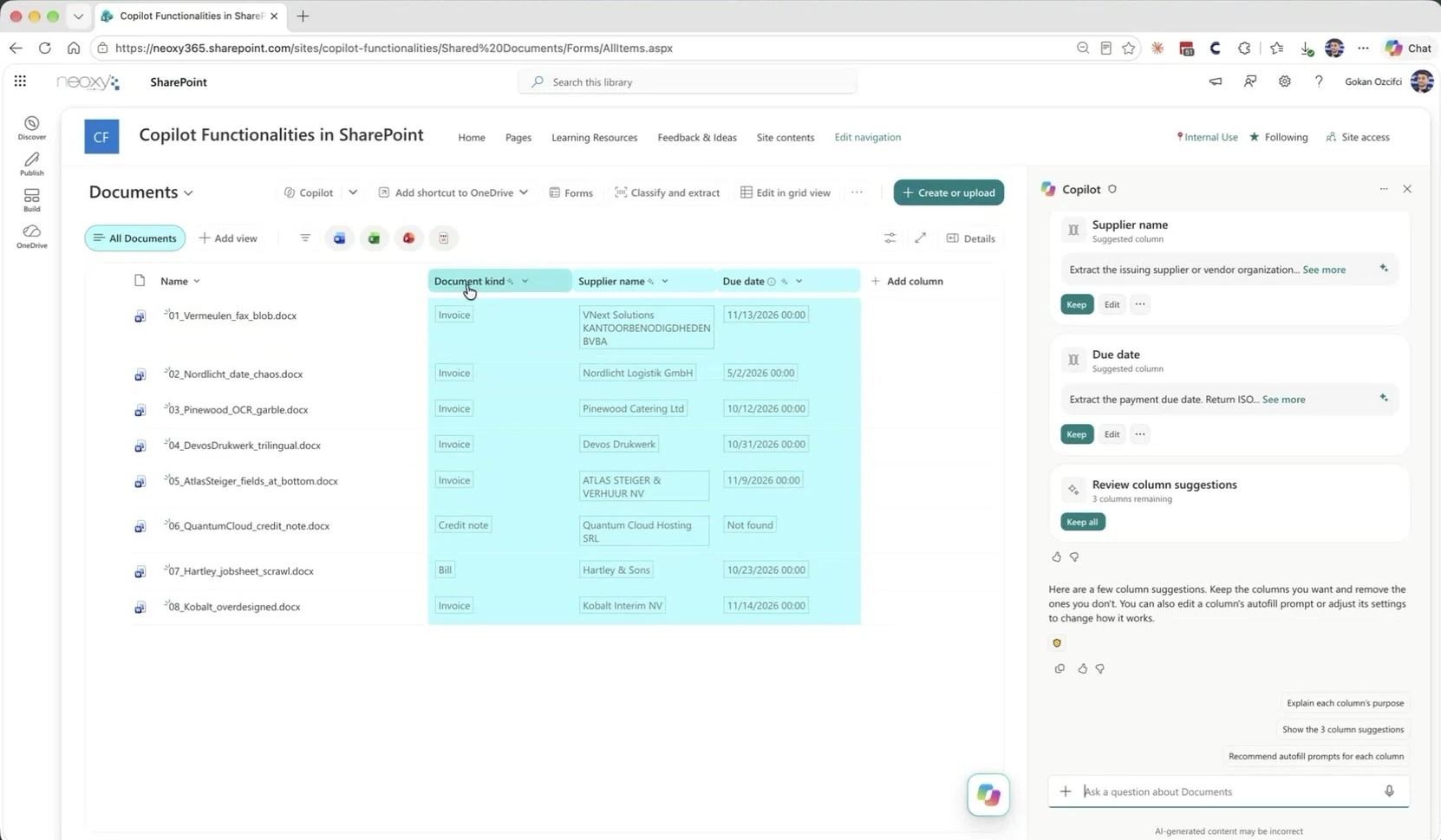
There’s no per-library on switch, because everyday autofill comes with the Copilot license without an opt-in. The controls above the library are broader. Restricted Content Discovery takes Copilot in SharePoint off a whole site, and in the Site AI settings, a site admin decides whether to share their Copilot Credits for advanced autofill. Once that’s on, autofill uses advanced processing whenever it runs on the site.
Can I roll out autofill columns across hundreds of libraries?
Not with anything Microsoft supports today. Microsoft doesn’t document an API, PowerShell cmdlet, site template setting or content type hub option for autofill, so as Gokan said live, you set up the column in each library. In his words, if you have 10 document libraries, you copy and paste the prompt 10 times.
What scales differently is the processing. Standard autofill is included with the Copilot license, and new files uploaded to the library are processed whether or not the uploader has a Copilot license. Real-time autofill metadata, the site-wide processing that keeps pace as content arrives, needs Copilot Credits and usage-based billing turned on for the site. Microsoft doesn’t publish a file count for “at scale” here either.
If you have to do it now, the community has tools. Leon Armston automated autofill columns with PnP PowerShell (opens in a new tab), and the CLI for Microsoft 365 has a command that sets autofill on a library column (opens in a new tab). Neither is supported by Microsoft. Leon’s post warns that the API behind it isn’t documented and is subject to change, and he has since noted that the backend APIs changed, so his original script may not work as written. Test carefully before you run anything across a tenant.
If you need the same extraction to run across many libraries in a supported way, Gokan’s slide had the other options: AI Builder models with Power Automate and Power Apps, Copilot Studio, and Azure Document Intelligence in Foundry Tools.
Protecting your content
Can I use SharePoint Advanced Management to keep sites out of Copilot?
Yes. As soon as at least one person in your organization has a Microsoft Copilot license assigned, your SharePoint admins get the SharePoint Advanced Management features included with Copilot (opens in a new tab). Restricted Content Discovery is the one that does what you’re describing. Copilot reaches your content through Microsoft Graph and the semantic index, which Microsoft builds automatically from your SharePoint content, and it only returns content the person asking can already access. My post on how Microsoft Copilot accesses your work data walks through how that works.
Restricted Content Discovery keeps a site’s content out of organization-wide search and Microsoft Copilot responses, including files people recently worked on. Copilot in SharePoint and AI actions don’t appear on that site at all, and people can’t use the ready-made agent, create agents, or add that site’s content to other agents. It doesn’t change who can open the content, so people who already have access can still open it directly, search within the site, and ask Copilot about a document they have open. You turn it on in the SharePoint admin center from the site’s settings in Active sites, or with PowerShell:
Set-SPOSite -Identity <site-url> -RestrictContentOrgWideSearch $trueThe other controls you mentioned are on the same list of features your Copilot licenses include:
- Restricted Access Control limits a site to the members of up to 10 groups. People outside them can’t open the site, even with existing permissions or a sharing link, and Copilot and search honor it too.
- The block download policy gives a site browser-only access, with no downloading, printing or syncing.
- Authentication contexts connect a Microsoft Entra Conditional Access policy to a SharePoint site, which is my best guess at the limited access feature you meant.
Microsoft calls Restricted Content Discovery a temporary governance control and recommends using it selectively, and on sites with more than 500,000 items it can take more than a week to fully apply. My post on SharePoint agent governance shows how to apply it straight from the agent access reports.
Can admins sanitize the HTML that Copilot creates?
Not today, and I haven’t found any sign of it coming: nothing on Microsoft Learn or the Microsoft 365 roadmap mentions an option to sanitize generated HTML.
Microsoft’s support article on HTML pages in SharePoint (opens in a new tab) says SharePoint renders HTML in a sandboxed iframe, with Content Security Policy rules for extra isolation, and blocks arbitrary fetch requests and outbound API calls. JavaScript only runs when it’s contained in the same HTML file, apart from Microsoft-managed versions of a few libraries like Chart.js and Mermaid. External links also need a site admin to add their domain to HTML Field Security. That’s probably why the JavaScript in my expense report didn’t behave in the demo.
The same article answers your tenant question directly: you can’t disallow or restrict HTML pages at the tenant level. Site owners can turn off Allow HTML files in the Site Pages library, and that setting matters more soon. HTML pages, which let you publish an HTML file as a SharePoint page, reach general availability between mid-November and late December 2026, according to Message Center post MC1479517. For the external sharing risk, use the controls you already have:
- The site’s external sharing settings
- A data loss prevention (DLP) policy using the “File extension is” and “Content is shared from Microsoft 365” conditions
- The block download policy on sensitive sites
Sensitivity labels won’t help at the file level, because HTML isn’t one of the file types they support in SharePoint. If a tenant-level option matters to you, send it to the product team as feedback. In the video they recorded for the webinar, they asked us to keep it coming.
What this means for you
Gokan and I focused the webinar on using Copilot in SharePoint, and most of your questions were about what it costs and what’s changing with agents. Both come with dates, so if you’re an admin, put these in your calendar:
- Before November 1, 2026, check whether you used the preview PowerShell settings to limit Copilot in SharePoint to a few pilot sites or to keep it off some sites. After that date, Microsoft stops honoring them and Copilot in SharePoint shows up on every site for everyone with a Copilot license, so turn on Restricted Content Discovery early for any site that truly needs to stay out.
- Before people start working at scale, decide who gets Copilot Credits and create a spending policy for Advanced work in SharePoint scoped to them. Check whether your existing spending policies already picked it up, too.
- Between mid-November 2026 and the end of March 2027, inventory your .agent files with the agent registry, the SharePoint Advanced Management agent reports or search. Then move each one to Copilot in SharePoint, a skill or an Agent Builder agent.
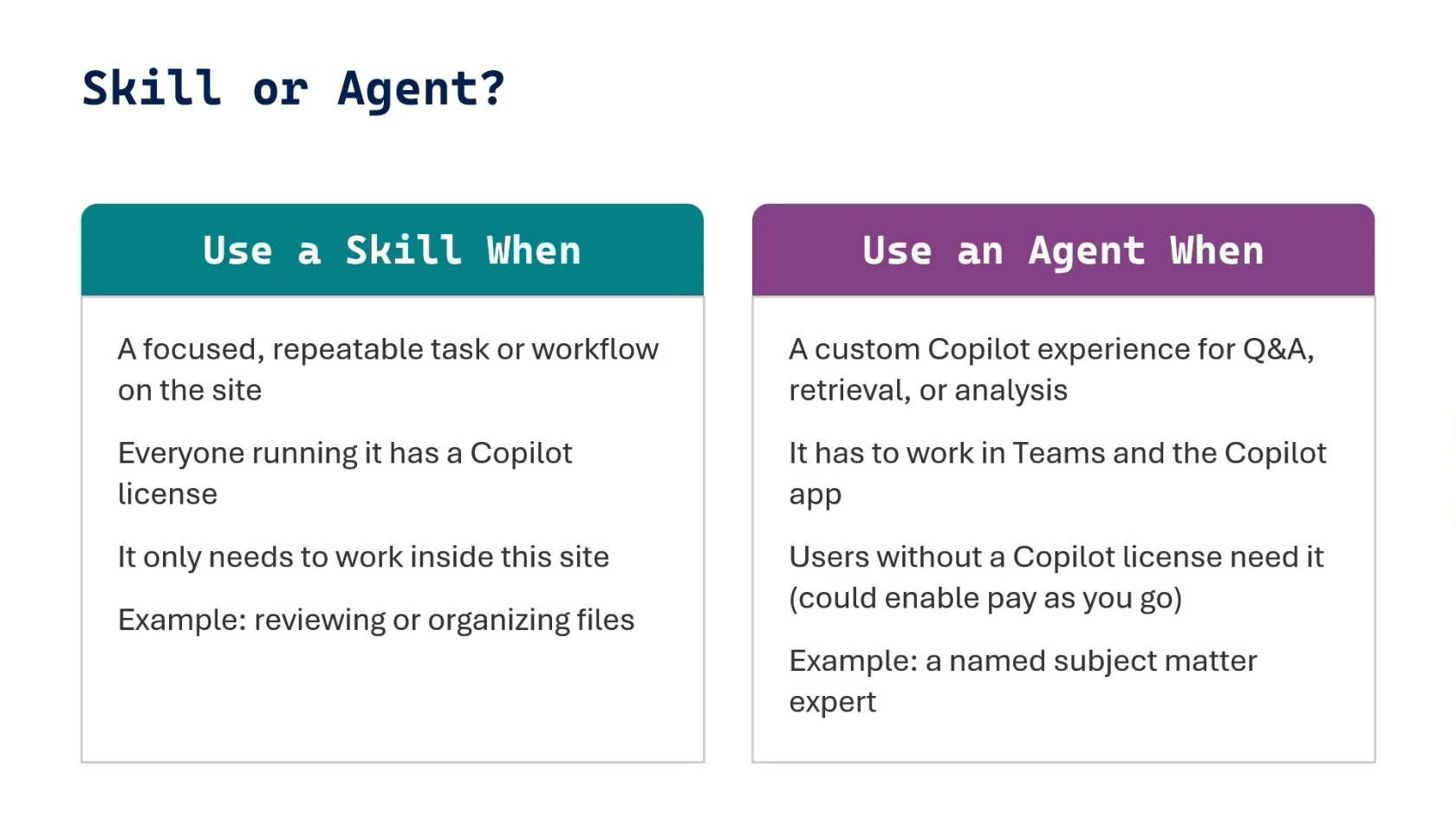
If you’re a site owner or a maker, the rule of thumb from the webinar still applies: use an agent when people need a subject matter expert that answers questions, and use a skill when you have a repeatable process you want Copilot to run. Licensing can decide it too. Skills run in Copilot in SharePoint, so everyone using one needs a Copilot license, while an agent also works in Teams and the Copilot app, including for people on pay-as-you-go:
Start with the classic agents you already have, because those are the ones with a deadline.
Ready to tackle the admin side of Copilot in SharePoint? This webinar was about using it, and on November 12, Microsoft MVP Drew Madelung and I are covering governance: who can create skills and agents, where they live, what they can reach, and which control governs each one. Save your seat for Governing SharePoint Skills and Agents.
Frequently asked questions
Do I need to turn on Copilot in SharePoint for my users?
No. Everyday Copilot in SharePoint capabilities are included with the Microsoft Copilot license, and Microsoft says no opt-in step is required. Your admin only needs to act to turn on advanced work with Copilot Credits through a spending policy, to check existing spending policies that can pick it up automatically, or to keep Copilot in SharePoint off specific sites with Restricted Content Discovery.
Are there still usage limits on Copilot in SharePoint?
The weekly limits from the public preview were removed at general availability. In rare cases, daily service protection limits may still apply to licensed users, and Copilot features in SharePoint are temporarily unavailable until the limit resets.
How do I see how many Copilot Credits a task used?
Type /cost in the Copilot in SharePoint chat. It shows how many credits a task used and how much of your monthly limit remains, including when the limit resets. It only works once a spending policy gives you Copilot Credits, and without one, Copilot replies that /cost isn't available. Copilot also warns you when 20% of your monthly limit is left.
How many autofill columns can a library have?
Microsoft doesn't document a hard cap, but it recommends no more than 10 autofill columns per library and files no larger than 65 pages, for optimal performance. Text columns hold 255 characters by default, and turning on Allow unlimited length raises that to 64K characters.
Can I set an upgraded agent as my site's main agent?
No. Upgraded agents can't be used in the site's chat pane, so you can't set one as the site's main agent. Microsoft's guidance is to add the agent to a page with the Agent Chat web part instead and set the main agent to Copilot.

