
SharePoint Site Lifecycle Management: A Practical Guide
 By Vlad Catrinescu Microsoft MVP and MCT · Pluralsight Author
Every SharePoint tenant accumulates sites nobody opens anymore. A project wrapped up two years ago. The owner has since left the company. Meanwhile the site sits there, consuming storage and feeding search results nobody wants. SharePoint site lifecycle management fixes that. It is a set of policies in SharePoint Advanced Management that finds those sites and acts on them automatically. No PowerShell required.
Having worked with SharePoint environments for over a decade, I can tell you this. The hard part was never spotting the problem. It was doing anything about it at scale. These policies close that gap.
Key takeaways
- Site lifecycle management includes three policy types: inactive site, site ownership, and site attestation. Each one solves a different governance problem.
- Every policy runs in simulation mode, which reports without acting, or active mode, which runs monthly and enforces.
- Enforcement escalates through three monthly notifications, then optionally read-only, then optionally archive through Microsoft 365 Archive.
- Policies never delete sites. That is a deliberate design decision, not a limitation.
- You can exclude up to 100 entries from notifications, but group exclusions have a catch that surprises most admins.
What SharePoint Site Lifecycle Management Actually Does
SharePoint site lifecycle management policies monitor sites, notify the people responsible for them, collect responses, and take enforcement action when nobody replies. They live in the SharePoint admin center under Policies. They also require SharePoint Advanced Management, which is included with Microsoft 365 Copilot licenses.
The critical thing to understand first: these policies do not delete sites (opens in a new tab). Microsoft designed them to notify, escalate, and archive, never to destroy. Archiving is reversible. Deletion is not, and Microsoft deliberately kept that out of the automated path.
That design choice matters more than it sounds. It is why you can turn these policies on without fear. A misconfigured scope will not quietly remove the legal team’s site over a long weekend.
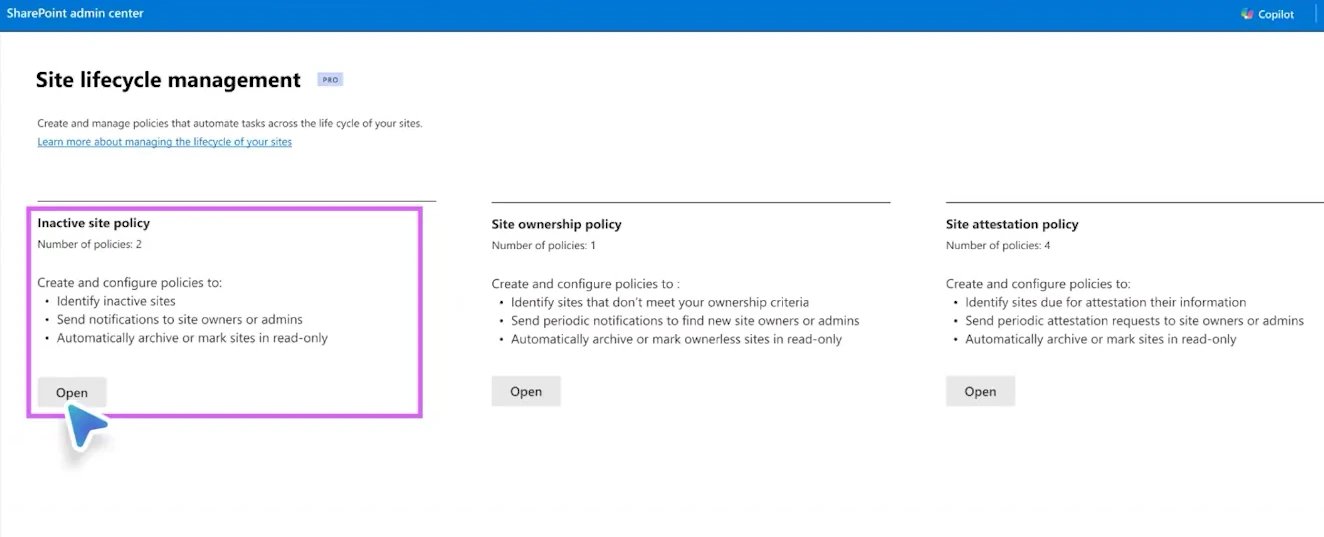
The Three Policy Types and When to Use Each
Microsoft ships three policy types, and they are genuinely different tools rather than three flavors of the same thing.
Inactive Site Policies
Inactive site policies find sites that show no meaningful business activity for a period you define. When a site crosses that threshold, the policy notifies the owners or admins. It asks them to confirm the site is still needed. If someone selects Certify site in the notification email, site lifecycle management stops checking that site’s activity for a full year (opens in a new tab).
Use these to reduce content sprawl and reclaim storage.
Site Ownership Policies
Site ownership policies check that every site has enough accountable people attached to it. You define whether the requirement counts site owners, site admins, or both, and you set the minimum number. Require two owners per site, and any site that drops below that triggers the policy.
This one quietly matters most. Dave Minasyan is the Principal Product Manager who leads SharePoint Advanced Management at Microsoft. As he put it in our conversation, all of this governance rests on somebody actually owning the site. Admins can see there is a problem. However, they rarely know the content well enough to judge whether it is a real one. Only the owner can make that call.
Site Attestation Policies
Site attestation policies ask owners to review a site on a recurring schedule. Is it still needed? Is it still configured correctly? You choose a cadence of 3, 6, or 12 months.
The distinction from inactive site policies is worth internalizing. Inactive site policies react to measured activity. Attestation policies request a human judgment (opens in a new tab) regardless of how busy the site looks. A site can be extremely active and still be a governance problem.
Dave’s framing was the clearest I have heard: attestation is the proactive policy, and the other two are reactive. Run attestation properly and far fewer inactive and ownerless sites pile up in the first place.
How SharePoint Decides a Site Is Inactive
This is where most people guess wrong. Inactive site policies do not just watch SharePoint. They evaluate activity across connected Microsoft 365 workloads. So a site backing an active Team will not be flagged just because nobody opened the document library.
| Workload | Activity that counts |
|---|---|
| SharePoint | Viewed, edited, shared, or synced files, viewed and visited pages |
| Microsoft Teams | Channel messages, replies, mentions, reactions, meetings |
| Viva Engage | Posted messages, read conversations, liked messages |
| Exchange | Emails received in the group mailbox |
Several site types sit permanently out of scope: OneDrive sites, root sites, home sites, app catalog sites, tenant admin sites, sites created by system users, and sites tied to shared or private Teams channels.
There is one trap worth flagging. App activity through an app token never counts as activity. PnP PowerShell activity through a user token does not count either. So if an automation job is the only thing touching a site, the policy reads it correctly. No human is using it.
One more detail catches people out. When a site owner clicks the site URL in a notification email, that visit does not count as activity. Neither do any read actions in the following hour. Only edits reset the clock.
Simulation Mode: See the Impact Before You Commit
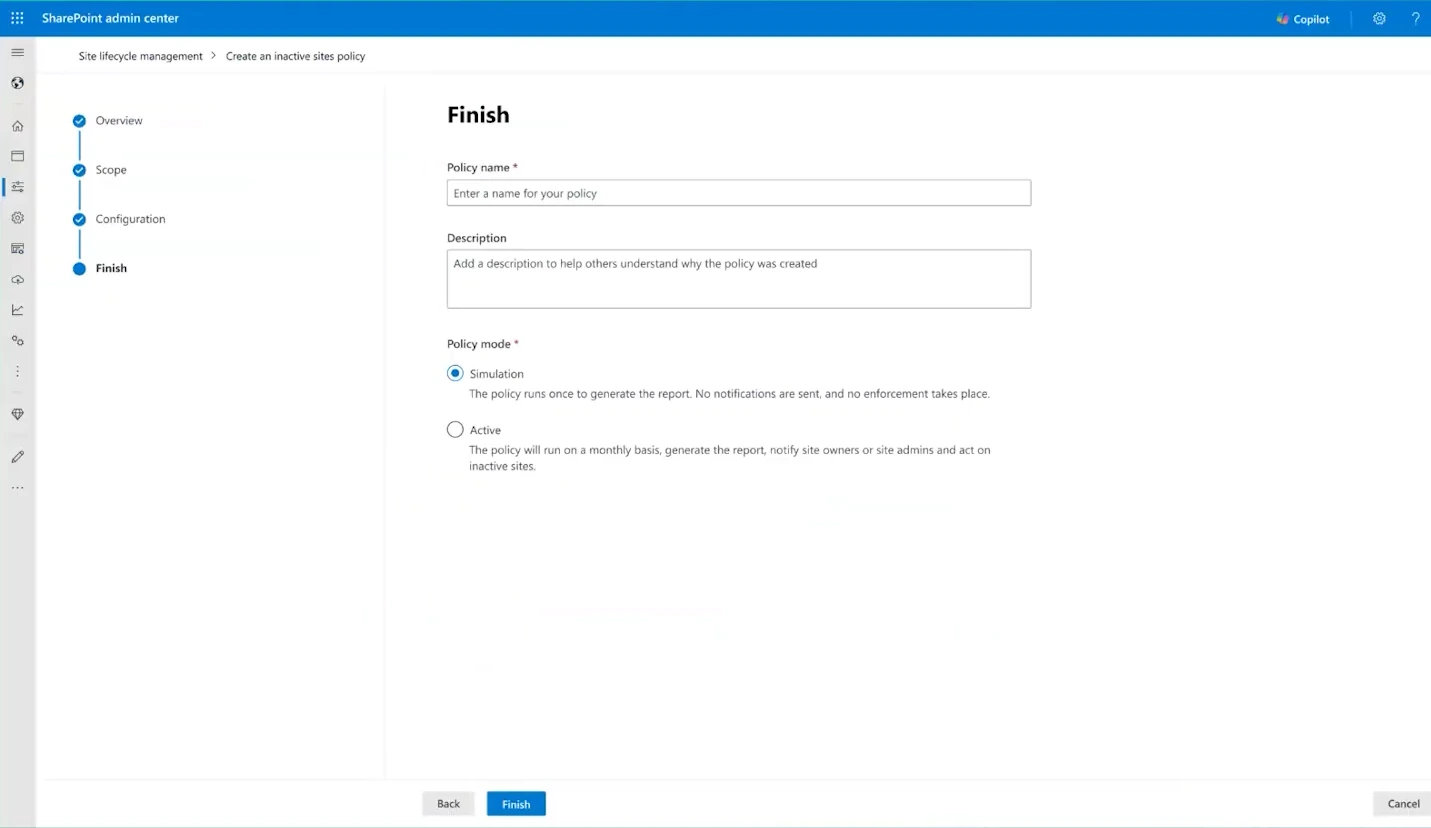
Every site lifecycle management policy runs in one of two modes. Simulation mode runs the policy once and produces a report without enforcing anything. Active mode runs monthly, sends notifications, and applies whatever enforcement you configured.
The part that makes simulation genuinely useful is that your configured actions are preserved rather than stripped out. You build the policy exactly as you intend to run it, notification schedule and enforcement action included. Simulation mode then reports what would have happened, without doing any of it. When you are satisfied, you activate, and the policy starts executing the configuration that was already sitting there.
Dave described this as the safest way to run these policies, and I agree. There is no reason to activate a policy on day one. Run it in simulation, read the report, then decide.
What Happens When Nobody Responds
All three policy types share the same escalation pattern, and it is more patient than most admins expect.
| Enforcement action | What actually happens |
|---|---|
| Do nothing | Three monthly notifications, then six months of silence, then notifications resume if the site is still uncertified. Report flags the site as unactioned. |
| Read-only access | Three monthly notifications, then the site goes read-only. A banner appears on the site and owners cannot lift it themselves. |
| Archive after read-only | Three monthly notifications, then read-only for 3, 6, 9, or 12 months, then archival through Microsoft 365 Archive. |
Archiving requires Microsoft 365 Archive to be enabled in your tenant, and only tenant admins can reactivate an archived site. Is archiving new to you? Work out whether Microsoft 365 Archive actually saves you money (opens in a new tab) before you wire it into an automated policy.
Read-only sites can be released from the Active sites page using Unlock. That is the same mechanism covered in my guide to locking and unlocking SharePoint sites.
Keeping Executives Out of the Notification Queue
Your CEO is probably a member of half the sites in your tenant. Nobody wants a governance rollout that opens with a thousand automated emails to the leadership team.
The exclusion list handles this. You can exclude specific users, Microsoft 365 Groups, or security groups from lifecycle notifications. The cap is 100 entries per policy. A group counts as one entry no matter how many members it has.
Two things about exclusions consistently surprise people, and both are documented:
First, exclusions only affect who gets notified. The site is still evaluated by the policy and still subject to enforcement. Excluding a user does not exclude their sites.
Second, and this is the one that bites. A group exclusion only applies when that group is directly added to the site, or nested inside a group that is. Is that person also added to the site individually? Or a member of some other group on the site? Then they still get the notification.
What Happens When Policies Overlap
If you create several policies of the same type, SharePoint will not send duplicate notifications. Say a policy of that type already notified within the last 30 days, and the site is still uncertified. No further notification goes out. The execution report marks the site as Notified by another policy.
That is a helpful safety net, but Microsoft’s own guidance is to avoid overlapping scopes within a policy type entirely. Overlap makes the notification schedule and enforcement timing unpredictable. That is the last thing you want in a process people are supposed to trust.
What Dave Minasyan Says Is Coming Next
Everything above is generally available today. The following comes from my conversation with Dave, not from Microsoft’s documentation. Treat it as a roadmap rather than fact.
Catalog scoping for policies. Catalog management already lets you organize sites into categories such as department or locale. Dave described extending that to policies. You could then point an inactive site policy at the finance department instead of the whole tenant. Microsoft’s documentation still lists only two scope options: sites at scale, or a CSV of up to 10,000 URLs. So this has not landed in the docs yet.
A cap of five inactive site policies. I asked Dave directly whether that limit would rise to match the number of catalog categories an organization might create. He confirmed the cap stands. For now, you have to get creative. Microsoft has heard the feedback repeatedly, but there is no ETA. This limit is not documented on Microsoft Learn.
Consolidated notifications and a governance dashboard. Instead of one email per site, owners would receive a single batched summary. A button takes them to one page listing everything the admin has asked them to do. Dave called this the governance hub on camera and noted the name might change before release. It has since surfaced on the Microsoft 365 roadmap as the Governance Reviews Dashboard, in private preview.
More frequent assessments. The content management assessment that feeds this data is monthly today. Dave said Microsoft is working on allowing more frequent runs, with an announcement to come.
For the wider picture, I broke down everything new in SharePoint Advanced Management for 2026 after speaking with Dave. I also mapped out the five pillars of Microsoft 365 content governance separately.
How to Roll This Out Without Scaring Yourself
Here is the sequence I would follow.
Start with a site ownership policy in simulation mode. Ownership is the foundation everything else depends on, and the report alone usually tells you something uncomfortable and useful.
Next, build your exclusion list before you activate anything. Leadership, service accounts, and anyone whose inbox becoming a governance queue would cost you political capital.
Then run an inactive site policy in simulation against a narrow scope rather than the tenant. Dave’s point about trust building is the right one. Admins in large organizations do not activate tenant-wide on day one, and they should not have to. Use the CSV scope option or a tight site template filter to keep the first run small.
Finally, layer attestation in once the reactive policies have cleared the backlog. Attestation is the policy that keeps the tenant clean rather than the one that cleans it.
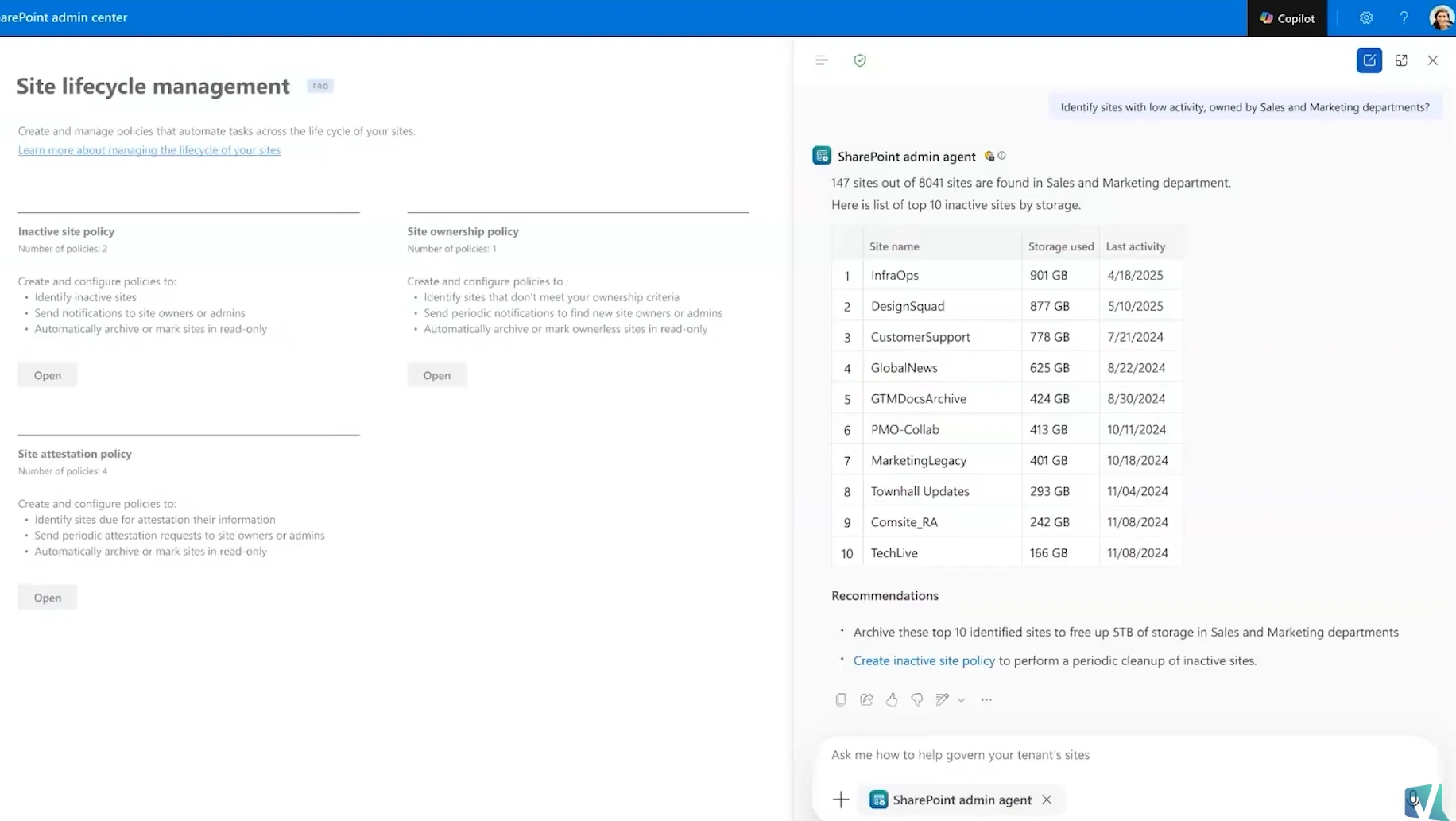
In the demo tenant Dave walked through, the SharePoint admin agent surfaced 142 low-activity sites owned by Sales and Marketing. That tenant held 8,041 sites in total. Those are demo-tenant figures, not a real-world benchmark. Still, the ratio makes the point. Sprawl usually concentrates in a few departments rather than spreading evenly, which is exactly why scoped rollouts beat tenant-wide ones.
Ready to get your tenant under control? Start with a single site ownership policy in simulation mode this week and read the report before you change anything. It costs you nothing, and it will tell you more about your tenant than any dashboard. For more Microsoft 365 governance and certification content, subscribe to the Vlad Talks Tech newsletter at vladtalkstech.com. Want to send feedback straight to the product team? Connect with Dave Minasyan on LinkedIn (opens in a new tab).
Prefer video? Watch the full walkthrough with Dave Minasyan (opens in a new tab) on YouTube. You can also follow the SharePoint Advanced Management 2026 playlist (opens in a new tab) or watch the complete interview in one sitting (opens in a new tab).
Frequently asked questions
Do site lifecycle management policies delete SharePoint sites?
No. Policies notify owners, can set sites to read-only, and can archive sites through Microsoft 365 Archive. Deletion is never part of the automated path. Archived sites can be reactivated by a tenant admin from the Archived sites page.
Does simulation mode send any emails to site owners?
No. Simulation mode runs the policy once and generates a report only. Your notification settings and enforcement actions are preserved but not executed. Nothing reaches site owners until you switch the policy to active mode.
How many notifications does a site owner receive before enforcement?
Three monthly notifications. If the owner does not certify or attest the site during that window, the configured enforcement action applies. If you selected Do nothing, notifications pause for six months and then resume.
Can a site be covered by more than one lifecycle policy?
Yes, but Microsoft recommends against overlapping scopes within the same policy type. If a notification was already sent by another policy of that type within 30 days, no duplicate is sent, and the report shows Notified by another policy. Across different policy types, a site locked read-only by one type is excluded from the scope of a different type.

