
SharePoint Content Assessment: Where to Start
 By Vlad Catrinescu Microsoft MVP and MCT · Pluralsight Author
If you administer SharePoint and you have been asked where to begin with content governance, the SharePoint Content Assessment is the answer. It lives in the Advanced Management section of the SharePoint admin center; it runs from a single button, and it scans your entire tenant for the patterns that quietly undermine both search and AI. Dave Minasyan, Principal Product Manager at Microsoft, walked me through how it works and what it surfaces.
Key takeaways
- The assessment runs from one button in the Advanced Management area of the SharePoint admin center and automatically executes the primary reports Microsoft recommends.
- A full run takes anywhere from 24 hours to five days, depending on the size of your tenant.
- Two assessment areas are live today: site lifecycle and oversharing, with a storage assessment in development.
- Much of the data it returns is not available through PowerShell or the Microsoft Graph APIs, which is why the results surprise teams who believed they were already on top of governance.
- The SharePoint Admin Agent depends on this data. Without a completed assessment, the agent has nothing meaningful to reason over.
What the SharePoint Content Assessment Actually Does
Microsoft built the assessment to answer the single most common question admins ask when they start taking content governance seriously: where do I start?
The problem is rarely a lack of tools. Most organizations have a plethora of capabilities scattered across Microsoft 365, third-party vendors, and scripts somebody wrote years ago. What they lack is a systematic way to see the current state of their content estate and decide what to fix first.
The assessment addresses that by running a set of default reports across your tenant, identifying patterns in the results, and surfacing them as prioritized findings. You can then drill into any individual report, customize it, and re-run it against a narrower scope.
One important scoping note: this is content governance, not content security. Securing content is a separate discipline that lives largely in Microsoft Purview, though many Purview capabilities are grounded in the same SharePoint Advanced Management data.
Where to Start: One Button in the SharePoint Admin Center
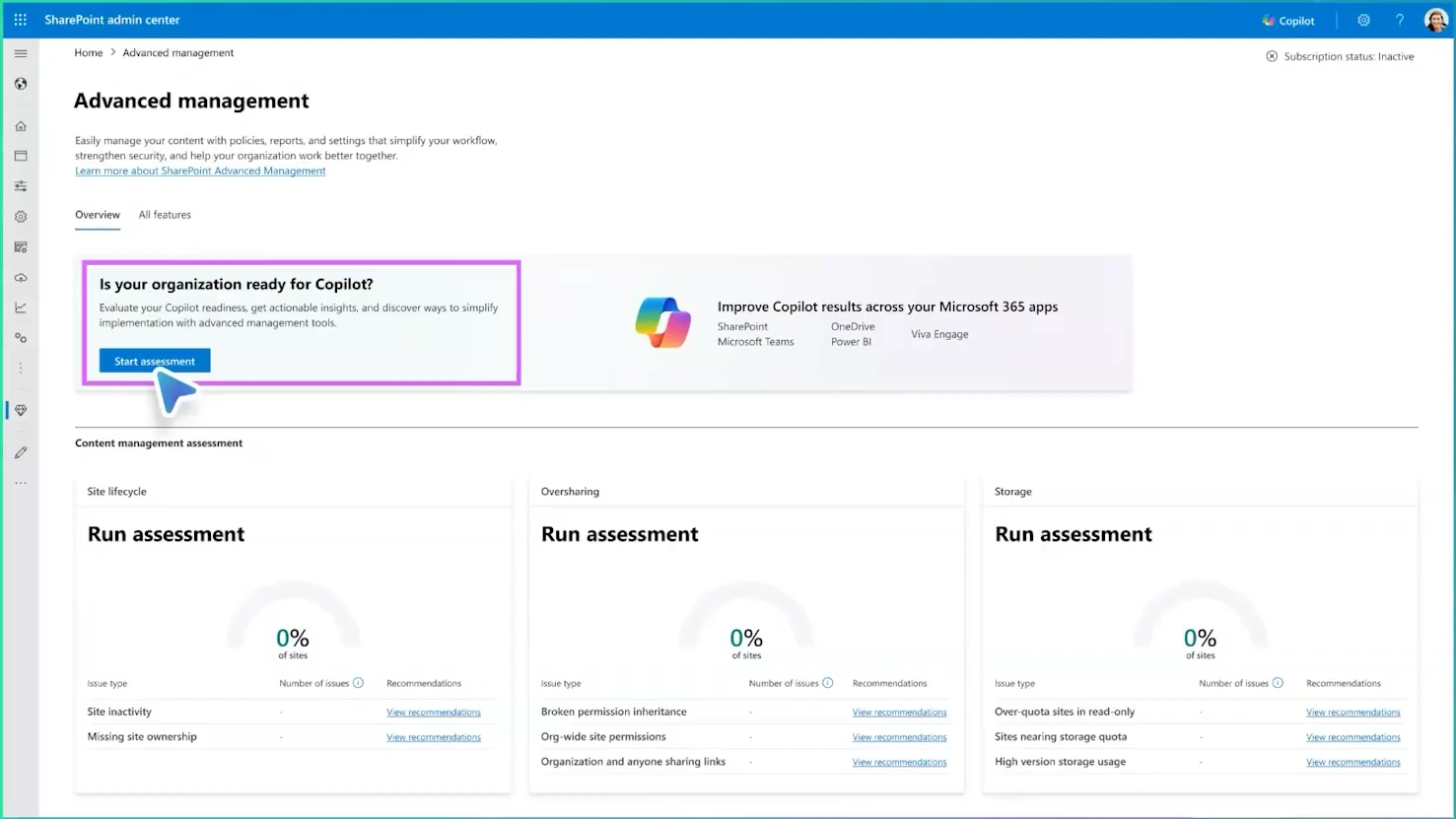
The workflow is deliberately simple. Open the Advanced Management tab in your SharePoint admin center and click Start Assessment. Microsoft then runs all the primary reports it recommends as a starting point, in their default configuration, and reports the patterns it finds.
The experience is already available across most geographies.
If you do nothing else, running the assessment in its default state is usually enough to move you into a reasonably good position on content governance, and it produces the data your admin agent needs in order to be useful.
Why the First Results Look Worse Than Expected
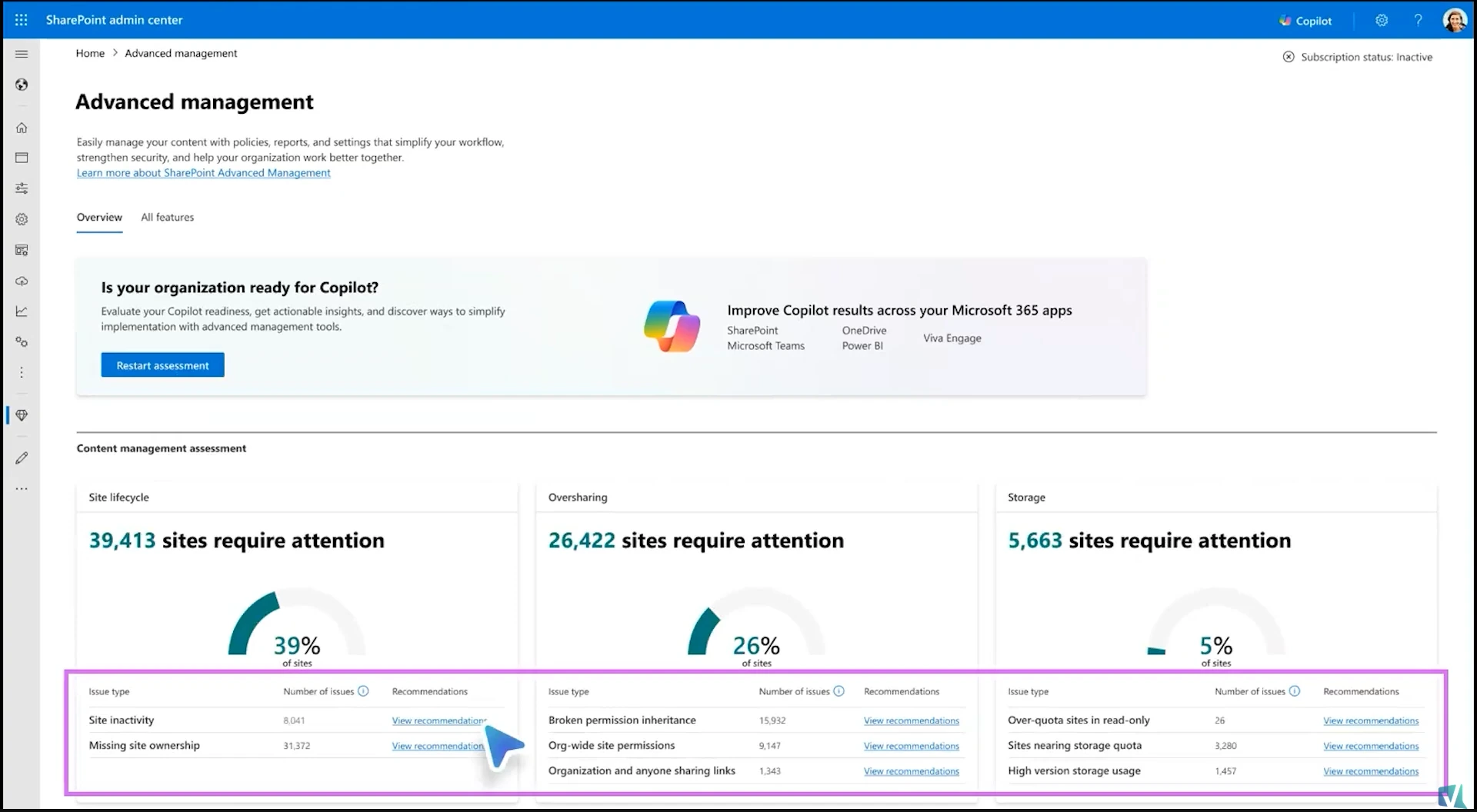
The first run tends to be uncomfortable, and there is a good reason for that.
Plenty of organizations have in-house processes they believe put them in good shape. They run the assessment expecting a quick confirmation, and instead they find a long list of things they had missed entirely.
This is not a reflection on those teams. A large amount of the data the assessment returns is genuinely new, and was not previously exposed through PowerShell or the APIs. Microsoft built these reports specifically to unblock customers moving toward AI, which means unless you were deducing all of this yourself from indirect signals, you almost certainly did not have it.
So a confronting first run is the expected outcome, not a sign that something went wrong.
What the Assessment Checks Today
Go into your tenant right now, and you will see two assessment cards:
- Site lifecycle, which surfaces inactive sites and other lifecycle signals
- Oversharing, which surfaces content permissioned far more broadly than anyone intended
A third card covering storage analysis is in active development. Storage is one of the largest drivers of customer support contacts, so Microsoft is working to simplify how organizations understand and optimize what they are consuming.
This area is expected to change substantially over time. Microsoft has collected a significant amount of feedback asking for additional assessment types and is prioritizing which to build next.
From Reports to Remediation
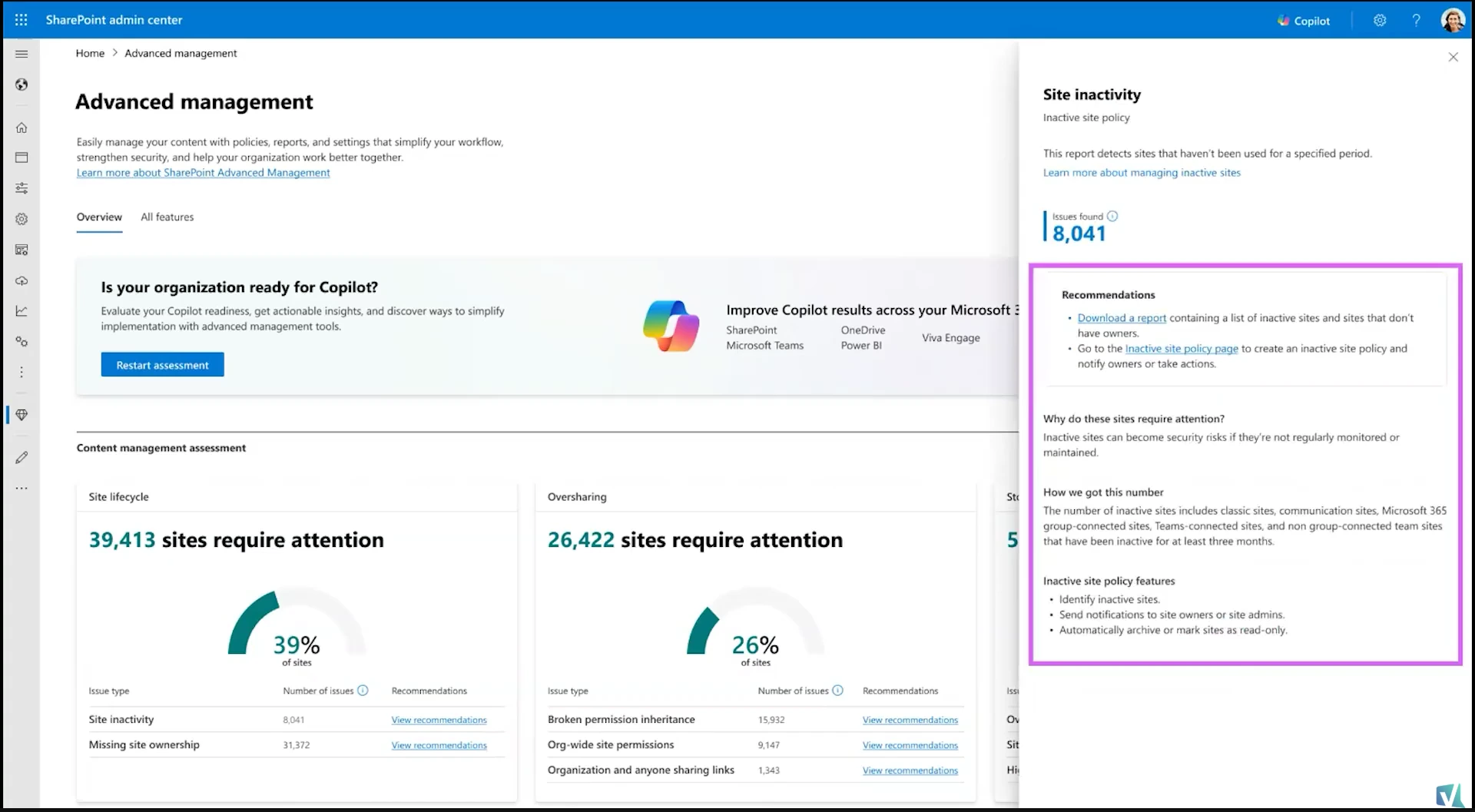
The assessment does more than show you where the problem areas are. Each finding can be expanded into a downloadable report listing exactly which sites are affected, along with recommended remediation steps.
From there, you can follow the links Microsoft provides directly into policy creation. If inactive sites are the issue, you can click through to the inactive sites policy and create a new policy scoped precisely to your requirements. These policies also carry actions, so you can build follow-through automation rather than just producing another report nobody acts on.
That distinction matters. A finding you cannot act on is just an alarming number. A finding wired to a scoped policy with an action attached is actual governance.
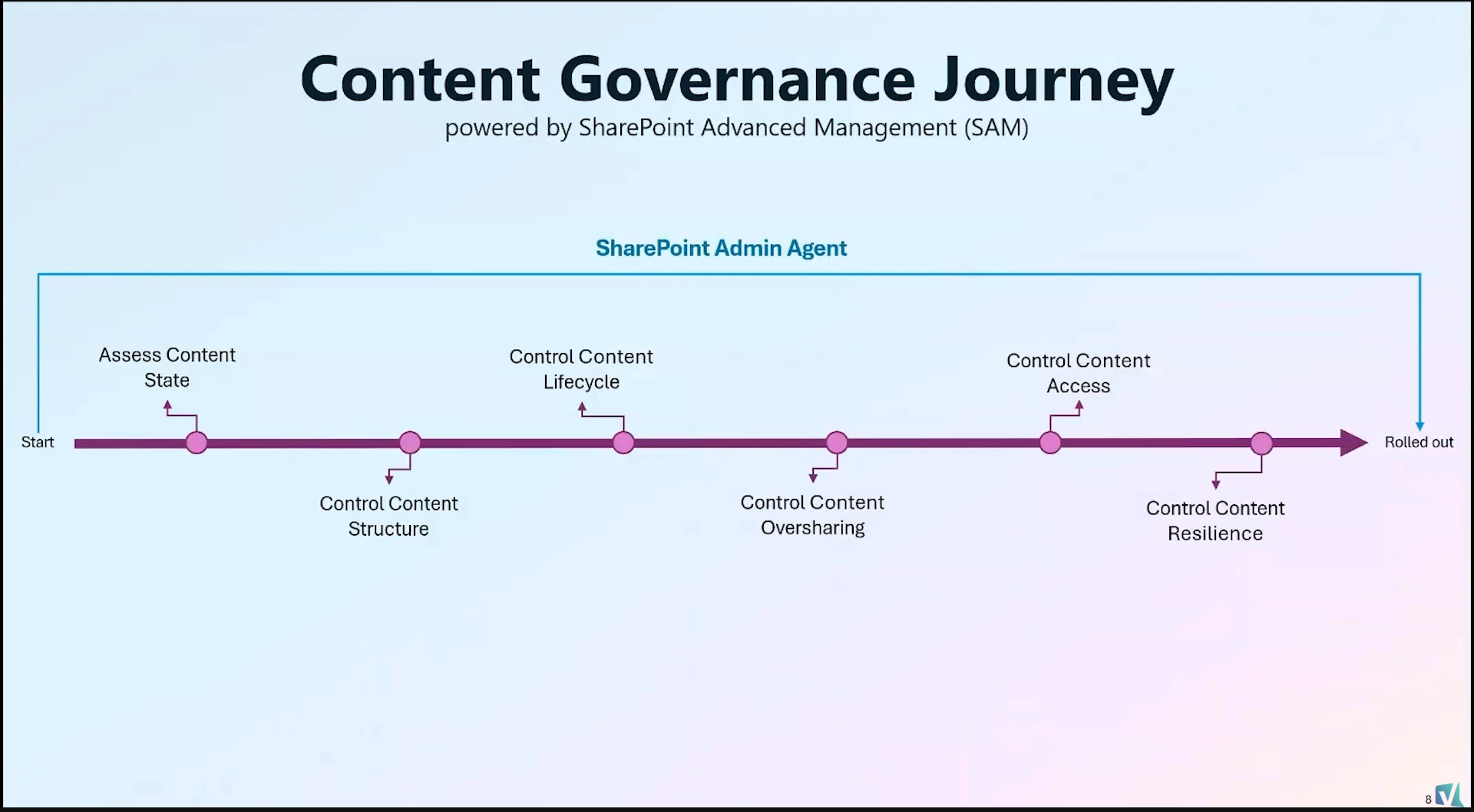
How the SharePoint Admin Agent Uses This Data
Running the assessment serves two purposes. The first is seeing your problem areas. The second, and the one that gets overlooked, is feeding the SharePoint Admin Agent.
Without assessment data, the agent has nothing to reason over and cannot give you useful answers. Once the reports have run, the agent reads what is available and starts extracting information from it. You can then ask questions in natural language about your own tenant.
During Microsoft’s focus group testing, one participant typed in a question about which sites had last been accessed by external users, essentially at random, and got back a genuinely good answer. For each question, the agent returns an analysis of the relevant data, key insights including any anomalies it spotted, and a recommended action.
The practical effect is that you no longer need to know which report to run or which setting to change. You need to know what problem you want to solve.
The agent is launching with roughly 15 to 20 supported skills, and Microsoft is targeting somewhere in the region of 150 actions over time.
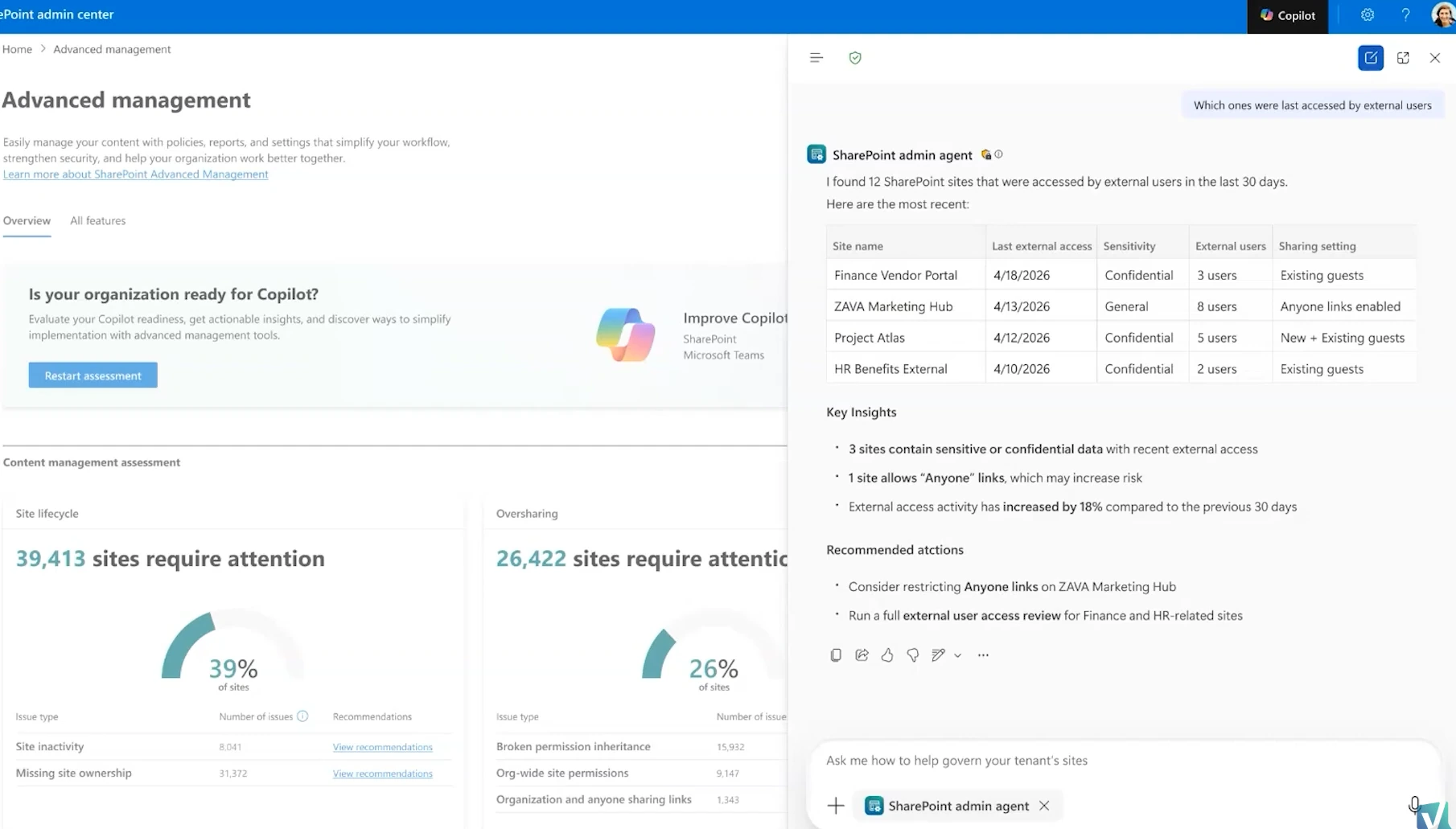
One expectation to set: a full assessment run takes between 24 hours and five days depending on how large your tenant is. This is not a report you click and read over coffee. Start it, let it finish, then come back and start asking questions.
Why This Matters Even Without Microsoft 365 Copilot
Microsoft built and marketed this capability around AI readiness, and that framing is doing it a disservice for a lot of organizations.
Even if you have no plan to deploy Microsoft 365 Copilot broadly in the next year, running the assessment will improve your tenant. Inactive sites cluttering results, content shared far more widely than intended, storage nobody is tracking, these are search problems and security problems long before they are AI problems. Fixing them pays off regardless of what you do with Copilot.
Having worked with SharePoint environments for over a decade, I would put it this way: content governance was always important, and AI simply made it visible. AI is an amplifier. Whatever state your content is in, good or bad, deploying AI on top of it will amplify that state.
Dave made the same point from the Microsoft side, and it is worth repeating: content governance is not optional. It is how you maintain the information that is most valuable to your organization, and it is frequently the differentiating factor when you are competing.
What This Means for You
If you administer a SharePoint tenant, the immediate action is straightforward. Open the Advanced Management area, click Start Assessment, and let it run. It costs you one click and a few days of waiting, and it will tell you more about your content estate than most internal audits will.
When the results come back, resist the urge to treat the number as a verdict. Work through the downloadable reports, identify which findings represent genuine risk in your environment, and use the policy links to create scoped policies with actions attached. Prioritize oversharing findings first, because those carry security implications that inactive sites do not.
If you are planning any AI deployment, whether that is Microsoft 365 Copilot or something else entirely, treat the assessment as a prerequisite rather than a nice-to-have. Deploying AI over ungoverned content does not create new problems so much as it makes existing ones impossible to ignore. And if you want the SharePoint Admin Agent to be useful, the assessment is not optional at all, because the agent is only as good as the data underneath it.
Finally, plan to re-run this. The assessment area is going to develop significantly, and the storage card in particular is worth watching for.
Ready to get your tenant in shape before your next AI rollout? The Content Assessment is one piece of a much larger set of capabilities that shipped in this release. Start with my overview of what’s new in SharePoint Advanced Management for 2026, then dig into content governance in SharePoint Premium for the wider context. If oversharing is your most pressing concern, my conversation on preventing Copilot oversharing covers that specific problem in depth.
Frequently asked questions
How often should I re-run the SharePoint Content Assessment?
The assessment can be run on demand, and you can also run individual reports separately with customized scopes. Because a full run can take up to five days on a large tenant, most organizations will want to schedule full re-runs around meaningful checkpoints, such as before an AI rollout or after a large migration, and use targeted individual reports in between.
Does running the assessment change anything in my tenant?
No. The assessment is a reporting and analysis exercise. It identifies patterns and recommends remediation, but it does not modify sites or permissions on its own. Changes only happen when you create and apply policies, which is a separate, deliberate step.
Can I get this data from PowerShell instead?
Largely no, and this is the key point. Much of the data the assessment surfaces was built specifically for these reports and is not exposed through PowerShell or the existing APIs. If you have been assembling governance reporting from scripts, expect the assessment to reveal things your scripts could not see.
Is the whole thing generally available?
The content management assessment report is already available to the general public across most geographies. The storage assessment portion is still upcoming, and Microsoft has signalled that this area will continue to evolve substantially based on customer feedback.

