
SharePoint Oversharing Reports and the New SAM Admin Role
 By Vlad Catrinescu Microsoft MVP and MCT · Pluralsight Author
SharePoint oversharing reports used to stop at the site. Now they reach the individual file. Running one also takes a brand new admin role, and not even a global administrator holds it by default. Here is what changed, what the export contains, and who should be allowed to open it.
Key takeaways
- One feature covers two runnable reports, one for content shared with Everyone and one for content shared with Everyone except external users.
- Both require the SharePoint Advanced Management Administrator role. A global admin must assign it explicitly, even to themselves.
- Microsoft tells you to generate the site permissions report at least once first. Treat that as a prerequisite.
- Each download is a ZIP containing a CSV, capped at 1 million rows. You can only rerun a report every 30 days.
- The export includes a TotalUserCount column that separates who can reach a file from who actually has.
- Microsoft 365 E5 without SharePoint Advanced Management does not get snapshot reports, so this report is out of reach on E5 alone.
The Five Types of SharePoint Oversharing
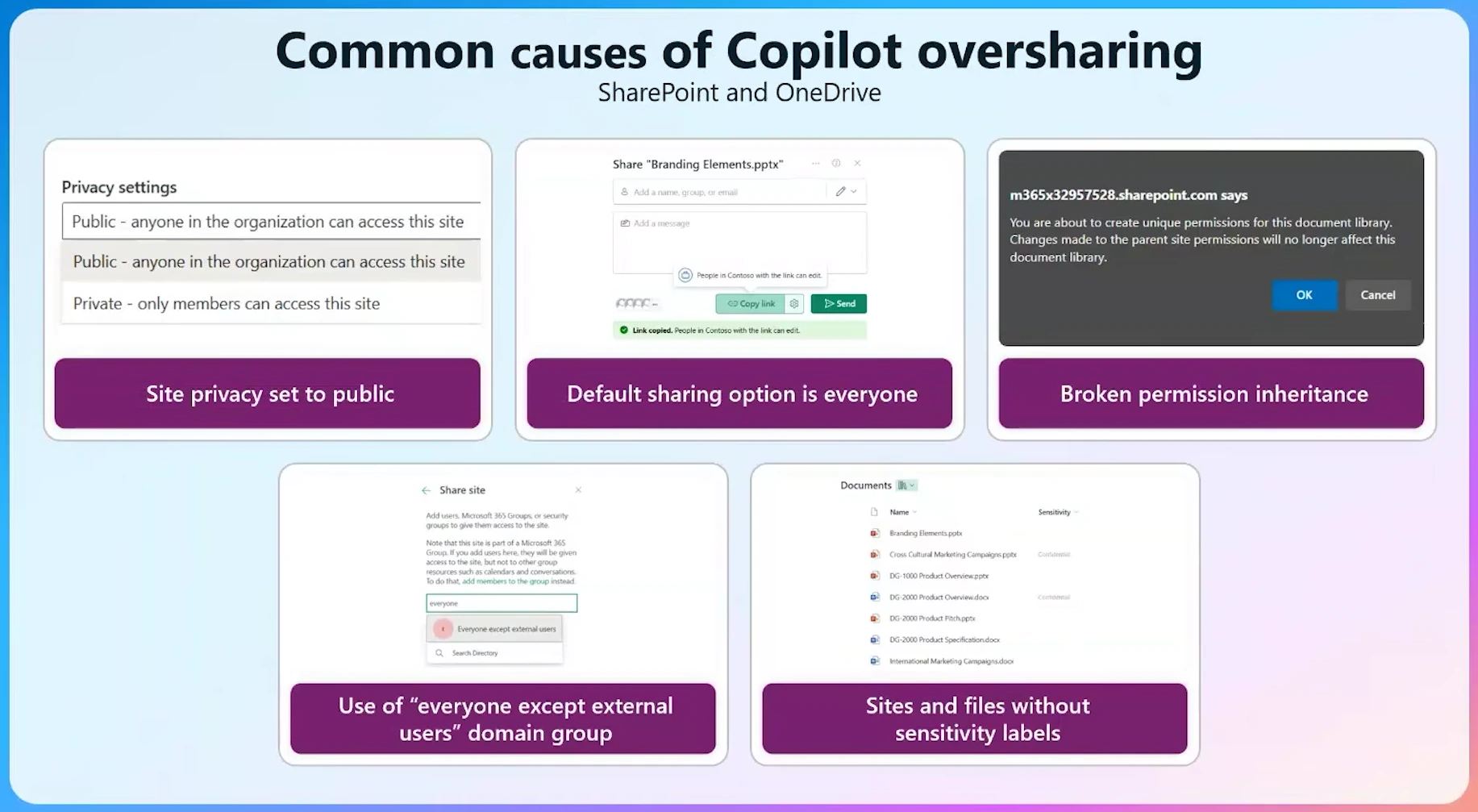
Oversharing sounds like one problem. In practice, it arrives in a handful of recognizable shapes.
Dave Minasyan is the Principal Product Manager for SharePoint Advanced Management at Microsoft. He groups those shapes into five basic types. By his estimate, those five cover roughly 80 to 90 percent of the oversharing patterns his team sees across tenants. Both the grouping and the figure come from the product team rather than from published documentation. Treat them as field observations, not measured statistics.
Microsoft Learn publishes no numbered “five types” list. What the documentation does give you is six risk signals worth watching for:
- Broad sharing through “Anyone,” “Everyone,” and organization-wide links
- Large audiences with excessive permissions
- Broken permission inheritance and complex access models
- Sensitive content with weak protection
- Unlabeled or public sites
- Governance gaps with ownerless, inactive, or unreviewed sites
The content management assessment uses a tighter grouping. It flags oversized audiences, EEEU usage, broken inheritance, inappropriate sharing, and sites that are inactive or ownerless. That maps almost exactly onto Dave’s five.
Microsoft also notes that risk compounds. Sites where several signals overlap deserve your attention first. A public site with no owner is a problem. A public site with no owner, sensitive data, and an “Anyone” link is an emergency.
Start With the Permission State Report
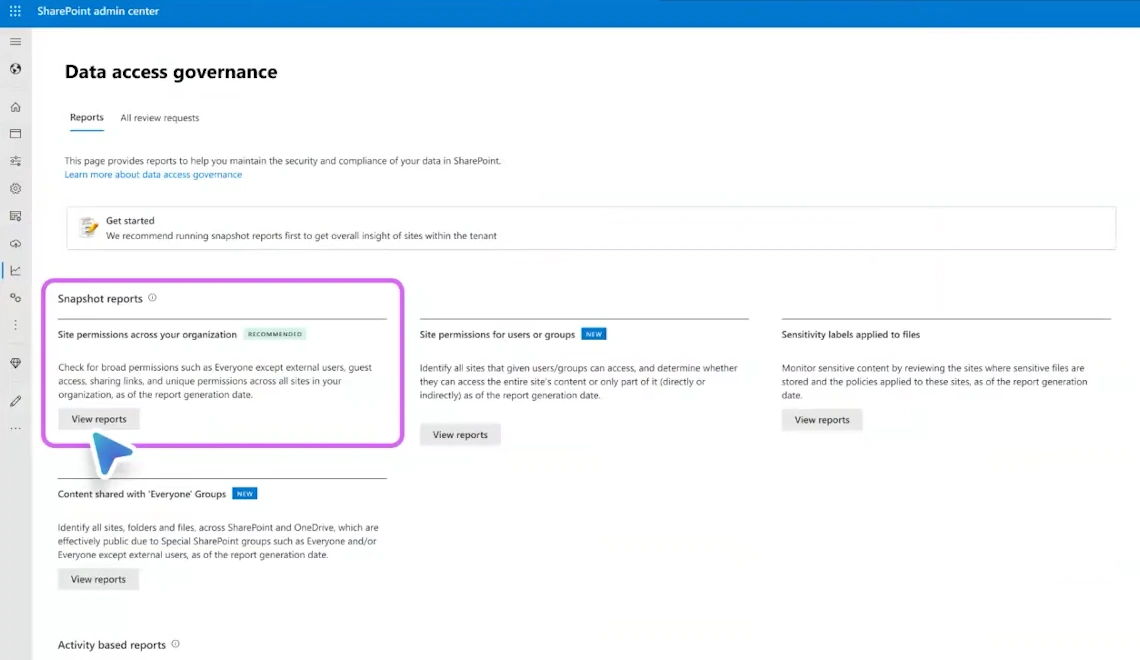
The permission state report remains the flagship tool, and everything else depends on it. Microsoft documents it as the site permissions for your organization report. It gives you a snapshot of your permission structure across every SharePoint and OneDrive site.
The report counts total permissioned users, Microsoft Entra groups, and broken inheritance. It also counts EEEU permissions, Everyone permissions, guest user permissions, external participant permissions, and sharing links. Microsoft generates separate reports for SharePoint and for OneDrive.
Several documented details rarely come up in conference sessions. Each one affects how you plan:
- The first report takes up to 5 days, regardless of tenant size. Later runs finish within 24 hours.
- Reports capture data from up to 48 hours before generation, so the numbers are never live.
- You can run reports again every 30 days.
- The interface shows the top 100 sites by user count. The CSV download covers up to 1 million sites.
- Sites with a NoAccess lock status are excluded, and so are archived sites.
The most useful idea in the documentation is the split between current and potential exposure. Adding users directly, or through a Microsoft Entra group, raises the permissioned user count immediately. Creating a sharing link does not, and neither does granting access to Everyone except external users. Those actions create potential exposure. It only becomes real when someone opens the content.
One more caveat matters if you audit classic sites. The EEEU and Everyone counts deliberately exclude hidden system files and system groups, because those permissions exist by design.
Where Microsoft Purview Fits In
Dave confirmed that his team is working with the Microsoft Purview team on a specific integration. The goal is to bring sensitive file type information directly into the permission state report. Once configured in Purview, that data would flow into the report and help you decide which sites deserve attention first.
That integration appears nowhere in the documentation, so treat it as roadmap rather than something usable today. Microsoft Purview does show up in the official guidance, but as a parallel tool you cross-reference by hand, not as a feed into this report.
What you can use today is the Site Sensitivity column already in the CSV. It carries the sensitivity label applied to the site itself, not to individual files. For file-level label data, Microsoft ships a separate sensitivity labels for files report. The SharePoint Advanced Management overview page calls the same thing the sensitivity label snapshot report, so expect both names.
SharePoint Oversharing Reports Now Reach the File Level
Site-level numbers tell you where to look. They do not tell you what to fix. Admins have asked Microsoft for file-level detail for years, and it has now shipped.
The feature is called Sites and files shared via special SharePoint groups. You will find it in the SharePoint admin center under Reports, then Data access governance, in the Snapshot reports area. It is one feature with two runnable reports, because each special group gets its own. Dave announced the “Everyone except external users” version on camera, and Microsoft shipped a matching report for the Everyone group alongside it.
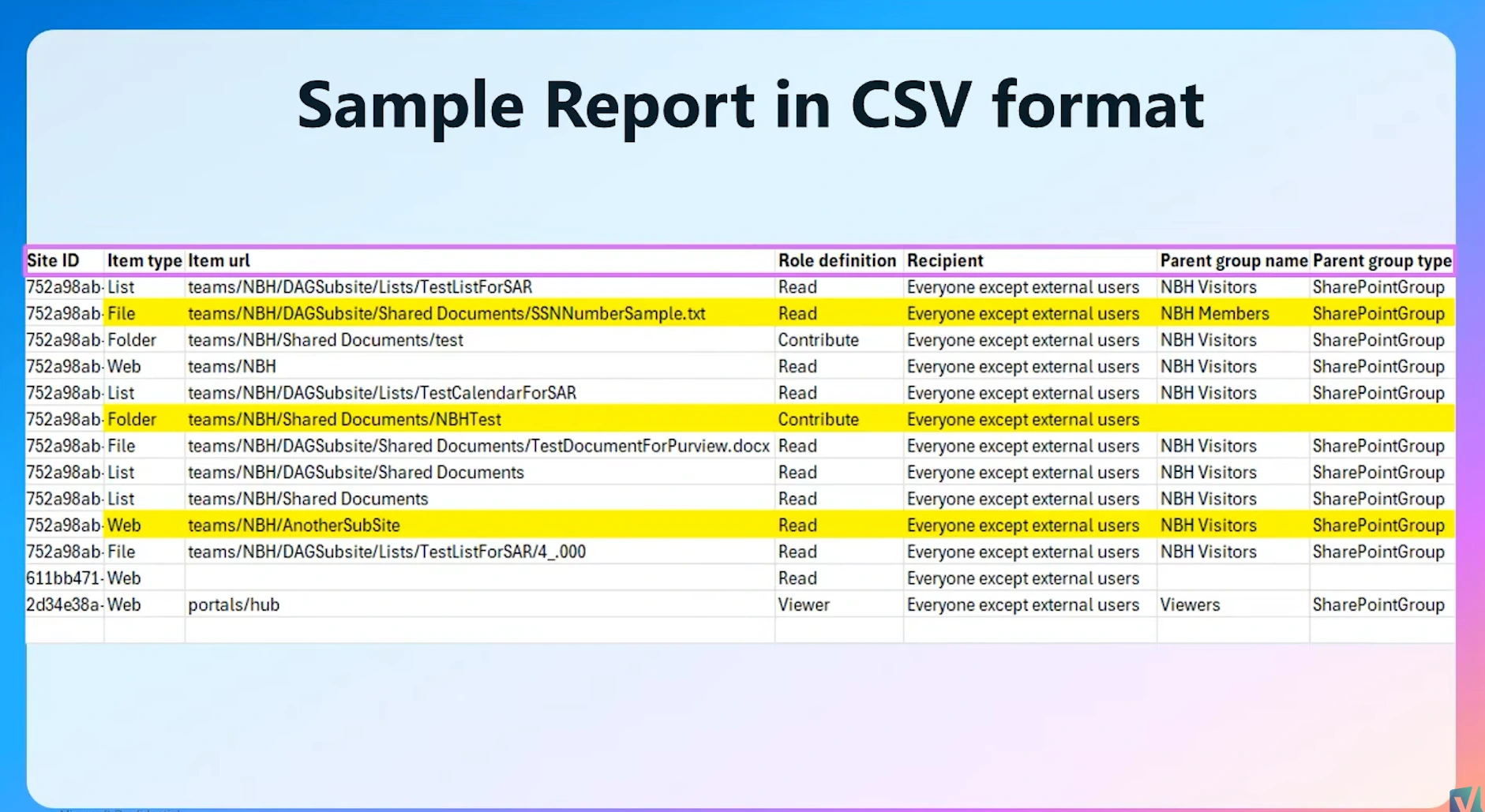
Each row identifies a single item one of those groups can reach. You also get the full chain of identifiers, running from your tenant down to that item. Each row carries the permission level granted, plus the parent group when access is indirect.
There is no browsable data grid, and that is intentional. The admin center gives you a status tile showing that the report is available, the date it was generated, and the number of sites found. Everything past that lives in the download. As Dave explained it, these reports can be very massive, so Microsoft skipped the interface and went straight to the export. The documentation frames the same decision around outcomes. Use these SharePoint oversharing reports when you want to fix problems through scripting, rather than asking site owners to review permissions one site at a time.
What You Actually Get in the Export
The download is a ZIP file containing a CSV, and it is capped at 1 million rows. On camera, Dave estimated that a permission report “can have like a million rows.” That turns out to be the documented ceiling rather than an exaggeration.
The CSV carries 20 columns. Most are identifiers that form a hierarchy from your organization down to a single item. As a result, you can pivot or summarize at any level. Filter on one site ID and you see every permission inside that site, across every scope.
A few columns deserve specific attention:
- ItemType tells you what the row describes: Web, List, Folder, or File. List items count as files.
- Role definition gives the permission level, such as Full control, Read, Edit, Contributor, Creator, or Viewer.
- ParentGroupType and ParentGroupName appear when access is indirect. Together they show whether the path runs through a security group, a SharePoint group, or a Microsoft 365 group.
- TotalUserCount is the column most people will miss. It counts users who have actually opened the item at least once.
That last column turns an intimidating list into a prioritized one. The item is already shared with everyone internally, so this number is your real exposure rather than your theoretical exposure. Ten thousand overshared files nobody has ever clicked is one problem. Fifty overshared files that hundreds of people have opened is a very different one.
Four constraints are worth knowing before your first run. Microsoft tells you to generate the site permissions report at least once beforehand, though the documentation never spells out what happens if you skip that step. Data can be up to 48 hours old. You can only rerun it every 30 days. Finally, the report always covers both SharePoint and OneDrive, and you cannot scope it to one workload.
Licensing is the constraint that stops most people, and it is easy to miss. Microsoft states that E5 administrators can reach data access governance reporting without SharePoint Advanced Management. Those reports, however, do not include snapshot reports or remedial actions. This is a snapshot report, so E5 alone will not get you there. The reports are also unavailable for Microsoft 365 operated by 21Vianet, even with the right licenses.
The report also excludes system files and system groups. Microsoft gives a concrete example: the Everyone group inside the Style Resource Readers group on classic publishing sites. That membership is intentional, since it controls access to the master page gallery and the style library. Remove it, and users start seeing broken pages.
The New SharePoint Advanced Management Administrator Role
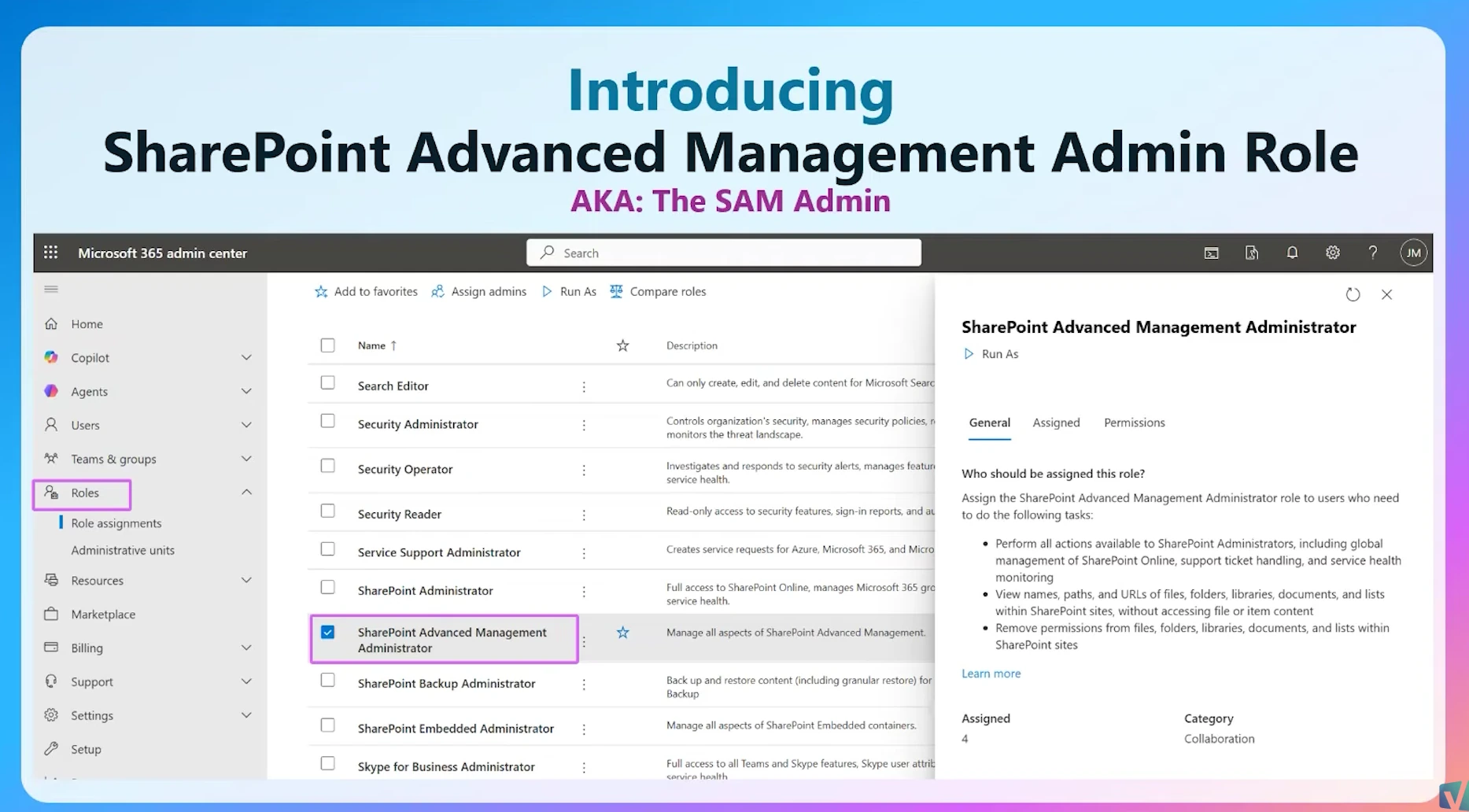
File-level visibility arrived with a new security model attached. The SharePoint Advanced Management Administrator role is a built-in Microsoft Entra role. Microsoft documents it as a superset of SharePoint Administrator.
Assign it, and the holder can do everything a SharePoint Administrator does, plus three things a SharePoint Administrator cannot:
- View names, paths, and URLs of files, folders, libraries, documents, and lists inside SharePoint sites
- Remove permissions from those same objects
- Manage SharePoint Advanced Management features
One boundary deserves more attention than it usually gets. The role grants visibility into file names, paths, and URLs without granting access to file or item content. An admin can see that a file called “2027 Layoff Plan.docx” is shared company-wide, and they can strip that permission. The role alone does not let them read it.
Because the role is a superset, you do not need both. If you are the only SharePoint admin at your company, take this role and drop the other one. In a larger team, treat the split as a deliberate decision about who sees file names.
Why Global Admins Have to Opt In
Here is the part that surprises people, and I confirmed it in my own demo tenant before publishing. A global administrator cannot run the file-level report. Microsoft documents the same behavior plainly. Standard SharePoint administrators and global administrators cannot view file properties across sites they do not own. A global administrator must assign the SharePoint Advanced Admin role before the report will run.
You can, of course, grant the role to yourself, since you are the global admin. The point is that you make that choice consciously, and the choice is auditable.
I described this to Dave as the Microsoft Purview model, where even a global admin starts with nothing by default. He pushed back on the framing. In his view, it is not a Purview pattern at all. It is a general data compliance requirement, and it applies the moment any tool starts touching files rather than sites. His reasoning was blunt. Whoever holds this role could potentially see file names inside a chief executive’s own content, and that is not access you hand out by default.
Having spent over a decade in SharePoint environments, I would argue the distinction is academic for most admins. Purview works this way precisely because compliance demands it. Dave is right on the technicality, though. That technicality is exactly why this role exists as a separate assignment rather than a checkbox.
What This Means for You
Start by running the site permissions report, because nothing else works until you do. It is a hard prerequisite for the file-level reports. On a first run, it can take up to 5 days, so kick it off before you need the data.
Next, decide who holds the SharePoint Advanced Management Administrator role. Decide it before someone urgently needs a report. If you are a one-admin shop, this is simple. Take the role, since it includes everything your current role does. If you have a team, have the conversation about file-name visibility while it is still hypothetical.
Then plan your cadence around the 30-day rerun limit. A quarterly rhythm works well for the snapshot reports. Pull the file-level export ahead of any significant Copilot or agent rollout. Remember that the data is already up to 48 hours old when it lands. These SharePoint oversharing reports are a planning instrument, not a monitoring one.
Finally, sort out your analysis path before the CSV arrives. A million-row file is not something you skim. Excel with Copilot, Power BI, or a short script will all work. Dave was direct about why Microsoft chose the CSV format: admins who need file-level data already know how to handle large exports. File-level data is not in the SharePoint Admin Agent yet, though Dave said bringing it in is on the roadmap.
Ready to find out where your own oversharing lives? Open the SharePoint admin center, go to Reports, then Data access governance. Check whether your site permissions report has ever been generated. That one answer tells you whether the file-level reports are available today or five days from now. For the wider picture of what shipped this year, read my breakdown of what’s new in SharePoint Advanced Management for 2026. To scope reports to a department instead of your whole tenant, start with SharePoint catalog management. And if your next step is keeping sensitive sites out of Copilot, see my first look at Restricted Content Discoverability.
Dave reads the comments on these interviews personally. If you have a feature request for SharePoint Advanced Management, that is the place to leave it. You can also connect with Dave Minasyan on LinkedIn (opens in a new tab). For more Microsoft 365 governance coverage, subscribe to the Vlad Talks Tech newsletter at vladtalkstech.com.
Frequently asked questions
Do I need the SharePoint Advanced Management Administrator role for every data access governance report?
No. Microsoft’s instructions for reaching the data access governance page tell you to sign in with SharePoint Administrator credentials. Among the reports, only the item-level one explicitly demands the newer role in its documentation. That role also gates two things beyond reporting: removing permissions from content at scale, and managing SharePoint Advanced Management features.
Why might my reports fail to generate at all?
One setting outside SharePoint can break them. Microsoft documents that reports might not work depending on how your organization handles pseudonymized report data. The relevant control lives in the Microsoft 365 admin center, under Reports settings, and it governs whether concealed user, group, and site names appear in reports. Changing it requires a Global Administrator. If your reports fail for no obvious reason, check there before opening a ticket.
How current is the data in the file-level report?
Reports capture data from up to 48 hours before generation. A report you run this morning may reflect permissions as they stood two days ago. Combined with the 30-day rerun limit, that makes it a remediation tool rather than a monitoring one. For ongoing monitoring, use the activity reports, which track the last 28 days.
Can I run the report for SharePoint only and skip OneDrive?
No. The report always covers both SharePoint and OneDrive. Microsoft does not offer a way to scope it to a single workload. If you only care about SharePoint, filter the export after downloading it.
What happens if my tenant has more than 1 million overshared items?
The downloaded file is limited to 1 million rows, so a very large estate can exceed the cap. Use the site permissions report first to find your worst sites. Remediate those, then rerun the file-level report once the volume has come down.

