
How to Set Organization Link Expiration in SharePoint and OneDrive
 By Vlad Catrinescu Microsoft MVP and MCT · Pluralsight Author
Microsoft has finally given SharePoint admins a way to fight internal oversharing at the link level. The new SharePoint organization link expiration setting lets you automatically expire People in your organization links in both SharePoint and OneDrive, and it only takes a couple of PowerShell parameters to turn it on. In this post, you will learn why this matters for Microsoft Copilot deployments, how to configure it at the tenant level, and how to override it for specific sites when one policy does not fit every workspace.
Key takeaways
- Microsoft now supports expiration policies for People in your organization sharing links in SharePoint and OneDrive, closing a long-standing internal oversharing gap.
- You configure two values per workload: a recommended default that pre-fills in the share dialog and a maximum that acts as a hard ceiling, both between 7 and 720 days.
- Tenant-level settings are applied with the Set-SPOTenant cmdlet, and you can override them per site using Set-SPOSite for sensitive or marketing workspaces.
- Existing organization links are not affected. The policy only applies to brand-new links created after the setting is turned on.
- If you are rolling out Microsoft Copilot, enabling this is close to a no-brainer because it stops new oversharing damage from accumulating while you remediate the existing problem.
Why internal oversharing became a Copilot-sized problem
For years, the loudest oversharing conversation has been about the Everyone Except External Users group. Too many SharePoint sites and documents had that group on their permissions, which exposed content to anyone who could sign in. Microsoft eventually let admins hide that group from the people picker, and most organizations have done so by now.
The trouble is that Everyone Except External Users was only one path to internal oversharing. The other big one is sharing links. Specifically, the People in your organization link, which works for any tenant member who has the URL. Before Microsoft Copilot, that link was already a quiet risk. With Copilot indexing everything a user has access to, that risk became loud.
As I covered in Mitigating Microsoft 365 Oversharing Risks (opens in a new tab), Microsoft Copilot does not create oversharing. It surfaces oversharing that was already there. Every dormant organization link in your tenant is one more place where a user can ask Copilot a question and get back a document they were never supposed to see.
Having worked with SharePoint environments for over a decade, I can tell you this is one of the most welcome admin controls Microsoft has shipped this year.
The three types of SharePoint sharing links
Before getting into the configuration, it helps to remember what kinds of links you are dealing with in SharePoint and OneDrive. Each one has a different blast radius.
- Specific people link: Works only for the named recipients. This is the safest option.
- People in your organization link: Works for any tenant member who has the link. This is the one the new expiration setting targets.
- Anyone with the link: Works for anyone, internal or external. This is the most permissive link type and has had expiration controls for years.
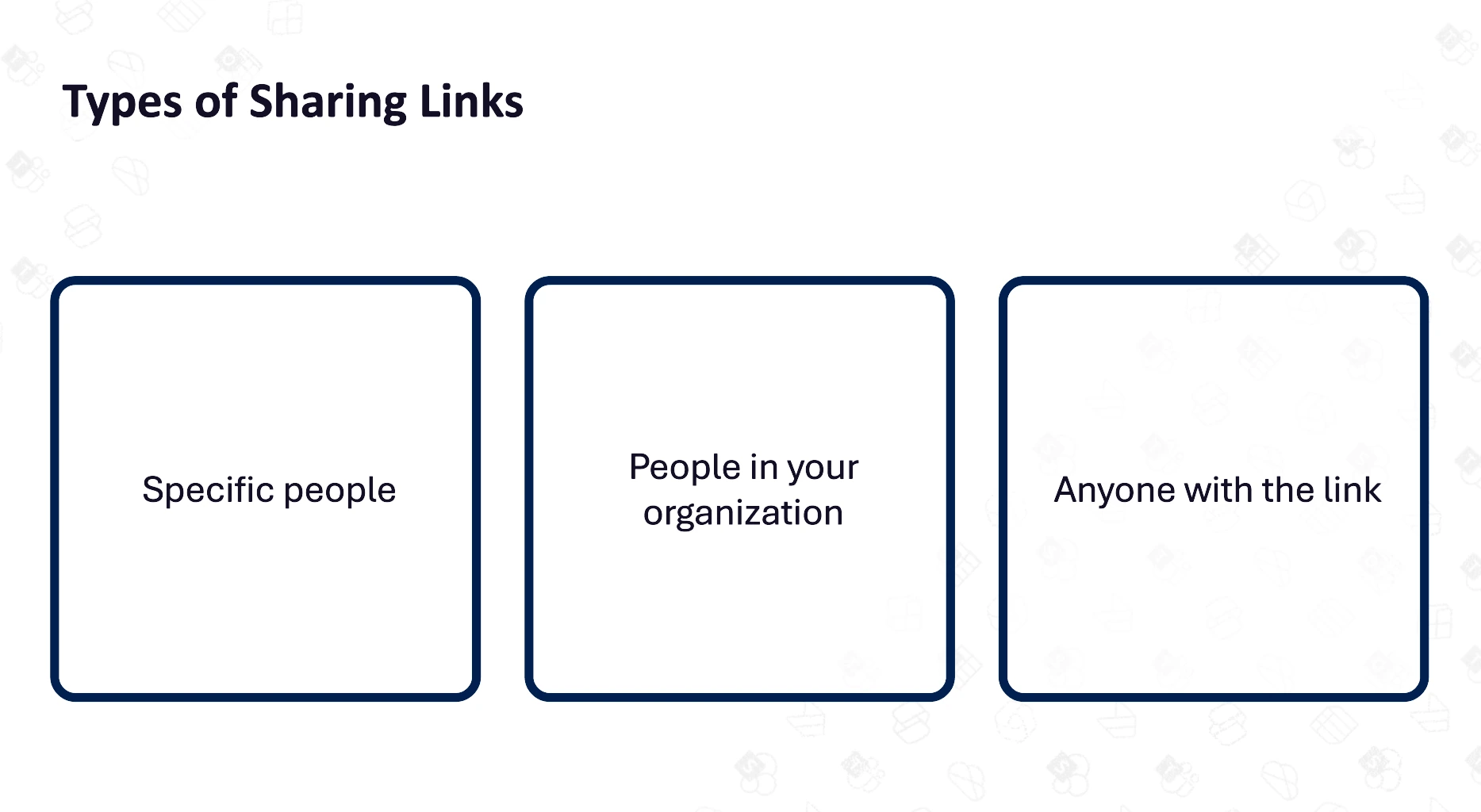
Microsoft has been giving us tools to limit Anyone links for close to a decade. Anyone expiration policies have been there. Specific people links have always been the recommended best practice. The People in your organization link, however, has been sitting in the middle with no expiration option, which is exactly where Copilot exposure tends to pile up.
What the new SharePoint organization link expiration setting does
The new setting gives you two values to configure, not one. That distinction is important because it lets you balance security with end-user flexibility.
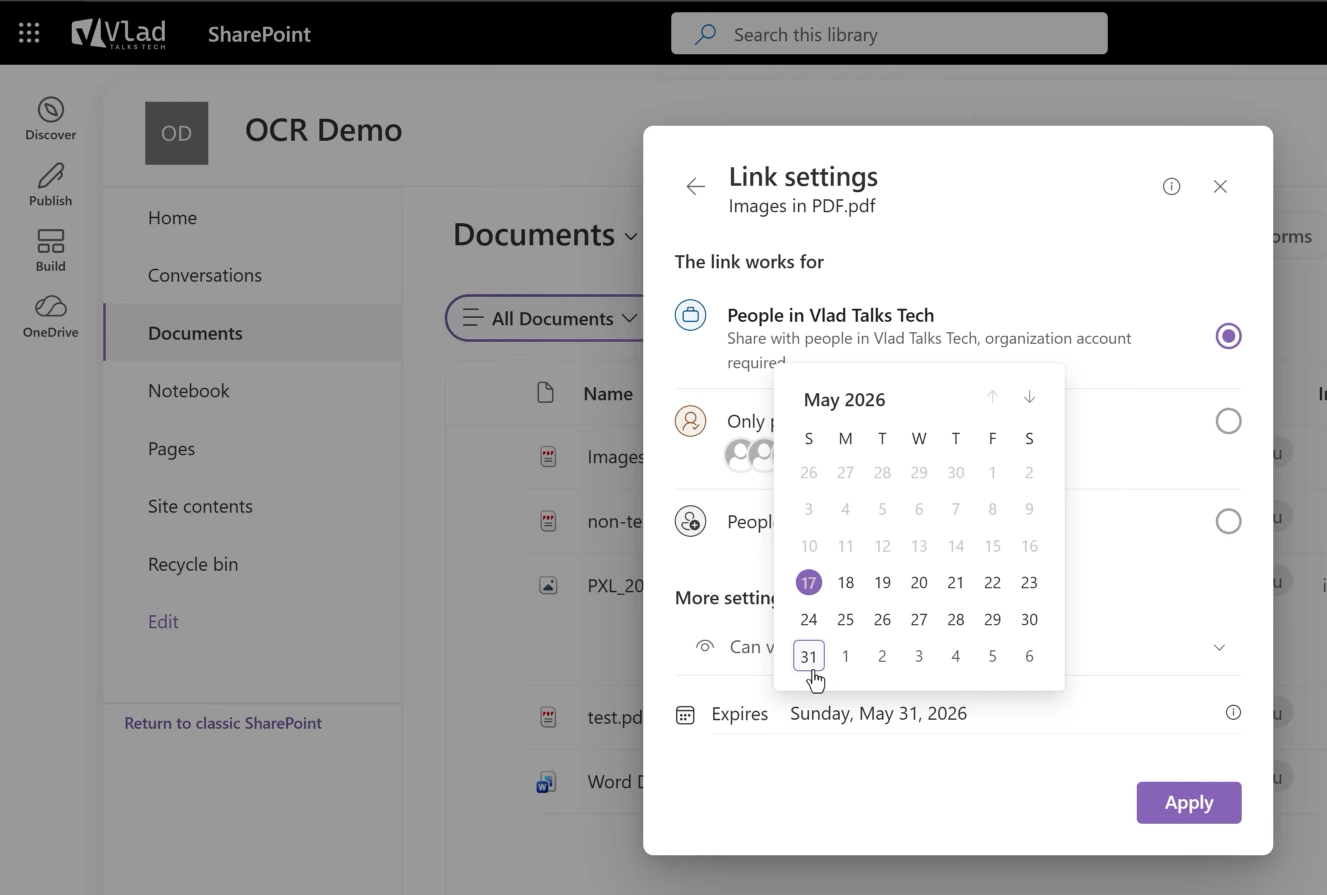
- Recommended default: The value that pre-fills in the share dialog when a user creates a People in your organization link. Users can pick less. They can also pick more, up to the maximum.
- Maximum: The hard ceiling. Users cannot set an expiration longer than this value, no matter what they do in the UI.
Both values must be between 7 and 720 days, so anywhere from one week to roughly two years. You can also set different values for SharePoint and OneDrive, which is useful because the use cases are not the same. Personal OneDrive sharing tends to be more transactional, so you might want a tighter ceiling there than on collaborative SharePoint sites.
One important caveat: this setting only applies to new links created after you enable it. Existing organization links are not retroactively expired. You will still need SharePoint Advanced Management or PowerShell-based remediation for the historical damage, but new links will stop adding to the pile.
How to configure SharePoint organization link expiration at the tenant level
The tenant-level configuration uses the Set-SPOTenant cmdlet. You have four parameters to work with: two for SharePoint and two for OneDrive.
For SharePoint:
- CoreOrganizationSharingLinkRecommendedExpirationInDays
- CoreOrganizationSharingLinkMaxExpirationInDays
For OneDrive:
- OneDriveOrganizationSharingLinkRecommendedExpirationInDays
- OneDriveOrganizationSharingLinkMaxExpirationInDays
Yes, the parameter names are long. But the logic is simple: the first one is the recommended default, and the second one is the maximum.
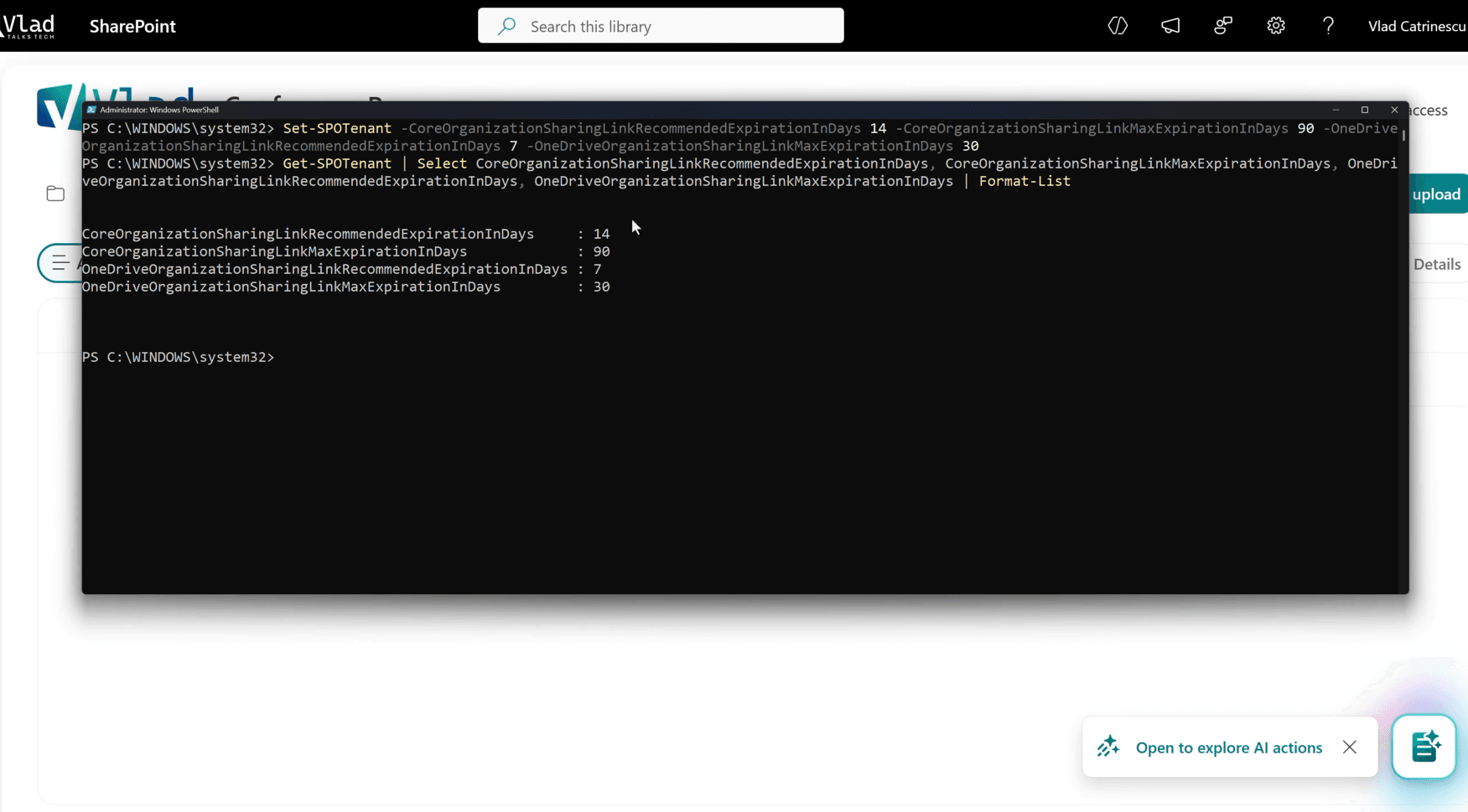
Here is what a typical configuration looks like. In this example, SharePoint links default to 14 days with a 90-day ceiling, and OneDrive links default to 7 days with a 30-day ceiling.
Set-SPOTenant `
    -CoreOrganizationSharingLinkRecommendedExpirationInDays 14 `
    -CoreOrganizationSharingLinkMaxExpirationInDays 90 `
    -OneDriveOrganizationSharingLinkRecommendedExpirationInDays 7 `
    -OneDriveOrganizationSharingLinkMaxExpirationInDays 30
You can validate the settings with Get-SPOTenant. Once the policy is in place, the share dialog on any SharePoint site will show the recommended expiration as the default and prevent users from extending beyond the maximum.
How to override organization link expiration at the site level
A single tenant-wide policy will not fit every site. Your marketing intranet might need longer-lived links so campaigns do not break, while a sensitive HR or finance site needs a much tighter ceiling. This is where the site-level override comes in.
The override uses the Set-SPOSite cmdlet. The first thing you do is flip the override switch with OverrideTenantOrganizationSharingLinkExpirationPolicy, then set the two values for that specific site.
The three parameters are:
- OverrideTenantOrganizationSharingLinkExpirationPolicy (set to $true)
- OrganizationSharingLinkRecommendedExpirationInDays
- OrganizationSharingLinkMaxExpirationInDays
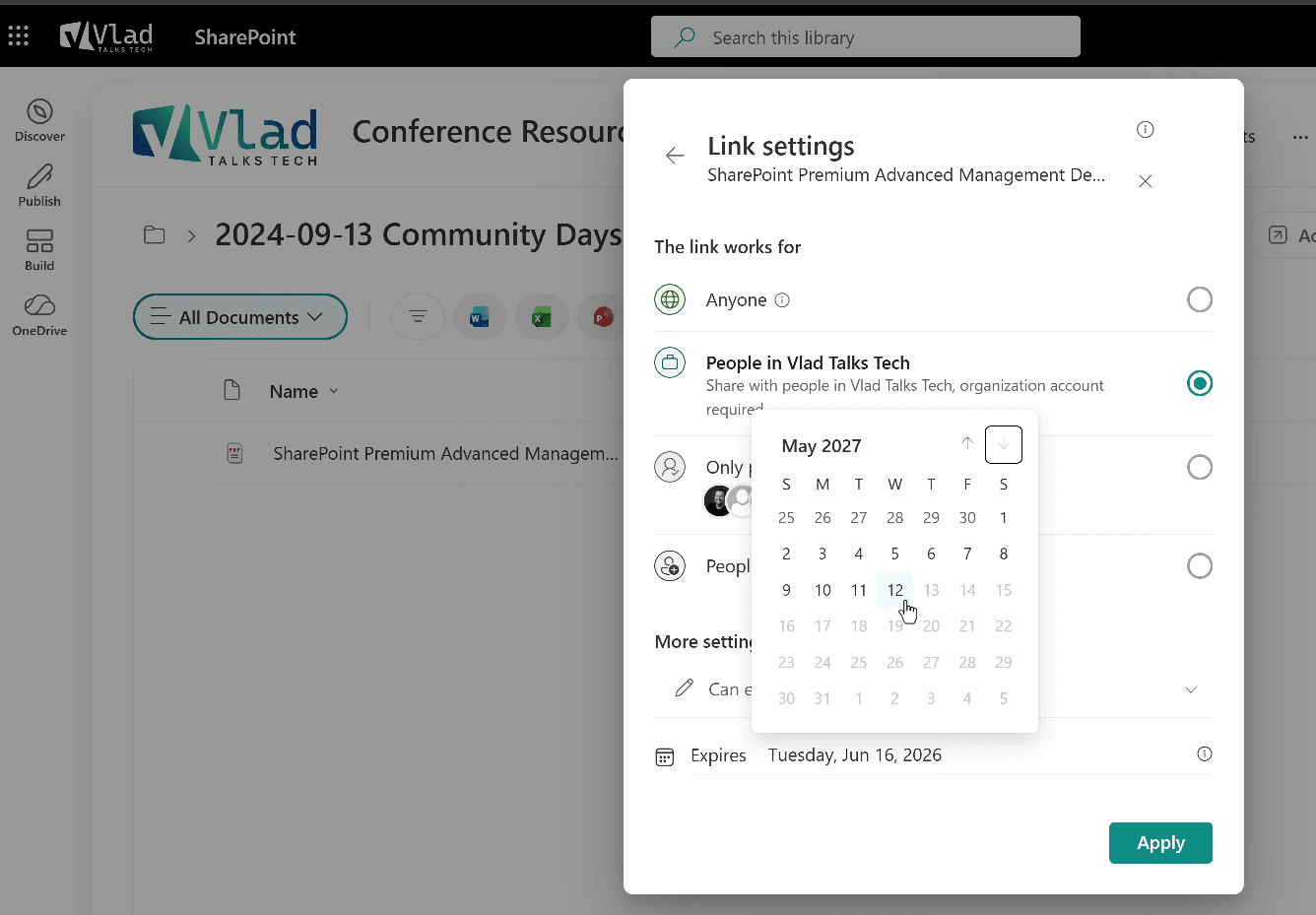
Here is an example that overrides the tenant policy for a Conference Resources site, setting the recommended default to 30 days and the maximum to 360 days:
Set-SPOSite -Identity https://contoso.sharepoint.com/sites/ConferenceResources `
    -OverrideTenantOrganizationSharingLinkExpirationPolicy $true `
    -OrganizationSharingLinkRecommendedExpirationInDays 30 `
    -OrganizationSharingLinkMaxExpirationInDays 360
The same 7 to 720 day range applies. The site-level value can be more strict or more permissive than the tenant default. Once the cmdlet finishes, the share dialog on that specific site will reflect the new values instead of the tenant-level policy.
What this means for you
If you are an IT admin running a Microsoft 365 tenant, this setting belongs on your short list of governance controls to enable in the next sprint. The reason is simple: oversharing remediation has been almost entirely reactive until now. Tools like SharePoint Advanced Management and the Permission State Report help you find existing damage, but they do not stop the next dormant link from being created today.
This setting is the first proactive lever for People in your organization links. Once enabled, every brand-new link starts a countdown clock. After the expiration date hits, the link stops working, and the access it granted goes away. You no longer have to remember to chase it down.
A practical rollout pattern looks like this. First, set a relatively strict tenant default, for example 14 days recommended with a 90-day maximum. Then, identify the small number of sites where business owners have a legitimate need for longer-lived organization links, such as marketing campaigns or partner-facing intranets, and override the policy for just those sites. This gives you a secure-by-default posture without creating friction for the legitimate use cases. If you want to layer in additional controls beyond link expiration, SharePoint Premium and the Permission State Report are the natural next step, especially before a Microsoft Copilot rollout.
For organizations actively deploying Microsoft Copilot, I would not wait. Configure this now so the oversharing pile does not keep growing while you fix what is already there.
Ready to lock down internal oversharing in your tenant?
If you are responsible for a Microsoft 365 tenant heading into a Copilot rollout, link expiration is one piece of a much bigger oversharing story. For a deeper look at where Microsoft sharing is going next, check out The Future of File Sharing in Microsoft 365: Hero Link Deep Dive, and if you want a structured way to level up your SharePoint admin skills, my Pluralsight course catalog (opens in a new tab) has over 100 courses across Microsoft 365, SharePoint, and Copilot governance.
Frequently asked questions
Does SharePoint organization link expiration affect existing links?
No. The setting only applies to People in your organization links that are created after the policy is enabled. Links created before then keep their existing behavior, which in most cases means no expiration. You will still need a separate remediation effort, PowerShell or 3rd party tools, to clean up the historical links.
What is the minimum and maximum expiration I can set?
Both the recommended default and the maximum must be between 7 and 720 days. That gives you a range from one week up to roughly two years. The recommended default cannot exceed the maximum, and users cannot manually set an expiration longer than the maximum, even if they try.
Can I set different expiration values for SharePoint and OneDrive?
Yes. Microsoft built the tenant-level settings as four separate parameters: two for SharePoint Core links and two for OneDrive. You can apply tighter values for OneDrive personal sharing and more permissive values for SharePoint team collaboration, or vice versa, depending on how your organization uses each workload.
Do I need SharePoint Advanced Management to use this feature?
No. The expiration setting itself is part of the standard SharePoint Online and OneDrive admin surface, configured through Set-SPOTenant and Set-SPOSite. SharePoint Advanced Management is still valuable for surfacing existing oversharing through tools like the Permission State Report and Restricted Content Discoverability, but you do not need it to turn on the new link expiration policy. For more on what is in SAM today, see What is New and What is Coming in SharePoint Advanced Management 2025.

