
Microsoft 365 Archive FAQ: Copilot, Retention, Reactivation and Cost
 By Vlad Catrinescu Microsoft MVP and MCT · Pluralsight Author
I hosted a Syskit webinar on Microsoft 365 Archive with Trent Green from Microsoft, and it was one of the most active webinars we’ve had in a while. Trent is a Principal Product Manager who has been driving the archive product for the past four years, so I asked him your questions about where archived files go, what your users see and what archiving really costs. Below are his answers, checked against Microsoft’s documentation, plus a few notes of my own.
Key takeaways
- Microsoft 365 Archive moves inactive content to a cheaper cold storage tier inside SharePoint, where it keeps its metadata, permissions and compliance settings.
- Archived content isn’t used to ground Microsoft Copilot (formerly Microsoft 365 Copilot) and is hidden from search by default, but users can still find it with the Archived filter.
- Reactivation is instant for the first seven days, then takes up to 24 hours, and Trent says most files come back in 18 to 22 hours.
- Archiving isn’t retention, and your retention policies still apply to archived files, including the ones that delete content.
- You only pay for storage above your tenant quota, at $0.05 per GB per month for archived content instead of $0.20, and reactivation is free outside unlicensed OneDrive accounts.
- Trent’s advice is to start with about a dozen sites, then scale with SharePoint Advanced Management or Microsoft Purview policies.
How Microsoft 365 Archive works
What is Microsoft 365 Archive?
Microsoft 365 Archive is a new tier of SharePoint and OneDrive storage for your inactive content. Active content still supports everyday collaboration and Copilot, while the archive tier is for data you need to keep but don’t need day to day. Trent gave three reasons to use it: lower cost, more relevant Copilot answers, and general storage management.
It comes as site-level archive, for a whole site, and file-level archive, for individual files on a site that stays active. Microsoft’s overview of Microsoft 365 Archive (opens in a new tab) covers both.
Does archived content leave SharePoint?
No. Trent gets asked that a lot, along with whether you can use an external archive or whether content moves into another repository. Microsoft 365 Archive stays inside SharePoint, within the Microsoft 365 boundary.
It is simply a tiering mechanism.
Behind the scenes, Trent explained, SharePoint moves the content to the cold archive storage Azure offers out of the box, and manages that move for you. Because SharePoint still manages it, your metadata, folder structure, permissions, durability, security and compliance go into the archive and come back out with it.
Does archived content stay in the same country?
Yes. One attendee asked this with GDPR and Quebec’s Law 25 in mind, and Trent’s answer was “Absolutely.” Archived content follows the same geo residency requirements as your active content, and like all SharePoint data, it’s stored twice in different locations, both inside your residency boundary.
It’s not like we’ve shipped it somewhere cheap.
So wherever you agreed your active data can live, your archived data lives in the exact same locations.
Copilot and search
Does Copilot use archived content?
No, and Trent sees that as one of the big benefits. You want Copilot using the most relevant and recent information, so archived content is intentionally left out of Copilot grounding, and Trent said they’re seeing huge results in the relevancy of Copilot’s responses because of it. His team is working on possibly exposing some archived content to Copilot, with admins deciding what’s visible, but today the default is that none of it is.
Apps you build yourself work differently. Archived is a state of a file, so the APIs that list files still return archived files, flagged as archived, but Microsoft’s developer guidance for Microsoft 365 Archive (opens in a new tab) says an app can’t read an archived file’s content until the file is reactivated.
Can users still find archived files in search?
Yes, but archived content is hidden from search results by default to keep things clean, and users opt in per session when they can’t find a file or know it’s archived. In OneDrive search, that’s the Archived filter, and SharePoint search has an Archived option under the File type dropdown. Results are permission trimmed, so people only see archived files they already have access to.

What changes when content is archived
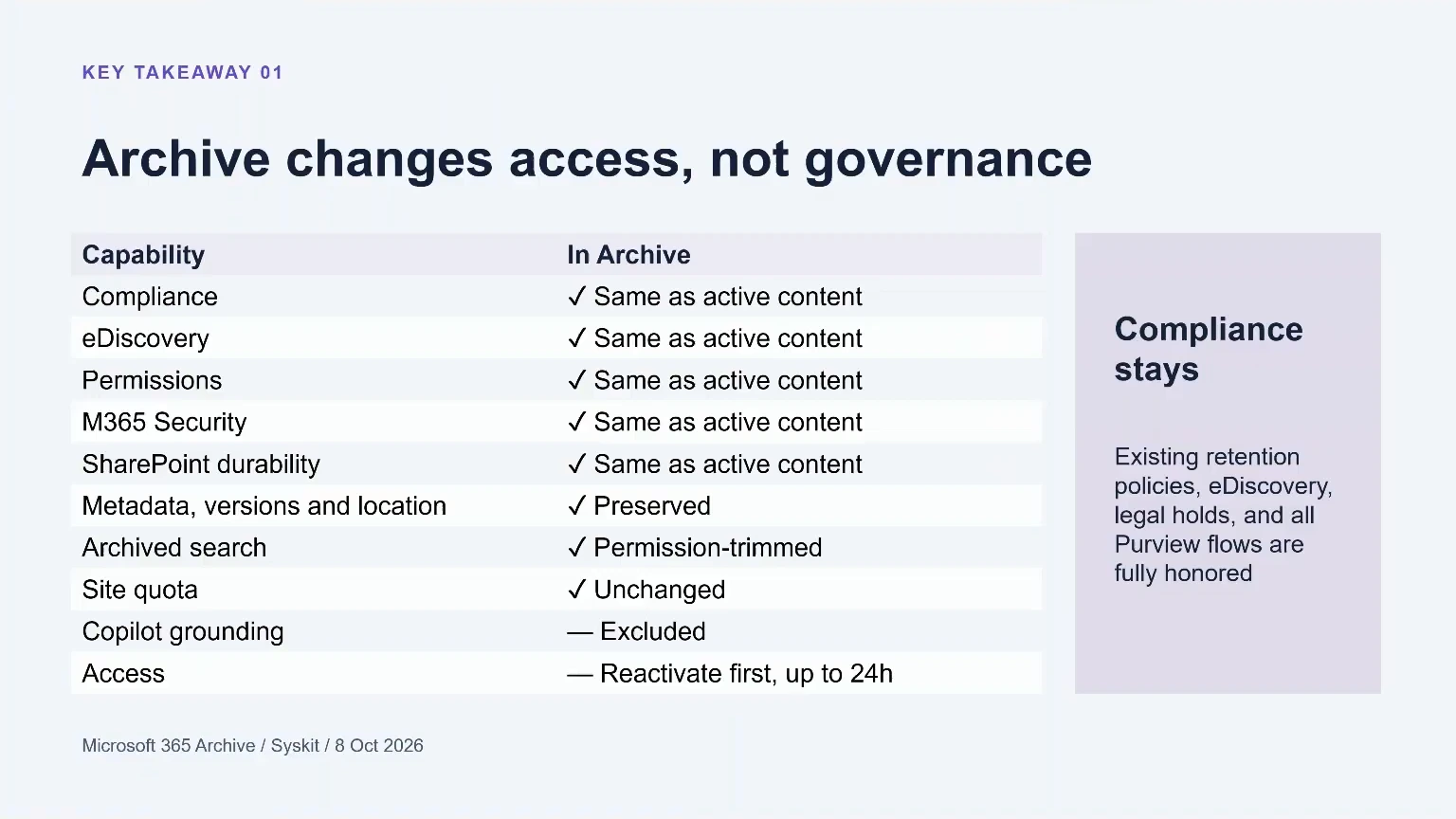
The table below was the first of Trent’s three key takeaways. Compliance, eDiscovery, permissions, security, SharePoint’s extra durability, metadata and versions all stay exactly the same in the archive. Only two things change: archived content is excluded from Copilot grounding, and you have to reactivate it before you can open it again.
Does archiving change a site’s storage quota?
No. Archived files still count against the site’s quota, so a site quota is something archiving can’t get around. If you limit a site to 10 TB, that site gets 10 TB shared between active and archived storage, and the savings happen at the tenant level instead.
How long does reactivation take?
Up to 24 hours, and that’s the fundamental trade-off of archiving. In reality, Trent says most files and sites take 18 to 22 hours, and over 99.9% of files come back within 24 hours. It takes that long because your documents are split into pieces across redundant cold storage, and SharePoint has to fetch them and put each file back together.
The first seven days are the exception: content reactivates almost instantly during its first week in the archive, which helps a lot when someone archives the wrong file.
Do eDiscovery, legal holds and retention policies still work?
Yes. Everything in your Microsoft Purview compliance flows is fully honored, including legal holds, eDiscovery and retention policies you create after the content was archived. Microsoft’s documentation adds that eDiscovery can export straight from archived content, even if the export might take longer, and that sensitivity labels still apply.
Archiving is not retention
Does archiving a file mean it’s retained?
No, and Trent was very clear on this one. Retention policies are fully honored, so a policy can still require a file to be kept, or deleted, after a certain time. Archiving on its own doesn’t keep anything, though, because anyone with permission to delete a file can delete it straight from the archive.
Don’t think of archive as a retention mechanism, but rather just as a storage tier.
Will a retention policy that deletes content also delete archived files?
Yes. An attendee asked whether an auto-delete retention policy, or a label that deletes without review, would skip archived files. Archiving is only a state, so a retention policy that deletes files deletes them whether they’re archived or not, and as Trent put it, you don’t need to worry about archive blocking your retention policy.
File-level or site-level archive
When should I use file-level archive instead of site-level archive?
Use file-level archive when the site is still active, like a team or project site that’s always moving but holds a lot of content nobody uses anymore. You archive those files, and the pages, the lists and the rest of the site keep working.
Site-level archive is for when a project closes all at once. Trent’s example was construction companies, which have to keep a finished project’s files but rarely open them again, so they archive the whole project site in one go. An archived site needs a SharePoint admin to reactivate it, and the inactive site policies in SharePoint site lifecycle management can archive sites for you.
Can I archive a Teams site with private or shared channels?
Not fully, yet. Trent said Microsoft is working on tying this to the archive feature in Teams, so the Teams side and the SharePoint site get archived together. Until then, Microsoft’s documentation says the SharePoint admin center won’t archive a site that has private or shared channels, and PowerShell or Graph archive only the main site.
What archiving looks like for your users
How does a user archive a file?
A user selects the file in a document library and chooses Archive from the list of actions. A dialog reminds them that they can reactivate it instantly for seven days, and that after that, it takes up to 24 hours. The file then stays right where it was, with an archived icon next to its name.
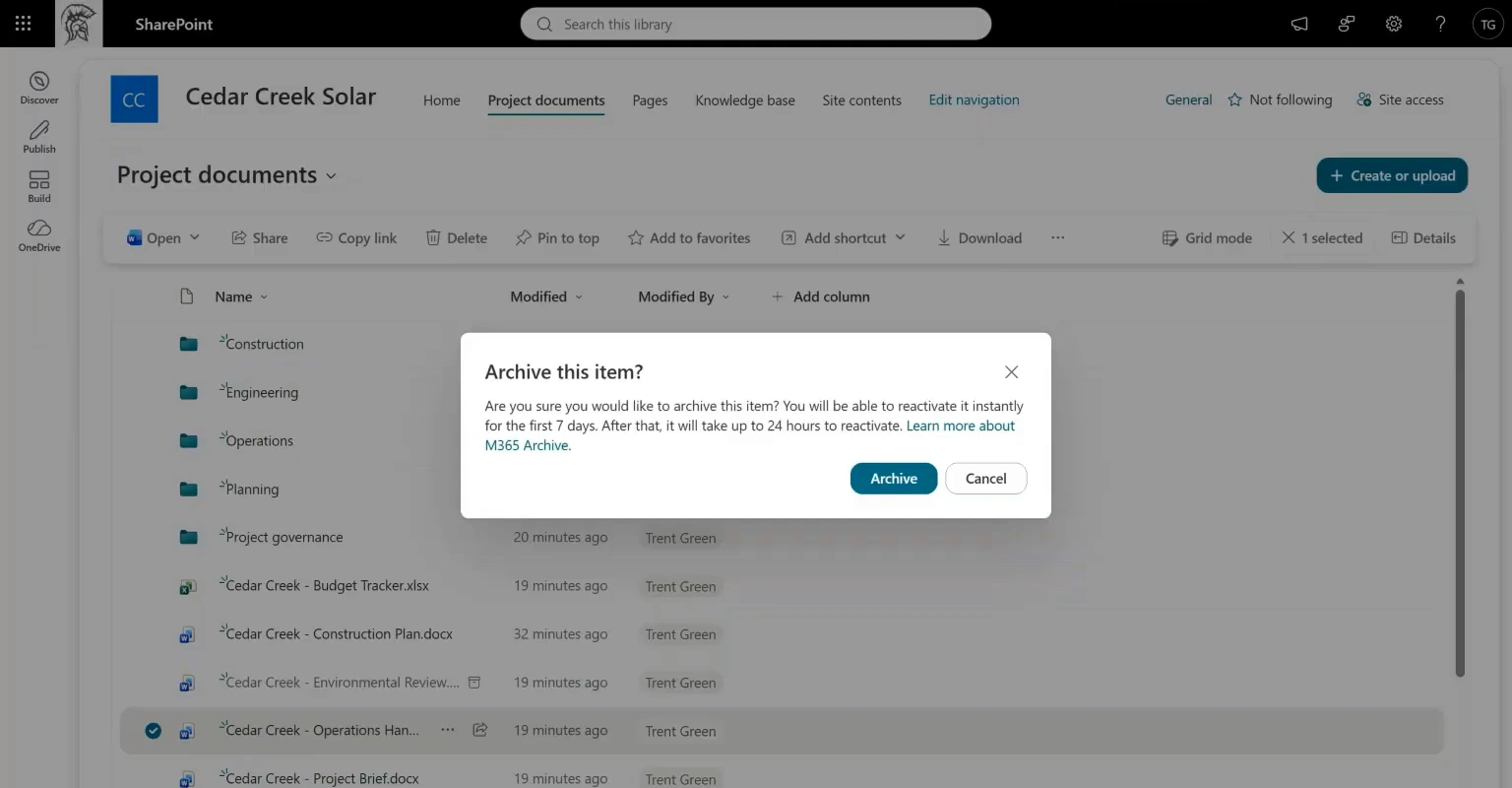
The user needs edit permissions on the file, and the site has to allow file-level archive, which Microsoft’s documentation says is on by default for every site. Admins can turn the Archive action off for the tenant or for specific sites with PowerShell.
What can users do with an archived file?
A lot less than with an active file. To work with its content, they have to reactivate it, but they can still delete it, rename it (to add something like _archived, for example), move or copy it, and see its details. A moved or copied file keeps its archived state, because after the first seven days, it really is in cold storage.
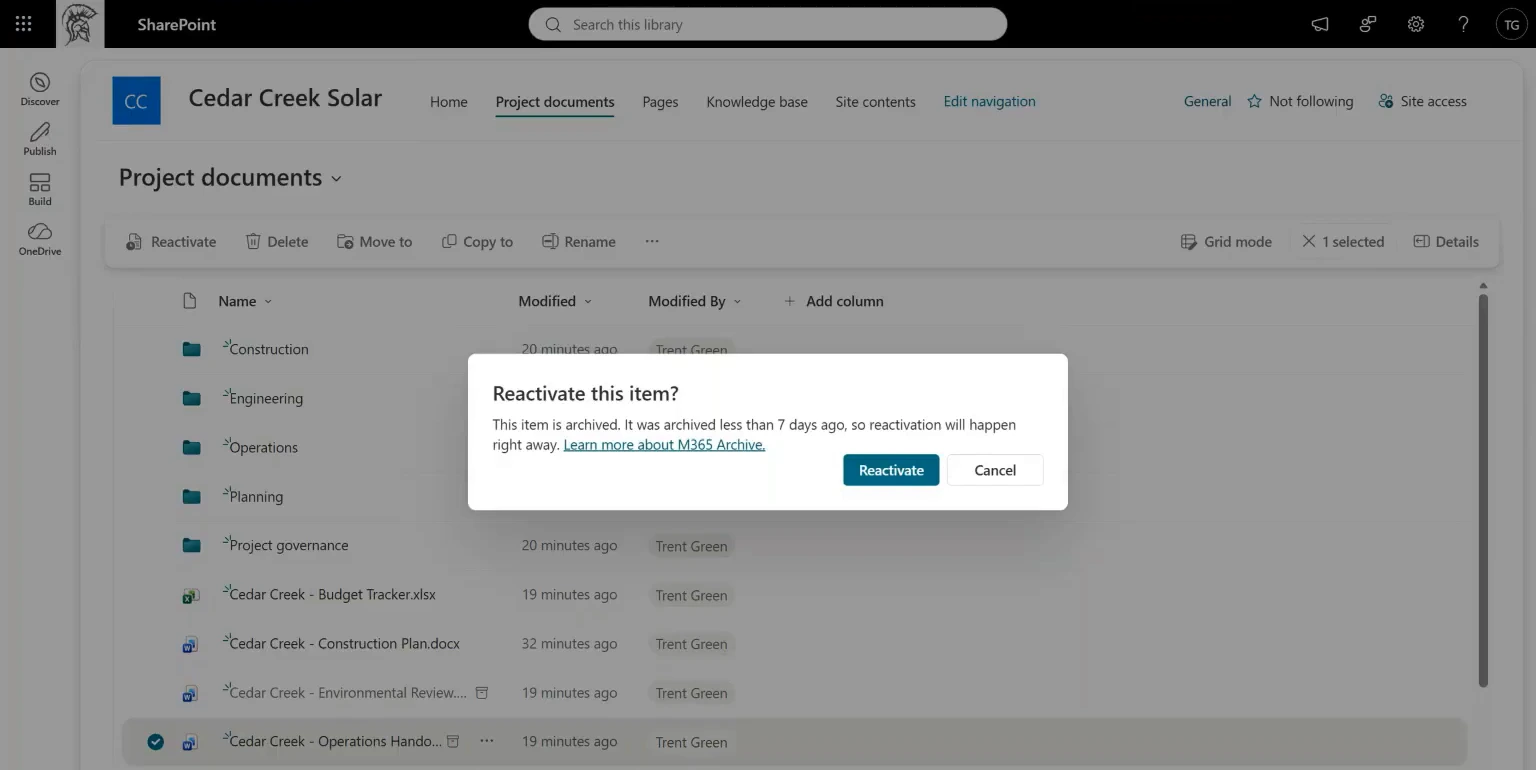
To get a file back, a user selects Reactivate, or just opens the file, and confirms. Anyone with read permissions can do it, it’s free, and nobody has to sign off. After the first seven days, the person who reactivated it gets an email when the file is back, within 24 hours. Microsoft’s end user experience documentation (opens in a new tab) walks through both sides.
Can you archive or reactivate a file on a locked or read-only site?
No. A locked or read-only site doesn’t allow any changes, and archiving is a change. The attendee who asked had actually tested it during the webinar, and got the same answer before Trent did.
Why you can’t archive a folder
An attendee who has used file-level archive since before it was generally available noticed that folders never show the archived icon. That’s by design: only files can be archived, not folders. With site-level archive, getting a single file back means reactivating the entire site, and Trent’s team didn’t want to repeat that problem with folders.
Instead, a folder has an Archive all files action that archives every file under it, subfolders included, so someone who needs one file back reactivates just that file. Trent’s team is exploring an archived icon for folders where every file is archived, but it isn’t on the immediate roadmap, so in the meantime you could rename the folder and add “Archived” in front of its name.
Where admins can see how much is archived
Today, mostly in PowerShell, and only for admins. The ArchivedFileDiskUsed property of Get-SPOSite returns the storage used by the archived files on a site, but it’s in bytes, which isn’t the easiest number to read. Here’s the version I use, which shows it in both MB and GB:
Get-SPOSite -Identity https://contoso.sharepoint.com/sites/projects | Select @{N='Archived (MB)';E={[math]::Round($_.ArchivedFileDiskUsed/1MB,2)}}, @{N='Archived (GB)';E={[math]::Round($_.ArchivedFileDiskUsed/1GB,2)}}On one of my own sites, the raw property shows 17,241,055,487 bytes, and the version above turns that into 16.06 GB.
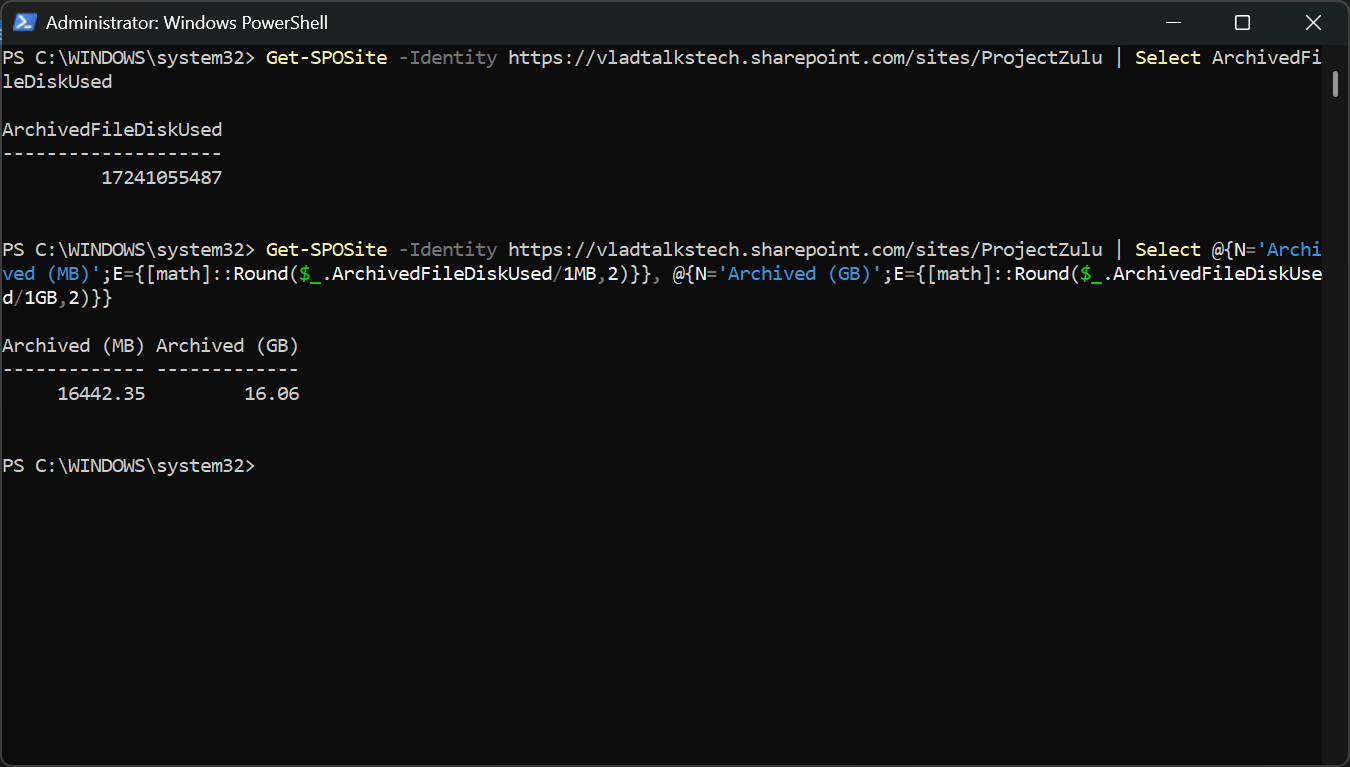
It comes from my file-level archive guide on the Syskit blog (opens in a new tab) (I’m Syskit’s technical evangelist), along with the commands that turn file-level archive on or off for your tenant, your sites and new sites.
Trent said the archived gigabytes are coming to the Active sites list in the SharePoint admin center in the next couple of months, and his team is looking at showing site owners how much of their site is archived too.
Start manually, then scale with policies
This is the recommendation Trent’s team gives every customer, because file-level archive is new for your users and they need to learn it before you archive at scale. Customers who’ve had a lot of success did it in three steps:
- Start with about a dozen sites whose owners are eager to try it.
- Check that their workflows still work the way they expect with archived files.
- Once retrieval and the experience work for them, switch to policies.
I do not expect to get to massive scale of archive by having IT admins go click archive on a hundred million files.
Which policies can archive files automatically?
There are two, and on October 8, 2026, they were at different stages, while manual file-level archive itself is generally available.
- The SharePoint Advanced Management inactive files policy archives files by their last access date. That’s a brand-new property Trent’s team spent years building, so you only archive files no person is opening. It was coming to public preview (roadmap 573699 (opens in a new tab)), PowerShell-only at first, with a threshold of 6 to 48 months of inactivity.
- Purview retention-based archive adds an archive step to your retention policies and labels. It fits if you already define your files’ lifecycle with retention, and it was in public preview (roadmap 561208 (opens in a new tab)).
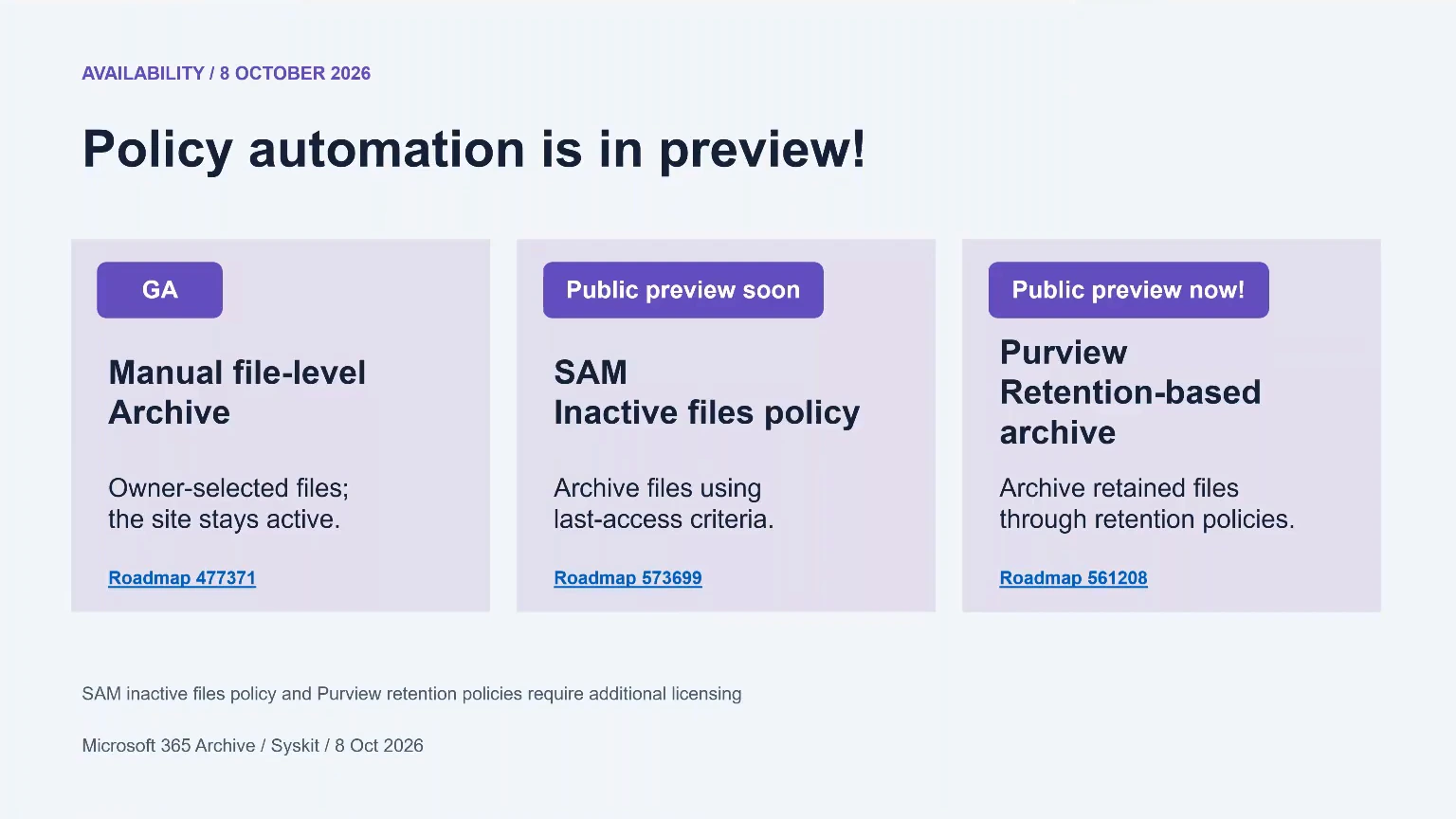
Trent said customers are already archiving hundreds of millions of files with these policies, and they haven’t even come out of preview. My SharePoint Advanced Management roadmap post tracks what’s shipped and what’s coming.
Do the policies need extra licenses?
Yes. Manual file-level archive needs no license at all, only pay-as-you-go billing, but both policies need additional licensing, and Microsoft’s documentation lists a Microsoft 365 E5 license for archiving through retention policies.
For the inactive files policy, I asked Trent the question I always get. As an MVP, I can say it: SharePoint Advanced Management has a bit of a funny way to license things, where features made to help you deploy Copilot come with the Copilot license, and other features don’t. Trent confirmed that a Copilot license gives you SharePoint Advanced Management, and that it will include the inactive files policy. My SharePoint Advanced Management licensing Q&A with Microsoft has the background on that split.
What Microsoft 365 Archive costs
Every tenant gets a pool of SharePoint storage, 1 TB plus 10 GB for each eligible license, and Microsoft 365 Archive only bills you for what goes over it. It’s pay-as-you-go, so there’s no license to buy: you enable the pay-as-you-go service and connect an Azure subscription for billing. Reactivation is always free, since Microsoft removed the old site archive reactivation fee on March 31, 2025.
In Trent’s example, you have 1,200 GB in SharePoint and your licenses cover 1,000 GB, so 200 GB is billable. In active storage at $0.20 per GB per month, that’s $40 a month. Archived at $0.05 per GB per month, the same 200 GB costs $10, which is 75% less.
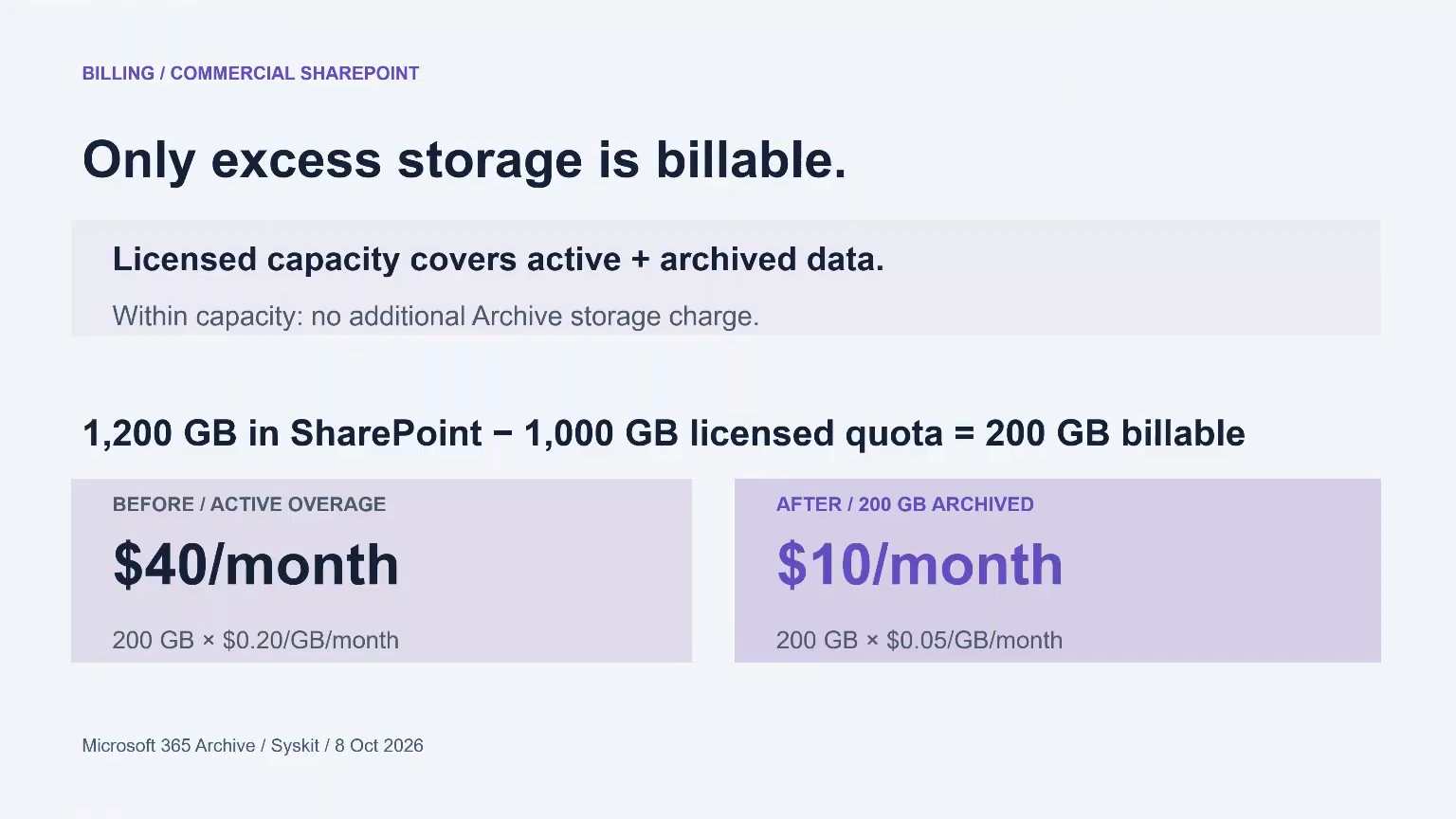
If your total storage were 900 GB, archiving would be completely free, and if you archived 800 GB of your 1,200 GB, you’d still only pay for the 200 GB above your quota. As I said during the webinar, there’s literally no way you pay more by using archive than by not using it: you either save money or pay the same, and you still get the Copilot relevancy. Microsoft’s pricing model for Microsoft 365 Archive (opens in a new tab) has more billing scenarios.
What about OneDrive accounts of people who left?
Those are the one exception to free reactivation. When a OneDrive account becomes unlicensed, for example after someone leaves, it goes into the archive automatically, and since nobody pays for that account, reactivating it costs $0.60 per GB at list price. Trent’s team is also bringing file-level archive to OneDrive, and reactivating files archived in a licensed OneDrive account will always be free.
Should I turn on SharePoint pay-as-you-go storage too?
Yes. Trent said Microsoft 365 Archive is best paired with SharePoint pay-as-you-go storage, because prepaid storage packs lock you into the capacity you bought, so if archiving brings you back under it, you don’t see the savings. With both pay-as-you-go services on, you’re only billed for your overage, at the best blended rate between standard and archived storage.
Microsoft 365 SharePoint Storage, the pay-as-you-go meter for that overage, has been in public preview for commercial tenants since June 2026, and Microsoft plans general availability for November 2026. My post on Microsoft 365 pay-as-you-go updates covers the billing side.
Pay-as-you-go storage also keeps your tenant out of read-only mode. I asked Trent what happens when a tenant goes over its quota without it: after a warning and a small buffer window, the whole tenant goes read-only, and no SharePoint site or OneDrive account can add content.
What this means for you
Trent’s first takeaway was that archive changes access, not governance, so your compliance setup keeps working. His second was to start manually and scale with policies, and his third was that archiving can only save you money. If you’re a Microsoft 365 admin, here’s where I’d start:
- Turn on Microsoft 365 Archive with pay-as-you-go billing, and decide which sites show users the Archive action.
- Pick a dozen sites whose owners want to try it, and show their users the Archived filter and how to reactivate a file.
- Follow both policies through preview, and check which licenses you have for each.
- Estimate your savings with Syskit’s free storage calculator (opens in a new tab), which needs no permissions on your tenant.
Trent’s last piece of advice was to go try it. You can archive a one-megabyte file without any impact on your bill, so play with it and give his team your feedback.
Ready to start archiving? My Microsoft 365 file-level archive guide on the Syskit blog walks through turning on file-level archive, the PowerShell settings that control it, and my recommendations for getting started. Read the file-level archive in-depth guide (opens in a new tab)
Frequently asked questions
Can I archive a file again right after reactivating it?
No. Once a file is reactivated, it can't be archived again, manually or by a policy, for 120 days. Microsoft added that restriction when it made reactivation free in March 2025, so treat archiving as a decision for content that's truly inactive.
Which apps don't support archived files yet?
Microsoft lists Word and PowerPoint for the web, the Teams, OneDrive and SharePoint mobile apps, and the OneDrive sync client on macOS or older Windows versions among the apps that don't fully support archived files yet. Office desktop apps that haven't been updated since March 1, 2026 are on the list too, and Clipchamp and Power BI can't import archived content. When a file won't open, go to the SharePoint library where it lives, which is the most reliable place to check its status and reactivate it.
Which files can't be archived?
Microsoft's documentation lists OneNote files, SharePoint pages and SharePoint agents among the file types that can't be archived. When a retention policy with the archive action reaches a file that doesn't support archiving, that file simply stays active.
What happens to archived files when the whole site is archived?
Site-level and file-level archive states are independent, so archiving a site doesn't change which files inside it were already archived. For billing, archived files inside an archived site are counted once, as part of that site's archived storage. Unlike a single file, an archived site needs a SharePoint admin to reactivate it.
What happens to archived files if I turn Microsoft 365 Archive off?
They stay archived, and users can still reactivate them. New archive actions are blocked until Microsoft 365 Archive is back on and its billing is healthy. In the meantime, your archived content counts toward your standard storage, as if it were active.

