
Event ID: 8193 Volume Shadow Copy Service error: Unexpected error calling routine
 By Vlad Catrinescu Microsoft MVP and MCT · Pluralsight Author
While doing a SharePoint installation at one of my clients using AutoSPInstaller, I kept having problems with the SharePoint Search Provisioning. After looking in the Event Logs, I found that there was an Access Denied Error on a certain Registry Key. The Event ID is 8193. Usually, the Event Viewer shows you what account has an access denied, but this time it wasn’t the case!
Also, for Search purposes, here is the error from AutoSPInstaller
Exception : System.Management.Automation.MethodInvocationException: Exception calling “Unprovision” with “0” argument(s): “The executing code must run on server SPWFE1.” —> System.InvalidOperationException: The executing code must run on server SPWFE1.
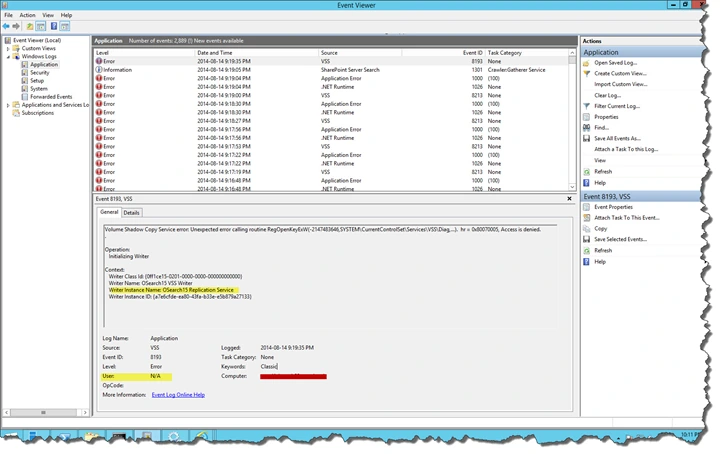
And the error from the event viewer:
Volume Shadow Copy Service error: Unexpected error calling routine RegOpenKeyExW(-2147483646,SYSTEM\CurrentControlSet\Services\VSS\Diag,…). hr = 0x80070005, Access is denied.
Operation:
Initializing Writer
Context:
Writer Class Id: {0ff1ce15-0201-0000-0000-000000000000}
Writer Name: OSearch15 VSS Writer
Writer Instance Name: OSearch15 Replication Service
Writer Instance ID: {a7e6cfde-ea80-43fa-b33e-e5b879a27133
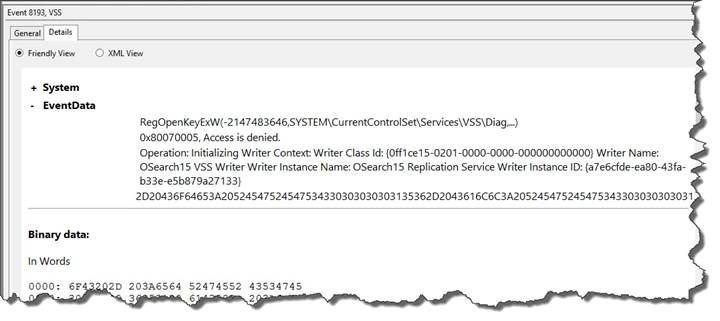
So I went in the Event “Details” Tab to try and find more about the error, but at the first look, nothing displayed more info about the account name.
However, when we scroll down in the Event Viewer, there is a “Binary to Word” translation that helps us a lot more! When we look at it, we can see the account number on multiple lines!
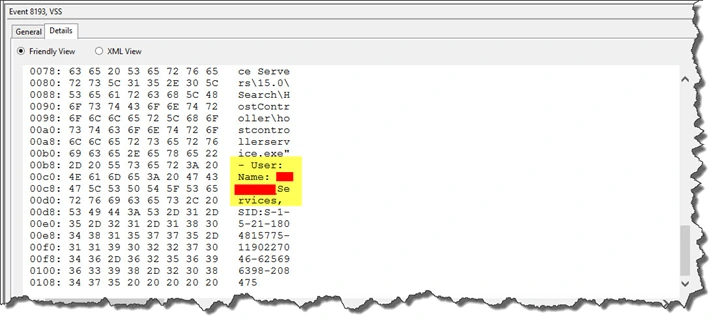
It was my Services account who didn’t have access to a registry key! To fix the error, do the following steps >
-
Open regedit as an Administrator.
-
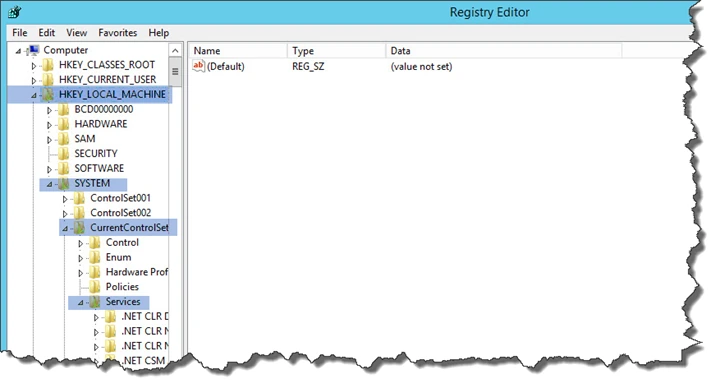
Navigate to HKLM > System > Current Control Set > Services
-
Then find the “VSS” folder!
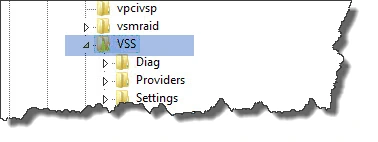
-
Right click on the “VSS” folder. And then click on permissions,
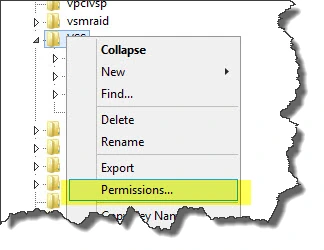
-
Add the account that had an Access Denied and found earlier in the script and give it Full Control as it needs Read & Write to the VSS!
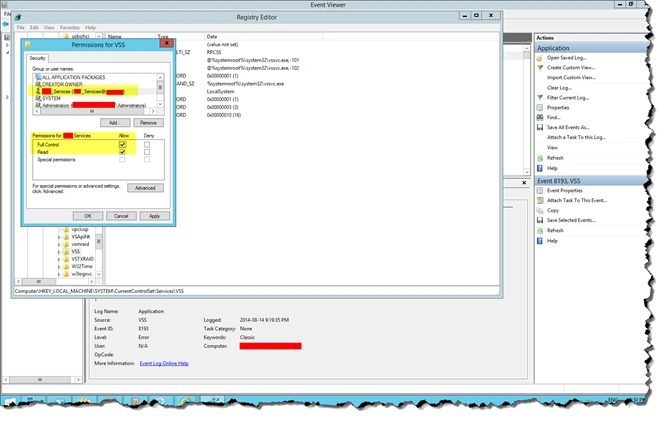
-
You should make sure that this account has access to the VSS Registry key on all the SharePoint Servers in the farm having a search Component. I recommend doing a reboot after changing the registry key, however it should work without one!
Now your Search provisioning should work without any problem!

