
Change the PowerShell MachinePolicy Execution Policy in Windows Server 2012R2
 By Vlad Catrinescu Microsoft MVP and MCT · Pluralsight Author
Background
Last week I wanted to try the new SharePoint 2013 SP1 and, as I never install SharePoint without using PowerShell scripts, I tried using the awesome AutoSPInstaller to install my SharePoint. When Windows Server 201 R2 came out, the twitter sphere said that nothing changed except the Execution Policy was “RemoteSigned”. AutoSPInstaller has a Launch.bat file that makes sure the Main.ps1 launches in “ByPass” mode.

However, the way AutoSPInstaller works is that it includes two other PowerShell files where the functions are stored. When those get included, the ByPass mode is not in effect anymore, and PowerShell goes back to the Machine Policy, which by default is Remote Signed. It’s a good security measure, but we need to get this fixed!

Also for the sake of Google indexing the error for other people, here is the error text:
_File cannot be loaded. The file is not digitally signed. You cannot run this script on the current system.
_
So, I tried to change the execution policy from Powershell with the following command:
Set-ExecutionPolicy -Scope MachinePolicy -ExecutionPolicy Bypass However I got the following error:

Set-ExecutionPolicy : Cannot set execution policy. Execution policies at the MachinePolicy or UserPolicy scopes mustbe set through Group Policy.
The Fix
You can actually change the MachinePolcy Execution Policy without going through GPO! You need to go in the registry and edit the following key HKLM:\Software\Policies\Microsoft\Windows\PowerShell and change the ExecutionPolicy value to ByPass.
Or you can simply run this PowerShell command:
Set-ItemProperty -Path HKLM:\Software\Policies\Microsoft\Windows\PowerShell -Name ExecutionPolicy -Value ByPass 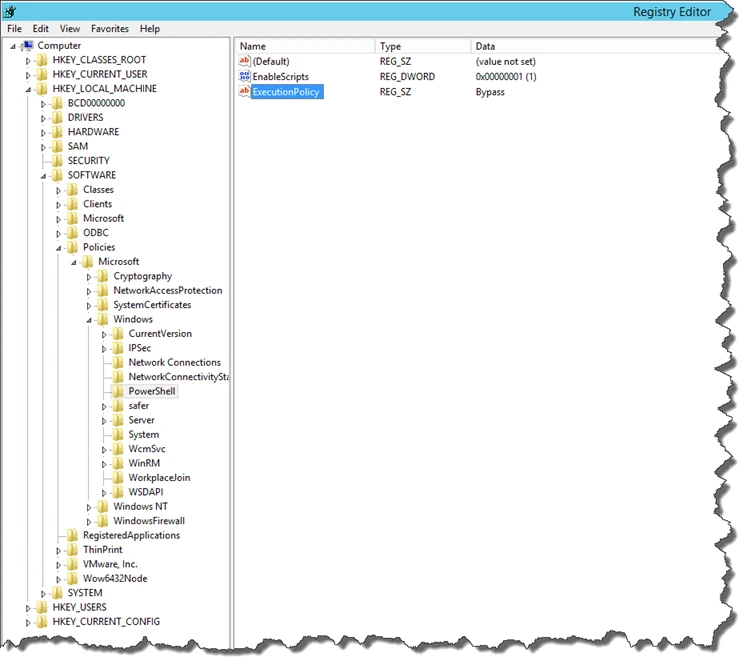
However… the PowerShell command might give you an error that will look something like this:
Cannot find path ‘HKLM:\Software\Policies\Microsoft\Windows\PowerShell’ because it does not exist.

This is because your local group policy to allow scripts to run on the system is probably “not configured” . To configure it, run “gpedit.msc” in the metro start bar.

Then Navigate to: Computer Configuration > Administrative Templates > Windows Components > Windows PowerShell. Change the “Turn on Script Execution” to look something like this:
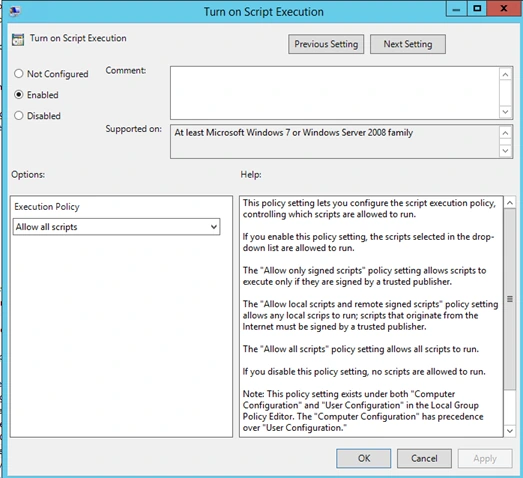
Afterwards, the PowerShell command should work and you should be able to change your Execution Policy without any problems!

Hope his helps!

