
Plans in Power Apps: Build a Full Solution With Copilot
 By Vlad Catrinescu Microsoft MVP and MCT · Pluralsight Author
What if you could describe a business app in two sentences and have Copilot build the entire solution for you, the data model, the processes, the apps, and the flows? That is exactly what Plans in Power Apps does. In this walkthrough, you will see how the feature works, what each Copilot agent is responsible for, and what it produces when you feed it a real prompt.
Key takeaways
- Plans in Power Apps is a Copilot-first development tool that generates full Power Platform solutions from a natural language prompt.
- The plan designer uses multiple Copilot agents (requirements, process, data, and solution) that work together to build user roles, business processes, a Dataverse data model, apps, flows, reports, and agents.
- You can add files for additional context, but the plan designer is currently limited to around 4,000 tokens (roughly 3,000 words of text).
- Even if you do not ship the generated solution, Plans is useful as a documentation and requirements-gathering starting point for professional developers.
- Plans lives inside make.powerapps.com and is one of several Copilot features across the Power Platform.
What are Plans in Power Apps
Plans in Power Apps is a Copilot-first development tool that lets you quickly create full Power Platform solutions starting from a prompt. That includes Dataverse tables, Canvas apps, model-driven apps, Power Pages sites, Power Automate flows, and even Copilot Studio agents. In other words, you describe the business problem, and Plans scaffolds an end-to-end solution across the Power Platform instead of just a single app or a single flow.
The feature lives inside make.powerapps.com, the Power Apps maker portal. You start by writing a plain-language description of what you want to build, and Copilot takes it from there.
How the Plans in Power Apps agents work together
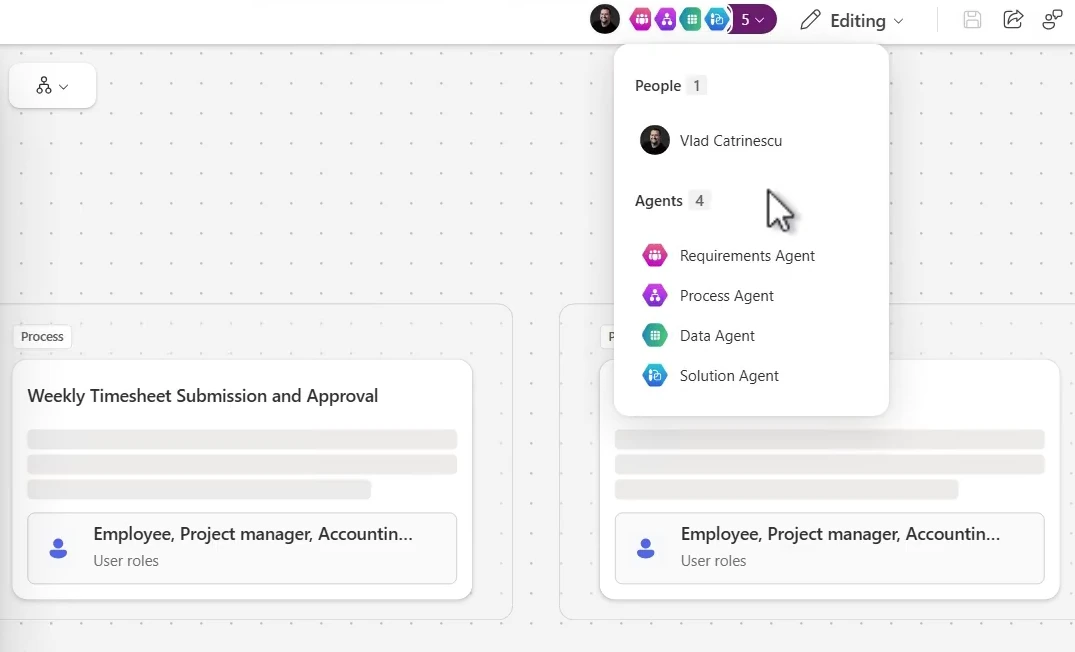
When you work with the plan designer, you are not dealing with a single Copilot. You are orchestrating a set of specialized agents that each own a piece of the solution design. The three primary agents you interact with are requirements, data, and solution, and the designer also surfaces a process step as part of the flow. Here is what each one does.
Requirements agent
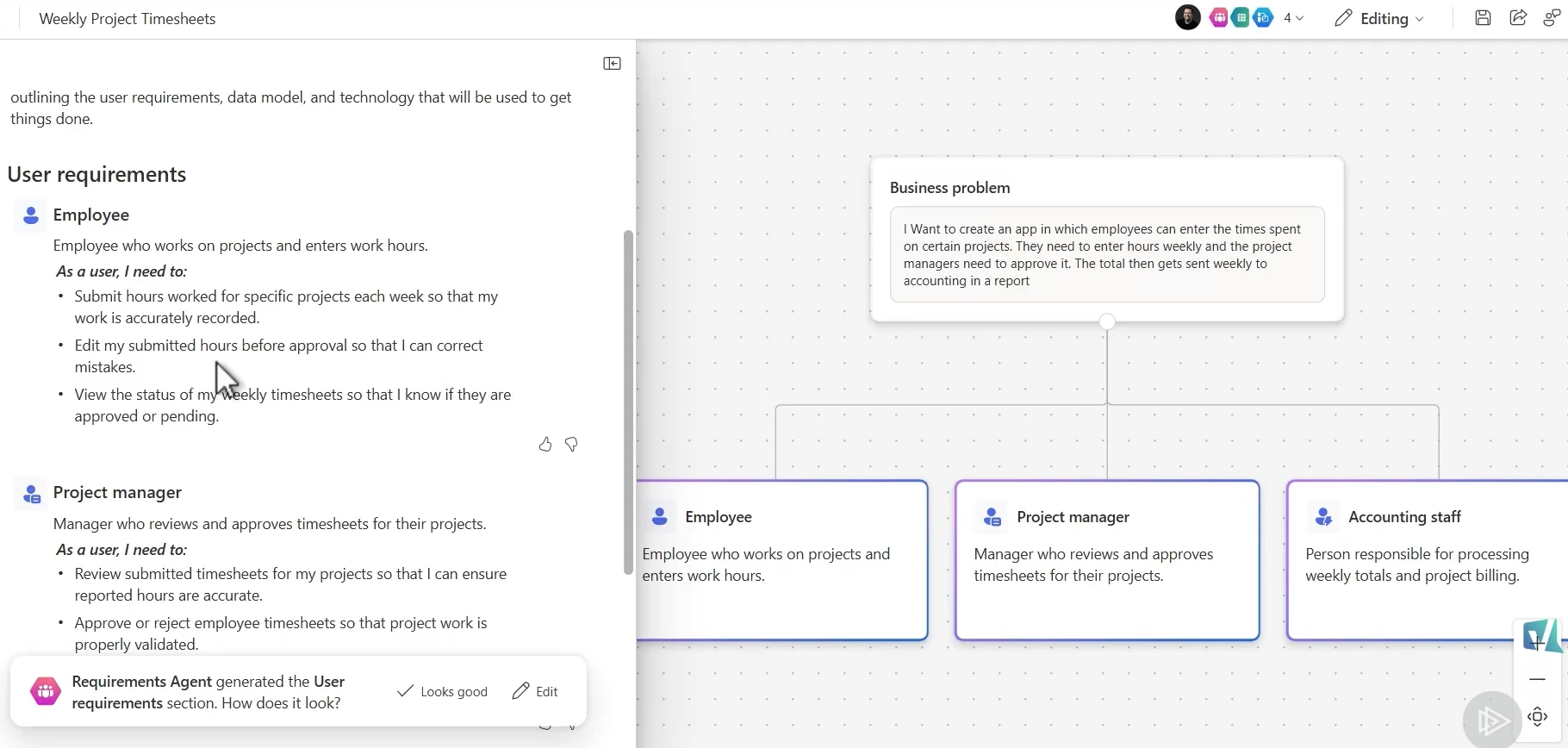
The requirements agent takes your prompt and turns it into structured user roles and user stories. For a timesheet app, that means it will identify roles like employee, project manager, and accounting staff, then generate the requirements for each role. You can edit the output before moving on, add more requirements, or approve it as-is.
Process agent
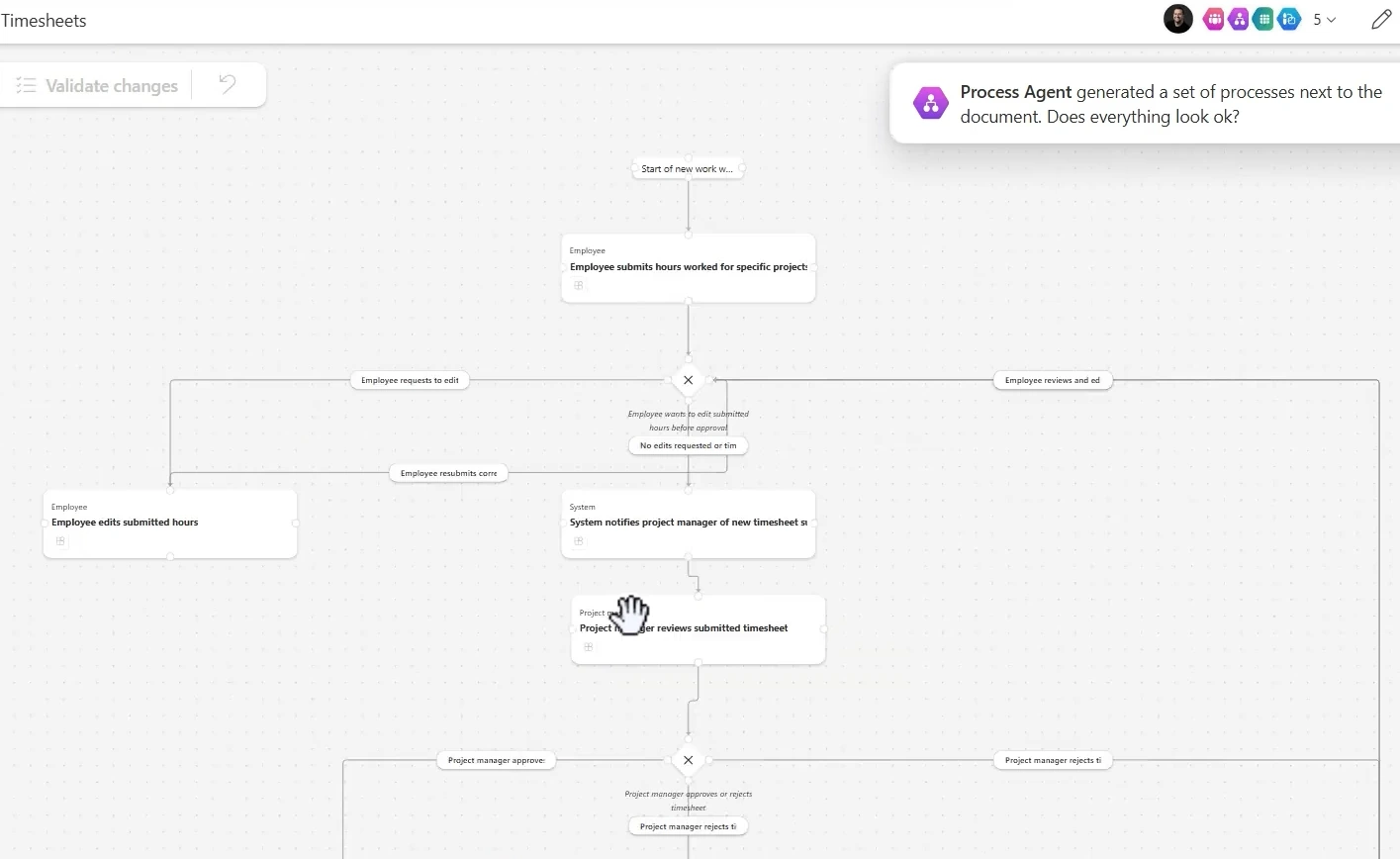
Once the requirements are approved, the process agent maps out the business processes the solution needs. It identifies who does what (the employee, the system, the manager), the conditions that branch the flow, and the happy path versus edge cases. The result is a visual process diagram you can review, edit, and iterate on.
Data agent
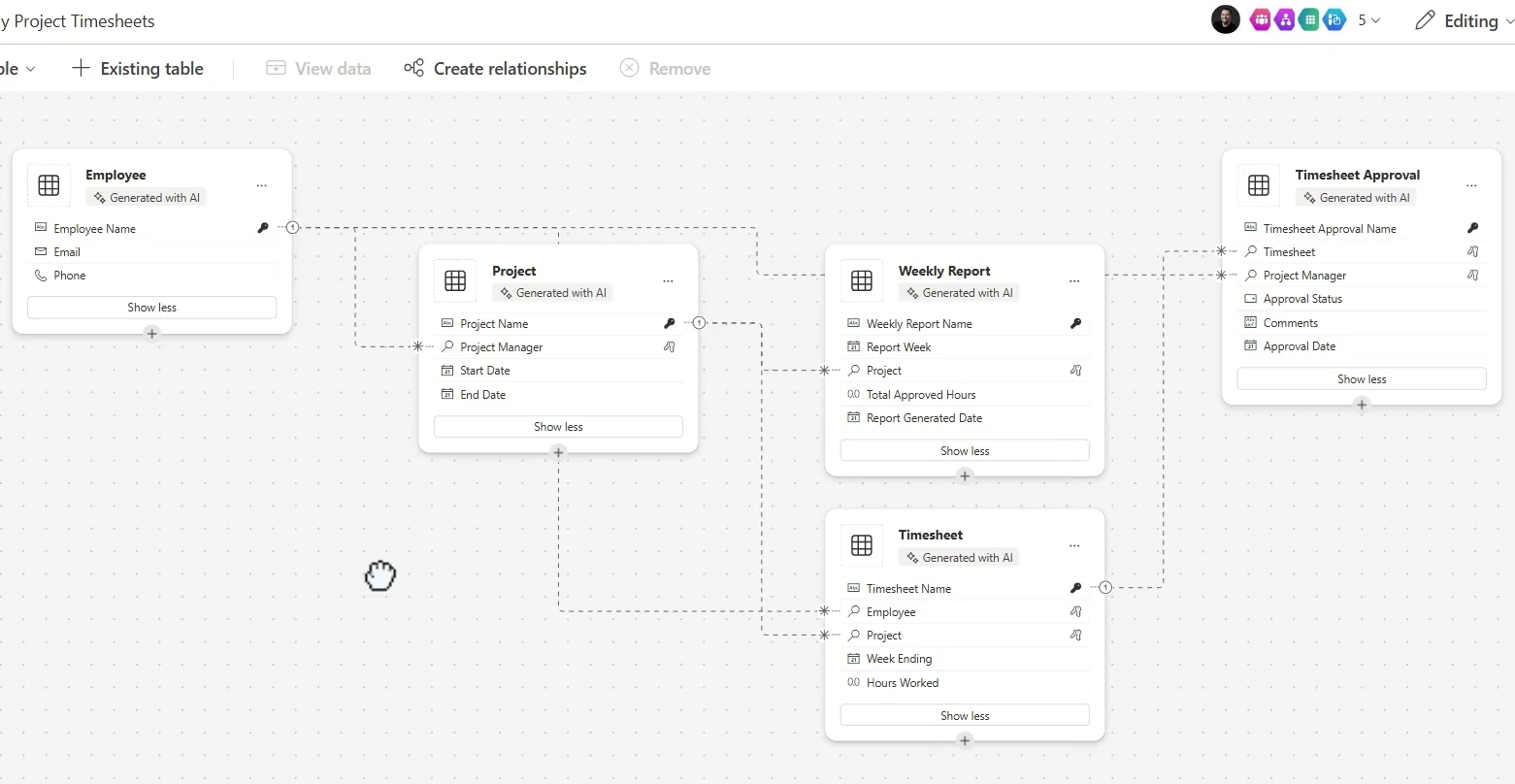
The data agent generates the Dataverse data model behind the solution. It proposes tables, columns, and relationships based on the requirements and the processes. For a timesheet scenario, that typically means tables like Employee, Project, Timesheet, Timesheet Approval, and Weekly Report, all connected with the right relationships.
Solution agent
Finally, the solution agent decides which Power Platform components the solution needs. It might recommend a Canvas app for employee self-service, a model-driven app for managers, a Power Automate flow for the approval workflow, and a Power BI report for accounting. Depending on the scenario, it can also suggest Copilot Studio agents. You then click Create on each component to let Copilot build it.
Adding files for context (and the 4,000 token limit)
One of the useful parts of the plan designer is that you can attach files for additional context. That might include process diagrams, data models, screenshots of legacy apps, or any other supporting material you have. Copilot uses these as grounding information when it generates the plan.
There is a current limitation to be aware of. You are capped at roughly 4,000 tokens, which works out to about 3,000 words if your input is text only. If you add images, the math gets harder to pin down, but that ballpark gives you a realistic starting point. For most scoping documents, that is more than enough. For lengthy spec documents, you may need to trim to the most relevant pages.
The plan designer supports file uploads for context, but it is currently limited to around 4,000 tokens (approximately 3,000 words of plain text input).
Demo: Building a timesheet app from a 2-sentence prompt
Here is the exact prompt used in the walkthrough:
I want to create an app in which employees can enter the time spent on certain projects. They need to enter hours weekly, and the project managers need to approve it. The total then gets sent weekly to accounting in a report.
That is it. Two to three short sentences, no technical detail, no field list, no wireframes. Click Generate, and Copilot takes over.
Generating user roles and requirements
The requirements agent runs first. In just a few seconds, it produced three roles: employee, project manager, and accounting staff. For the employee role, it generated requirements like submitting hours worked for specific projects each week, editing submitted hours before approval, and viewing the status of weekly timesheets. You can accept the output or iterate on it before moving forward.
Mapping the business processes
After approving the requirements, the process agent kicks in. For this scenario, it produced two processes: weekly timesheet submission and approval, and weekly reporting to accounting. Opening the first process reveals a full flow diagram with conditions, branches, and participants. You can see exactly who does what (the employee enters hours, the system notifies the manager, the manager approves or rejects, and so on).
Of course, if you were shipping this to production, you would want to spend real time validating the process before accepting it. For a demo, the output is remarkably close to a reasonable first draft.
Generating the Dataverse data model
Next, the data agent generates the tables your solution needs. For the timesheet scenario, that included an Employee table, a Project table, a Timesheet table, a Timesheet Approval table, and a Weekly Report table. The relationships between them are already mapped out.
You can keep asking Copilot to add columns, add tables, or modify relationships. What Copilot produces is not final. You can iterate with it until the model matches what you actually need before moving on to the build step.
Creating the apps and flows
When the solution agent runs, it proposes the concrete Power Platform components. In this walkthrough, that included an employee timesheet portal as a Canvas app, a weekly timesheet approval flow in Power Automate, a project manager review app as a model-driven app, and a weekly report in Power BI. You click Create on each one, and Copilot builds the actual component in the background.
At that point, you have gone from a two-sentence prompt to the scaffold of a working Power Platform solution. Not a single flow, not a single app, but the full stack.
When to use Plans in Power Apps (even if you do not ship the output)
Here is a practical take. Even if you do not use Plans in Power Apps to actually build the final solution, it can be a huge accelerator for the work that happens before the build.
The generated user roles, processes, data model, and component list are essentially a free first draft of your design documentation. You can hand the output to a professional developer as a starting point, let them validate and refine it, and save hours of requirements gathering. For teams that struggle with the boring parts of scoping (writing user stories, drawing process maps, defining entities), that alone is worth the price of admission.
If the business scenario is straightforward and the generated solution is good enough, you can absolutely ship it. For anything production-critical, treat the Copilot output as a first draft and apply the same review you would to any design artifact.
What this means for you
If you build on the Power Platform, Plans in Power Apps changes the starting point for every new project. Instead of opening a blank maker portal and deciding what to build first, you describe the business problem and let Copilot produce a candidate solution across apps, flows, and data.
Practically, there are three places to start. First, try Plans on a small, well-understood scenario you already know the answer to. That will calibrate your expectations for what the output looks like and where it needs human review. Second, use it as a documentation accelerator for projects you plan to build by hand. The process diagrams and data model alone can save real time. Third, keep iterating with Copilot after the first generation. You can refine requirements, adjust the data model, and regenerate components until the plan matches what you actually need.
Having worked with Power Platform environments for over a decade, I can tell you this is one of the biggest shifts in how low-code projects get started. The design phase used to be the slow part. With Plans, the slow part is now the review.
Go deeper with Copilot across the Power Platform
Ready to put Copilot to work across your entire Power Platform stack? Plans in Power Apps is just one of many Copilot features worth knowing. My Pluralsight course covers Copilot in Power Automate, Power BI, Power Pages, Canvas apps, model-driven apps, and more, with step-by-step demos for each one. Watch the course on Pluralsight (opens in a new tab).
For related reading on vladtalkstech.com, see how to create Power Automate flows with Copilot, how to build and customize a Power Pages site using Copilot, and how AI is rebuilding the Power Platform.
Frequently asked questions
Where do I find the Plans experience in Power Apps?
The feature is available inside the Power Apps maker portal at make.powerapps.com. Sign in with your work account, and you will find the Plans experience in the maker portal navigation. You can start by writing a prompt that describes the business scenario you want to build.
What can the plan designer generate?
It can generate Dataverse tables, Canvas apps, model-driven apps, Power Pages sites, Power Automate flows, and Copilot Studio agents, all from a single prompt. It also produces the user roles, business processes, and data model that back those components, so you get both the design artifacts and the working components.
How accurate is the generated output?
The output is a solid first draft rather than a final build. For small or well-scoped scenarios, it is often close to production-ready with minor edits. For anything more complex, treat the generated roles, processes, and data model as a starting point that still needs human review before you build or deploy.
Can I add my own context to a plan?
Yes. The plan designer supports file uploads, so you can attach process diagrams, existing data models, screenshots of legacy apps, or other supporting material. Keep in mind that the plan designer is currently limited to around 4,000 tokens of input, which is roughly 3,000 words of plain text.

