
Microsoft 365 Copilot Explained: What It Is and How to Use It
 By Vlad Catrinescu Microsoft MVP and MCT · Pluralsight Author
There are over a hundred different Copilot experiences across the Microsoft ecosystem, but the one that changes your daily work the most is Microsoft 365 Copilot. This is the AI assistant that lives directly inside Outlook, Word, Excel, Teams, and the rest of the Microsoft 365 apps you already use, and it is grounded in your own work data. In this post, you will learn what makes Microsoft 365 Copilot different from generic AI tools, where you can use it, and the day-to-day scenarios where it actually saves time.
Key takeaways
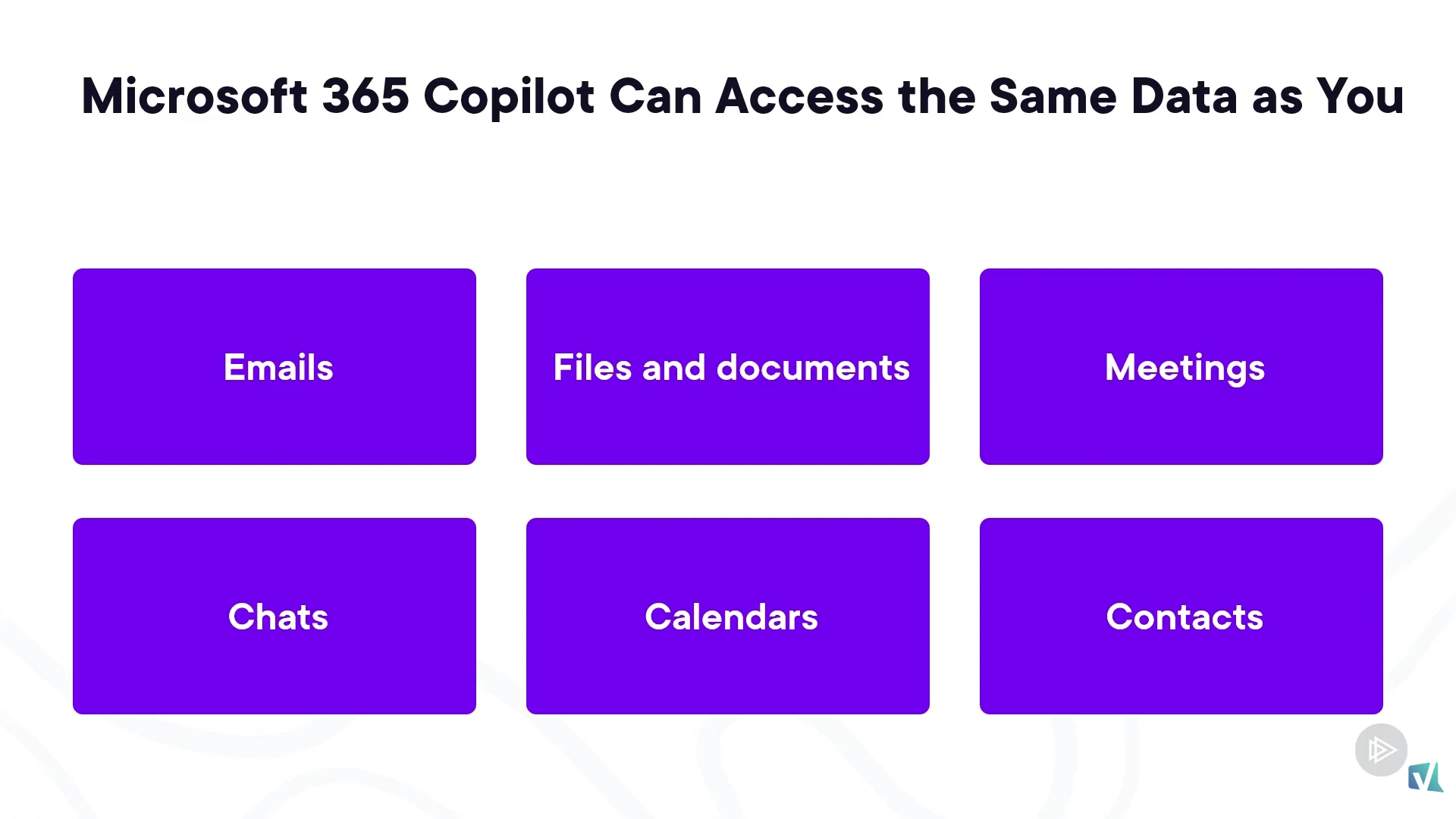
- Microsoft 365 Copilot is the productivity-focused Copilot offering that has access to the same Microsoft 365 data you do, including emails, files, meetings, chats, calendars, and contacts.
- Unlike ChatGPT or Gemini, Microsoft 365 Copilot answers are grounded in your organization’s content through Microsoft Graph, a capability Microsoft calls Work IQ.
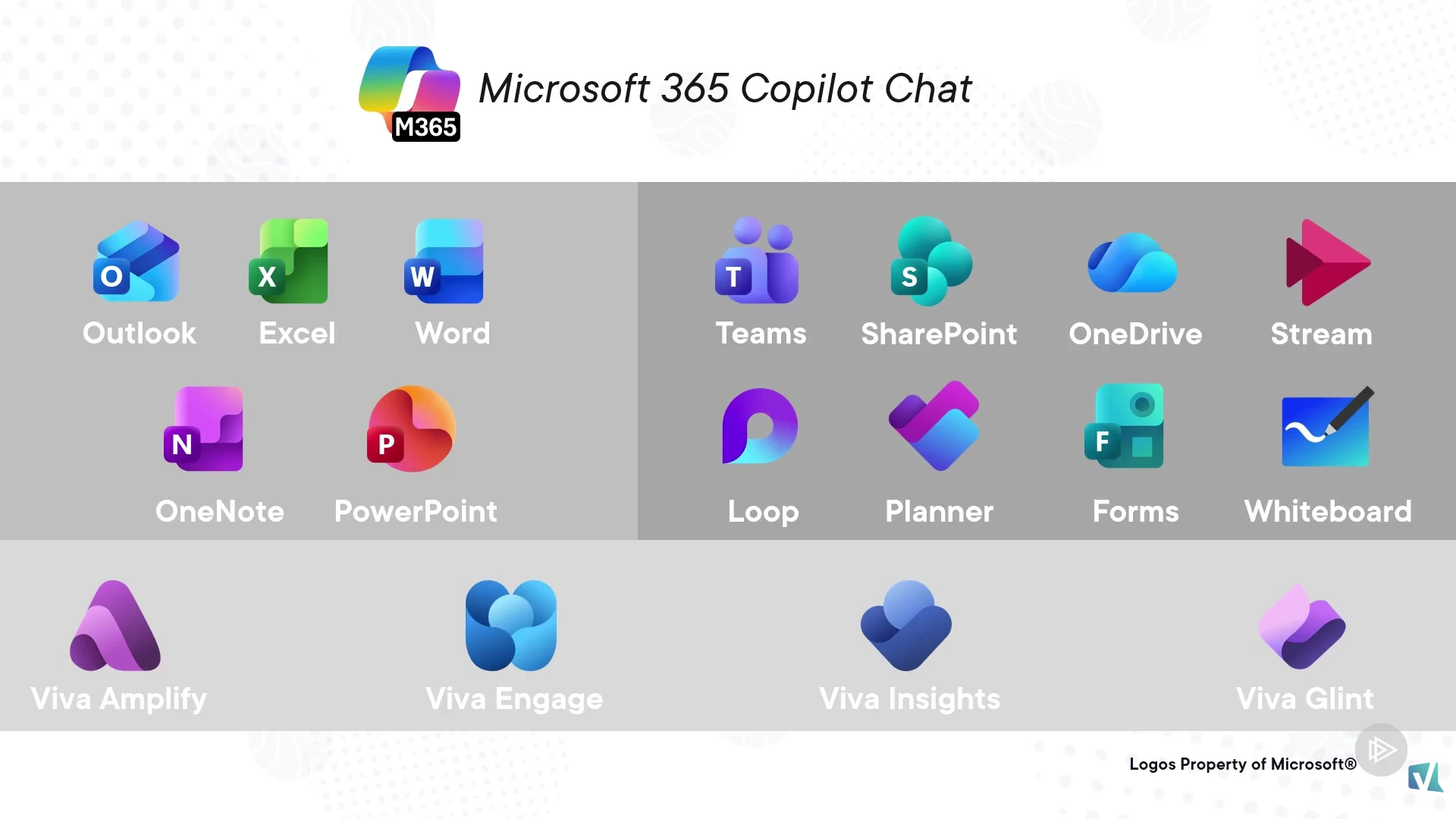
- Microsoft 365 Copilot is embedded in Outlook, Word, Excel, PowerPoint, OneNote, Teams, SharePoint, OneDrive, Stream, Loop, Planner, Forms, Whiteboard, and several Microsoft Viva apps.
- Microsoft 365 Copilot Chat is the single hub where you can query content across your entire Microsoft 365 environment and run agents your organization has built.
- Permissions are security trimmed, so Copilot will never surface data your account does not already have access to.
What is Microsoft 365 Copilot
Microsoft 365 Copilot is the productivity-focused Copilot offering, and it is available across almost every Microsoft 365 app. It sits inside the tools you already use every day, so you do not need to leave your workflow to ask it for help. Whether you are drafting an email in Outlook, building a deck in PowerPoint, or running a meeting in Teams, Copilot is one click away.
What makes this Copilot different from a generic chatbot is the data it sees. Microsoft 365 Copilot has access to the same data you do in Microsoft 365, including your emails, files and documents, meetings, chats, calendars, and contacts. And before anyone worries about oversharing, everything is security trimmed. Copilot will never surface data your account does not already have permission to see.
How Microsoft 365 Copilot is different from ChatGPT and Gemini
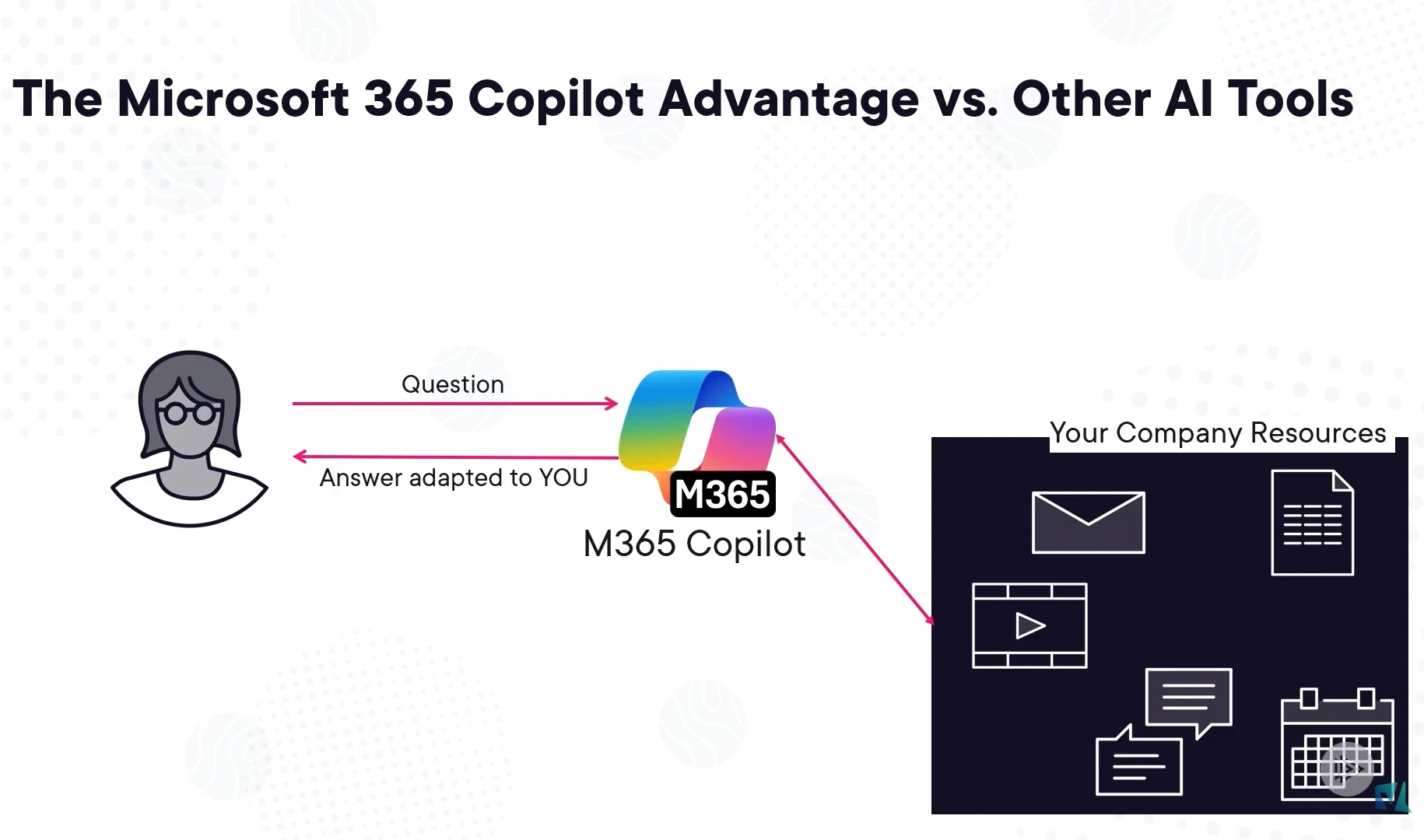
A generic AI tool like ChatGPT or Gemini is trained on data from across the Internet. That data is a mix of accurate information and noise, and the answer you get back is generic. It is not adapted to you, your team, or your organization’s standards.
Microsoft 365 Copilot works differently. Because it is grounded in your company’s resources, it has access to the projects you have been working on, your documents, your meeting recordings, and your emails. It knows who you work with, your style of writing, and what your company’s standards and requirements look like. The answer it gives back is shaped by your organizational context, not pulled from a generic web crawl.
Microsoft refers to this capability as Work IQ or Microsoft Graph grounding. It is the single biggest reason Microsoft 365 Copilot delivers more useful answers than a public chatbot for work tasks. And you do not lose web access either. If you want, Copilot can still pull information from the Internet on top of your organization’s data.
Where you can use Microsoft 365 Copilot
One of the things I love about Microsoft 365 Copilot is that you do not have to go to a separate website or a separate app to use it. It is embedded directly in your favorite Microsoft 365 apps. You will find Copilot in:
- Microsoft 365 apps: Outlook, Excel, Word, OneNote, and PowerPoint
- Microsoft 365 services: Teams, SharePoint, OneDrive, Stream, Loop, Planner, Forms, and Whiteboard
- Microsoft Viva apps: Viva Amplify, Viva Engage, Viva Insights, and Viva Glint
On top of that, there is Microsoft 365 Copilot Chat, the single hub where you can ask questions about all your Microsoft 365 content in one place and interact with the agents your organization has created. If you have ever wanted one place to query everything across your tenant, Copilot Chat is it.
Catching up on missed meetings with Microsoft 365 Copilot
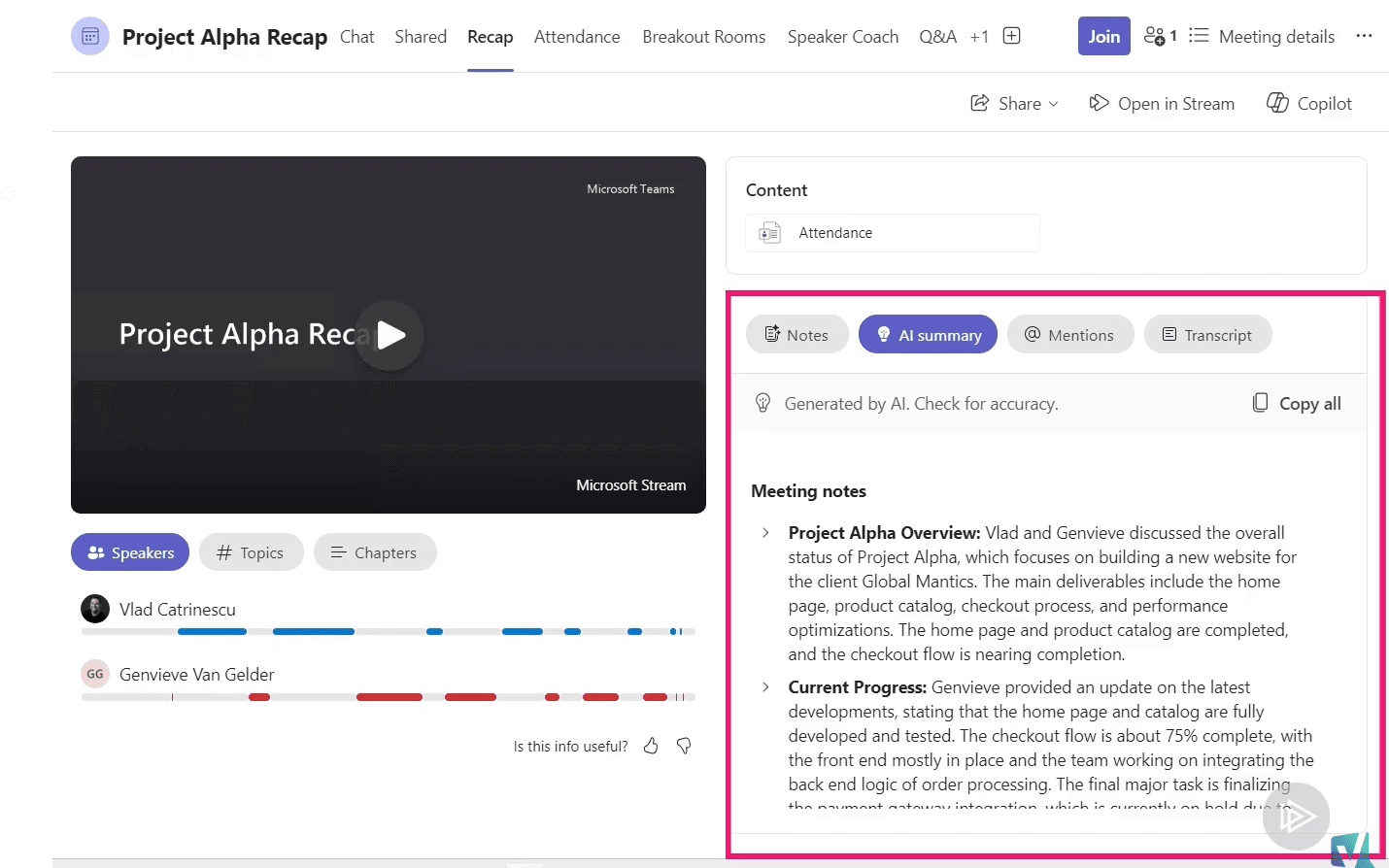
One of the biggest time sinks in any modern job is catching up on meetings you missed. Watching a 60-minute recording at 1.5x speed still costs you 40 minutes you do not have. Microsoft 365 Copilot fixes this in two ways.
First, every meeting recording in Teams now includes AI-generated notes that recap the discussion. That alone covers most of what you need. Second, when you have specific questions, you can ask Copilot directly. Want the recap condensed into five short bullet points? Ask. Want to know exactly what one specific person said about a budget number? Ask. Copilot will pull the answer from the recording and the transcript.
The same trick works when you join a meeting late. Instead of interrupting the conversation to ask what you missed, you can quietly ask Copilot questions like “Who is in the meeting and what are their roles?” or “What was discussed so far?” Copilot summarizes everything for you, and you can catch up without disrupting the flow.
Transforming content with Microsoft 365 Copilot
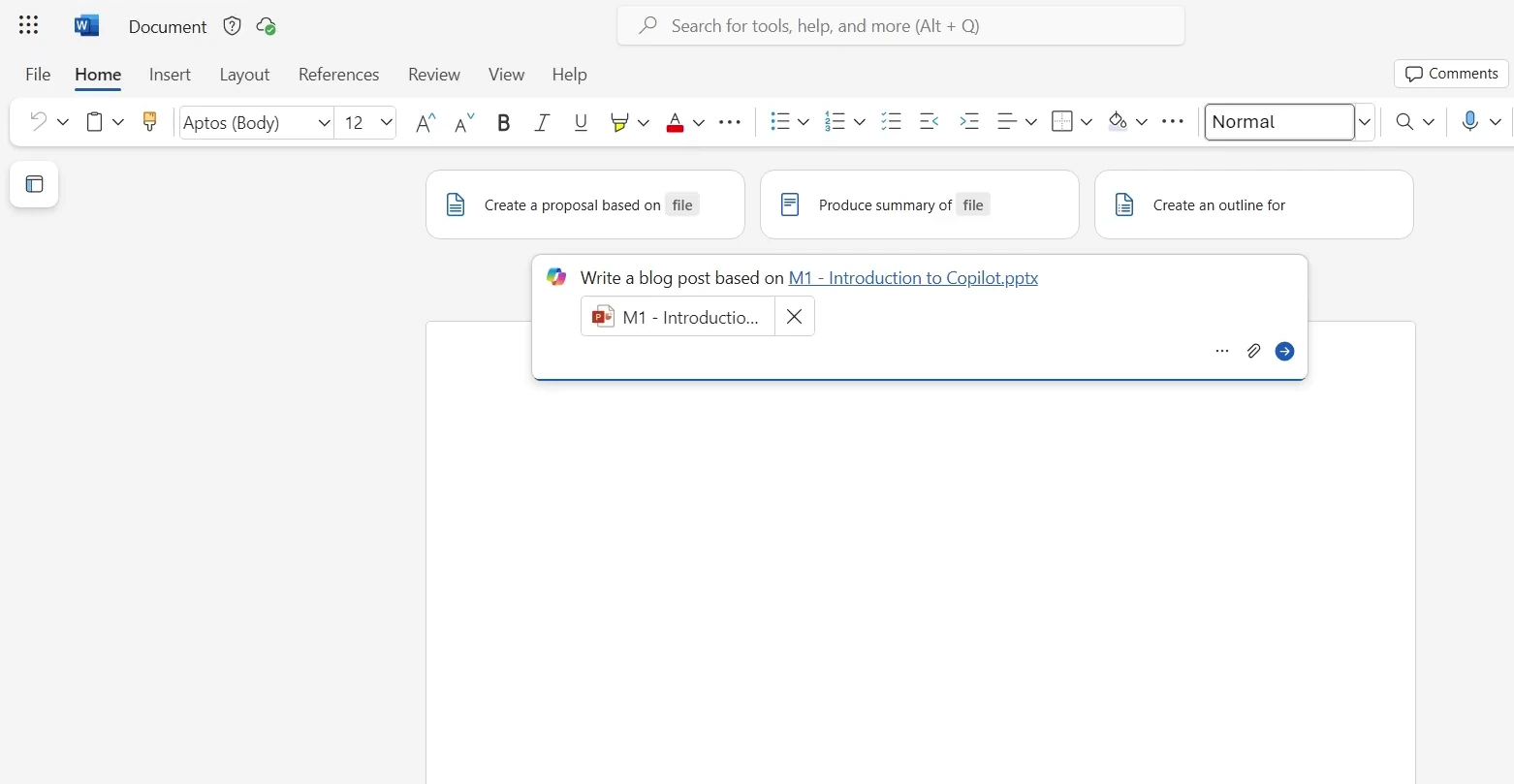
Another use case I lean on constantly is content transformation. Imagine you built a polished PowerPoint presentation, and now marketing wants the same content as a blog post. The old workflow was a long copy-paste-rewrite process. With Microsoft 365 Copilot, you open Word, click Copilot at the top, and tell it to write a blog post based on your PowerPoint deck. A few seconds later, you have a draft.
You will probably still want to spend a few minutes adjusting and polishing the output, but the heavy lifting of restructuring slide bullets into flowing paragraphs is done. The same approach works in reverse: turn a Word doc into slides, summarize a long report into talking points, or reformat a meeting transcript into a project brief.
The point is not that Copilot writes perfect prose on the first try. The point is that it removes the blank-page problem and gives you something to react to.
Drafting emails and prepping for your day
Email drafting is another easy win. Tell Copilot what you want to say, and it writes the email for you. Short, professional, in your voice. Done.
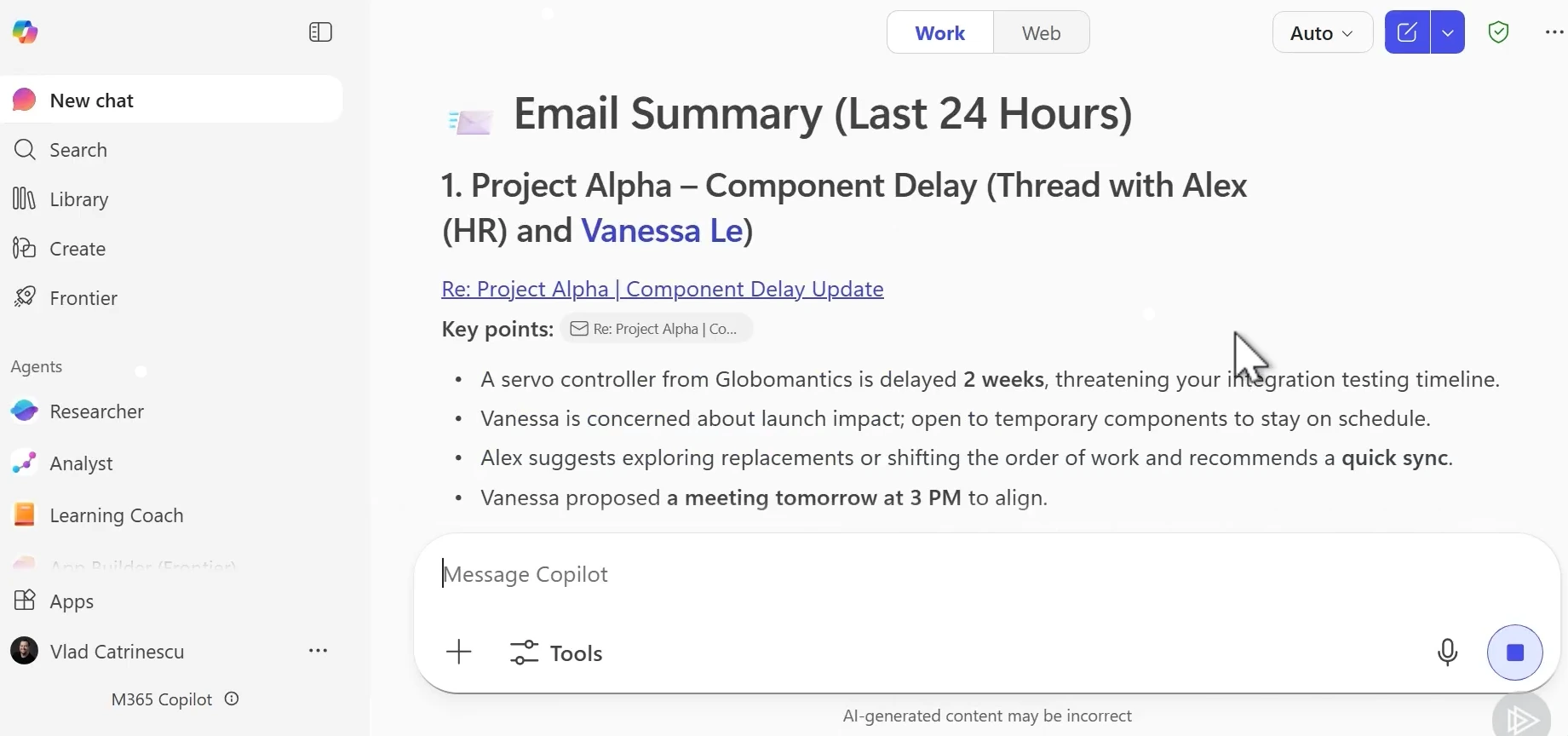
But the most powerful Microsoft 365 Copilot scenario, in my experience, is using Copilot Chat to summarize your day. From any device, you can open Microsoft 365 Copilot Chat and ask something like, “Summarize my emails and Teams messages and chats from the last 24 hours, and let me know what I need to know in order to be ready for my day.” Copilot delivers a structured summary: an email recap with key points and action items, tasks assigned to you in documents, the most important Teams threads, and anything you need to follow up on.
You can take this further by asking Copilot to help you prepare for your meetings. For each meeting on your calendar, Copilot pulls the purpose, the latest context from chats and emails, what needs to be decided, and even drafts talking points and a client-ready communication. Walking into back-to-back meetings already briefed is a different experience.
What this means for you
Microsoft 365 Copilot is the most concrete productivity shift Microsoft has shipped in years. It is not a side product you have to remember to open. It is woven into every app you already use, and because it is grounded in your work data, the answers are actually relevant to your job.
If you are an IT professional, the practical implication is that your end users are about to ask you a lot of questions about Copilot. Knowing where it lives, what data it can see, and how the security trimming works should be table stakes. If you are an end user, the win is reclaiming time on the parts of work that drain you the most: catching up on meetings, drafting routine emails, and pulling together status updates.
The fastest way to get value out of Microsoft 365 Copilot is to pick one or two use cases that map to your worst time sinks and use Copilot for those every day for a week. Once those are habit, expand from there.
Ready to go deeper on Microsoft 365 Copilot
If you want to understand the full Copilot ecosystem from Power Platform to Dynamics 365 to Security Copilot and GitHub Copilot, the complete course is on Pluralsight. Watch Microsoft Copilot Foundations on Pluralsight (opens in a new tab) for the full deep dive, or explore the full Microsoft 365 Copilot learning path (opens in a new tab) to follow a structured journey through every Copilot you need to know.
Looking for more on Microsoft 365 Copilot? Check out my guide on how Microsoft 365 Copilot helps you catch up fast across email, Teams, and calendar, the broader Microsoft 365 Copilot feature overview for M365 and Power Platform, and the best practices for crafting the best Copilot prompts so you get the most out of every interaction.
Frequently asked questions
Is Microsoft 365 Copilot the same as Copilot in Bing or Copilot Chat for free?
No. Microsoft 365 Copilot is a paid, licensed offering that has access to your organization’s Microsoft 365 data through Microsoft Graph. The free Copilot experience is web-grounded only and does not see your work content. They share a name and similar interfaces, but the data sources and capabilities are different.
Will Microsoft 365 Copilot share data my account is not allowed to see?
No. Microsoft 365 Copilot is security trimmed. It only returns content your account already has permission to access. If a file is restricted to a specific group and you are not in that group, Copilot will not surface it for you, even if it would be relevant to your prompt.
Can Microsoft 365 Copilot still search the Internet?
Yes. By default, Copilot is grounded in your organizational data through Microsoft Graph, but it can also pull from the public web when you want it to. This is useful when you need a mix of internal context and external research in the same answer.
Where do I start if I want to learn Microsoft 365 Copilot end to end?
Pick the apps you live in. If you spend most of your day in Outlook and Teams, start there. Use Copilot for meeting summaries and email drafting for a week, then expand into Word, Excel, and Copilot Chat. Once you are comfortable with the user-facing experience, look at the broader Copilot ecosystem (Power Platform, Dynamics 365, Security Copilot, GitHub Copilot) to understand how it all fits together.

