
How to create content with Copilot Web Chat (no extra license needed)
 By Vlad Catrinescu Microsoft MVP and MCT · Pluralsight Author
Copilot Web Chat is one of the most underused AI tools already sitting inside your Microsoft 365 subscription. You do not need a paid Microsoft 365 Copilot license to start drafting emails, writing internal blog posts, or generating social media content with AI. If you have any Microsoft 365 subscription, you already have access to Copilot Web Chat, and it can handle a lot more than most people realize.
Key takeaways
- Copilot Web Chat is included free with any Microsoft 365 subscription, so you do not need a paid Copilot license to start creating content with AI.
- You can use Copilot in Outlook to draft email replies using the current email as context.
- Copilot Web Chat can generate internal blog posts with specific tone, word count, and content requirements when you provide detailed prompts.
- Copilot’s web grounding feature lets you create social media posts from a URL without copying and pasting an entire article.
- You should always treat Copilot’s output as a first draft, keep the conversation going, and ask for edits until you are happy with the result.
How Copilot Web Chat helps you create content for free
Many people assume they need a paid Microsoft 365 Copilot license to get any real value from AI at work. That is not the case. Copilot Web Chat is available to anyone with a Microsoft 365 subscription, and it is capable of generating a wide variety of text-based content. Whether you need to respond to a project update email, write an announcement for the company intranet, or amplify a blog post on LinkedIn, Copilot Web Chat can get you started in seconds.
The key to getting great results from Copilot Web Chat is understanding that it works best as a conversational partner. You give it context, set expectations, and then refine the output through follow-up prompts. As someone who has authored over 100 Pluralsight courses on Microsoft technologies, I can tell you that the iterative prompting approach makes all the difference.
Draft email replies with Copilot in Outlook
One of the most practical ways to use Copilot Web Chat is drafting email replies directly inside Outlook. Because Copilot is integrated into Outlook as part of Copilot Web Chat, it can read the email you are replying to and use it as context for your response.
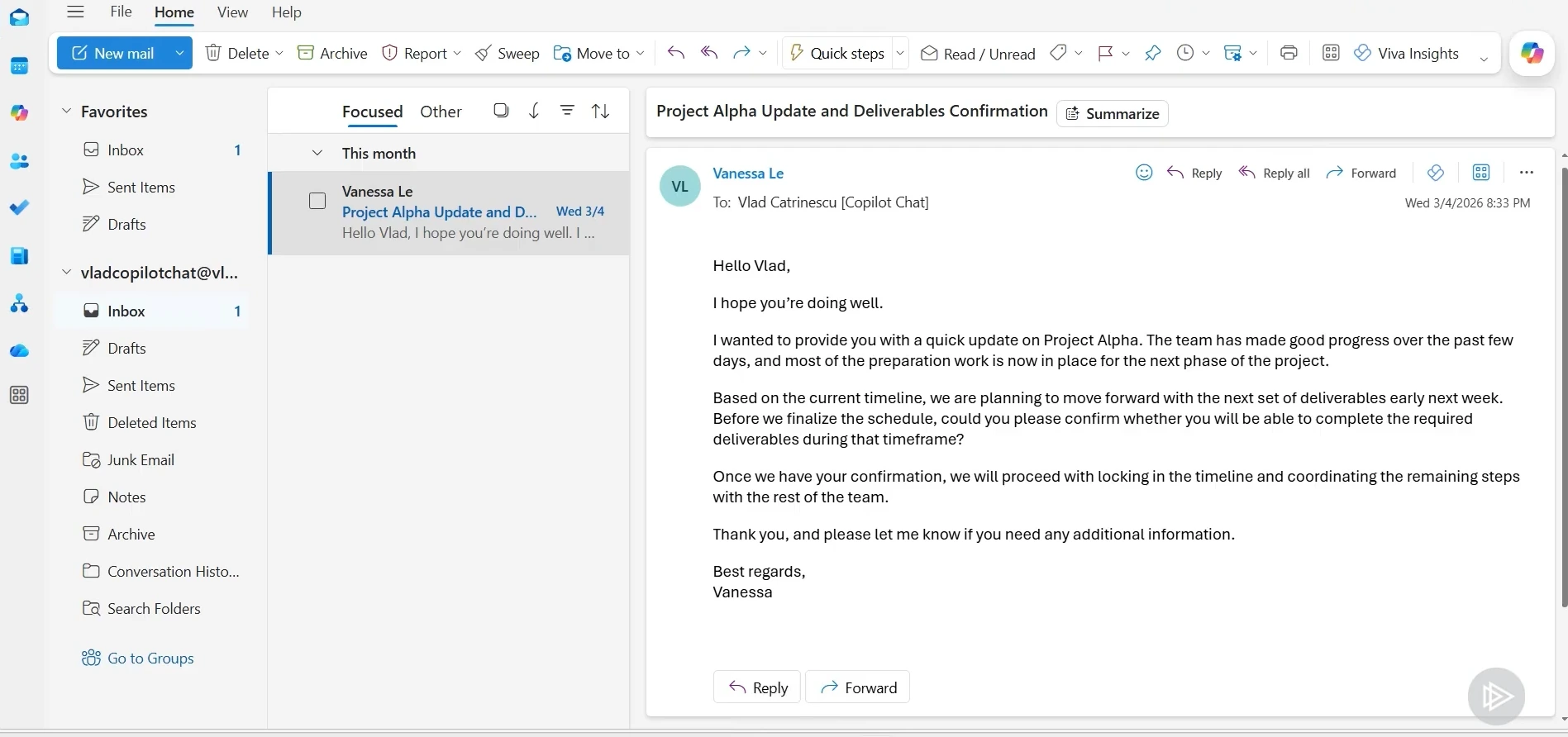
For example, say you receive an email from a colleague asking for a status update on project deliverables. Instead of spending time composing a reply from scratch, you can prompt Copilot with something like: “Draft a reply confirming I can deliver by next week. Let them know I have two items at 90 percent and one that still needs input from the design team. Keep the tone professional but friendly, and suggest a 15-minute sync call on Monday.”
Copilot generates the full reply in seconds. However, there is an important step here. With Copilot Web Chat in Outlook, you need to manually copy the response into your reply. Use that extra step as a chance to review what Copilot wrote before you hit Send. Always validate the output, whether it is an email, a report, or any other content.
Refine the output with follow-up prompts
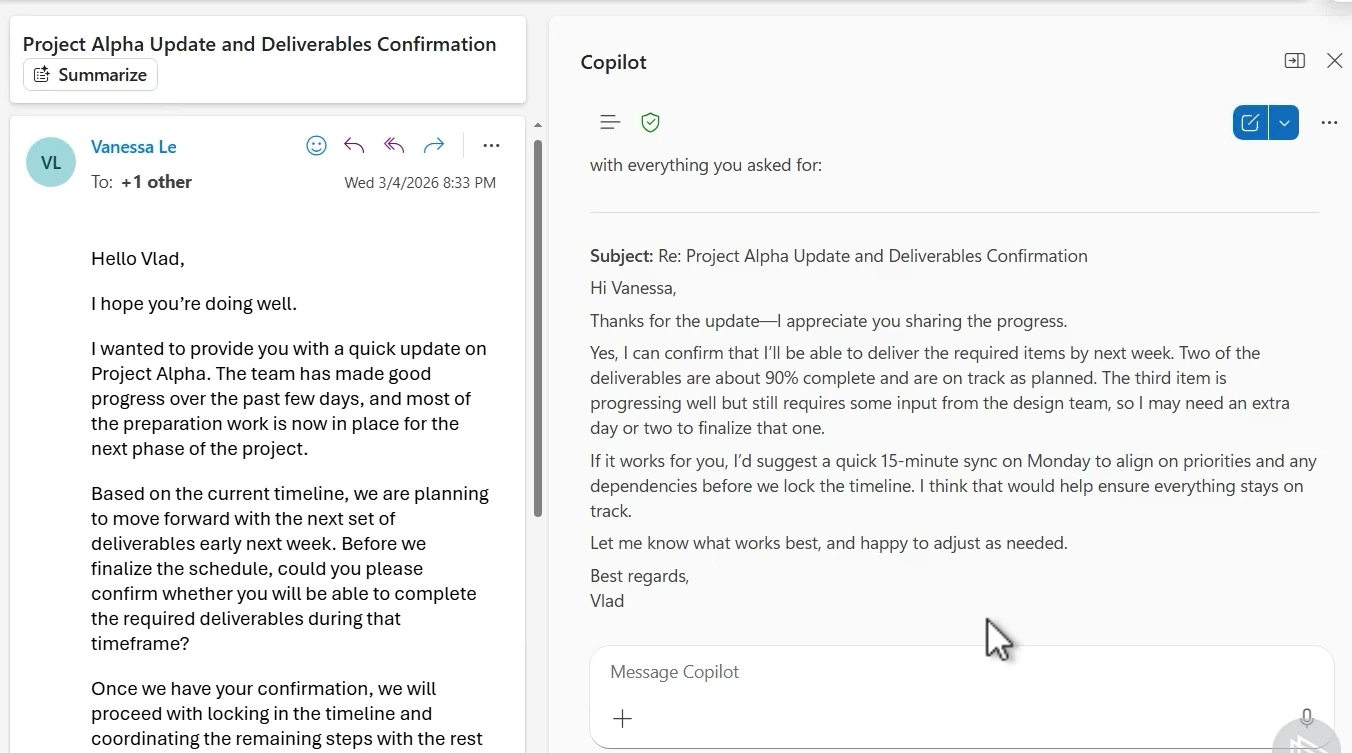
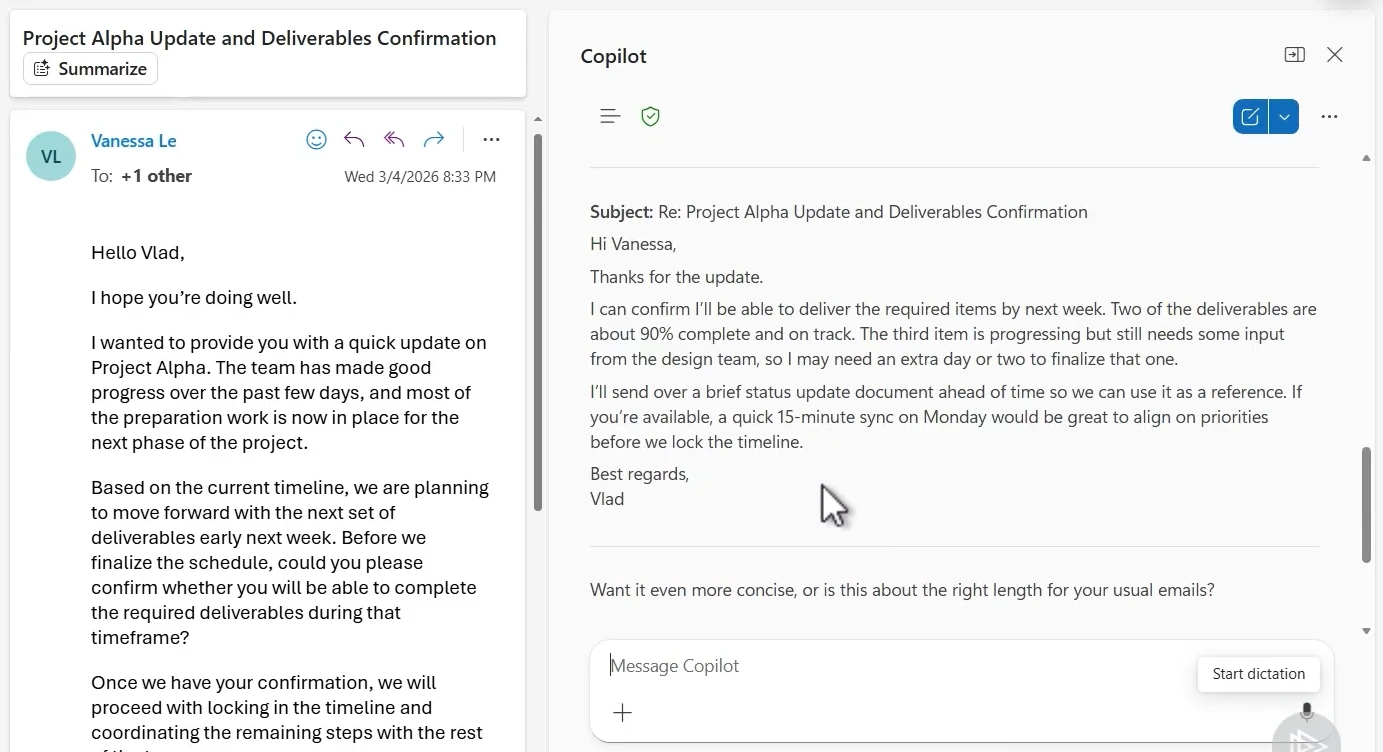
If the first draft is too long, too formal, or missing something, do not start over. Keep the conversation going. You might ask Copilot to make the email shorter and add that you will send a status update document before the call. Copilot adjusts the draft based on your feedback without losing the original context.
This iterative approach is one of the most important habits to build when working with AI. You are the final decision-maker, so ask Copilot for as many edits as you need.
Write internal blog posts with Copilot Web Chat
Copilot Web Chat can also generate longer content like internal blog posts for your company intranet. The trick is front-loading your prompt with as much context, tone direction, and content requirements as possible. The more detail you provide, the better the first draft will be.
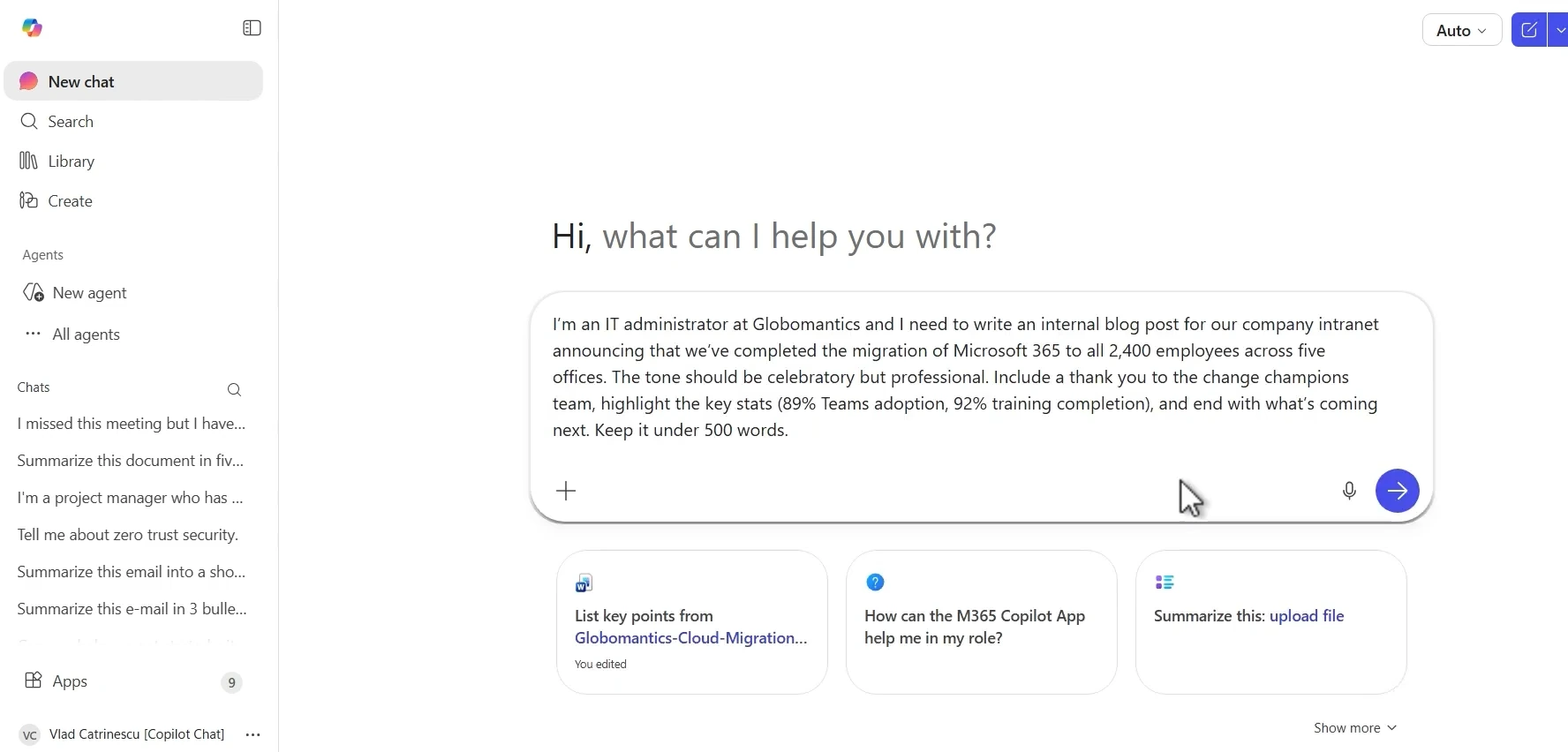
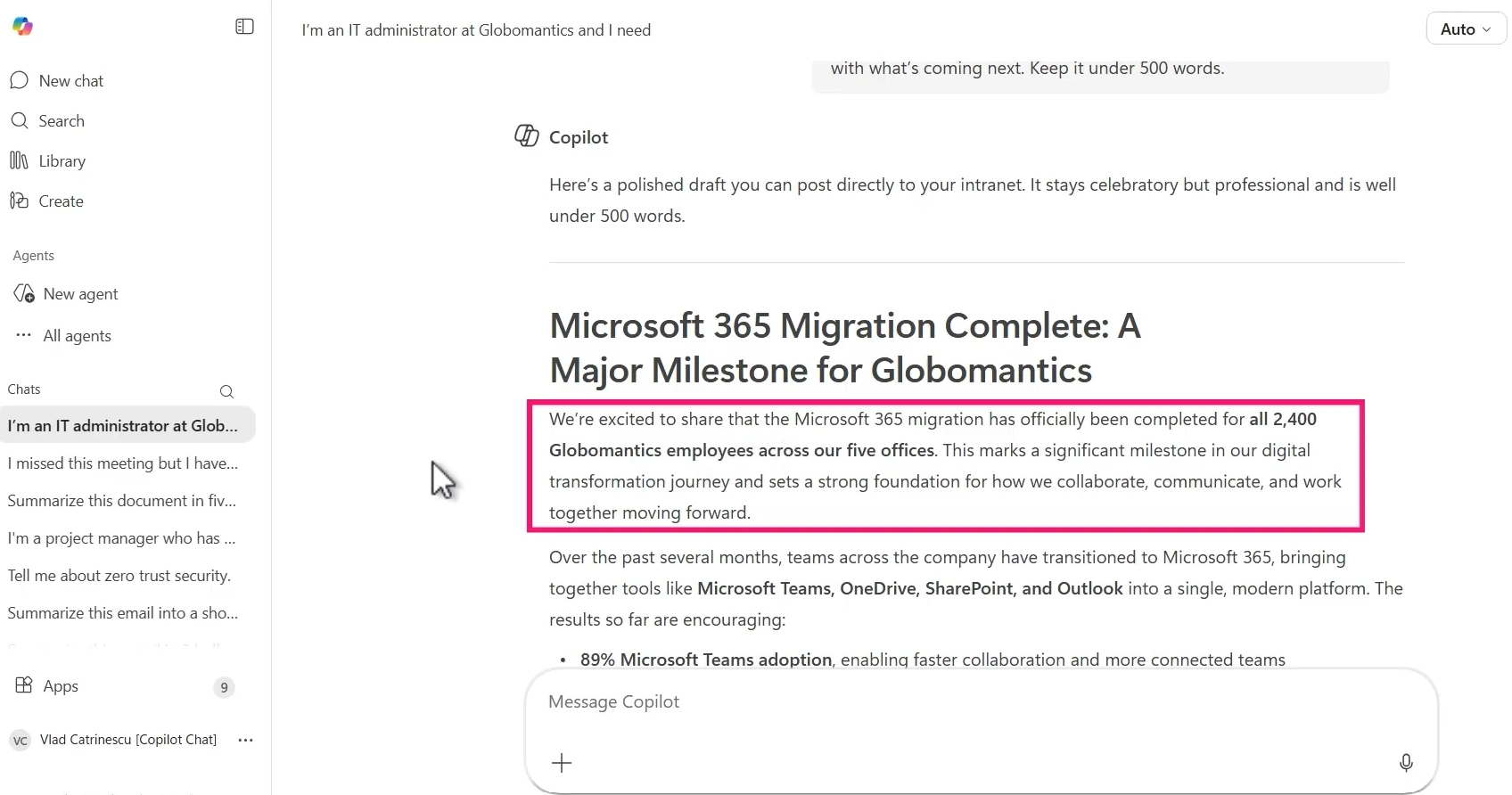
Here is an example prompt that works well: “I’m an IT administrator and I need to write an internal blog post announcing that we’ve completed the migration of Microsoft 365 to all 2,400 employees across 5 offices. The tone should be celebratory but professional. Include a thank you to the Change Champions team and highlight key stats: 89 percent Teams adoption and 92 percent training completion. Include what’s coming next. Keep it under 500 words.”
Notice all the ingredients in that prompt. You have context (what the post is about), expectations (celebratory but professional tone, under 500 words), and specific content requirements (thank the Change Champions, mention key stats). This structure consistently produces strong first drafts.
Fix generic openings and add calls to action
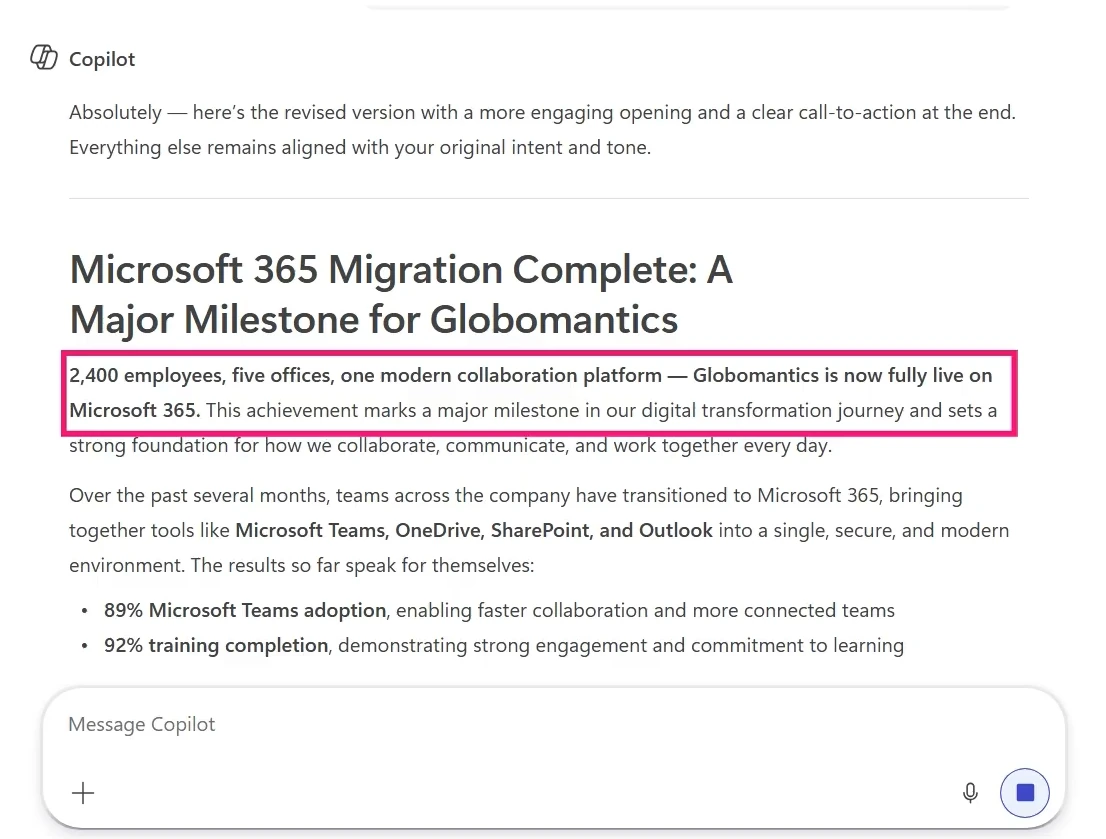
One common issue with AI-generated content is that it tends to start with overused phrases like “We’re excited to share.” If that happens, simply ask Copilot to rewrite the opening with something more engaging. You can also ask it to add a call to action at the end, like encouraging employees to share their favorite Microsoft 365 tips in the comments.
After the follow-up prompt, Copilot rewrote the opening to something much stronger: leading with the key stats and a punchy one-liner instead of the generic opener. The call to action appeared at the bottom exactly as requested.
Generate social media posts with Copilot Web Chat
Another common scenario is when your organization publishes a blog post or press release and asks employees to amplify it on social media. Writing a genuine, personal social post about content you did not directly work on can feel awkward. Copilot Web Chat solves this problem.
Because Copilot Web Chat has access to web grounding, you do not need to copy and paste the entire article. You can simply include the URL in your prompt and Copilot will read the content from the web.
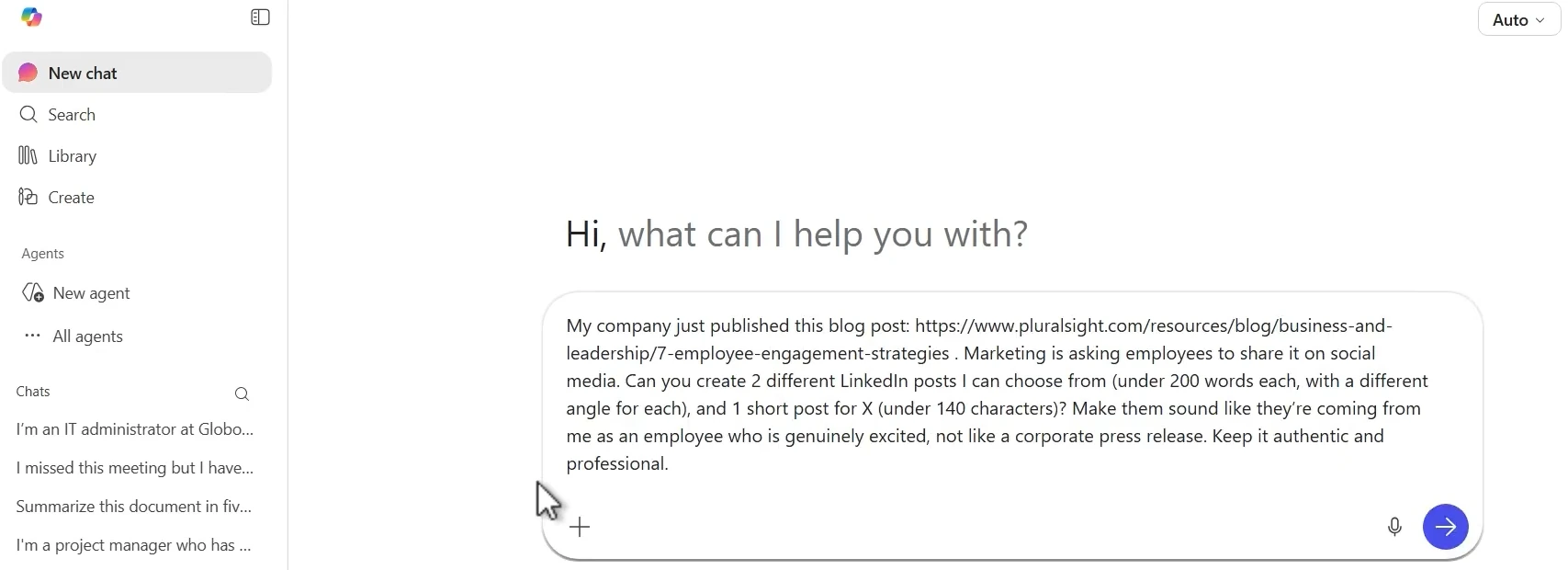
A prompt like this works well: “My company just published this blog post [link]. Marketing is asking employees to share it on social media. Create two different LinkedIn posts under 200 words each with a different angle, and one short X post under 140 characters. Make them sound like they’re coming from me as a genuinely excited employee, not a corporate press release. Keep it authentic and professional.”
Copilot returns multiple options with different angles, each including the link back to the original post. You get variety without having to brainstorm multiple approaches yourself.
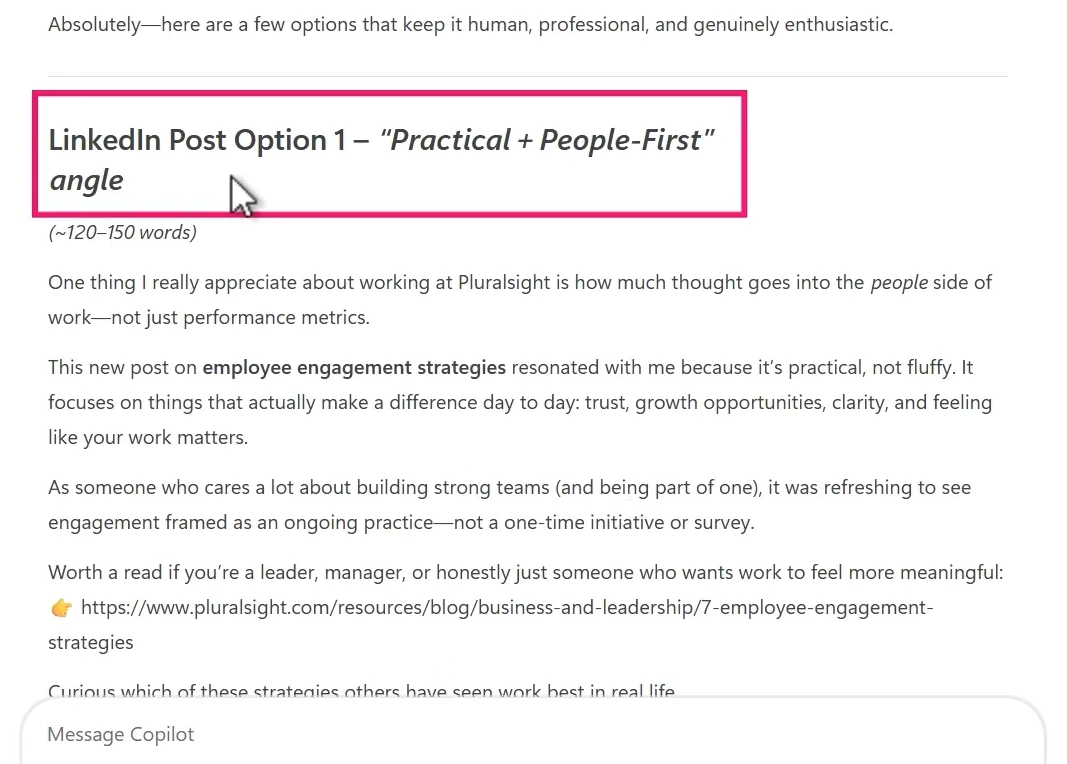
Remember, these are first drafts. You can ask Copilot to edit any of them, or you can copy the text into a document and refine it yourself. Always make the content your own before posting, because you are the one putting your name on it.
Bonus: use Copilot for personal content too
Copilot Web Chat is not limited to work scenarios. By switching to Copilot Personal, you can use it for everyday writing tasks. Need to write a fun invitation for a neighborhood barbecue to send in a WhatsApp group chat? Provide the details (date, time, location, what to bring, who is welcome) and ask Copilot to keep it casual and short.
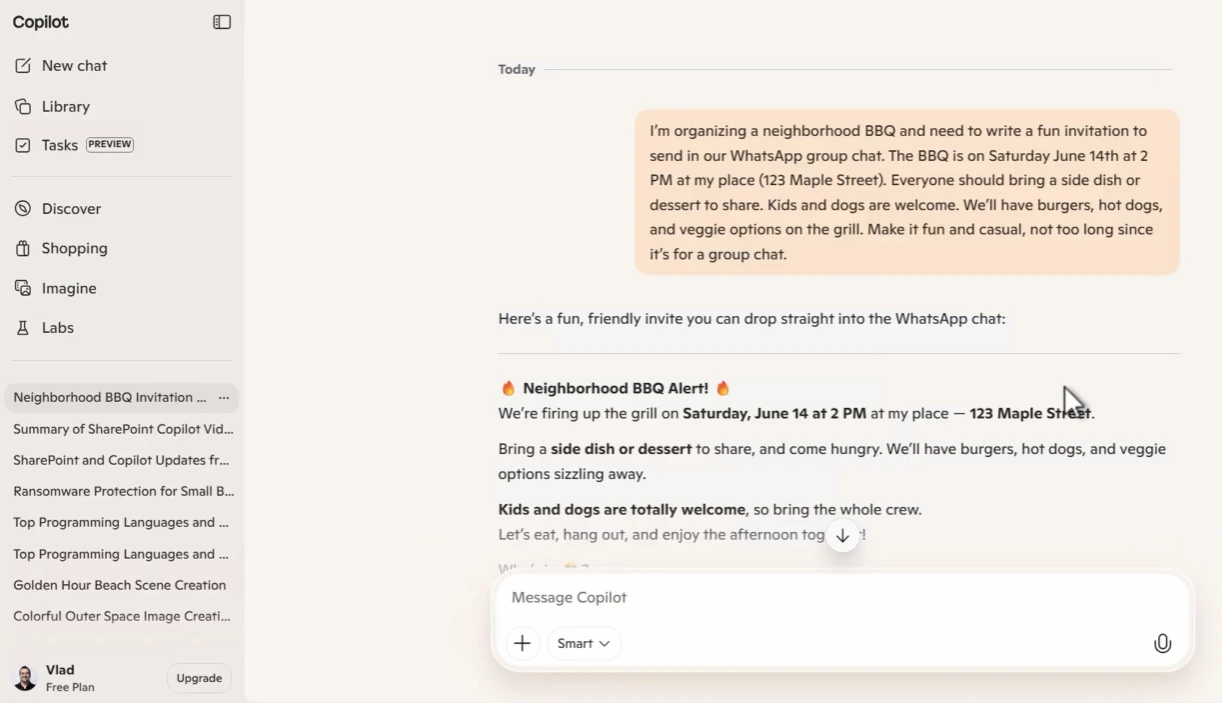
Copilot picks up on the tone you are going for and delivers a message you can copy and paste directly into your group chat. It is a small example, but it shows how versatile this free tool really is.
What this means for you
If you have been waiting for a paid Copilot license to start experimenting with AI content creation at work, you do not need to wait. Copilot Web Chat is already available in your Microsoft 365 subscription, and it handles email drafts, blog posts, social media content, and personal writing tasks without any additional cost.
The most important habit to build is treating Copilot as a conversational partner, not a one-shot tool. Give it detailed prompts, review the first draft, then ask for changes. The more specific your follow-up prompts, the better the final output.
Start with a use case that saves you time today: your next project update email, an intranet announcement, or that social post marketing keeps asking you to write. Once you see how quickly Copilot gets you to a solid first draft, you will find new ways to use it every week.
Ready to go deeper with Copilot Web Chat? This post covers just one clip from the full Pluralsight course on Copilot Web Chat. The complete course walks you through everything from getting started to summarizing documents, creating images and infographics, and using Copilot responsibly. Check out the full Copilot Web Chat course on Pluralsight (opens in a new tab).
Frequently asked questions
Is Copilot Web Chat the same as the paid Microsoft 365 Copilot?
No. Copilot Web Chat is a free feature included with any Microsoft 365 subscription. The paid Microsoft 365 Copilot license adds deeper integration with apps like Word, Excel, and PowerPoint, along with access to your organizational data through Microsoft Graph. Copilot Web Chat uses web grounding and email context in Outlook, but it does not access your files across Microsoft 365 the way the paid license does.
Can Copilot Web Chat access internal company documents?
Copilot Web Chat in its free form does not search your organization’s files in SharePoint or OneDrive. It can use the content of the email you have open in Outlook, and it can access publicly available web content through web grounding. For access to internal documents, you would need the paid Microsoft 365 Copilot license.
How do I get better results from Copilot Web Chat?
Include four key ingredients in every prompt: context (what you are writing and why), content requirements (what to include), tone and format expectations (professional, casual, under 500 words), and output structure (bullet points, paragraphs, multiple options). Then treat the first response as a starting point and follow up with specific edits.
Does the email drafting feature in Outlook require a separate license?
No. The Copilot feature inside Outlook that lets you draft replies is part of Copilot Web Chat and is included with your Microsoft 365 subscription. You do not need a separate Copilot license. However, with the free version, you need to manually copy Copilot’s response into your email reply.

