
Copilot Studio Can Now Build Full Apps: What Laura Rogers Showed Me
 By Vlad Catrinescu Microsoft MVP and MCT · Pluralsight Author
Copilot Studio has changed a lot over the past few years. We’ve always known it as the place where you build agents, but this year it got a big change: you can now create apps in Copilot Studio, full applications built from a prompt. I hadn’t tried it myself yet, so at the Power Platform Community Conference I asked Microsoft MVP Laura Rogers to show me how it works, and she promised me no code.
Key takeaways
- You create apps in Copilot Studio by describing what you want, and every change after that is another prompt, not dragging controls around.
- A requirements document, a spreadsheet with your columns or a few emails about the process give it far more to work with than a one-line prompt.
- You can ask for AI inside the app itself, like a help desk form that picks the ticket category from what the user typed.
- The app can keep its data in SharePoint lists, new ones or lists you already have, and it adds connectors like Outlook and Office 365 Users when it needs them.
- Building and using these apps consumes Copilot Credits, and the feature is still in preview, with no way to put an app in a solution yet.
Meet Laura Rogers
Laura is one of the best-known people in the Power Platform and SharePoint community, even if she doesn’t like to admit it. She has been doing SharePoint for about 23 years, she has been a Microsoft MVP for 16, and she’s WonderLaura on YouTube and social media. Her favorite thing in Microsoft 365 is building business processes. Back in the day that meant InfoPath forms and SharePoint Designer workflows, and she evolved with the products: today it’s Power Apps (she prefers canvas apps to model-driven apps), Power Automate flows, and Copilot Studio, which grew out of Power Virtual Agents.
And like me, she’s not a programmer, so everything below is built without writing code.
Where you create apps in Copilot Studio
You start at copilotstudio.microsoft.com. The welcome screen now has three prominent things you can build: agents, workflows and apps. The apps part had only appeared a couple of weeks before we recorded, and it’s still marked as preview. Down the left side you also get your lists of agents, workflows and apps you’ve already created.
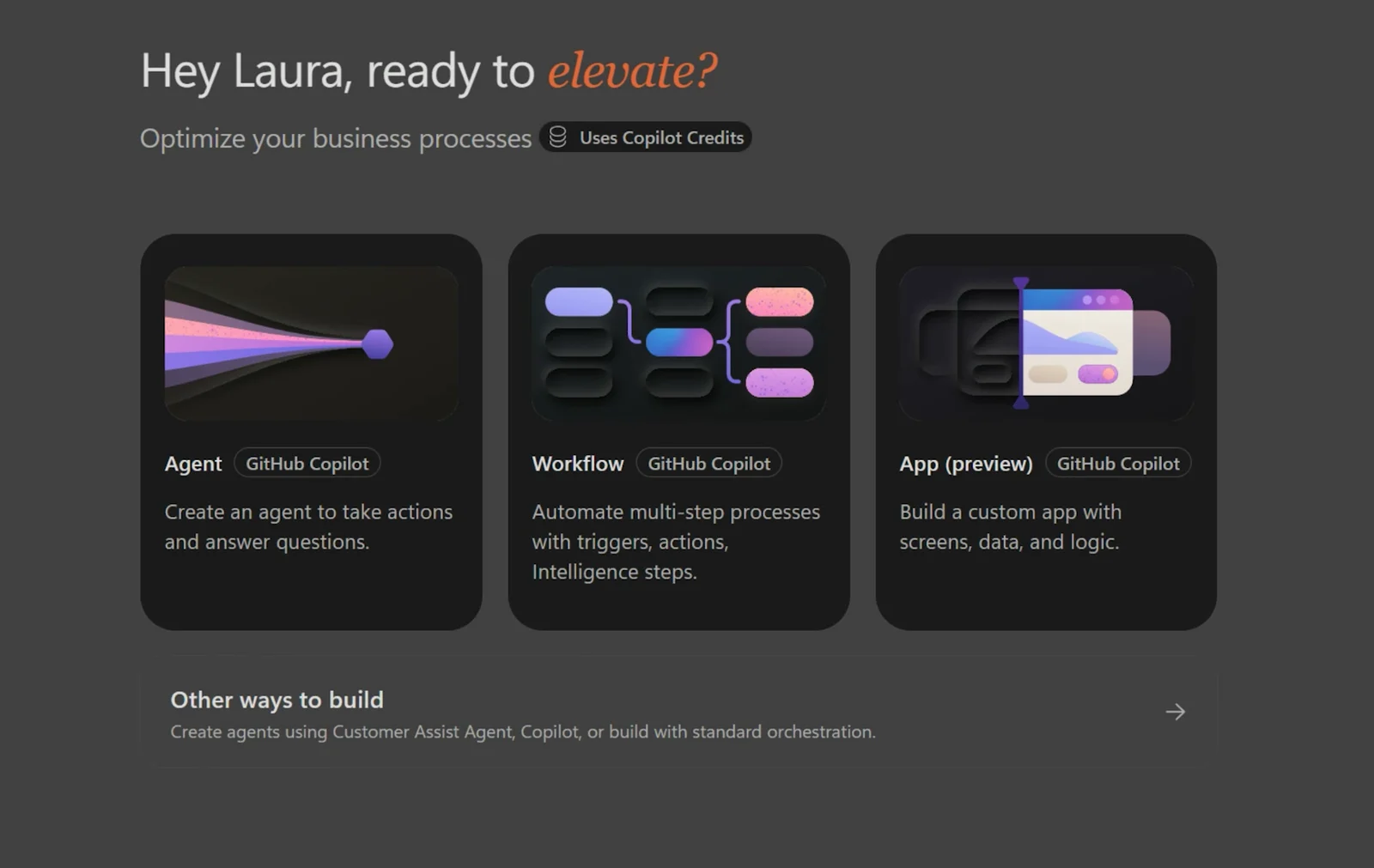
Every app starts with a prompt, and yes, it’s totally vibe coding. What really helps is giving it the information you already have: a requirements document, a spreadsheet with your columns, emails that describe how the process needs to work. You add those with the plus button, either uploaded from your desktop or as work content you’ve already been using. That same menu even lets you add plugins, so you can connect third-party tools and authenticate to them.
Laura has a requirements document for a help desk app that’s about ten pages long, and she runs that same document through every new vibe coding product that comes out, just to compare what each one builds.
Faster or smarter
Before it builds anything, you pick a spot on a slider that goes from faster to smarter. Smarter uses more Copilot Credits and takes much longer. Building her full help desk app live would have taken around 45 minutes, so we kicked off a quick one on faster, a project portfolio dashboard from one of the suggested prompts, and did a bit of a cooking show with the apps she had already built.
Environments, but no solutions yet
You can pick which environment the app goes into, and that’s where a question people ask right away comes in: can you build it in a solution, like you would with agents? Not yet. You’re picking an environment but not a solution, which means you can’t really move the app between environments. Build it where it’s going to live. It’s all still in preview.
App creation is also on by default, and Microsoft documents that an administrator can turn it off, so if you don’t see the App tile, that’s the first thing to check.
Inside the Help Desk Pro app
Laura’s Help Desk Pro app keeps the whole build conversation down the left side, starting with that ten-page requirements document. Copilot Studio built the simpler functionality first, described what it did, and then asked whether she wanted the more advanced pieces her document listed, like an admin screen.
The app itself shows up on the right, and a few views help you get around:
- Code view shows the code behind the app, and split view shows the app and the code side by side. Neither of us is a developer, but if you ever get stuck, that’s where a developer can help you take it to the next level.
- Device preview shrinks the app down to narrower screens, all the way to a phone. Our help desk app clearly needed some mobile work, like a hamburger menu instead of a top menu.
- Refresh reloads the app when a change doesn’t show up yet.
- Preview lets you use the app the way an end user would, so you can click around and note what you want to change.
Every change is a prompt
You can’t click and drag things around or change colors by hand. Every change is a prompt you type in the panel on the left, in natural language. Laura’s habit is to note the ten things she wants to change and then ask for one at a time instead of giving it a big list, because it seems to digest it better and the changes don’t conflict with each other. I do it the other way: I take screenshots, draw an arrow on what I want, hand it ten things at once and go get a coffee. Laura’s way is more incremental, so you can see exactly what each prompt did.
Adding AI to the app itself
This is the part that impressed me. You can build what you’d normally build with a canvas app, and you can also tell it you want AI inside the app. Laura’s requirements asked for the app to work out the ticket category from what the user writes. She typed “My monitor is broken” as the title and “Monitor is not working and is just a black screen” as the description, and the form filled in the category and the request type on its own.
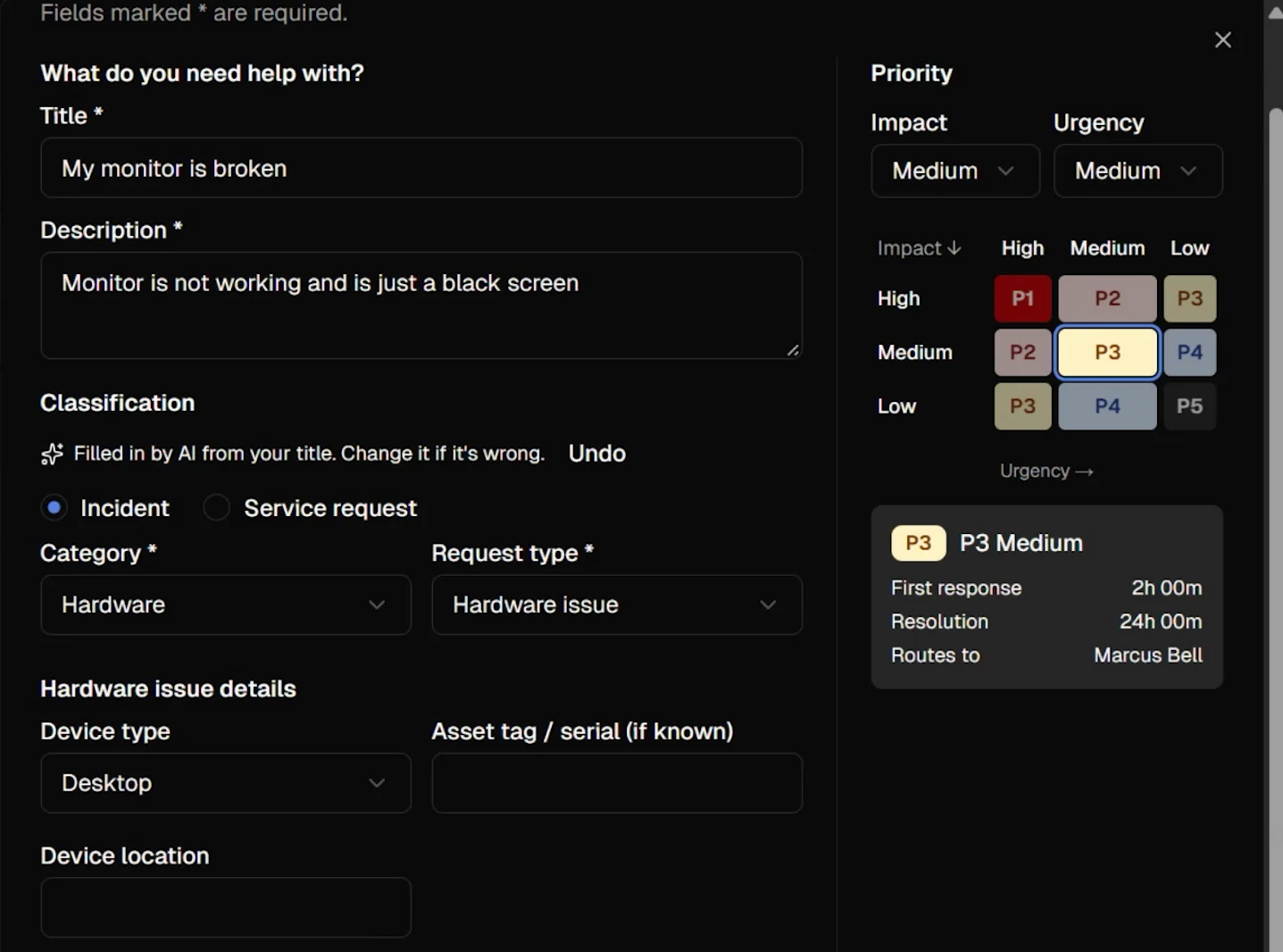
She also asked it to fill in the person’s name and department for them. The impact and urgency fields are something she’d rather leave to the help desk, because an end user probably won’t know what to pick.
The rest of the app covers what you’d expect from a help desk:
- Approvals. Some categories, like a service request for a Visio license, go to the person’s manager for approval. There’s no workflow behind it: the app sends the email through Outlook.
- Reports. Dropdowns let you switch between categories and priorities, over sample data it created.
- Admin screen. Request types, policies, routing rules and technician names, all the things only admins should touch, so you’d tell it that only an admin role can see them.
For the technician, it gets even better. Open a ticket and you can summarize it with Copilot, which helps when a ticket has a lot going on. You can reply with a canned response (acknowledge, need more info, restart steps or resolve), and when you draft the reply, it writes real troubleshooting steps for that specific problem. When you close the ticket, it can draft the resolution note too. At that point I told Laura she was basically rebuilding Dynamics 365 Customer Service in Copilot Studio.
Her advice: think about the AI you want from the start. She built another app without mentioning AI, and all it got was a connector to SharePoint.
Where the data lives
When Laura first built the app, it asked what she wanted to use as the data source, and she loves that. The app builder in Copilot Chat would build everything in SharePoint, and vibe.powerapps.com would build it in Dataverse. Here you get a choice, including whether to create new SharePoint lists or use lists that already exist. That’s huge, because a lot of the time you’ve already built the list and you just want an app as the front end. It also fixes one of the big complaints about the Copilot Chat version, which built a new SharePoint site just for a list.
When it creates the site and the lists, it asks you to approve each step, and “always allow” only lasts for that session.
The app’s settings show what it’s connected to. The Data view lists the SharePoint lists it created, and the Connections view shows the connectors:
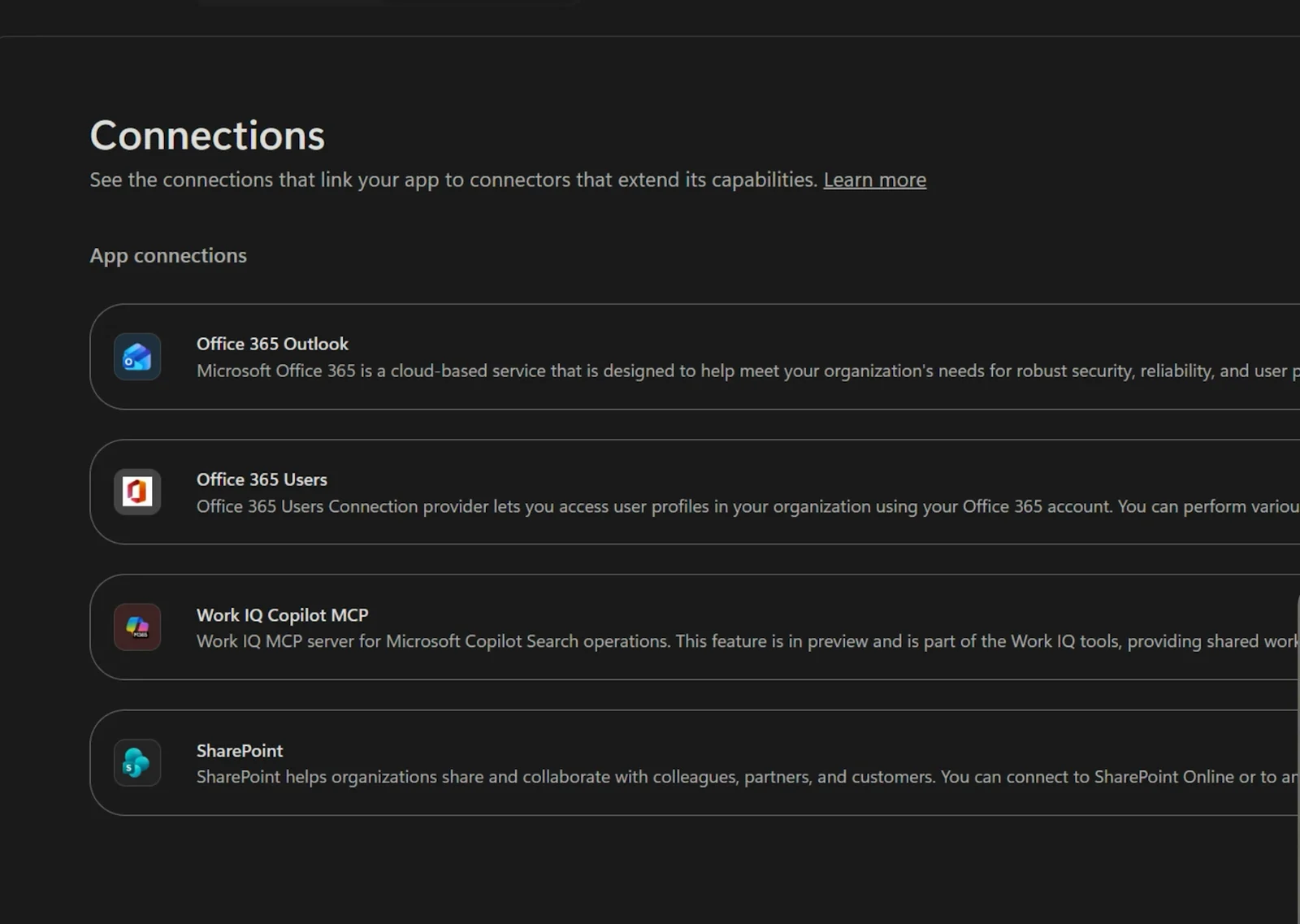
- Office 365 Outlook sends the emails. When Laura drafted that troubleshooting reply, it really did email the person who opened the ticket.
- Office 365 Users fills in the requester’s department and phone number from their user account.
- Work IQ Copilot MCP was added on its own when she asked for AI features. She never told it to add that connector.
- SharePoint is where all the lists live.
The cool thing about Work IQ is that it all stays inside your tenant. Microsoft documents that its requests run as the signed-in user and honor Microsoft 365 permissions, so it won’t show people content they don’t have access to.
What it costs to build and run
As you’d expect, it’s not free. Building the app uses Copilot Credits, and so does using it: Microsoft’s documentation says usage-based billing applies to using, building, previewing and testing apps. My guess is the AI features are where a lot of those credits go. There’s also a /cost command in the chat, and when we checked it on the dashboard we had kicked off, it had already spent about $2 and wasn’t finished yet.
Read Microsoft’s overview of usage-based billing (opens in a new tab) before you roll this out to your makers, because licensing is a topic of its own.
Sharing, publishing, and a second app
There isn’t much in the settings yet, mostly the layout of the editor. Once you want other people to use the app, you share it with them and they get an email inviting them. Then you publish whenever you make changes. This part is pretty simple right now.
Laura’s second app is a purchase request app, and it has one thing I really liked: a toggle between light and dark mode. Light mode works much better for demos.
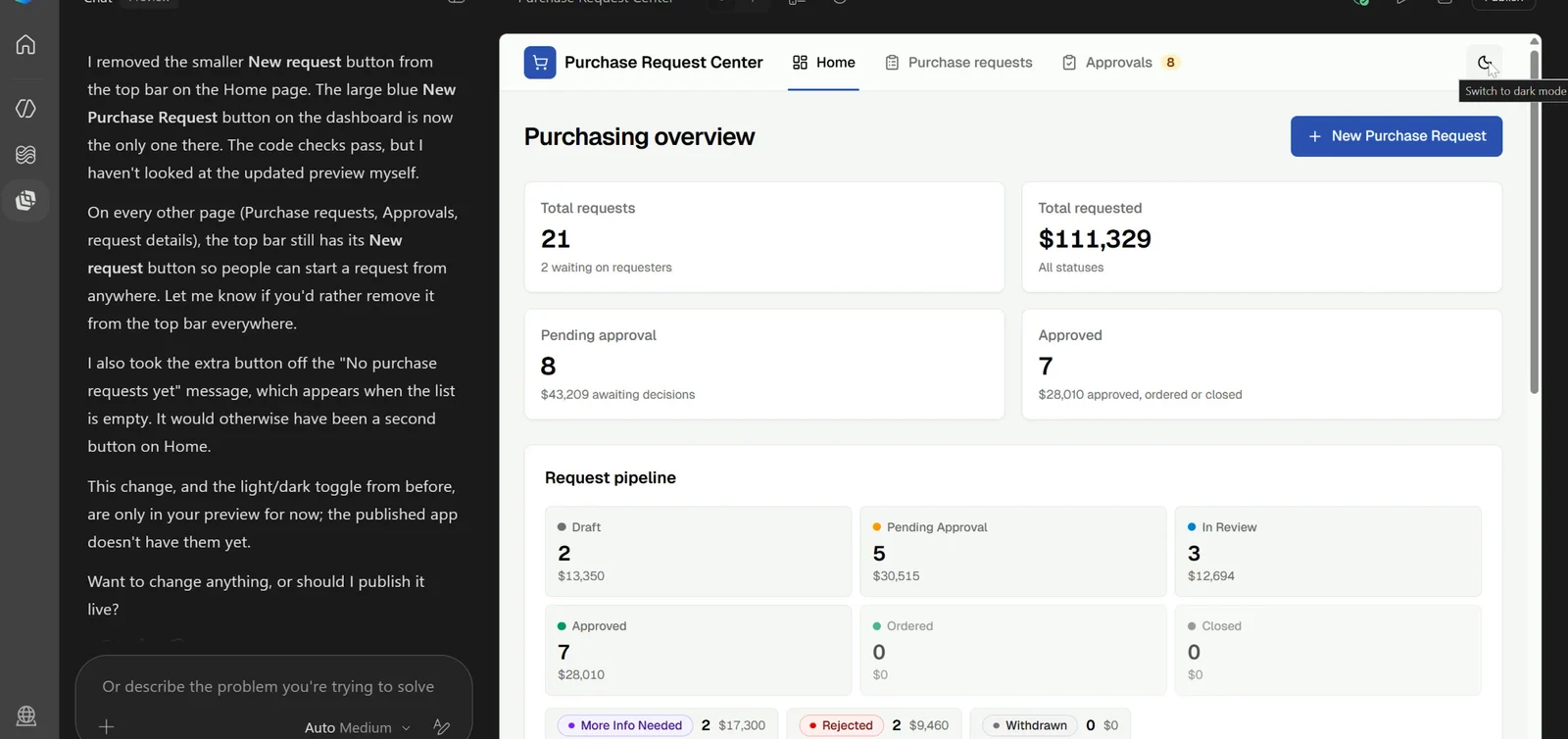
It also shows the things you only get if you ask for them. She didn’t tell this one to prefill the user’s name and department, so the only connector it has is SharePoint, and approvers don’t get an email. It does check the business justification, though: two words weren’t enough, it wanted at least a sentence. When she asked it to add a notification email to the approver, it replied that connecting the app to Outlook wasn’t turned on in that session, which is the kind of thing that can happen in a preview.
The more apps you vibe code, the more ideas you get for the previous ones. One thing Laura misses from vibe.powerapps.com is clicking a specific part of the app and writing a prompt about just that part, like “change this button to blue”. In her build, you had to describe what you wanted. Microsoft’s quickstart now describes an annotation option in the plus menu for marking the part of the app you want to change, along with sharing a screenshot for context, so check whether it’s there in your tenant.
The project portfolio dashboard
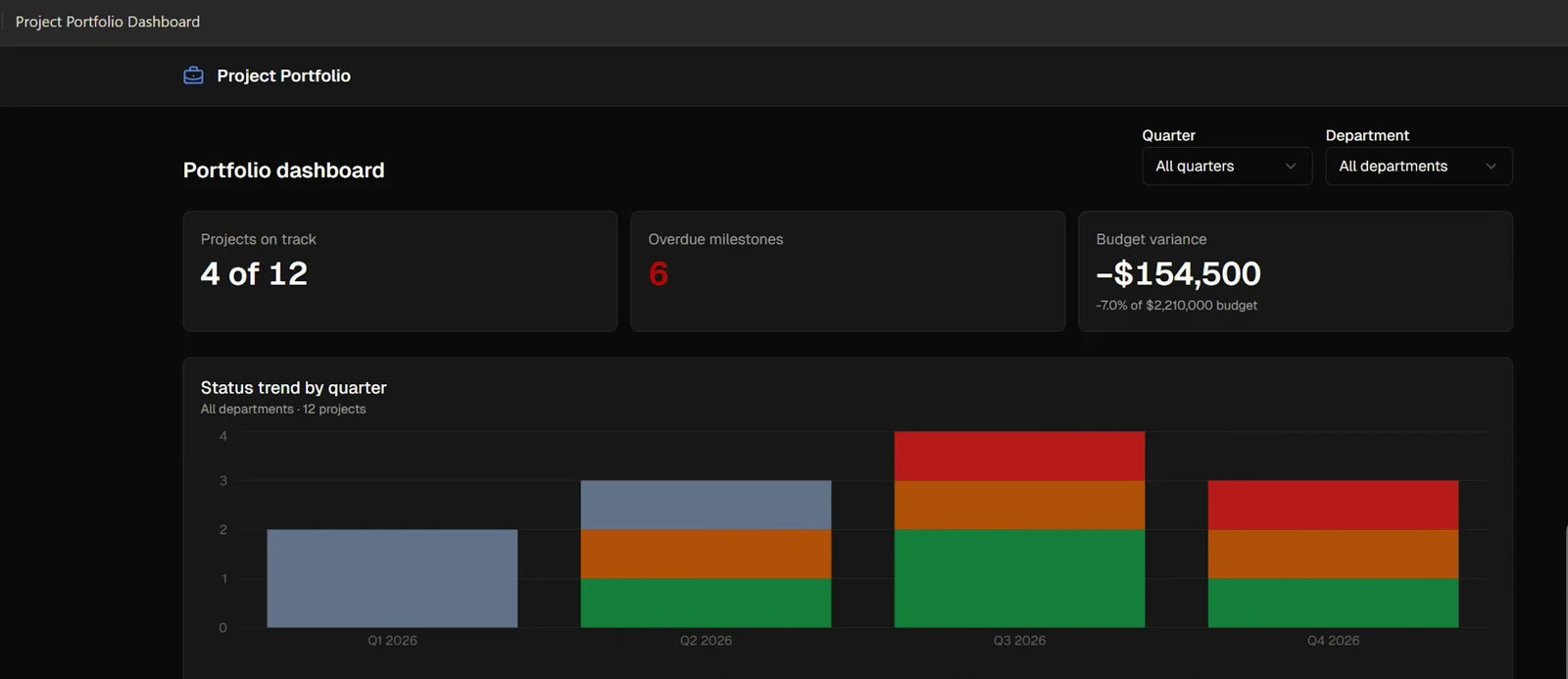
While we were talking, the dashboard we started on the faster setting finished building. It came out with a portfolio overview, charts that animate when they load, filters for quarter and department, and sample data so you can try everything right away. Click a manager’s name and it shows you every project they’re working on.
What this means for you
Laura’s recap is simple: you start with a prompt, and the options around it are pretty minimal. The key is to expand your mind, think about everything you’d want the app to do, AI included, and describe it. Having worked with SharePoint for over a decade, I still remember how many hours we spent fighting InfoPath to get a form right. Now you put in a prompt, get a coffee, and a lot of the one-week projects we used to do would be done.
If you want to try it, here’s what I’d do based on what Laura showed me:
- Write a requirements document first, even a short one, and upload it with your first prompt.
- Decide where the data lives before you start, especially if you already have SharePoint lists the app should use.
- Ask for AI features and things like user prefill in your first prompt, so it adds the right connectors from the start.
- Start on the faster setting while you experiment, and check /cost as you go.
- Build in the environment where the app will live, since you can’t move it with a solution yet.
There are also a few ways to build apps with AI in Microsoft’s world right now, and they’re mostly in preview, so part of the fun is discovering which experience is best at what. If you’re still getting started with Copilot Studio on the agent side, my post on learning basic agent creation in Copilot Studio is a good place to begin, and Plans in Power Apps shows another way to build a full solution with Copilot. If you’re heading toward certification, my AB-620 exam experience covers the Copilot Studio developer exam.
Ready to build your first app in Copilot Studio? Laura goes much deeper on all of this at IW Mentor (opens in a new tab), with live webinars on building business solutions with Copilot Studio agents, workflows and apps, and her free Power Hour every Wednesday on her YouTube channel (opens in a new tab). Microsoft’s guide to creating an app in Copilot Studio (opens in a new tab) is the best place to start your own.
Frequently asked questions
Do I need to know how to code to create apps in Copilot Studio?
No. You describe the app you want in natural language, and every change after that is another prompt. Copilot Studio does show the code behind the app in a code view, but you never have to touch it.
Do apps built in Copilot Studio use Copilot Credits?
Yes. Microsoft says usage-based billing applies to using, building, previewing and testing apps in Copilot Studio, and those actions might consume Copilot Credits. The faster setting uses fewer credits than the smarter one, and the /cost command shows what a build has used so far.
Can a Copilot Studio app use SharePoint lists I already have?
Yes. When you build the app, it asks what to use as the data source, and with SharePoint you can create new lists or point it at lists that already exist. Microsoft also documents sample data, browser-local storage and Dataverse tables as options.
Can I move an app built in Copilot Studio to another environment?
Not with a solution, at least not yet. You pick an environment when you build the app, but apps can't be added to a solution while the feature is in preview, so build the app in the environment where it will live.
Does sharing a Copilot Studio app give people access to its data?
No. Microsoft notes that sharing an app doesn't automatically give people access to the data behind it. Make sure the people you share it with can also reach the SharePoint lists or other data source it uses.

