
SharePoint Skills: Your First Look at No-Code AI Workflows
 By Vlad Catrinescu Microsoft MVP and MCT · Pluralsight Author
SharePoint Skills are a new public preview capability in AI in SharePoint that let you teach the assistant how to do your repeat work, with zero code. A skill is a reusable, multi-step workflow authored from a chat prompt, stored as a simple Markdown file, and invoked automatically whenever someone asks a matching question. This guide walks through what SharePoint Skills are, how to build one, the best practices you should follow, and two undocumented commands that will save you a lot of time.
Key takeaways
- SharePoint Skills are reusable, native, multi-step workflows that run inside AI in SharePoint. You author them from a chat prompt, no code required.
- Skills are stored as
SKILL.mdfiles in a new Agent Assets library, using the same open skill format that Anthropic defined for Claude. - Before you can build, your site must be opted in to the AI in SharePoint preview, and a site collection administrator must activate the Agent Assets feature.
- A well-written name and description are what make auto-discovery work. If the description is vague, the agent will not trigger the skill reliably.
- Skills cannot call REST APIs, webhooks, or custom code. They only chain built-in AI in SharePoint actions and inherit the user’s permissions.
- The
SHAREPOINT.mdfile in the Agent Assets library gives you a persistent context memory that loads on every interaction. - Two hidden commands,
--agenttoolsand//skills, expose the available actions and installed skills for any site.
What is a SharePoint Skill?
A SharePoint Skill is a reusable, multi-step workflow that runs inside AI in SharePoint. Four characteristics make skills different from anything you have used in SharePoint before.
Reusable. You write a skill once, and anyone with view permissions or higher on the site can run it.
Native. Skills run inside the first-party AI experience in SharePoint. Nothing is bolted on.
Multi-step. A skill chains together the built-in capabilities of AI in SharePoint into a defined sequence, which is where the real value is created.
Natural to author. You build a skill from a chat prompt. No code, no custom connectors, and editing later is just as easy.
If you have ever written a Power Automate flow, a SharePoint Framework extension, or a custom script to validate documents, SharePoint Skills are a different model entirely. You describe intent in plain English, and the skill does the work.
Six real-world examples of SharePoint Skills
To make this concrete, here are six skills that any organization could build today.
A new hire packet completeness check that verifies every new hire folder contains the offer letter, the I-9, and the signed handbook. A contract lawyer ID validation skill that scans contracts for an ID in a specific alphanumeric format and flags the ones that do not match. A green 2030 standard review that evaluates sustainability claims in proposals against an internal checklist. A proposal pricing sanity skill that flags proposals with discounts above policy or missing required approvals. A knowledge base freshness audit that lists KB articles that have not been updated in the past 12 months. A vendor onboarding intake that confirms each vendor folder has the NDA, W-9, and any other required documents.
These are exactly the tasks where a person currently has to open each document one by one. A skill can do it in seconds, consistently, every time.
How to build your first SharePoint Skill
The authoring loop for every SharePoint Skill is the same. You describe the workflow in the chat, review what SharePoint generated, tweak anything that looks off, and then save the skill. Sometimes SharePoint will ask you to confirm before saving, and sometimes it will just create the skill. Either way, if the result is not what you want, you tell SharePoint to edit it. That is the entire authoring experience.
Here is how the contract validation skill gets built end to end.
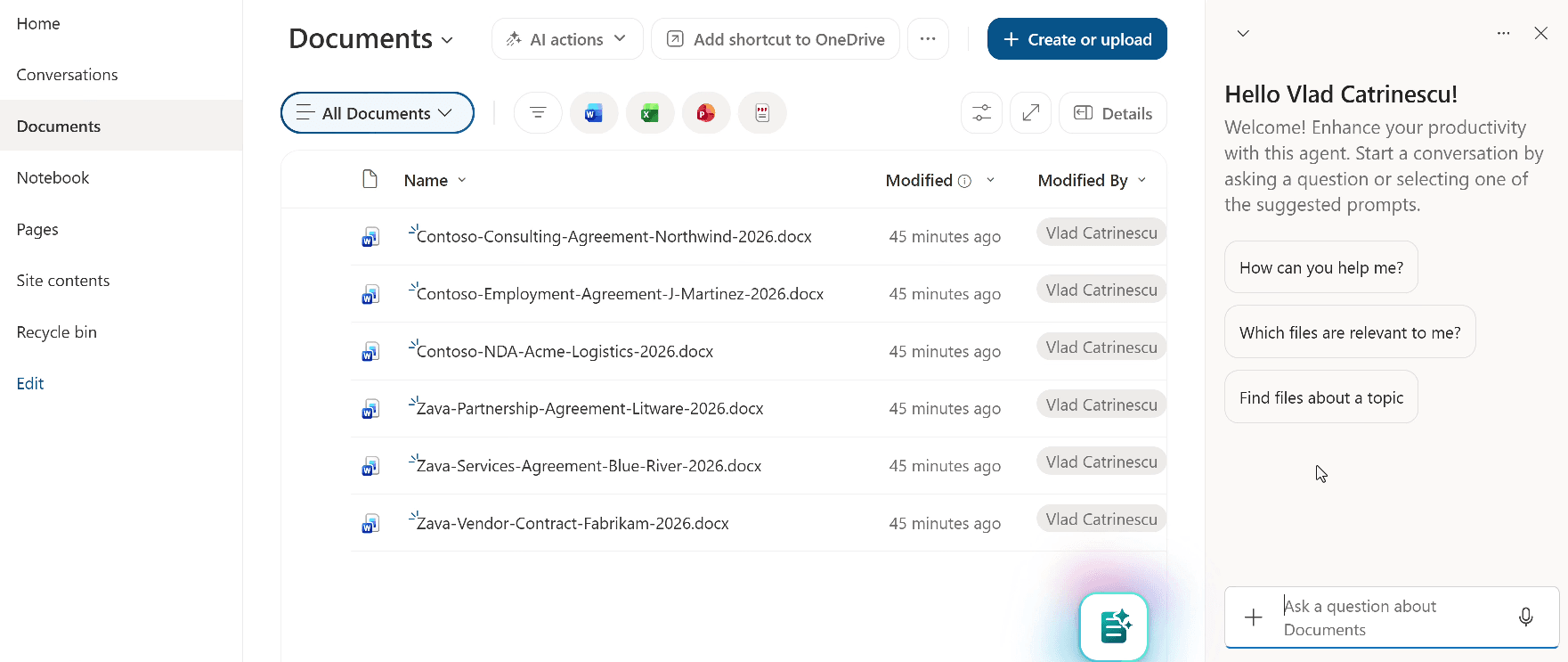
Inside a SharePoint site with a library of contracts, open the AI in SharePoint widget and click Ask a question. In the chat, describe the skill you want. For example:
Create a skill to review legal contracts to verify whether contract documents mention a lawyer ID in the xxx-xxx format (where x is an alphanumeric character). If a contract is not valid, add the document name to the Invalid Contracts list. Create the list with relevant columns if it doesn’t exist.
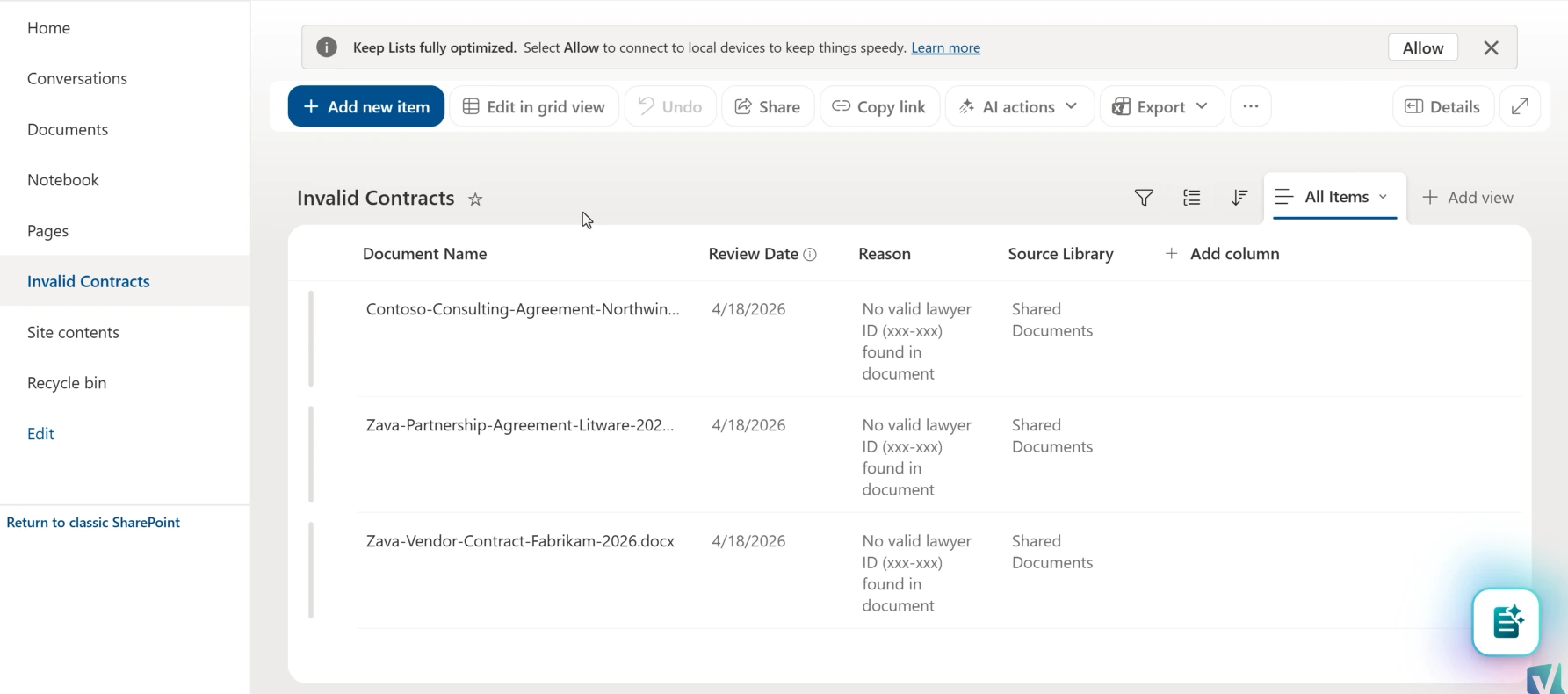
SharePoint confirms that it will create the skill and explains what the skill will do: retrieve the content of contract documents, scan for a lawyer ID in the xxx-xxx format, check whether the Invalid Contracts list exists or create it if needed, add invalid contracts to the list with the document name, review date, reason, and source library, and finally summarize the results.
To run it, select the contracts in the library, open the chat again, and type something like review those contracts. The agent recognizes the intent, loads the skill, and is transparent about which skill it is using. After a minute or two, it returns a structured summary of valid and invalid contracts, creates the Invalid Contracts list the first time, and populates it with every flagged document.
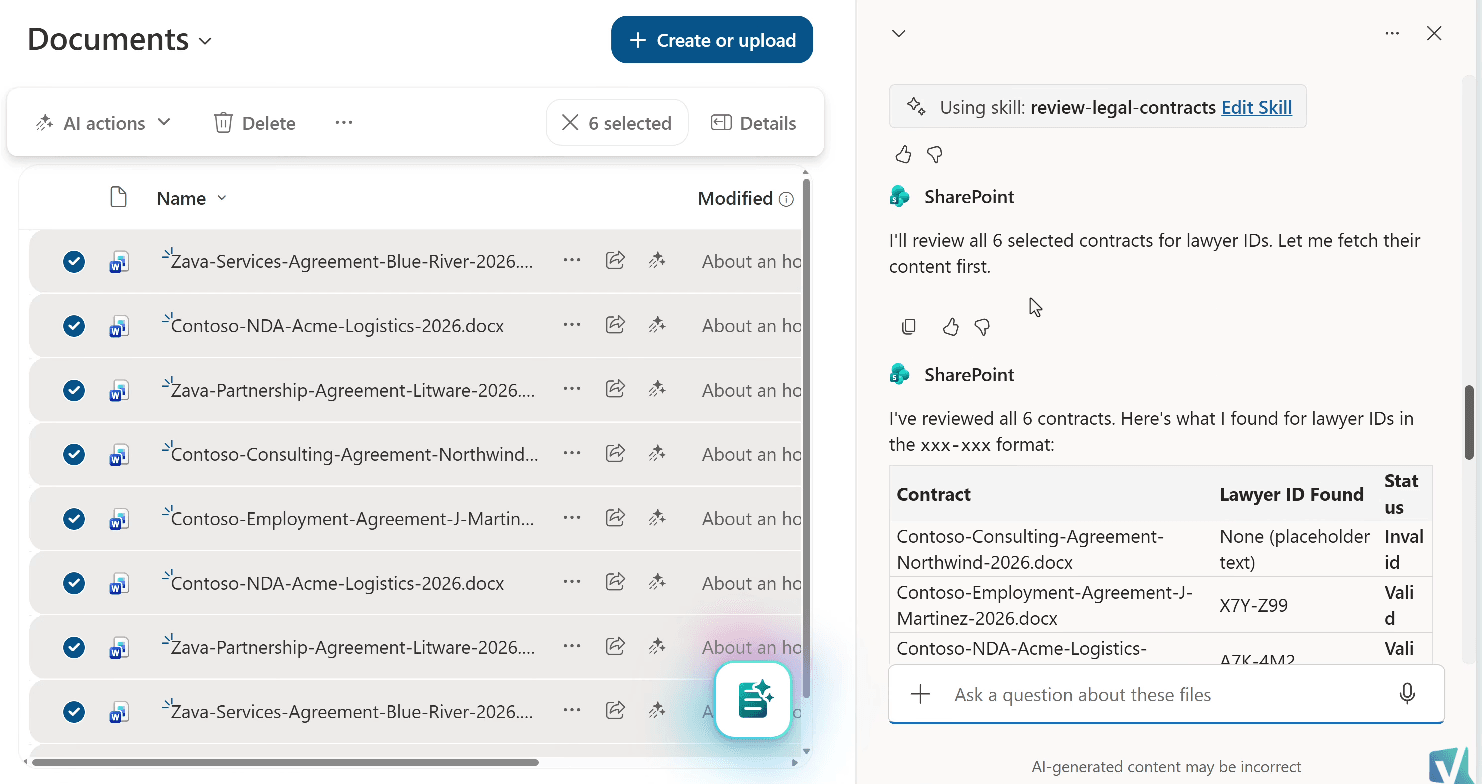
Notice what did not happen here. You did not write a line of logic. You described intent, and the skill did the work.
What actually happens when a skill runs
The end-to-end workflow breaks into four steps.
First, the user asks a question in the AI in SharePoint chat panel. Second, the agent matches that question to a saved skill, or the user invokes a skill by name. Third, the skill runs, chaining built-in capabilities such as search, summarize, and list actions. Fourth, the agent returns a structured answer in the chat that looks consistent across every run.
You do not have to tell the agent which skill to use. The agent picks it up automatically based on the prompt, which is why the skill description matters so much. If you want to be explicit, you can also invoke a skill by name, for example, run the green 2030 review. And whenever the agent loads a skill, the chat makes it visible so you always know what is running.
What you need before you can build
Before you can author a SharePoint Skill on a site, a few prerequisites need to be in place.
Your site has to be opted in to the AI in SharePoint preview. This is a tenant-level setting controlled by your administrator, but the good news is that the opt-in can be scoped to a single site during the preview, so you do not need to enable it for the entire tenant. The opt-in link is https://aka.ms/SPAIoptin (opens in a new tab).
A site collection administrator needs to activate the Agent Assets feature at the site collection level. This is a one-time activation during the preview. Once AI in SharePoint reaches general availability, Microsoft will have it on by default.
From a permissions perspective, you need edit permissions (the Members group) to create a skill. The View permission is enough to run a skill. In other words, skills follow the same permission model as the rest of SharePoint.
Anatomy of a SharePoint Skill
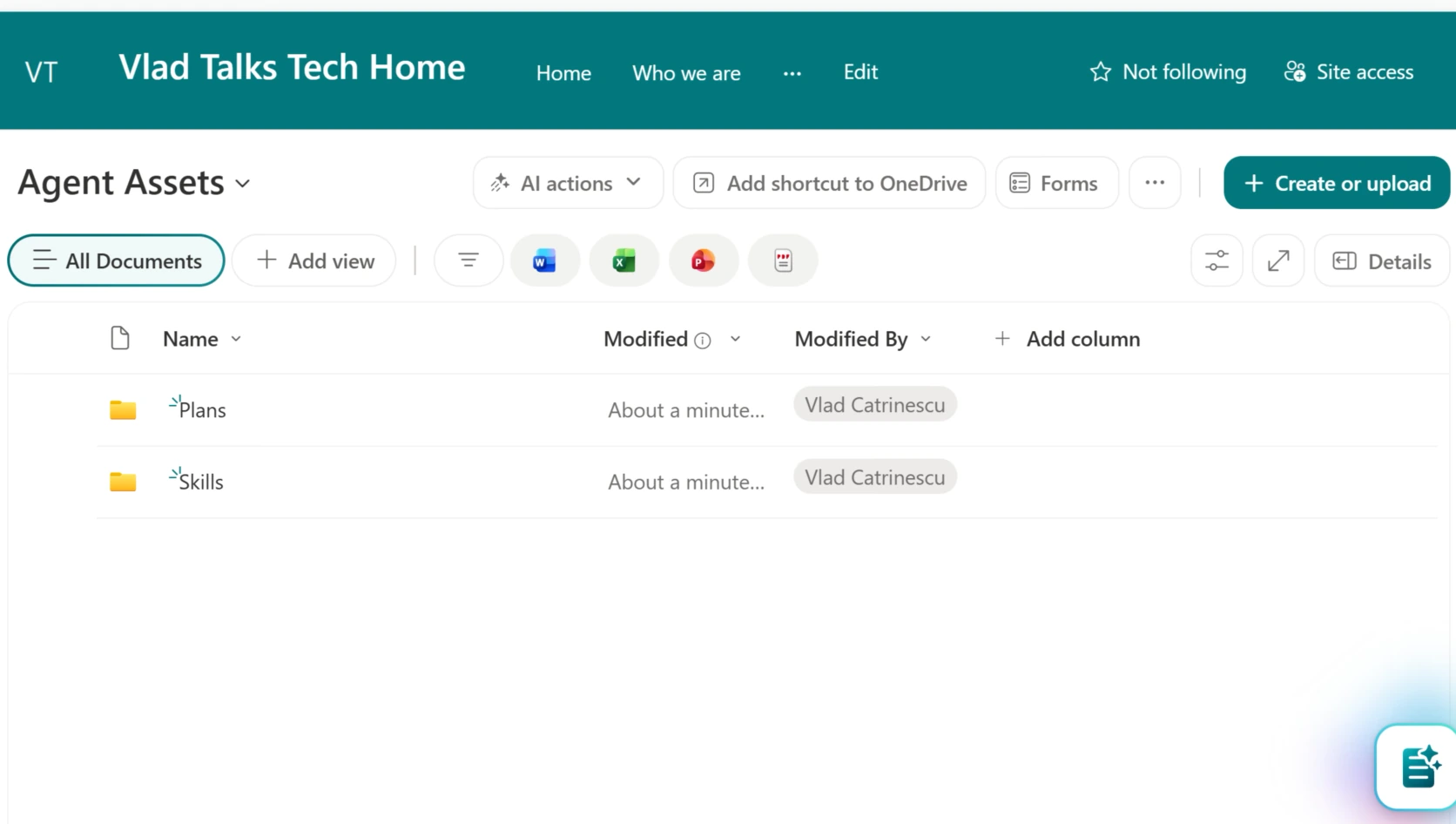
Once the Agent Assets feature is active, you get a new document library on the site called Agent Assets. Inside, you will find two folders: Plans and Skills. Each skill lives in its own folder inside the Skills folder, and every skill folder contains a SKILL.md file. That file is the skill.
If you prefer to author skills outside of SharePoint, for example in Visual Studio Code, you absolutely can. SharePoint Skills use the same open skill format that Anthropic defines for Claude, and the same one adopted by ChatGPT and others. The only requirement is that you follow the SKILL.md open specification.
Inside a SKILL.md file, three sections do real work.
The front matter is the header of every skill. It holds the name and the description, and both carry weight. The name must match the folder name exactly, or the skill will not load. The description is where auto-discovery happens, so it must clearly state what the skill does and when to use it.
The steps section is a plain-English sequence. No code, no APIs, just tell the skill what it should do in order.
The output section defines the shape of the result so every run produces a consistent answer.
Markdown is the file format on purpose. AI systems understand Markdown much better than Word documents, and the format still gives you bold text, lists, tables, and headings to structure a skill cleanly. Microsoft even shipped a dedicated Markdown editor for the SharePoint site so you can author and preview skills without leaving the browser.
SharePoint Skill limitations you need to know
SharePoint Skills inherit everything that makes SharePoint secure, which means there are boundaries you cannot cross. Three of them are worth calling out before you design your first real skill.
- Skills cannot call REST APIs, webhooks, or anything outside AI in SharePoint. If your workflow depends on a third-party service, a skill is not going to replace it.
- Skills run as the user who invokes them. You cannot use a skill to do something that the user could not already do themselves.
- No custom code of any kind. No PowerShell, no Microsoft Graph calls, no JavaScript, no Python. Only the built-in capabilities of AI in SharePoint.
These are not accidents. Microsoft designed skills so that every skill inherits the site’s permission model, which means the boundaries are a feature, not a limitation. If your scenario needs any of those capabilities, look at Copilot Studio agents or Power Automate instead.
What does work from the open skill spec is references and skill stacking. A skill can reference other Markdown files in a references/ folder to load policies, glossaries, checklists, or templates on demand. Skills can also call other skills, which means you can build foundation-level skills and layer higher-level workflows on top of them. The one piece of the spec that does not carry over is executable scripts. Claude Desktop can run scripts from a skill folder, but SharePoint Skills only execute native AI in SharePoint actions.
Using SHAREPOINT.md as context memory
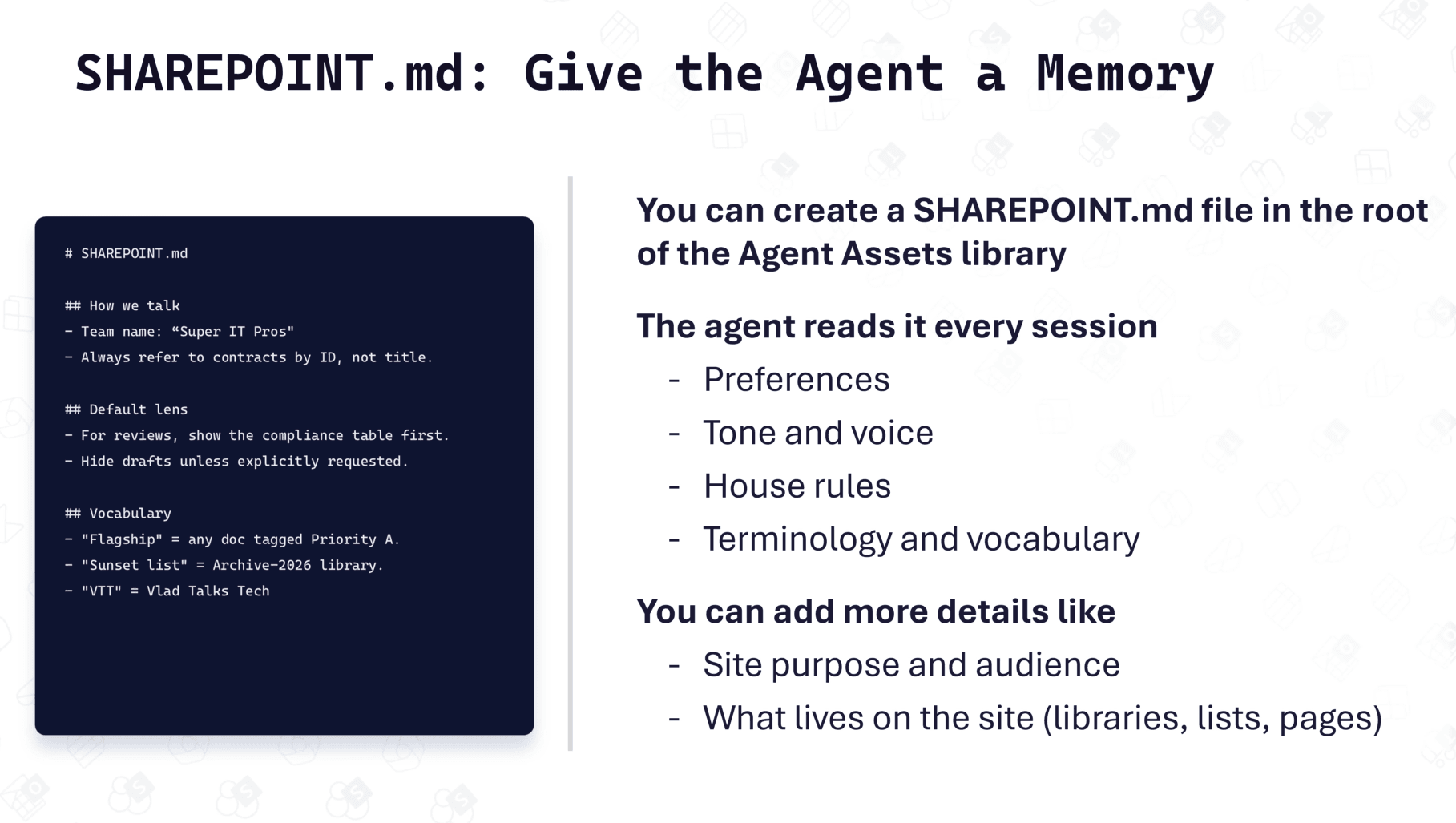
There is a feature in SharePoint Skills that has not been documented yet, and it adds a lot of value. You can create a file called SHAREPOINT.md in the root of the Agent Assets library, and the agent reads that file at the start of every session.
Think of it as context memory. Everything you would normally repeat in every prompt lives in this file: your preferences, the voice and tone you want the agent to use, your team’s terminology, the rules of the site. You can also add structural context, such as what the site is for, who uses it, and what lives inside each library and list.
For example, if your team calls them partners instead of vendors, put that in SHAREPOINT.md and the agent picks up the convention automatically for every skill and every prompt on the site. You can also tell the agent to always load a specific skill from this file. In my tenant, I use SHAREPOINT.md to tell the agent to load my brand foundation skill at the start of every interaction so the output is always in the voice and format I want.
Your site-wide preferences travel with the agent automatically, and you never have to restate them.
Best practices for writing SharePoint Skills
There is not much Microsoft-documented guidance on SharePoint Skills yet, but because skills are built on the same open format as Claude, you can borrow Anthropic’s agent skills best practices (opens in a new tab) and apply them directly. Here are the ones that matter most.
Keep the skill under 500 lines for optimal performance
If a skill starts to grow past that, you have two ways to handle it.
Option one: split the skill into multiple smaller skills that reference each other. Each split skill still has its own folder and SKILL.md. This is how I structure my Claude skills: a brand foundation skill handles universal rules, platform overlays handle platform-specific rules, and higher-level skills load both before they run.
Option two: add data or templates as Markdown files inside a references/ folder. Drop checklists, JSON patterns, or data in there and tell the skill to load those files only when it needs them.
The rule of thumb is simple. Use a separate skill when the content is reusable across many skills. Use a reference file when the content is specific to just one skill. That distinction keeps your library clean as it grows, and it keeps answers fast because SharePoint does not load data it does not need.
Name the skill properly
Skill names are limited to 64 characters, lowercase letters, numbers, and hyphens only, with no consecutive, leading, or trailing hyphens. The name must match the parent folder name exactly, or the skill will not load.
Anthropic recommends the gerund form (verb plus “ing”) because it makes the skill’s purpose obvious at a glance: reviewing-contracts, archiving-old-projects. You do not have to follow this convention to the letter, but it is a helpful default.
Write the description where discovery happens
The description is the single most important field in a skill, because the agent injects it directly into the system prompt to decide which skill to run. Three rules matter.
Write in the third person. Mixing first or second person can break discovery.
Cover both what the skill does and when to use it. If there are specific trigger phrases (“review contracts,” “check for lawyer IDs”), put them in the description.
Be specific. A description that says helps with contracts will not trigger reliably. A description that says reviews legal contracts to verify the lawyer ID format. Use when the user asks to review, validate, or check contracts in the legal library gives the agent everything it needs.
You have up to 1,024 characters for the description. Use them.
Two undocumented commands every SharePoint Skills builder should know
These are the two commands that most people do not know about yet.
--agenttools shows you the names of every single action that AI in SharePoint can run behind the scenes. Once you know the names of the actions, you can call them by name from inside a skill. For example, you can tell the agent to use list_items to enumerate every list and library on the site, or call list_items with rowLimit=500 to get an overview of each list and library available. This level of precision is how experienced builders squeeze reliable results out of more advanced skills.
One important note: not every tenant has the same tools available. Tenants sit in different rings, the preview is rolling out in waves, and Microsoft is adding and removing tools constantly. Run --agenttools on the tenant where the skill will live to see what is actually available, and stay up to date as new actions ship.
//skills shows a live view of every skill available on your site, with the skill name and description. This is helpful when you are auditing skills or checking whether a similar skill already exists before you build a duplicate. It will also flag issues such as front matter errors, so it doubles as a quick deployment check.
Resources to help you get started
There are a few external resources worth bookmarking.
Zach Rosenfield (opens in a new tab) is the Partner Director of Product Content AI at Microsoft 365, and he leads the team working on SharePoint Skills at Microsoft. His new YouTube channel is the closest thing to an official product walkthrough that exists today, and his GitHub repository (opens in a new tab) has over 25 working SharePoint Skills, including the list formatting skill referenced in the second demo of the video version of this guide.
Beyond Zach’s resources, three links are worth keeping close. The official AI in SharePoint Skills documentation on Microsoft Learn (opens in a new tab) is the starting point for the product itself. The Anthropic Agent Skills Best Practices guide (opens in a new tab) is where a lot of the patterns in this post come from. And the Anthropic Skills GitHub repository (opens in a new tab) has dozens of example skills to study.
What this means for you
If you work in SharePoint, SharePoint Skills are worth the time investment now, not later. Having worked with SharePoint environments for over a decade, I can tell you this is one of the more meaningful additions to the platform in recent years. The model of describing intent in plain English and having SharePoint turn it into a reusable workflow is going to change how many teams automate the work around documents.
Start small. Pick one repetitive task that someone on your team does manually. Write a skill for it. See what the authoring loop feels like, what works, and what does not. The more skills you write, the better your instincts get for what to put in the description, when to split a skill, and when to lean on SHAREPOINT.md or a references folder.
If you are a SharePoint administrator, the preview opt-in can be scoped to a single site, so there is a low-risk path to start evaluating this capability with a pilot team. Keep an eye on tooling differences across tenants using --agenttools, and watch for Microsoft’s governance guidance as the preview matures.
Ready to start building SharePoint Skills?
If you want the fastest path from zero to your first working skill, watch the full video walkthrough and start with one of Zach Rosenfield’s example skills from his GitHub repository. The list formatting skill alone is worth the visit.
For broader context on how SharePoint is adopting AI, the Intro to SharePoint Content AI guide explains the wider picture, and the Step-by-Step Guide to Creating SharePoint Agents covers the agent layer that sits alongside skills. If you are trying to decide whether any of this is worth turning on for your tenant, Is SharePoint Content AI Worth It? has a practical assessment framework.
Frequently asked questions
Can I use existing Claude skills inside SharePoint?
Yes, with caveats. SharePoint Skills use the same open skill format that Anthropic defined, so skills authored for Claude can often be ported to SharePoint. The limitation is that SharePoint Skills can only run native AI in SharePoint actions. If a Claude skill depends on executable scripts or external APIs, those parts will not work in SharePoint and need to be redesigned.
Do SharePoint Skills work across sites or only on the site where they are authored?
Skills live in the Agent Assets library of a specific site, which means they are scoped to that site. If you want the same skill on multiple sites, you currently need to create it (or copy it) on each site. Governance and life cycle guidance for skills across a tenant is still evolving during the preview.
What happens to a SharePoint Skill when AI in SharePoint hits general availability?
The skills you build during the preview are stored as Markdown files in a standard document library, so your work carries forward. The Agent Assets feature itself will be on by default at general availability rather than requiring a site collection administrator to activate it manually.
Do I need Microsoft 365 Copilot licensing to use SharePoint Skills?
SharePoint Skills are part of the AI in SharePoint experience, which depends on the underlying AI in SharePoint licensing model. Check the official documentation (opens in a new tab) for the current licensing details, because the pricing and preview terms are evolving.

