
SharePoint 2013 Configuration Failed! SQL Does Not Have the Required MaxDegree of Parallelism Setting of 1
 By Vlad Catrinescu Microsoft MVP and MCT · Pluralsight Author
For those of you who are used to installing SharePoint 2010 according to best practices (SPFARM only has DBCreator and Security Admin) , when you run configuration wizard the first time, it might fail with this error message :

This is because SQL, by default has the MaxDegree of Parallelism Setting set at 0. With SharePoint 2010 there was no problem, however SharePoint 2013 needs the MaxDegree of Parallelism Setting explicitly at 1.
Here is How you set it Step By Step:
1. Go in SQL Management Tools and connect to the SQL instance hosting your SharePoint. (Using SQL Administrator credentials)
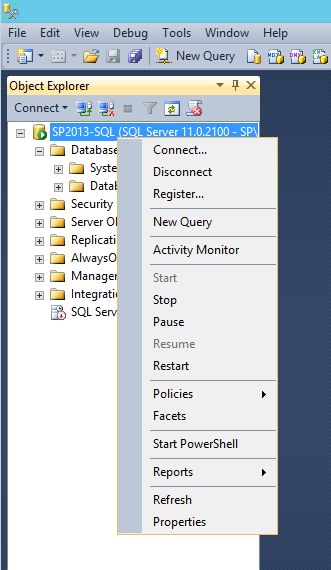
2. Right Click on the Sql Instance, and click Properties.
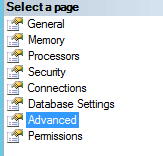
3. Go into the Advanced Tab
4. Close to the end of the options list, you will find the “Max Degree of Parallelism Option”. Set it to 1.

5. You’re ALMOST done!.
If you got this error message, it means that SharePoint already created the Config Database.
Delete it manually from SQL, re-run SharePoint Configuration Wizard and it will finish successfully.

