Microsoft Certification Study Guide
SC-300 Microsoft Identity and Access Administrator certification badge

SC-300 Study Guide

Microsoft Identity and Access Administrator

Free study notes for every skill the exam measures, plus the books, courses and practice tests I recommend.

The SC-300 Study Guide helps you prepare for the Microsoft Identity and Access Administrator exam, which leads to the Microsoft Certified: Identity and Access Administrator Associate certification and covers designing, implementing and operating identity and access management with Microsoft Entra.

Everything here lines up with the skills Microsoft measures: free Microsoft Learn paths and my own study notes for self-study, plus the books, courses and practice tests I recommend when you want more. No exam dumps, ever.

Exam length
100 min, 2 hr with labs
Passing score
700 / 1000
Skills measured
4 domains, 98 skills
Guide reviewed
September 2026

Resources by the way you like to study

13 hand-picked, free and paid

Books

2 resources

Many learners prefer studying from books, which is why Microsoft continues to publish the Exam Ref series. Just keep in mind that books can lag behind exam updates, so always check the publication date and whether the skills measured have changed.

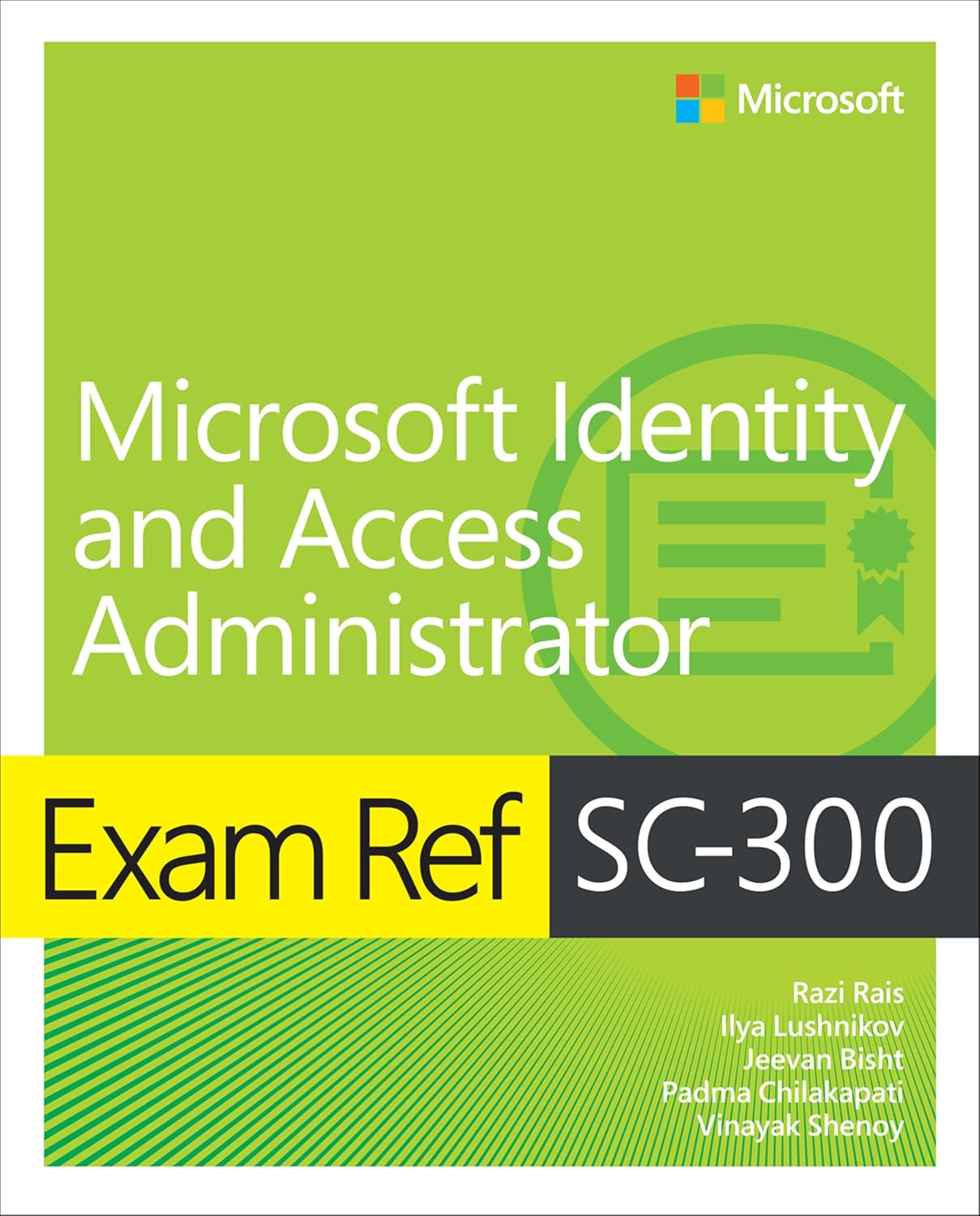
Exam Ref SC-300 Microsoft Identity and Access Administrator, book cover Recommended

Exam Ref SC-300 Microsoft Identity and Access Administrator 1st Edition

Prepare for Microsoft Exam SC-300 and demonstrate your real-world ability to design, implement, and operate identity and access management systems with Microsoft Azure Active Directory (AD). Designed for professionals involved in secure authentication, access, or identity management, this Exam Ref focuses on the critical thinking and decision-making acumen needed for success at the Microsoft Certified: Identity and Access Administrator Associate level.

See price on Amazon (opens in a new tab)
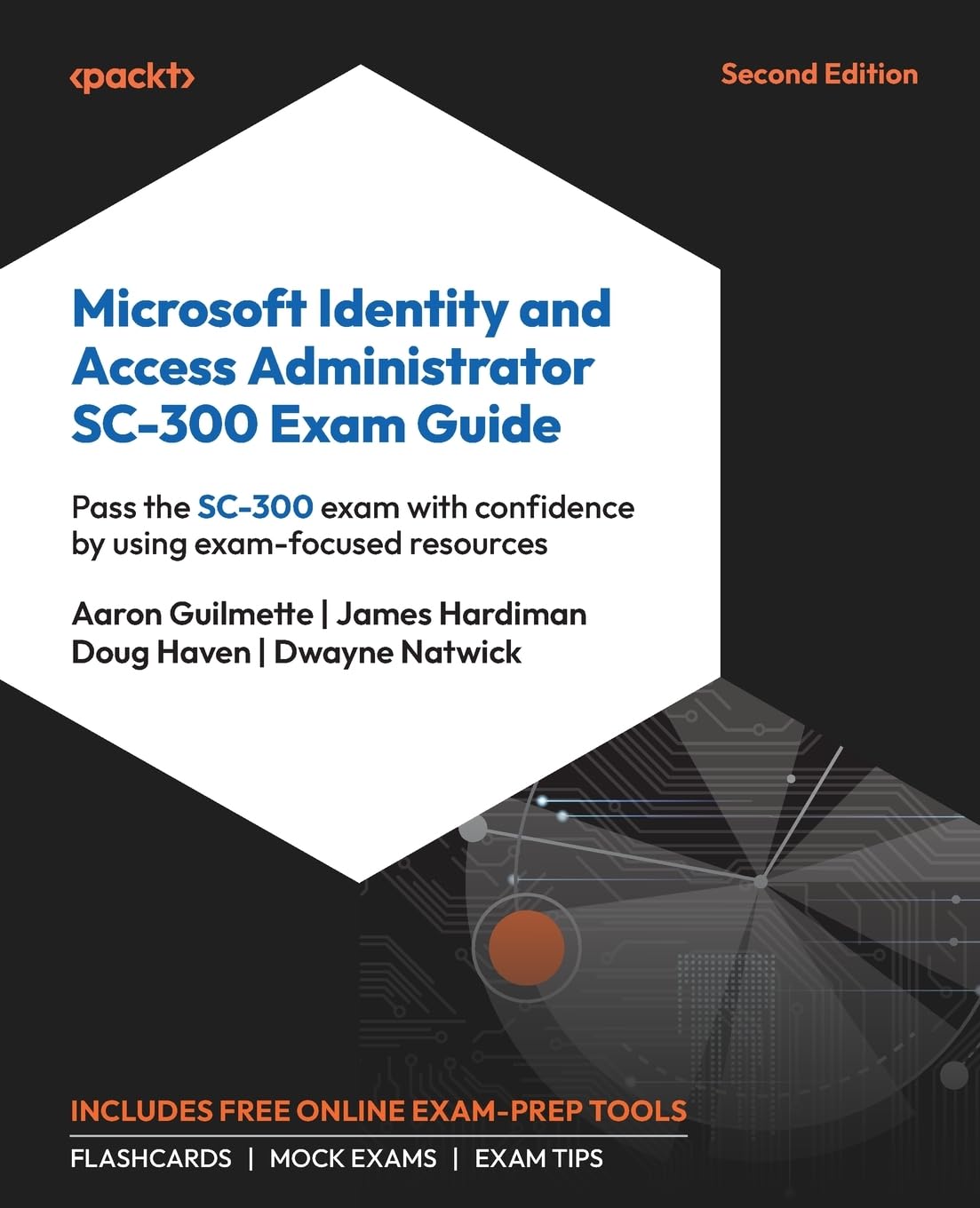
Microsoft Identity and Access Administrator SC-300 Exam Guide, book cover

Microsoft Identity and Access Administrator SC-300 Exam Guide

A second edition rewritten for the current skills measured, and a good companion to the Exam Ref if you want a second explanation of the harder topics. It comes with chapter questions, mock exams and flashcards online.

See price on Amazon (opens in a new tab)

On-Demand Video Training

6 resources

On-demand training lets you learn at your own pace, on your own schedule. Whether it's expert-led video courses from platforms like Pluralsight or Udemy, or hands-on modules from Microsoft Learn, you get flexible access to practical, real-world learning when you need it most.

Not all training platforms are the same. Some, like Pluralsight, rely on vetted authors and curated content, while others function as open marketplaces where quality can vary. I only recommend courses that are highly rated and closely aligned with the skills you need, and I still encourage reviewing course details and feedback before enrolling.

Pluralsight Recommended

Microsoft Identity and Access Administrator (SC-300) Certification Path

Practice test includedFree trial

My pick if you want one structured route through the exam. Four courses split along the four domains, roughly ten hours in total, with a practice exam at the end.

Watch on Pluralsight (opens in a new tab)
Udemy

SC-300 Microsoft Identity and Access Administrator Exam Prep

Practice test included

A full run through the exam from start to finish, kept up to date as the skills measured change. Pick this one if Microsoft Entra ID is new to you and you want the fundamentals covered before the harder material.

Watch on Udemy (opens in a new tab)
Udemy

SC-300 Course: Microsoft Identity and Access Administrator

Covers the four domains with clear explanations and worked examples, from managing identities and authentication methods through to Conditional Access and identity governance. A solid second pass if you have already watched one course and want the material explained a different way.

Watch on Udemy (opens in a new tab)
Udemy

SC-300: Microsoft Identity and Access Administrator

Step-by-step instruction across the whole exam, with a practical focus on designing identity solutions in Microsoft Entra ID, securing authentication, and managing application access. Good if you learn best by following along in your own tenant.

Watch on Udemy (opens in a new tab)
YouTube

SC-300: Microsoft Identity and Access Administrator

A free video series covering the SC-300 skills measured end to end, from designing identity management in Microsoft Entra ID through authentication, application access and governance. Worth a look if you want to sample the material before paying for a course.

Watch on YouTube (opens in a new tab)
YouTube

SC-300 Microsoft Identity and Access Administrator Study Cram

This video provides a concise study cram for the SC-300: Microsoft Identity and Access Administrator exam, with a focus on the key topics you need to understand before taking the test. It highlights that the core emphasis of the exam is on Azure Active Directory and identity as the front door of security, especially within a zero-trust model.

Watch on YouTube (opens in a new tab)

Practice Tests

3 resources

These are practice exams, not exam dumps. I don't support dumps, as they undermine the value of the certification for everyone. Practice tests are a great way to validate your knowledge and get exam-ready after completing the content in this SC-300 study guide.

Whizlabs

Exam SC-300: Microsoft Identity and Access Administrator Associate

Two full-length mock exams with more than 100 unique questions between them. Use them to find the domains you are still weak on before you book the exam.

Take the practice test (opens in a new tab)
Udemy

SC-300: Identity and Access Administrator Practice Exam

Four practice tests of 25 questions each, written by Scott Duffy. A reasonable readiness check once you have worked through the study notes on this page.

Take the practice test (opens in a new tab)
Udemy

Microsoft SC-300 Certification exam Tests

Prepare to excel in the Microsoft SC-300: Identity and Access Administrator certification exam with our meticulously designed practice test package. This collection includes multiple full-length assessments crafted to mirror the actual exam experience, strategically covering all critical topics outlined in the SC-300 exam blueprint.

Take the practice test (opens in a new tab)

Microsoft Learn Modules

1 resource

Microsoft Learn is a great free way to learn about the SC-300 exam content! It contains mostly text-based articles, while also providing you small quizzes at the end of every module.

The course syllabus below is Microsoft's own list of the learning paths and modules that cover the exam. When you want one topic rather than the whole curriculum, every skill in my study notes links the exact Microsoft Learn page for it.

Microsoft

Course SC-300T00-A: Microsoft Identity and Access Administrator

Free

Microsoft's official SC-300 course page. The syllabus lists every Microsoft Learn path and module the course teaches, and all of them are free to work through at your own pace.

Start on Microsoft Learn (opens in a new tab)

Live Training

1 resource

Live training is delivered through Microsoft Official Courses, scheduled with Microsoft Learning Partners and taught by Microsoft Certified Trainers. This format offers real-time interaction, allowing you to ask questions and learn directly from an expert, though it is typically the most expensive training option.

Microsoft

Course SC-300T00-A: Microsoft Identity and Access Administrator

The Microsoft Official Course for SC-300, delivered by a Microsoft Certified Trainer at a learning partner. It runs through the whole exam: identity management in Microsoft Entra ID, authentication and Conditional Access, application access, and identity governance, with labs along the way.

Find a class (opens in a new tab)

Some links on this page are affiliate links. If you use them, I may earn a commission at no extra cost to you.

Skills measured and study notes

98 skills, free to study here

Built for the skills measured Microsoft published on 27 April 2026.

0 of 98 studied

These notes are written to the skills measured as of April 27, 2026, which is the current version on Microsoft's SC-300 study guide page. The exam covers four domains, and I have broken down every single skill below with an explanation, the facts the exam can actually ask you, and a Microsoft Learn link to go deeper. This is the same approach I use when preparing for Microsoft exams myself, and after years of helping IT professionals prepare for Microsoft certifications, I can tell you that working through the skills measured one by one is the single most useful thing you can do.

Almost everything on this exam happens in the Microsoft Entra admin center, and a lot of the older documentation you will find still says Azure AD where the exam says Microsoft Entra ID. Learn both names for the same thing. Here is how the four domains break down by weight:

Tip: Authentication and access management is the heaviest domain, and Conditional Access sits at the center of it. If your study time is limited, start there, then make sure you can tell the four hybrid sign-in methods apart, because those come up in some form on almost every version of this exam.

Domain 1 Implement and Manage User Identities 20-25% of the exam 0 / 26 studied

This domain is the foundation of everything else on the exam. It covers the tenant itself, the users and groups inside it, the guests you invite from other organizations, and the plumbing that connects an on-premises Active Directory to Microsoft Entra ID. If you cannot explain the difference between Connect Sync and Cloud Sync, or between password hash synchronization and pass-through authentication, this is where you will lose points.

Configure and manage a Microsoft Entra tenant

01

Configure and manage built-in and custom Microsoft Entra roles

Microsoft Entra roles control what an administrator can do inside the directory. Microsoft ships more than 65 built-in roles, and when none of them fits you can build a custom role from individual permissions. The exam tests whether you reach for the least privileged role rather than handing out Global Administrator.

What you need to know

  • Built-in roles are fixed: you cannot edit their permissions, only assign them
  • Custom roles require a Microsoft Entra ID P1 license and are built from directory permissions such as microsoft.directory/applications/create
  • Role assignments live under Entra ID > Roles and admins, and every role page lists its exact permissions
  • Privileged Role Administrator is the least privileged role that can manage other role assignments
  • Global Administrator should be held by as few people as possible, and Microsoft recommends keeping the count small and covered by emergency access accounts
  • Roles can be assigned to a user, to a group (a role-assignable group), or to a service principal

Exam tip: Microsoft Entra roles and Azure RBAC roles are different systems. Entra roles govern directory objects such as users, groups and applications; Azure RBAC roles govern Azure resources such as virtual machines and storage accounts. A Global Administrator does not automatically have access to Azure subscriptions.

Microsoft Learn resource: Microsoft Entra built-in roles (opens in a new tab)

02

Recommend when to use administrative units

An administrative unit is a container that scopes a role assignment to a subset of the directory rather than the whole tenant. The classic case is a regional or departmental helpdesk that should reset passwords for its own people and nobody else.

What you need to know

  • Administrative units can contain users, groups and devices, and an object can belong to more than one
  • An admin assigned a role over an administrative unit can only act on the members of that unit, not on tenant-wide settings
  • Creating administrative units and adding members is available with Microsoft Entra ID Free, but each administrator scoped to one needs a P1 license
  • Membership can be assigned manually or driven by a dynamic membership rule, which requires P1
  • Restricted management administrative units protect their members from tenant-level admins, which is the opposite use case: locking objects down rather than delegating them

Exam tip: When a question describes delegation by region, department or subsidiary and says the helpdesk must not touch anyone else, the answer is an administrative unit, not a custom role on its own.

Microsoft Learn resource: Administrative units in Microsoft Entra ID (opens in a new tab)

03

Configure and manage administrative units

Creating the unit is the easy part. The exam cares about how you populate it and how you then scope a role over it, because that is the step people skip.

What you need to know

  • Administrative units are created under Entra ID > Roles and admins > Admin units
  • Each unit has its own Roles and administrators blade, where you assign a role scoped to that unit
  • Only roles with permissions over users, groups or devices can be scoped to an administrative unit, so you will not see the full role list there
  • Dynamic membership rules on an administrative unit use the same syntax as dynamic groups, for example user.department -eq "Sales"
  • You need Privileged Role Administrator to assign a role over an administrative unit
  • A custom role can be scoped to an administrative unit as long as it includes at least one permission relevant to users, groups or devices

Microsoft Learn resource: Assign Microsoft Entra roles with administrative unit scope (opens in a new tab)

04

Evaluate effective permissions for Microsoft Entra roles

Effective permissions answer the question "what can this person actually do right now", which is not the same as the list of roles on their profile. Group assignments, PIM eligibility and administrative unit scope all change the answer.

What you need to know

  • A user's effective permissions are the union of every active role assignment, direct or through a role-assignable group
  • A PIM eligible assignment grants nothing until it is activated, so it does not count towards effective permissions until then
  • The role assignment's scope matters as much as the role: the same role over an administrative unit is far narrower than over the directory
  • Entra ID > Roles and admins lets you list assignments per role, and each user's Assigned roles page lists them per person
  • The Least privileged role by task documentation is the reference Microsoft expects you to reason from when a question asks for the minimum role

Exam tip: Questions often give you a user who "should be able to" do something and ask for the least privileged role. Work from the task to the role, never from the role to the task, and never answer Global Administrator unless the task genuinely requires it.

Microsoft Learn resource: Least privileged roles by task in Microsoft Entra ID (opens in a new tab)

05

Configure and manage domains in Microsoft Entra ID and Microsoft 365

Every tenant is born with an onmicrosoft.com domain, and you add your own custom domains so users sign in with a real company address. Verification happens through DNS.

What you need to know

  • You add a custom domain under Entra ID > Settings > Domain names, then prove ownership with a TXT or MX record
  • The initial onmicrosoft.com domain the tenant was created with can never be removed or renamed
  • One domain in the tenant is the primary domain, which supplies the default suffix for new users; you can change which one that is
  • A domain can be managed (Microsoft Entra ID authenticates) or federated (an external identity provider such as AD FS authenticates)
  • A domain cannot be deleted while any object still uses it, so users, groups and apps have to be moved first
  • Domain Name Administrator is the least privileged role for managing domains

Microsoft Learn resource: Add your custom domain name to Microsoft Entra ID (opens in a new tab)

06

Configure Company branding settings

Company branding puts your logo, background and text on the sign-in page, so users can see they are signing in to the right place. It is a small feature that shows up on the exam because of its licensing and its language behavior.

What you need to know

  • Branding is configured under Entra ID > Company branding and applies to the Microsoft Entra sign-in experience
  • Custom branding requires a Microsoft Entra ID P1 or P2 license, or a Microsoft 365 license that includes it
  • You configure a default branding set, then optionally a per-language override for other locales
  • Elements include the banner logo, square logo, background image, sign-in page text and the favicon
  • Branding on the sign-in page appears after the user enters a username that resolves to your tenant, not before

Microsoft Learn resource: Configure your company branding (opens in a new tab)

07

Configure tenant properties, user settings, group settings, and device settings

These are the tenant-wide switches that decide what ordinary users are allowed to do without an admin. They are quiet settings with loud consequences, which is exactly why they get tested.

What you need to know

Setting Where it lives Why it matters
Users can register applications Entra ID > Users > User settings Turning this off stops shadow app registrations
Restrict access to the administration portal Entra ID > Users > User settings Blocks non-admins from browsing the Entra admin center
Users can create security groups or Microsoft 365 groups Entra ID > Groups > General Controls self-service group sprawl
Users may join devices to Microsoft Entra Entra ID > Devices > Device settings Can be all, selected users, or none
Require multifactor authentication to register or join devices Entra ID > Devices > Device settings Now better handled with Conditional Access
  • Tenant properties hold the tenant name, country, tenant ID and the technical contact, plus the security defaults toggle and the access management switch for Azure resources
  • The "Global administrator can manage Azure subscriptions and management groups" toggle is what lets a Global Administrator elevate to User Access Administrator at the root scope
  • Guest user access is set here too, from the most permissive to the most restricted of three levels

Exam tip: Security defaults and Conditional Access cannot both be on. Security defaults are the free baseline for small tenants; enabling any Conditional Access policy means turning security defaults off first.

Microsoft Learn resource: Default user permissions in Microsoft Entra ID (opens in a new tab)

Create, configure, and manage Microsoft Entra identities

08

Create, configure, and manage users

User objects are the core of the directory, and the exam expects you to know where a user came from, because the source decides what you are allowed to edit.

What you need to know

  • A user's source can be Microsoft Entra ID (cloud only), Windows Server AD (synchronized), an external Microsoft Entra directory (a guest), or a Microsoft account
  • Attributes on a synchronized user are read-only in the cloud: you edit them on-premises and wait for the next sync cycle
  • The user principal name (UPN) must use a verified domain in the tenant
  • Deleted users go to a recycle bin and can be restored for 30 days, after which they are permanently removed
  • User Administrator is the least privileged role for creating and managing users, but it cannot reset passwords for users holding privileged roles
  • The Authentication methods blade on a user shows and lets you manage that person's registered methods

Exam tip: "Why can I not change this user's job title in the portal?" almost always means the object is synchronized from on-premises Active Directory. The fix is to change it in AD, not in Entra.

Microsoft Learn resource: Create, invite, and delete users (opens in a new tab)

09

Create, configure, and manage groups

Groups are how you assign licenses, applications and access at scale. The exam wants you to pick the right group type and the right membership type for the scenario.

What you need to know

Choice Options Notes
Group type Security, Microsoft 365 Microsoft 365 groups bring a mailbox, a SharePoint site and Teams
Membership type Assigned, Dynamic User, Dynamic Device Dynamic membership requires Microsoft Entra ID P1
Role-assignable Yes or No Set at creation only, and it cannot be changed afterwards
  • Dynamic membership rules are written against user or device attributes, for example user.department -eq "Finance", and are re-evaluated automatically when an attribute changes
  • A dynamic group cannot mix user rules and device rules in the same group
  • Only a security group or a Microsoft 365 group can be role-assignable, and a role-assignable group cannot have dynamic membership
  • Group nesting is supported for some scenarios but not for license assignment or for app role assignment
  • Groups Administrator is the least privileged role for managing groups tenant-wide

Microsoft Learn resource: Manage Microsoft Entra groups and group membership (opens in a new tab)

10

Manage custom security attributes

Custom security attributes are business-specific key-value pairs you can put on users and applications, and then use for attribute-based access control. They are deliberately locked down: even a Global Administrator does not get to read them by default.

What you need to know

  • Attributes are organized into attribute sets, and each set can hold up to 500 attribute definitions
  • Four dedicated roles govern them: Attribute Definition Administrator, Attribute Definition Reader, Attribute Assignment Administrator and Attribute Assignment Reader
  • No other role, Global Administrator included, can read or write custom security attributes without one of those four being assigned
  • An attribute can be a string, integer or boolean, single or multi-valued, and optionally restricted to a predefined list of values
  • Custom security attributes can be used in dynamic membership rules and in Azure attribute-based access control
  • An attribute definition can be deactivated but never deleted

Exam tip: The separation between definition roles and assignment roles is the point of the feature. Defining what attributes exist and deciding which user gets which value are two different jobs.

Microsoft Learn resource: What are custom security attributes in Microsoft Entra ID? (opens in a new tab)

11

Automate bulk operations by using the Microsoft Entra admin center and PowerShell

When a question involves hundreds of users, the answer is a bulk operation or a script. The exam expects you to know which bulk jobs the portal offers and which PowerShell module is current.

What you need to know

  • The Microsoft Entra admin center supports bulk create, bulk invite, bulk delete and bulk download of users, and bulk import and download of group members, all through CSV templates
  • Always download the CSV template from the portal: the header rows are fixed and the upload fails if they are edited
  • Bulk operation results are visible under Entra ID > Bulk operation results, with a per-row status
  • Microsoft Graph PowerShell is the current module; the older AzureAD and MSOnline modules are deprecated
  • Typical cmdlets are New-MgUser, Update-MgUser, New-MgGroup and New-MgGroupMember, and you connect with Connect-MgGraph -Scopes "User.ReadWrite.All"
  • Microsoft Graph itself is the underlying API, so anything the portal does in bulk can also be scripted against Graph directly

Microsoft Learn resource: Bulk operations in Microsoft Entra ID (opens in a new tab)

12

Manage device join and device registration in Microsoft Entra ID

Device identity is what lets Conditional Access ask "is this a device we trust?". There are three join states and the exam expects you to tell them apart by who owns the device and what it gets.

What you need to know

Join state Typical owner What it gives
Microsoft Entra registered The user (BYOD) The device gets an identity, the user signs in with a personal or local account
Microsoft Entra joined The organization, cloud only The user signs in to Windows with their work account, single sign-on to cloud resources
Microsoft Entra hybrid joined The organization, also domain joined Joined to on-premises AD and registered in Entra ID, for organizations still using Group Policy
  • Device settings under Entra ID > Devices control who may join devices and the maximum number of devices per user
  • A Microsoft Entra joined or hybrid joined device gets a Primary Refresh Token, which is what provides single sign-on to cloud apps
  • Device compliance itself comes from Microsoft Intune, not from Entra ID: Conditional Access reads the compliance state Intune writes
  • Cloud Device Administrator can enable, disable and delete devices but not manage compliance policies

Exam tip: "Require device to be marked as compliant" needs Intune. "Require Microsoft Entra hybrid joined device" does not. Read Conditional Access questions carefully, because the two grant controls look similar and have different prerequisites.

Microsoft Learn resource: What is a device identity in Microsoft Entra ID? (opens in a new tab)

13

Assign, modify, and report on licenses

License management is deceptively fiddly, and the exam likes the edge cases: usage location, group-based licensing conflicts and what happens when a license is removed.

What you need to know

  • A user must have a usage location set before any license with regional restrictions can be assigned
  • Group-based licensing assigns licenses through group membership and requires Microsoft Entra ID P1 for the group-based feature
  • License assignment errors appear per user, and the common causes are a missing usage location, not enough available licenses, or two conflicting service plans
  • Removing a license puts the associated data into a grace period rather than deleting it instantly, for example an Exchange Online mailbox becomes a soft-deleted mailbox for 30 days
  • Direct and group-based assignments can coexist on the same user, and you cannot remove a group-inherited license from the user object directly
  • License Administrator is the least privileged role for assigning and revoking licenses

Microsoft Learn resource: Microsoft Entra licensing (opens in a new tab)

Implement and manage identities for external users and tenants

14

Manage External collaboration settings in Microsoft Entra ID

External collaboration settings decide who in your tenant may invite guests, and what a guest can see once they are in. They are the first thing to check when a B2B question describes something unexpected.

What you need to know

  • Guest user access has three levels: the same access as members, limited access (cannot read other directory objects), and the most restrictive, where guests can only read their own profile
  • Guest invite settings range from anyone in the organization, through members and users assigned to specific roles, to admins only, to nobody
  • The Guest Inviter role lets a user invite guests without any other administrative permission
  • Collaboration restrictions can allow or deny invitations to specific domains, and the allow list and deny list are mutually exclusive
  • Self-service sign up through user flows is configured separately and lets external users create their own account against a configured identity provider
  • Settings live under Entra ID > External Identities > External collaboration settings

Exam tip: A domain allow list only controls who you can invite. It does not affect guests already in the directory, so an existing guest from a blocked domain keeps working until you remove the account.

Microsoft Learn resource: Configure external collaboration settings (opens in a new tab)

15

Invite external users, individually or in bulk

B2B collaboration invites a person from another organization into your tenant as a guest object, and they keep using their own credentials in their own tenant. Nothing about their password is your problem.

What you need to know

  • An invited guest appears as a user object with user type Guest and a UPN in the form name_contoso.com#EXT#@yourtenant.onmicrosoft.com
  • The guest authenticates in their home tenant; your tenant never stores their password
  • Bulk invite takes a CSV with the email address, the display name and optional invitation settings
  • An invitation can be sent with or without the invitation email, and you can supply a custom message
  • Guests can also be added to a group or assigned to an application directly, which triggers the invitation for them
  • Invitations can be redeemed with a Microsoft Entra account, a Microsoft account, a one-time passcode, or a configured external identity provider

Microsoft Learn resource: Add B2B collaboration users in the Microsoft Entra admin center (opens in a new tab)

16

Manage external user accounts in Microsoft Entra ID

Guests arrive easily and then stay forever, which is the real administrative problem. This skill is about the lifecycle after the invitation.

What you need to know

  • A guest's user type can be converted between Guest and Member, which changes what default permissions they inherit
  • Access reviews can target guest users specifically, and can be set to remove access automatically when a reviewer does not respond
  • Entitlement management can put an expiry on external access, so the guest object is removed when the access package assignment ends
  • A pending guest who never redeems the invitation still exists as an object and still counts in reports
  • Deleting a guest removes it to the recycle bin for 30 days, the same as any other user
  • Guests can be included or excluded in Conditional Access policies through the "Guest or external users" assignment, which further breaks down by external user type

Microsoft Learn resource: Review and remove external users who no longer have resource access (opens in a new tab)

17

Implement Cross-tenant access settings

Cross-tenant access settings are the modern control plane for B2B, and they replace the older blanket allow or deny approach with per-organization inbound and outbound rules.

What you need to know

  • There are default settings that apply to every organization, plus organizational settings that override the default for a named tenant
  • Inbound access controls what users from the other tenant can do in yours; outbound access controls what your users can do in theirs
  • Trust settings let you accept the other tenant's multifactor authentication claim, and its compliant or hybrid joined device claims, so guests do not have to register MFA twice
  • B2B direct connect is what powers Teams shared channels, and it is configured here rather than in Teams
  • Cross-tenant access settings live under Entra ID > External Identities > Cross-tenant access settings
  • Tenant restrictions, configured in the same place, stop your users signing in to external tenants from your managed devices

Exam tip: If a scenario says guests are being prompted for MFA twice, the answer is to trust the multifactor authentication claim from their home tenant in the inbound trust settings.

Microsoft Learn resource: Cross-tenant access with Microsoft Entra External ID (opens in a new tab)

18

Implement and manage cross-tenant synchronization

Cross-tenant synchronization automatically creates, updates and deletes B2B users in a target tenant from a source tenant. It is built for multi-tenant organizations, typically after a merger.

What you need to know

  • It is configured in the source tenant, and the target tenant must first enable inbound cross-tenant synchronization in its cross-tenant access settings
  • It uses the same provisioning engine as application provisioning, with scoping filters and attribute mappings
  • The synchronization cycle runs roughly every 40 minutes once the initial cycle is complete
  • Users created this way are B2B guests in the target tenant, and their user type can be set to Member through attribute mapping
  • It requires Microsoft Entra ID P1 licenses in both tenants
  • Deprovisioning can soft delete the user in the target tenant when they fall out of scope

Microsoft Learn resource: What is cross-tenant synchronization? (opens in a new tab)

19

Configure external identity providers, including protocols such as SAML and WS-Fed

Identity providers decide how an external user proves who they are when they redeem an invitation or sign up. Microsoft Entra ID, Microsoft accounts and email one-time passcode are built in; others you add.

What you need to know

  • Google federation lets Gmail users redeem invitations with their Google account, and it is configured with a client ID and client secret from a Google project
  • Direct federation with SAML 2.0 or WS-Fed lets you federate with an organization that does not use Microsoft Entra ID
  • Direct federation requires the partner's issuer URI and passive authentication endpoint, and their domain must not already be verified in Microsoft Entra ID
  • Email one-time passcode is the fallback when no other method applies, and it is enabled by default for new tenants
  • Identity providers are configured under Entra ID > External Identities > All identity providers
  • SAML and WS-Fed federation applies to invited guests, not to your own employees

Microsoft Learn resource: Identity providers for External Identities (opens in a new tab)

Implement and manage hybrid identity

20

Implement and manage Microsoft Entra Connect Sync

Connect Sync is the long-standing on-premises agent that synchronizes objects from Active Directory into Microsoft Entra ID. It is heavier than Cloud Sync and it can do things Cloud Sync cannot.

What you need to know

  • The default synchronization cycle runs every 30 minutes, and you can trigger one with Start-ADSyncSyncCycle -PolicyType Delta
  • Only one Connect Sync server can be actively writing to a tenant; extra servers run in staging mode
  • The source anchor (immutableID) ties an on-premises object to its cloud object, and ms-DS-ConsistencyGuid is the recommended attribute
  • Filtering can be done by domain, by organizational unit, or by attribute
  • Connect Sync supports device writeback, group writeback, and password writeback for self-service password reset
  • Express settings enable password hash synchronization and single sign-on by default; custom settings let you pick the sign-in method

Exam tip: Connect Sync is the answer when the scenario needs to sync from multiple forests to one tenant with complex filtering or writeback. Cloud Sync is the answer when the scenario has disconnected forests, mergers, or wants a lightweight agent.

Microsoft Learn resource: Introduction to Microsoft Entra Connect V2 (opens in a new tab)

21

Implement and manage Microsoft Entra Cloud Sync

Cloud Sync moves the synchronization logic into Microsoft's cloud and leaves only a lightweight provisioning agent on-premises. It is the direction Microsoft is pushing new deployments.

What you need to know

  • The configuration lives in the cloud; the on-premises agent is small and multiple agents give you high availability
  • Cloud Sync runs every 2 minutes, compared with 30 minutes for Connect Sync
  • It supports multiple disconnected forests syncing to a single tenant, which Connect Sync cannot do without connectivity between them
  • It supports password hash synchronization and password writeback, but not pass-through authentication or AD FS federation
  • It does not support device synchronization, device writeback, or synchronizing Exchange hybrid attributes back on-premises
  • Connect Sync and Cloud Sync can run side by side as long as they cover different organizational units

Microsoft Learn resource: What is Microsoft Entra Cloud Sync? (opens in a new tab)

22

Implement and manage password hash synchronization

Password hash synchronization sends a hash of the password hash from Active Directory to Microsoft Entra ID, so users sign in to the cloud with the same password. It is the simplest and the most resilient of the hybrid sign-in methods.

What you need to know

  • The password hash synchronization process runs every 2 minutes, independently of the 30-minute object sync cycle, and that frequency cannot be changed
  • What travels to the cloud is a hash of the on-premises hash, so the original password is never sent and cannot be reversed
  • Password hash synchronization is what enables leaked credential detection in Microsoft Entra ID Protection for hybrid accounts
  • Cloud authentication keeps working if the on-premises environment goes offline, which is why Microsoft recommends it as a backup even for federated tenants
  • On-premises account lockout and password expiry are not enforced in the cloud by default, but CloudPasswordPolicyForPasswordSyncedUsersEnabled changes that behavior
  • The accountExpires attribute is not synchronized, so an expired AD account can still sign in to the cloud unless it is disabled

Exam tip: If a question asks which sign-in method keeps users working during an on-premises outage, the answer is password hash synchronization. Pass-through authentication and federation both depend on on-premises servers being reachable.

Microsoft Learn resource: What is password hash synchronization with Microsoft Entra ID? (opens in a new tab)

23

Implement and manage pass-through authentication

Pass-through authentication validates the password against on-premises Active Directory in real time, so no password hash ever leaves your network. It suits organizations with a policy against storing credential material in the cloud.

What you need to know

  • A lightweight authentication agent runs on-premises and makes outbound-only connections, so no inbound firewall ports are needed
  • Microsoft recommends at least three agents for high availability, and the first one is installed with Microsoft Entra Connect
  • Because the password is checked against a domain controller, on-premises password policy, account lockout and sign-in hour restrictions all apply immediately
  • Pass-through authentication can be combined with seamless single sign-on, and Microsoft recommends enabling password hash synchronization alongside it as a fallback
  • If every agent is offline, users cannot sign in to cloud services at all unless password hash synchronization is enabled as a backup
  • It does not support legacy authentication protocols that need a stored credential in the cloud

Microsoft Learn resource: User sign-in with Microsoft Entra pass-through authentication (opens in a new tab)

24

Implement and manage seamless single sign-on (SSO)

Seamless single sign-on signs users in automatically when they are on a corporate network on a domain-joined device, without typing a password. It is a companion to password hash synchronization or pass-through authentication, never a sign-in method on its own.

What you need to know

  • Seamless SSO creates a computer account named AZUREADSSOACC$ in on-premises Active Directory, and its Kerberos decryption key should be rolled at least every 30 days
  • It works with password hash synchronization and pass-through authentication, and is not applicable to AD FS
  • The https://autologon.microsoftazuread-sso.com and https://aadg.windows.net.nsatc.net URLs must be in the browser's intranet zone for it to work
  • On Windows 10 and later, single sign-on normally comes from the Primary Refresh Token on a Microsoft Entra joined or hybrid joined device, so seamless SSO mainly serves older or domain-joined-only scenarios
  • It is enabled in Microsoft Entra Connect and requires domain administrator credentials at setup time
  • It is an opportunistic feature: if it cannot apply, the user simply gets the normal password prompt

Microsoft Learn resource: Microsoft Entra seamless single sign-on (opens in a new tab)

25

Migrate from AD FS to other authentication and authorization mechanisms

Microsoft's guidance is to move off AD FS to cloud authentication wherever possible, because it removes a whole tier of on-premises servers from the sign-in path. The exam tests the safe way to do it.

What you need to know

  • Staged rollout lets you move selected groups of users to cloud authentication while the domain is still federated, so you can test before cutting over
  • Staged rollout supports password hash synchronization and pass-through authentication, and can enable seamless SSO for those groups
  • The full cutover converts the domain from federated to managed, which you do with Microsoft Entra Connect's "Change user sign-in" task
  • Before migrating, inventory the relying party trusts in AD FS: applications still relying on AD FS have to be moved to Microsoft Entra ID first
  • The AD FS application migration wizard and the Microsoft Entra Connect Health AD FS application activity report help you find those applications
  • Claims rules in AD FS map to claims customization on the Microsoft Entra enterprise application, and not every rule has a direct equivalent

Exam tip: Staged rollout is a testing mechanism, not the migration itself. The domain stays federated until you convert it, and users outside the staged rollout groups keep going through AD FS.

Microsoft Learn resource: Migrate from federation to cloud authentication using staged rollout (opens in a new tab)

26

Implement and manage Microsoft Entra Connect Health

Connect Health is the monitoring layer for the on-premises parts of hybrid identity. It reports on the sync engine, AD FS and Active Directory Domain Services from one place in the cloud.

What you need to know

  • Connect Health requires a Microsoft Entra ID P1 or P2 license
  • A health agent is installed on each monitored server, and there are separate agents for sync, AD FS and AD DS
  • The sync agent reports synchronization errors, the last sync time and object-level export errors
  • The AD FS agent reports failed sign-ins, extranet lockouts and the top applications by usage, which is exactly what you need before an AD FS migration
  • Alerts can be emailed to designated recipients, and the notification list is configured per service
  • Connect Health is viewed under Entra ID > Monitoring and health > Connect Health in the Microsoft Entra admin center

Microsoft Learn resource: What is Microsoft Entra Connect Health? (opens in a new tab)

Domain 2 Implement Authentication and Access Management 25-30% of the exam 0 / 27 studied

This is the heaviest domain and the heart of the exam. It covers how people prove who they are, how Conditional Access decides whether to let them in, how Microsoft Entra ID Protection scores risk, and how Global Secure Access extends all of that to network traffic. Expect scenario questions where you have to pick the right grant control or work out why a policy did or did not apply.

Plan, implement, and manage Microsoft Entra user authentication

27

Plan for authentication

Planning authentication means choosing which methods your organization allows, in what order, and for whom. Microsoft's guidance is to move towards phishing-resistant, passwordless methods and away from SMS.

What you need to know

  • Authentication methods are managed centrally under Entra ID > Authentication methods > Policies, where each method is enabled for all users or for selected groups
  • Microsoft grades methods by security: phishing-resistant passwordless (passkeys, Windows Hello for Business, certificate-based authentication) at the top, then passwordless, then the Authenticator app, then SMS and voice at the bottom
  • Authentication strengths let a Conditional Access policy demand a specific class of method rather than just "some MFA"
  • Three built-in authentication strengths ship with the tenant: multifactor authentication, passwordless MFA, and phishing-resistant MFA
  • The legacy per-user MFA settings and the legacy Multi-Factor Authentication service settings page are being retired in favor of the authentication methods policy
  • A user must have at least one registered method before a policy requiring it will let them in, which is why registration campaigns and Temporary Access Pass exist

Exam tip: "Require authentication strength" is the grant control to reach for when a question specifies the kind of MFA, for example "phishing-resistant only for administrators". Plain "Require multifactor authentication" accepts any registered method.

Microsoft Learn resource: Microsoft Entra authentication overview (opens in a new tab)

28

Implement and manage authentication methods, including certificate-based authentication, Temporary Access Pass, OAuth 2.0 tokens, Microsoft Authenticator, and passkeys (FIDO2)

Each method has its own prerequisites and its own place in the security hierarchy. The exam names these five explicitly, so learn what each one is actually for.

Certificate-based authentication: Users authenticate directly against Microsoft Entra ID with an X.509 certificate, with no federation server in the path. You upload up to 100 certificate authorities to the tenant, and the authentication binding policy decides whether a certificate counts as single-factor or multifactor. It is phishing-resistant and is the usual answer for smart card scenarios.

Temporary Access Pass: A time-limited passcode an administrator issues so a user can register a strong method without already having one. It can be single-use or multi-use, has a configurable lifetime from 10 minutes to 30 days, and is the standard answer for onboarding a new employee or recovering a user who lost their phone.

OAuth 2.0 tokens (hardware and software OATH tokens): Third-party tokens that generate a six-digit code every 30 seconds. Hardware tokens are uploaded to the tenant as a CSV containing the serial number and secret key, then activated per user.

Microsoft Authenticator: Supports push notification, one-time passcode and passwordless phone sign-in. Number matching and additional context (application name and geographic location) are enforced for all push notifications and cannot be turned off.

Passkeys (FIDO2): Phishing-resistant, based on public key cryptography, stored on a security key or in the Authenticator app. The tenant can enforce an attestation policy and restrict which keys are allowed by their AAGUID.

What you need to know

  • Temporary Access Pass cannot be used to register a new Temporary Access Pass, and by default it cannot be used to sign in to a Microsoft Entra joined device setup for some scenarios
  • Number matching and additional context apply to Authenticator push notifications tenant-wide
  • Certificate-based authentication supports username binding to map a certificate field to a user attribute, and supports certificate revocation lists
  • SMS and voice call are single-factor only in the sense that they are the weakest accepted methods, and Microsoft recommends moving away from them
  • Security questions are only available for self-service password reset, never for multifactor authentication

Microsoft Learn resource: Manage authentication methods for Microsoft Entra ID (opens in a new tab)

29

Implement and manage tenant-wide multifactor authentication (MFA) settings

Tenant-wide MFA settings are the legacy layer underneath Conditional Access. You still need to recognize them, because exam questions describe tenants that have not moved on yet.

What you need to know

  • Security defaults are the free, all-or-nothing baseline: they require MFA registration for everyone, MFA for admins, and block legacy authentication
  • Security defaults and Conditional Access are mutually exclusive: enabling a Conditional Access policy requires turning security defaults off
  • Per-user MFA has three states, Disabled, Enabled and Enforced, and it prompts on every sign-in regardless of context
  • Trusted IPs and the "remember MFA on trusted devices" setting live in the legacy MFA service settings page, and the modern equivalents are named locations and sign-in frequency in Conditional Access
  • Conditional Access is the recommended approach and requires Microsoft Entra ID P1
  • Microsoft began enforcing mandatory MFA for sign-ins to the Microsoft Entra admin center, the Azure portal and other admin portals, independently of your own policies

Exam tip: Three ways to require MFA exist in the product, and the exam will mix them. Security defaults are free and blunt, per-user MFA is legacy and per-user, Conditional Access is licensed and conditional. Only one of the first two can be in play at a time with Conditional Access.

Microsoft Learn resource: Security defaults in Microsoft Entra ID (opens in a new tab)

30

Configure and deploy self-service password reset (SSPR)

Self-service password reset lets users reset or unlock their own account, which removes the single largest category of helpdesk calls. The licensing and the writeback requirement are what the exam asks about.

What you need to know

  • SSPR can be enabled for none, selected (a single group), or all users
  • You choose how many methods are required to reset, one or two, and which methods are available from the list
  • Password writeback is required for hybrid users so a cloud reset flows back to on-premises Active Directory, and it is enabled in Microsoft Entra Connect or Cloud Sync
  • Administrators always have to use two methods to reset their own password, and the admin method list is fixed, regardless of what you configure for users
  • SSPR for cloud-only users is available with Microsoft Entra ID Free; self-service password change and reset for hybrid users with writeback needs P1
  • The registration experience can be required at sign-in, with a configurable grace period before the user is forced to complete it

Exam tip: "Users can reset their cloud password but it does not work on-premises" means password writeback is not enabled. That is the single most tested SSPR fact.

Microsoft Learn resource: How it works: Microsoft Entra self-service password reset (opens in a new tab)

31

Implement and manage Windows Hello for Business

Windows Hello for Business replaces the password on a Windows device with a PIN or a biometric that unlocks a key pair bound to that device. It is phishing-resistant because the private key never leaves the device.

What you need to know

  • The credential is two-factor by design: something you have (the device) plus something you know or are (the PIN or biometric)
  • The private key is protected by the TPM where one is available, and the key never travels
  • Three deployment models exist: cloud Kerberos trust (the current recommendation), key trust, and certificate trust
  • Cloud Kerberos trust uses Microsoft Entra Kerberos to get a ticket-granting ticket for on-premises resources, and removes the need for a certificate infrastructure
  • Deployment is usually driven by Microsoft Intune policy or Group Policy, not from the Microsoft Entra admin center
  • A PIN is local to a single device, so a stolen PIN is useless without the device it belongs to

Microsoft Learn resource: Windows Hello for Business overview (opens in a new tab)

32

Disable accounts and revoke user sessions

When an account is compromised or an employee leaves, disabling the account is only half the job: existing refresh tokens can keep working until they expire. The exam tests whether you know the second step.

What you need to know

  • Blocking sign-in on the user object stops new authentications but does not immediately invalidate issued refresh tokens
  • Revoking sessions invalidates the refresh tokens, and the portal exposes it as Revoke sessions on the user's page
  • Revoke-MgUserSignInSession is the Microsoft Graph PowerShell cmdlet that does the same thing
  • Continuous access evaluation makes revocation near real time for supporting applications, cutting the window from up to an hour to a few minutes
  • A password reset also invalidates refresh tokens, which is why resetting the password is part of the standard compromised account response
  • Deleting a user keeps the object restorable for 30 days, so for an offboarding you normally block sign-in, revoke sessions, then delete

Exam tip: The full compromised account response is: block sign-in, reset the password, revoke sessions, and then investigate. A question that only offers "disable the account" is testing whether you know that is not enough on its own.

Microsoft Learn resource: Revoke user access in Microsoft Entra ID (opens in a new tab)

33

Implement and manage Microsoft Entra password protection

Password protection blocks weak and predictable passwords before they are ever set, using a global banned list Microsoft maintains plus a custom list you supply.

What you need to know

  • The global banned password list is maintained by Microsoft, applies to every tenant, and cannot be viewed or edited
  • The custom banned password list holds up to 1000 terms, and each entry must be between 4 and 16 characters
  • Password protection uses fuzzy matching, character substitution and substring matching, so adding "Contoso" also catches "C0nt0s0" and "Contoso123"
  • Extending password protection to on-premises Active Directory requires a proxy service plus a DC agent on every domain controller, and a Microsoft Entra ID P1 license
  • On-premises password protection can run in audit mode first, logging what would have been blocked without enforcing it
  • Smart lockout is configured on the same page: the default is 10 failed attempts and a 60 second initial lockout, and it tracks familiar and unfamiliar sign-ins separately

Microsoft Learn resource: Eliminate bad passwords using Microsoft Entra Password Protection (opens in a new tab)

34

Enable Microsoft Entra Kerberos authentication for hybrid identities

Microsoft Entra Kerberos lets a cloud-authenticated user get a Kerberos ticket for on-premises resources, which is what makes passwordless sign-in work with file shares and other legacy services.

What you need to know

  • A Microsoft Entra Kerberos server object is created in on-premises Active Directory, and it is a virtual read-only domain controller rather than a real server
  • It is the mechanism behind Windows Hello for Business cloud Kerberos trust and behind FIDO2 security key sign-in to on-premises resources
  • It is also required for Azure Files authentication with Microsoft Entra ID for hybrid user accounts
  • Setup uses the AzureADHybridAuthenticationManagement PowerShell module and needs both a domain administrator and a Microsoft Entra administrator credential
  • The Kerberos server object should be rotated periodically, in the same way as the seamless SSO computer account
  • Domain controllers must be running a supported version of Windows Server with the relevant updates

Microsoft Learn resource: Enable passwordless security key sign-in to on-premises resources (opens in a new tab)

Plan, implement, and manage Microsoft Entra Conditional Access

35

Plan Conditional Access policies

Conditional Access is an if-then engine: if these signals are present, then require or block. Planning it well means starting from the access you want, not from the policies you can build.

What you need to know

  • Conditional Access requires Microsoft Entra ID P1; risk-based conditions additionally require P2
  • Every policy has assignments (users, target resources, network, conditions) and access controls (grant and session)
  • Policies are evaluated together, and grant controls combine with a logical AND across policies, so the most restrictive requirement wins
  • Block always beats grant: if any applicable policy blocks, the sign-in is blocked
  • Every deployment needs emergency access accounts excluded from all policies, so a misconfigured policy cannot lock you out of your own tenant
  • Report-only mode logs what a policy would have done without enforcing it, and the result appears in the sign-in log under the Report-only tab

Exam tip: Conditional Access policies apply after the first factor of authentication, not before. The user has already proved a first factor when the engine decides whether to demand more.

Microsoft Learn resource: What is Conditional Access in Microsoft Entra ID? (opens in a new tab)

36

Implement Conditional Access policy assignments

Assignments answer "who and what does this policy apply to". Getting the scope right, and the exclusions right, is most of the work.

What you need to know

  • Users and groups can be included or excluded, and exclusions always win over inclusions
  • The "Guest or external users" selector breaks external users down by type, including B2B collaboration guests, B2B direct connect users and service provider users
  • Target resources can be cloud apps, user actions (register security information, register or join devices), global secure access traffic, or an authentication context
  • Network assignment covers named locations, which can be defined by IP range or by country, and a location can be marked as trusted
  • Conditions include user risk, sign-in risk, insider risk, device platform, client app, filter for devices, and authentication flows
  • The client apps condition is how you block legacy authentication, by targeting Exchange ActiveSync clients and other clients

Exam tip: Always exclude your break-glass accounts from every policy, and always exclude the policy's own administrators from a policy that could block portal access. This is the single most common cause of a real lockout.

Microsoft Learn resource: Building a Conditional Access policy (opens in a new tab)

37

Implement Conditional Access policy controls

Controls answer "what do we do about it". Grant controls decide access, session controls shape the experience once access is granted.

What you need to know

Grant control What it needs
Require multifactor authentication Any registered MFA method
Require authentication strength A method in the named strength, for example phishing-resistant
Require device to be marked as compliant Microsoft Intune
Require Microsoft Entra hybrid joined device Hybrid join, no Intune needed
Require approved client app An app on Microsoft's approved list
Require app protection policy An Intune app protection policy
Require password change Used with user risk remediation
Require terms of use A terms of use document configured in Entra
  • When you select several grant controls you choose between "Require all the selected controls" and "Require one of the selected controls"
  • Block access is a grant control too, and it overrides everything else
  • Session controls include sign-in frequency, persistent browser session, app enforced restrictions, Conditional Access App Control, token protection, customize continuous access evaluation, and disable resilience defaults
  • App enforced restrictions only work with Exchange Online and SharePoint Online

Microsoft Learn resource: Conditional Access: Grant (opens in a new tab)

38

Test and troubleshoot Conditional Access policies

Two tools matter here: report-only mode before you turn a policy on, and the What If tool plus the sign-in logs when something does not behave.

What you need to know

  • Report-only mode is the default state for a newly created policy in the portal, and it writes results to the sign-in log without affecting the user
  • The What If tool simulates a sign-in for a chosen user, application, device platform, location and risk level, and lists which policies would apply
  • The sign-in log's Conditional Access tab shows every policy evaluated for that sign-in with a result of Success, Failure, Not applied, or Not enabled
  • A result of Not applied usually means an assignment did not match, so start by comparing the user, the app and the conditions
  • Insights and reporting workbooks show the impact of report-only policies across the tenant before you enforce them
  • Sign-in logs are retained for 7 days on Microsoft Entra ID Free and 30 days on P1 or P2, so route them to Log Analytics if you need longer

Microsoft Learn resource: The Conditional Access What If tool (opens in a new tab)

39

Implement session management

Session controls decide how long a session lasts and what the user can do inside it. They are the difference between a policy that is secure on paper and one that is secure eight hours later.

What you need to know

  • Sign-in frequency sets how often a user must reauthenticate, either as a time period in hours or days, or as "every time"
  • Persistent browser session controls whether the user stays signed in after closing the browser, and it can only be applied to a policy targeting all cloud apps with no conditions
  • The default refresh token lifetime gives a rolling 90 day window, which sign-in frequency overrides
  • Sign-in frequency "every time" is intended for sensitive actions such as PIM role activation or Azure resource management, not for everyday apps
  • Token protection binds a refresh token to the device it was issued to, so a stolen token cannot be replayed elsewhere
  • Session controls apply only after the grant controls are satisfied

Microsoft Learn resource: Configure authentication session management with Conditional Access (opens in a new tab)

40

Implement device-enforced restrictions

Device-enforced restrictions let the application itself limit what a user can do based on the device state Microsoft Entra ID passes it. SharePoint Online and Exchange Online are the two services that consume it.

What you need to know

  • The session control is called "Use app enforced restrictions" and it only applies to Exchange Online and SharePoint Online
  • Microsoft Entra ID passes the device state to the application, and the application decides what limited access looks like
  • In SharePoint Online, limited access means browser-only with no download, print or sync
  • The restriction level is configured in the SharePoint admin center or with PowerShell, not in the Conditional Access policy itself
  • If the application does not support app enforced restrictions, the control has no effect
  • For broader control across other apps, Conditional Access App Control with Microsoft Defender for Cloud Apps is the answer instead

Exam tip: App enforced restrictions and Conditional Access App Control both limit a session, but the first is enforced by the app and only works with Exchange and SharePoint, while the second proxies the session through Defender for Cloud Apps and works with many more apps.

Microsoft Learn resource: Conditional Access: Session (opens in a new tab)

41

Implement continuous access evaluation

Continuous access evaluation closes the gap between something changing and the token noticing. Instead of waiting for a token to expire, the resource provider is told to stop trusting it.

What you need to know

  • CAE is on by default as part of Conditional Access and needs no separate license beyond what Conditional Access requires
  • Critical events that trigger revocation include the user account being deleted or disabled, the password being changed or reset, an administrator revoking refresh tokens, and elevated user risk detected by Microsoft Entra ID Protection
  • CAE also enforces Conditional Access location policy changes in near real time, so moving to a blocked network ends the session
  • Supported services include Exchange Online, SharePoint Online, Teams and Microsoft Graph, and the client application must be CAE-capable
  • Access tokens for CAE-enabled sessions have a longer lifetime, up to 28 hours, precisely because they can be revoked at any moment
  • CAE can be disabled per policy under the session controls, but only when the policy targets all resources with no conditions

Microsoft Learn resource: Continuous access evaluation in Microsoft Entra ID (opens in a new tab)

42

Configure authentication context

Authentication context lets you apply Conditional Access inside an application, to specific data or actions, rather than at the front door. It is how you require a compliant device just for the sensitive SharePoint site.

What you need to know

  • You define authentication contexts under Entra ID > Conditional Access > Authentication context, and a tenant can hold up to 99 definitions, numbered c1 to c99
  • A context must be published to apps before downstream resources can use it
  • A Conditional Access policy then targets the authentication context instead of a cloud app
  • Consumers include SharePoint Online sites, Microsoft Defender for Cloud Apps session policies, Microsoft Entra Privileged Identity Management role activation, and custom applications
  • Authentication context works with user identities or with workload identities, but not with both in the same policy
  • Sensitivity labels in Microsoft Purview can also apply an authentication context to a labeled site or file

Exam tip: When a scenario says "only the HR site needs the stricter requirement, not the whole tenant", authentication context is the mechanism. Targeting the SharePoint Online cloud app would hit every site.

Microsoft Learn resource: Conditional Access: Target resources (opens in a new tab)

43

Implement protected actions

Protected actions put a Conditional Access requirement on a specific high-privilege operation, so even an administrator who is already signed in must step up before performing it.

What you need to know

  • A protected action is a Microsoft Entra permission that has been linked to an authentication context
  • The typical protected permissions cover managing Conditional Access policies, managing cross-tenant access settings, and deleting or restoring protected actions themselves
  • The flow is: create an authentication context, create a Conditional Access policy targeting it, then assign that context to the permission under Entra ID > Roles and admins > Protected actions
  • Protected actions apply to the operation, not to the role, so they hold even if the administrator already satisfied a sign-in policy
  • They are enforced when the operation is performed through the Microsoft Entra admin center, Microsoft Graph PowerShell or the Graph API
  • Privileged Role Administrator is required to configure them

Microsoft Learn resource: What are protected actions in Microsoft Entra ID? (opens in a new tab)

44

Create a Conditional Access policy from a template

Templates give you Microsoft's recommended baseline policies without building them from scratch, and they are created in report-only mode so you can measure the impact first.

What you need to know

  • Templates are grouped by scenario, including secure foundation, Zero Trust, remote work, protecting administrators, and emerging threats
  • A policy created from a template is created in report-only mode by default, with the exception of the block legacy authentication template
  • Templates automatically exclude the account creating the policy, to reduce the chance of an immediate lockout
  • You can edit a template-based policy after creation; it becomes an ordinary policy at that point
  • Common templates include requiring MFA for administrators, requiring MFA for all users, blocking legacy authentication, and requiring compliant devices
  • Microsoft-managed policies are a related idea: Microsoft creates and maintains a small set of baseline policies in your tenant, which you can review and turn off

Microsoft Learn resource: Conditional Access templates (opens in a new tab)

Manage risk by using Microsoft Entra ID Protection

45

Implement and manage user risk by using Microsoft Entra ID Protection or Conditional Access policies

User risk is a judgement about the identity itself: Microsoft believes this account is compromised. The standard response is to force a secure password change.

What you need to know

  • User risk levels are low, medium and high, and the risk score is calculated offline as well as in real time
  • Leaked credentials is the signature user risk detection, and it requires password hash synchronization for hybrid accounts
  • The recommended control is "Require password change", which only works when the user can perform a self-service password reset
  • A user risk policy can be built in Conditional Access (the recommended place) or in the legacy ID Protection user risk policy page
  • Remediating the risk clears it: a secure password change self-remediates, or an administrator can dismiss or confirm the risk manually
  • Microsoft Entra ID Protection requires a Microsoft Entra ID P2 license to see detections and build risk-based policies

Exam tip: User risk means "this identity may be compromised" and the fix is a password change. Sign-in risk means "this particular sign-in looks wrong" and the fix is MFA. Matching the response to the risk type is the most commonly tested distinction in ID Protection.

Microsoft Learn resource: What is Microsoft Entra ID Protection? (opens in a new tab)

46

Implement and manage sign-in risk by using Microsoft Entra ID Protection or Conditional Access policies

Sign-in risk is about this authentication attempt rather than the account. The usual response is to challenge with multifactor authentication and let the user prove themselves.

What you need to know

  • Real-time sign-in risk detections include anonymous IP address, atypical travel, malware linked IP address, unfamiliar sign-in properties, and admin confirmed user compromised
  • Offline detections are calculated after the fact and can raise the risk level of a sign-in that already completed
  • The recommended control is "Require multifactor authentication", optionally combined with a sign-in frequency of every time
  • Setting the policy at medium and above catches more, at the cost of more prompts; high only is quieter but misses more
  • A successful MFA challenge self-remediates the sign-in risk
  • Risky sign-in data is retained for 7 days on Free, 30 days on P1 and 90 days on P2, while risky users are kept until the risk is remediated

Microsoft Learn resource: Risk detections in Microsoft Entra ID Protection (opens in a new tab)

47

Implement and manage multifactor authentication registration by using authentication methods and registration campaigns

You cannot require a method nobody has registered. Registration policies and campaigns are how you get the tenant from zero to covered.

What you need to know

  • A registration campaign nudges users who sign in with a less secure method to set up the Microsoft Authenticator app instead, and they can snooze it a configurable number of times
  • The snooze count can be set so the prompt cannot be dismissed at all, which effectively forces registration
  • The Conditional Access user action "Register security information" is how you control where and how registration may happen, for example only from a trusted network or with a Temporary Access Pass
  • The legacy ID Protection MFA registration policy can force registration within 14 days, and Microsoft now recommends the Conditional Access user action instead
  • The authentication methods activity report shows registration and usage across the tenant, broken down by method
  • Temporary Access Pass is the standard way to let a brand new user register their first strong method

Microsoft Learn resource: How to run a registration campaign to set up Microsoft Authenticator (opens in a new tab)

48

Monitor, investigate and remediate risky users and risky sign-ins

Investigation is where ID Protection earns its license. Three reports drive the work, and each one supports a different action.

What you need to know

  • The three reports are risky users, risky sign-ins, and risk detections, all under Entra ID > Protection > Identity Protection
  • On a risky user you can reset the password, confirm the user as compromised, dismiss the risk, or block the user from signing in
  • Confirming compromise raises the user risk to high immediately and feeds Microsoft's machine learning; dismissing sets risk to none
  • On a risky sign-in you can confirm the sign-in as compromised or confirm it as safe, which also trains the model
  • Risk data can be exported to Log Analytics, a storage account or an event hub through diagnostic settings, and flows into Microsoft Defender XDR
  • Security Operator can act on risk; Security Reader can only view it

Microsoft Learn resource: Investigate risk with Microsoft Entra ID Protection (opens in a new tab)

49

Monitor, investigate, and remediate risky workload identities

Workload identities get compromised too, and because nobody is watching a service principal sign in, the detections matter more. This is a separate, separately licensed part of ID Protection.

What you need to know

  • Workload identity risk covers service principals and managed identities, not user accounts
  • Detections include leaked credentials, Microsoft threat intelligence, suspicious sign-ins, anomalous service principal activity, and unusual addition of credentials to an application
  • Risk-based Conditional Access for workload identities can block a risky service principal, and it is a separate policy type from the user one
  • Workload identity risk requires the Microsoft Entra Workload ID premium add-on license, on top of P2
  • Remediation is not a password reset: you rotate or remove the compromised credential on the application, then dismiss the risk
  • Only single-tenant service principals registered in your own tenant are in scope

Microsoft Learn resource: Securing workload identities with Microsoft Entra ID Protection (opens in a new tab)

Implement Global Secure Access

50

Deploy Global Secure Access clients

Global Secure Access is Microsoft's Security Service Edge product. The client is what puts a device's network traffic into the Microsoft network so Conditional Access can see and control it.

What you need to know

  • Clients are available for Windows, macOS, Android and iOS, and a browser-based experience covers the cases without a client
  • Global Secure Access must be activated in the tenant before any traffic forwarding profile can be enabled
  • Traffic forwarding profiles decide what the client picks up: Microsoft traffic, Private Access, and Internet Access
  • The Microsoft traffic profile covers Microsoft 365 and Microsoft Entra traffic and is the usual starting point
  • A device must be Microsoft Entra joined or hybrid joined for the Windows client, and the signed-in user must have the right license
  • Remote networks are the alternative to a client for branch offices, connecting the site itself over IPsec rather than each device

Microsoft Learn resource: What is Global Secure Access? (opens in a new tab)

51

Deploy and manage Private Access

Microsoft Entra Private Access replaces a traditional VPN for reaching internal applications, publishing them per application rather than putting the device on the network.

What you need to know

  • Private Access uses the same private network connectors as Microsoft Entra Application Proxy, installed on a server that can reach the internal resource
  • Quick Access publishes a set of internal IP addresses, ranges and fully qualified domain names as a single application for broad access
  • Per-app access publishes one internal application with its own application segment, so Conditional Access can be applied to just that app
  • Because the published application is an enterprise application, it gets Conditional Access, MFA and continuous access evaluation like any cloud app
  • Private Access supports any TCP or UDP based application, not just web applications, which is the main difference from Application Proxy
  • Connectors are grouped into connector groups for regional routing and high availability

Exam tip: Application Proxy publishes web applications to the internet through a browser. Private Access publishes any TCP or UDP application to enrolled clients. If the scenario mentions a non-web protocol such as RDP or SSH, the answer is Private Access.

Microsoft Learn resource: What is Microsoft Entra Private Access? (opens in a new tab)

52

Deploy and manage Internet Access

Microsoft Entra Internet Access is the secure web gateway side of Global Secure Access, filtering and logging internet traffic from enrolled devices and networks.

What you need to know

  • Web content filtering policies allow or block traffic by fully qualified domain name or by web category
  • Policies are grouped into security profiles, and a security profile is what a Conditional Access policy applies through the session control
  • Security profiles have a priority, and the baseline profile is evaluated last
  • Because enforcement runs through Conditional Access, filtering can be conditional on user, group, device state and risk, which a traditional proxy cannot do
  • Traffic logs are retained for 30 days and can be exported through diagnostic settings for longer
  • Internet Access requires the Microsoft Entra Internet Access license, part of Microsoft Entra Suite

Microsoft Learn resource: What is Microsoft Entra Internet Access? (opens in a new tab)

53

Deploy and manage Internet Access for Microsoft 365

The Microsoft traffic forwarding profile, which Microsoft used to call the Microsoft 365 profile, is a separate tuned path for Microsoft 365 traffic, and its headline capability is universal tenant restrictions.

What you need to know

  • The Microsoft traffic forwarding profile carries Exchange Online, SharePoint Online and Microsoft 365 Common traffic through the Global Secure Access network
  • Universal tenant restrictions stop users signing in to other organizations' tenants with a personal or third-party account from your managed devices, including on unmanaged browsers
  • Tenant restrictions v2 works at the network layer here, so it does not depend on a proxy rewriting headers the way v1 did
  • Source IP restoration lets Microsoft 365 see the original client IP rather than the Global Secure Access edge address, which keeps location-based Conditional Access working
  • Compliant network check is a Conditional Access condition that requires the sign-in to arrive through your Global Secure Access tenant, and it is stronger than an IP-based named location
  • Enriched Microsoft 365 logs add client and original IP details to the audit trail

Exam tip: Compliant network is the modern replacement for trusted IP named locations. It cannot be spoofed by an attacker on a VPN, because it proves the traffic came through your tenant's Global Secure Access instance.

Microsoft Learn resource: How to Enable and Manage the Microsoft Profile (opens in a new tab)

Domain 3 Plan and Implement Workload Identities 20-25% of the exam 0 / 23 studied

Workload identities are the accounts applications use, rather than people. This domain covers managed identities and service principals, how enterprise applications are integrated and consented to, what an app registration actually contains, and how Microsoft Defender for Cloud Apps watches the apps you did not integrate. The recurring theme is that an application is an identity too, and it needs the same governance a user gets.

Plan and implement identities for applications and Azure workloads

54

Select appropriate identities for applications and Azure workloads, including managed identities, service principals, user accounts, and managed service accounts

Choosing the identity type is the first design decision, and the exam gives you scenarios where three of the four options are wrong for a specific reason. The rule of thumb is to use a managed identity whenever the workload runs on an Azure resource that supports one.

What you need to know

Identity Use it when Credential management
Managed identity The workload runs on an Azure resource that supports it Azure handles it, nothing to rotate
Service principal The workload runs outside Azure, or in another cloud or a CI/CD pipeline You manage a secret or certificate
User account Only when no service identity works, and it is a last resort Password, and it needs MFA and licensing
Managed service account On-premises Windows services and scheduled tasks in Active Directory Active Directory rotates the password
  • A managed identity is a special service principal that Azure creates and manages, so there is no secret to leak or rotate
  • A service account built on a user object is discouraged because it needs a license, breaks under MFA policies, and hides in the user list
  • Group managed service accounts (gMSA) are the on-premises answer, with Active Directory rotating the password automatically across multiple servers
  • Workload identity federation lets an external workload, such as a GitHub Actions job, exchange its own token for a Microsoft Entra token, with no stored secret at all

Exam tip: If the workload runs in Azure, the answer is almost always a managed identity. Reach for a service principal only when the compute is outside Azure or the scenario explicitly needs a credential you control.

Microsoft Learn resource: What are managed identities for Azure resources? (opens in a new tab)

55

Create managed identities

There are two kinds, and the difference is lifecycle: one is born and dies with a single resource, the other is an Azure resource in its own right.

What you need to know

  • A system-assigned managed identity is enabled on a single resource, shares that resource's lifecycle, and is deleted automatically when the resource is deleted
  • A user-assigned managed identity is created as a standalone Azure resource, lives in a resource group, and survives the resources that use it
  • One resource can have one system-assigned identity and any number of user-assigned identities at the same time
  • A user-assigned identity can be shared by many resources, which is what makes it right for a scale set or a fleet of app services
  • Both appear in Microsoft Entra ID as service principals, and neither has an application object, so app permission settings do not apply to them
  • Not every Azure service supports managed identities, so the supported services list is worth a look before designing around one

Microsoft Learn resource: Managed identity types (opens in a new tab)

56

Assign a managed identity to an Azure resource

Assigning is where the two types differ in practice: one is a toggle on the resource, the other is a selection from resources you already created.

What you need to know

  • A system-assigned identity is turned on under the resource's Identity blade by setting Status to On, which creates the service principal
  • A user-assigned identity is created first under Managed Identities in Azure, then attached to one or more resources from the same Identity blade
  • The Managed Identity Contributor Azure role is needed to create user-assigned identities, and Managed Identity Operator to assign one to a resource
  • Assigning the identity does not grant it any access: you still have to give it an Azure RBAC role or a Microsoft Graph permission
  • Turning a system-assigned identity off deletes the service principal, and any role assignments that pointed at it become orphaned
  • A managed identity can also be granted Microsoft Entra roles and app roles, which is how it reads or writes directory data

Microsoft Learn resource: Configure managed identities on an Azure VM (opens in a new tab)

57

Use a managed identity assigned to an Azure resource to access other Azure resources

The point of a managed identity is that code asks the platform for a token instead of holding a secret. The exam wants you to know what has to be in place for that token to be useful.

What you need to know

  • Code requests a token from the Azure Instance Metadata Service endpoint, or more usually through DefaultAzureCredential in the Azure Identity SDK
  • The identity must be granted an Azure RBAC role on the target resource, for example Storage Blob Data Reader on a storage account
  • When a resource has several user-assigned identities, the code must specify which client ID to use, otherwise the request is ambiguous
  • Data plane access needs a data plane role: Contributor on a key vault does not let you read secrets, Key Vault Secrets User does
  • Role assignments can take a few minutes to take effect, which is the usual cause of an authorization failure right after setup
  • Cross-tenant use is not supported: a managed identity can only authenticate in the tenant its subscription is associated with

Exam tip: Management plane and data plane are different. Owner on a storage account lets you manage the account but does not, by itself, let you read a blob. Questions love this distinction.

Microsoft Learn resource: Connecting from your application to resources without handling credentials (opens in a new tab)

Plan, implement, and monitor the integration of enterprise applications

58

Plan and implement settings for enterprise applications, including application-level and tenant-level settings

An enterprise application is the service principal in your tenant, the local instance of an app. Its settings decide who sees it and who can use it.

What you need to know

  • Application-level settings include Enabled for users to sign in, User assignment required, Visible to users, and the logo and notes
  • Setting "Assignment required" to Yes means only assigned users and groups can sign in, which is the switch most access questions turn on
  • Visibility only controls whether the app appears on the My Apps portal; hiding an app does not block access to it
  • Tenant-level settings under Enterprise applications > Consent and permissions control user consent and the admin consent workflow
  • Users can also be stopped from adding gallery apps and from consenting at all, under the user settings for enterprise applications
  • Cloud Application Administrator is the least privileged role for managing enterprise applications, and unlike Application Administrator it cannot manage Application Proxy

Exam tip: "Assignment required" plus assigning a group is the standard pattern for restricting an application. A Conditional Access policy that blocks everyone except a group does the same job but also costs a P1 license and evaluates on every sign-in.

Microsoft Learn resource: Properties of an enterprise application (opens in a new tab)

59

Assign appropriate Microsoft Entra roles to users to manage enterprise applications

Application management is one of the clearest delegation stories in Entra, with a ladder of roles from broadest to narrowest.

What you need to know

  • Application Administrator can manage all applications including Application Proxy, and can consent to delegated permissions that are not Microsoft Graph application permissions
  • Cloud Application Administrator has the same scope minus Application Proxy
  • Application Developer lets a user register applications even when tenant settings otherwise block registration
  • An application owner can manage their own application without holding any directory role, which is the least privileged option
  • Directory Readers can read application configuration but change nothing
  • Neither Application Administrator nor Cloud Application Administrator can grant application permissions that would let them escalate to Global Administrator, and both are classed as privileged roles

Microsoft Learn resource: Assign enterprise application owners (opens in a new tab)

60

Design and implement integration for on-premises apps by using Microsoft Entra Application Proxy

Application Proxy publishes internal web applications to the internet through Microsoft Entra ID, so remote users reach them without a VPN and with Conditional Access in front.

What you need to know

  • A private network connector is installed on a Windows server inside the network, and it makes outbound connections only, so no inbound firewall ports are opened
  • Connectors are organized into connector groups, which give you high availability and let you route different applications through different network segments
  • The internal URL is what the connector reaches; the external URL is what the user browses to, either an address on msappproxy.net or a custom domain
  • Pre-authentication can be Microsoft Entra ID, which is what puts Conditional Access in the path, or passthrough, which does not
  • Single sign-on options include integrated Windows authentication with Kerberos constrained delegation, header-based, password-based, and SAML
  • Application Proxy requires a Microsoft Entra ID P1 or P2 license

Exam tip: Choose Microsoft Entra ID pre-authentication whenever the question mentions MFA or Conditional Access for an internal app. Passthrough sends the request straight to the application and none of that applies.

Microsoft Learn resource: Remote access to on-premises applications through Microsoft Entra application proxy (opens in a new tab)

61

Design and implement integration for software as a service (SaaS) apps

SaaS integration is mostly about picking a single sign-on protocol and then deciding whether to provision accounts automatically.

What you need to know

  • The Microsoft Entra application gallery holds thousands of pre-integrated applications with documented single sign-on and provisioning setup
  • SAML-based single sign-on needs the identifier (entity ID), the reply URL (assertion consumer service URL), and the federation metadata or certificate exchanged with the application
  • OpenID Connect single sign-on is configured on the application's side and creates the enterprise application when an admin consents
  • Password-based single sign-on stores credentials and replays them into the sign-in form, for applications that support nothing better
  • Linked single sign-on just puts a tile on My Apps pointing elsewhere and provides no authentication at all
  • Automatic user provisioning uses SCIM, with attribute mappings and scoping filters, and runs on a roughly 40 minute cycle after the initial sync

Microsoft Learn resource: Plan a single sign-on deployment (opens in a new tab)

62

Assign, classify, and manage users, groups, and app roles for enterprise applications

App roles are how an application expresses its own permission model, and Microsoft Entra ID can assign them to users, groups and other applications.

What you need to know

  • App roles are defined in the application's app registration, in the app roles blade or in the application manifest
  • An app role has a display name, a value that appears in the token's roles claim, and an allowed member type of Users and groups, Applications, or both
  • Assigning users or groups to an app role is done from the enterprise application's Users and groups blade
  • Group-based assignment to an application requires a Microsoft Entra ID P1 or P2 license
  • Nested group membership is not honoured for application assignment, so a user in a child group does not get access through the parent
  • An app role assigned to an application rather than a user is an application permission, and it needs admin consent

Microsoft Learn resource: Manage users and groups assignment to an application (opens in a new tab)

64

Create and manage application collections

Collections organize the My Apps portal so users see a tidy, role-appropriate set of tiles instead of an alphabetical wall of applications.

What you need to know

  • Collections are configured under Enterprise applications > User settings > App launchers > Collections
  • Each collection holds a chosen set of applications and is assigned to specific users and groups
  • A collection has to be published before users see it, and an unpublished collection stays in draft
  • Users only see the applications inside a collection that they actually have access to, so a collection is a view rather than a grant
  • Users can create their own personal collections, and administrators cannot see or manage those
  • Application collections require a Microsoft Entra ID P1 or P2 license

Microsoft Learn resource: Create collections on the My Apps portal (opens in a new tab)

Plan and implement app registrations

65

Plan for app registrations

An app registration is the application's definition in its home tenant. Planning it means deciding who can sign in, who owns it, and how its credentials will be handled.

What you need to know

  • Registering an application creates an application object in the home tenant and a service principal in every tenant that uses it
  • The supported account types decide the audience: this organizational directory only (single tenant), any organizational directory (multitenant), any directory plus personal Microsoft accounts, or personal accounts only
  • By default every user in the tenant can register applications, and that is turned off under Entra ID > Users > User settings
  • The Application Developer role lets named people register applications when the tenant-wide setting is off
  • Every registration should have named owners, because ownership is what lets a team manage the app without a directory role
  • Application objects should be governed like any other identity: reviewed, credential-rotated, and removed when the app is retired

Exam tip: Application object and service principal are not the same thing. The application object is the global definition in one tenant; the service principal is the local instance in each tenant that consents to it. Deleting the app registration removes the definition, which is why the enterprise application then stops working.

Microsoft Learn resource: Application and service principal objects in Microsoft Entra ID (opens in a new tab)

66

Create app registrations

Creating the registration is a short form, but each field has a consequence the exam can ask about.

What you need to know

  • Registration happens under Entra ID > App registrations > New registration, and asks for a name, the supported account types, and optionally a redirect URI
  • The application (client) ID and the directory (tenant) ID are generated at creation and are the two values client code needs
  • The redirect URI has a platform type: web, single-page application, or public client and mobile or desktop, and the choice changes which authentication flows are allowed
  • A single-page application registration uses the authorization code flow with PKCE, not the old implicit flow
  • Public client applications cannot keep a secret, so the "Allow public client flows" toggle matters for device code and username-password flows
  • The name is not unique and can be changed later, but the application ID never changes

Microsoft Learn resource: Register an application with the Microsoft identity platform (opens in a new tab)

67

Configure app authentication

App authentication covers the redirect URIs, the token configuration and the credentials the application uses to prove itself.

What you need to know

  • Credentials can be a client secret, a certificate, or a federated credential, and Microsoft's preference runs in that order from worst to best
  • Client secrets have a maximum lifetime of 24 months, and Microsoft recommends 6 months or shorter; they cannot be retrieved after creation
  • Certificates are preferred over secrets because the private key can stay in a key vault or hardware module
  • Federated credentials support workload identity federation, so an external workload such as GitHub Actions or a Kubernetes service account gets tokens with no stored secret
  • The token configuration blade adds optional claims to the ID or access token, for example the group membership claim, which can be restricted to groups assigned to the application
  • Application authentication methods policy can block secrets entirely at tenant or app level

Exam tip: Emitting all group memberships in a token can overflow the token when a user is in many groups, and Microsoft Entra ID then emits a link instead. Restricting the claim to groups assigned to the application is the standard fix.

Microsoft Learn resource: Add and manage application credentials (opens in a new tab)

68

Configure API permissions

API permissions declare what an application wants to do. The exam tests the delegated versus application distinction and who has to approve.

What you need to know

  • Delegated permissions are used when a user is signed in, and the effective permission is the intersection of the app's permission and the user's own rights
  • Application permissions are used with no signed-in user, apply tenant-wide, and always require admin consent
  • Permissions are requested on the app registration and consented to against the service principal in the tenant using the app
  • .default is the scope a client requests when it wants everything already consented for that resource, and it is required for the client credentials flow
  • Some delegated permissions also require admin consent, and the permissions list marks each one with Yes or No in the "Admin consent required" column
  • Removing a permission from the registration does not revoke consent already granted; the existing grant has to be removed on the enterprise application

Microsoft Learn resource: Overview of permissions and consent in the Microsoft identity platform (opens in a new tab)

69

Create app roles

App roles are the application's own authorization model, surfaced in the token so the application can make its own decisions.

What you need to know

  • An app role is created on the app registration under App roles, or by editing the appRoles collection in the manifest
  • Each role needs a display name, an allowed member type, a value, and a description shown at consent time
  • The value must not contain spaces and appears in the roles claim of the token
  • Allowed member types of Users and groups produce a delegated-style assignment; Applications produce an application permission other apps can request
  • Roles can be disabled but must be disabled before they can be deleted, so the change takes two saves
  • Assigning users or groups to a role is done on the enterprise application side, not on the registration

Microsoft Learn resource: Add app roles and get them from a token (opens in a new tab)

Manage and monitor app access by using Microsoft Defender for Cloud Apps

70

Configure and analyze cloud discovery results by using Defender for Cloud Apps

Cloud discovery finds the applications people are using that you never integrated. It works from network traffic logs rather than from anything in your directory.

What you need to know

  • Discovery can run from Microsoft Defender for Endpoint, from uploaded firewall or proxy logs, or from a log collector that receives them continuously
  • Defender for Endpoint integration gives continuous discovery from managed devices with no log plumbing, which is the usual recommendation
  • The cloud app catalog scores more than 31,000 applications on around 80 risk factors and gives each a risk score from 1 to 10
  • A discovered app can be tagged as Sanctioned, Unsanctioned or Monitored, and unsanctioning can drive a block through Defender for Endpoint
  • Continuous reports show trends over time, while snapshot reports are one-off analyzes of an uploaded log
  • Data anonymization can hide usernames in discovery reports, for privacy or works council requirements

Microsoft Learn resource: Set up Cloud Discovery (opens in a new tab)

71

Configure connected apps

App connectors use an application's own API to see deeper than network traffic: the files, the accounts, the sharing and the activity inside the service.

What you need to know

  • Connectors exist for Microsoft 365, Google Workspace, Salesforce, Box, Dropbox, ServiceNow, AWS, Okta and others
  • A connector uses API access granted by an administrator of that service, so it sees data at rest, not just live sessions
  • Connected apps allow file policies, governance actions such as removing a sharing link, and full activity logging
  • Connecting Microsoft 365 is what surfaces OAuth app data and Microsoft 365 activities inside Defender for Cloud Apps
  • API connectors are subject to the vendor's API rate limits, so scanning a very large tenant takes time
  • The connection is made under Settings > Cloud apps > Connected apps > App connectors

Exam tip: Cloud discovery tells you an app is being used. A connector tells you what is inside it. Conditional Access App Control controls the session in real time. Questions often describe one capability and offer the other two as distractors.

Microsoft Learn resource: Connect apps to get visibility and control (opens in a new tab)

72

Implement application-enforced restrictions

Application-enforced restrictions are the lightweight option: Microsoft Entra ID passes device state to the application and the application limits itself.

What you need to know

  • This is the Conditional Access session control "Use app enforced restrictions"
  • It works only with Exchange Online and SharePoint Online, because those two services implement the limited-access experience
  • SharePoint limited access means browser-only, with download, print and sync blocked
  • The actual restriction level is configured in the SharePoint admin center or with Set-SPOTenant, not in the Conditional Access policy
  • No proxy is involved, so there is no session latency and no Defender for Cloud Apps license needed
  • For any application beyond those two, Conditional Access App Control is the answer

Microsoft Learn resource: Control access from unmanaged devices in SharePoint (opens in a new tab)

73

Configure Conditional Access app control

Conditional Access App Control routes a session through Defender for Cloud Apps as a reverse proxy, so actions inside the application can be monitored and blocked in real time.

What you need to know

  • It is a joint feature: the Conditional Access session control sends the session to Defender for Cloud Apps, which then applies access and session policies
  • Featured apps can be onboarded from the Defender portal in a few clicks; other SAML and OpenID Connect apps can be onboarded manually
  • Because it is a reverse proxy, URLs are rewritten during the session, which users may notice
  • It can block download, print, copy and paste, require a sensitivity label on a download, and block uploads of sensitive files
  • Users must sign in once to the app after onboarding for it to be recognized by the proxy
  • It requires Microsoft Defender for Cloud Apps licensing in addition to Microsoft Entra ID P1 for Conditional Access

Microsoft Learn resource: Protect apps with Microsoft Defender for Cloud Apps Conditional Access App Control (opens in a new tab)

74

Create access and session policies in Defender for Cloud Apps

Access policies decide whether a session may start. Session policies decide what may happen inside it. Both depend on Conditional Access App Control being in place.

What you need to know

  • An access policy allows or blocks the sign-in based on user, device, location, app and client, and it is the blunter of the two
  • A session policy monitors the session and can block a specific activity, such as downloading a file or uploading one that matches a sensitivity label
  • Session policy control types include monitor only, block activities, control file download with inspection, control file upload with inspection, and block malware on upload
  • File inspection can call Microsoft Purview data classification services to detect sensitive content in the file being moved
  • Policies can trigger alerts, notify the user with a custom message, and be scoped to specific user groups
  • Access and session policies are created in the Microsoft Defender portal under Cloud apps > Policies

Microsoft Learn resource: Create session policies in Defender for Cloud Apps (opens in a new tab)

75

Implement and manage policies for OAuth apps

OAuth apps are the third-party applications users have consented to, quietly, over the years. This is where you find the ones that should not have been consented to at all.

What you need to know

  • The OAuth apps page lists every application users have granted permissions to across connected services, with the permission level and the number of users
  • An OAuth app policy can trigger on permission level, community use, publisher verification status, and the specific permissions requested
  • Governance actions include banning the app, which revokes its consent for every user, and approving it
  • App governance, an add-on for Defender for Cloud Apps, adds behavioral detection and richer policy for OAuth apps
  • Unverified publishers with high-privilege permissions and low community use are the classic risk profile to hunt for
  • Banning an OAuth app in Defender for Cloud Apps revokes the consent grant in Microsoft Entra ID

Exam tip: Consent phishing is the attack this feature exists to catch: the victim approves a legitimate-looking OAuth consent prompt and the attacker keeps access without ever stealing a password. Revoking the consent, not resetting the password, is the remediation.

Microsoft Learn resource: Manage OAuth apps in Defender for Cloud Apps (opens in a new tab)

76

Manage the Cloud app catalog

The cloud app catalog is Microsoft's risk database, and it is what turns a list of domains in a proxy log into a ranked list of risks.

What you need to know

  • Every catalog entry carries a risk score from 1 to 10, built from around 80 risk factors covering general, security, compliance and legal categories
  • The default score weighting can be customised, so factors that matter to your organization count for more
  • Individual risk factors can be excluded from scoring, and a specific app's score can be overridden manually
  • Apps can be tagged Sanctioned, Unsanctioned or Monitored, and custom tags can be created
  • Custom applications not in the catalog can be added manually so internal apps appear in discovery reports
  • The catalog is read-only Microsoft data: you influence how it is scored, you do not edit the underlying facts

Microsoft Learn resource: Working with the cloud app catalog (opens in a new tab)

Domain 4 Plan and Automate Identity Governance 20-25% of the exam 0 / 22 studied

Governance is about access over time rather than access right now. Entitlement management hands out access through a request and approval process, access reviews take it back when nobody can justify it, Privileged Identity Management makes admin rights temporary, and the monitoring tools prove all of it happened. Most of this domain needs Microsoft Entra ID Governance or P2 licensing, and the exam does ask about that.

Plan and implement entitlement management in Microsoft Entra

77

Plan entitlements

Entitlement management bundles everything a person needs for a job into one package they can request, with an approval flow and an expiry date attached. Planning it means working out the bundles before you build anything.

What you need to know

  • The building blocks are catalogs, access packages, policies, resource roles, approvers and connected organizations
  • An access package groups resources of three kinds: groups and Teams, applications, and SharePoint Online sites
  • A resource must be added to a catalog before an access package in that catalog can include it
  • Entitlement management requires Microsoft Entra ID Governance or Microsoft Entra ID P2 licensing for every user who requests, approves or receives access
  • The point of the feature is delegation: a catalog owner runs access for their own business area without a directory role
  • Separation of duties can be configured so that holding one access package makes a user ineligible to request another

Exam tip: Entitlement management is the answer when a question describes a self-service request with approval, a time limit, and access to several resources at once. A single group with an owner does not give you approval workflow or expiry.

Microsoft Learn resource: What is entitlement management? (opens in a new tab)

78

Create and configure catalogs

A catalog is the container that holds resources and access packages, and it is the unit of delegation. Get the catalog boundaries right and the rest of the delegation follows.

What you need to know

  • A General catalog exists by default, and you create your own for each business area or scope of delegation
  • Only resources added to a catalog can be used by access packages inside it, and a resource can sit in more than one catalog
  • Catalog roles are Catalog owner, who manages everything in it, and Access package manager, who manages packages but cannot add resources
  • The "Enabled for external users" setting on the catalog decides whether users outside the directory can request its packages
  • Adding a resource to a catalog requires you to own or administer that resource, which is what stops a catalog owner granting themselves anything
  • Catalogs are created under Entra ID > Identity Governance > Entitlement management > Catalogs

Microsoft Learn resource: Create and manage a catalog of resources in entitlement management (opens in a new tab)

79

Create and configure access packages

The access package is what the user actually sees and requests. Its policies are where the real configuration lives.

What you need to know

  • An access package contains resource roles, for example Member of a group, a specific app role, or a SharePoint site permission level
  • Each package has one or more policies, and a policy defines who can request, who approves, and how long access lasts
  • Requestors can be specific users and groups in the directory, all members, users in connected organizations, or anyone with the link
  • Approval can be none, single stage, or multi stage with up to three stages, and each stage has its own approvers and timeout
  • Approvers can be named people, a group, the requestor's manager, the sponsor of the connected organization, or the package's internal sponsor
  • Lifecycle settings set an expiry, either a number of days, a specific date, or never, and can require an access review to extend

Microsoft Learn resource: Create a new access package in entitlement management (opens in a new tab)

80

Manage access requests

Once packages are live, the day-to-day work is the request queue: approving, denying, tracking and troubleshooting what users see in the My Access portal.

What you need to know

  • Users request access at the My Access portal, myaccess.microsoft.com, and approvers act there too
  • The request flows through approval, then delivery, and the request history shows exactly which stage a request is stuck in
  • A pending request can be cancelled by the requestor and can be reprocessed by an administrator when delivery fails
  • Requests time out if no approver responds within the configured window, and the policy decides whether the timeout approves or denies
  • Questions can be attached to a policy so requestors supply a business justification or choose from a list, and answers are visible to approvers
  • An administrator can assign a user to an access package directly, without a request, which is how you seed existing access

Microsoft Learn resource: Request access to an access package in entitlement management (opens in a new tab)

81

Implement and manage terms of use (ToU)

Terms of use puts a document in front of the user that they must accept before access is granted, and records who accepted what and when.

What you need to know

  • A terms of use document is a PDF, and multiple language versions can be attached to one terms of use object
  • It is enforced through a Conditional Access policy using the "Require terms of use" grant control, so it inherits all the usual targeting
  • Options include requiring the user to expand the document, requiring acceptance on every device, and setting an expiry or a recurring re-acceptance schedule
  • Acceptance is recorded per user and is exportable as a CSV for auditing
  • Terms of use can also be attached to an access package policy, so acceptance happens as part of the request
  • Terms of use lives under Entra ID > Identity Governance > Terms of use and requires Microsoft Entra ID P1

Exam tip: Terms of use only takes effect through a Conditional Access policy or an access package. Creating the document alone does nothing, and that is a classic trick answer.

Microsoft Learn resource: Microsoft Entra terms of use (opens in a new tab)

82

Manage the lifecycle of external users

Guests are the accounts most likely to outlive their purpose. Entitlement management and access reviews together give them a start date and an end date.

What you need to know

  • An access package policy set to "All users (All connected organizations + any external user)" can create the guest account as part of the request, so the invitation and the access arrive together
  • The lifecycle setting "When the last access package assignment expires, block the external user from signing in" turns off access without deleting the object
  • A further setting removes the guest account entirely after a configurable number of days, defaulting to 30
  • Access reviews can be scoped to guest users only, across groups or applications, with auto-apply of the results
  • The inactive guest account report and the external identities activity data help find guests who never signed in
  • Guests brought in through entitlement management have a clear owner and a clear expiry, which is exactly what ad-hoc invitations lack

Microsoft Learn resource: Govern access for external users in entitlement management (opens in a new tab)

83

Configure and manage connected organizations

A connected organization is an external partner you have agreed to work with, registered so its users can request access packages without an ad-hoc invitation.

What you need to know

  • A connected organization identifies the partner by its domain, and it can be backed by a Microsoft Entra tenant, a domain, or a social identity provider
  • Each connected organization has sponsors, internal and external, who can be used as approvers for requests from that partner
  • The state can be configured or proposed: proposed organizations are created automatically when a user from a new domain requests access
  • Access package policies can target "specific connected organizations", which is narrower than allowing all external users
  • Removing a connected organization does not remove the guest accounts already created from it
  • Connected organizations are managed under Identity Governance > Entitlement management > Connected organizations

Microsoft Learn resource: Add a connected organization in entitlement management (opens in a new tab)

Plan, implement, and manage access reviews in Microsoft Entra

84

Plan for access reviews

An access review asks someone to confirm that people still need what they have. Planning it means picking the right reviewer, because the wrong reviewer rubber-stamps everything.

What you need to know

  • Reviews can target group membership, access to an application, Microsoft Entra role assignments, Azure resource role assignments, and access package assignments
  • Reviewers can be the group owner, selected users, the members themselves (self-review), or the users' managers
  • Access reviews require Microsoft Entra ID Governance or Microsoft Entra ID P2 for every user included in the review
  • Reviews of privileged roles, in PIM, need Privileged Role Administrator; reviews of groups and apps need User Administrator or Identity Governance Administrator
  • Recurrence options are one time, weekly, monthly, quarterly, semi-annually and annually
  • Decision helpers, such as showing the last sign-in or flagging users inactive for 30 days, raise the quality of the decisions markedly

Exam tip: Manager as reviewer is the right answer when the scenario spans many departments and no single owner knows everyone. Self-review is the weakest option and is usually a distractor.

Microsoft Learn resource: What are access reviews? (opens in a new tab)

85

Create and configure access reviews

The settings that decide what happens after the review are the ones people get wrong, and they are exactly what the exam asks about.

What you need to know

  • "Auto apply results to resource" applies the decisions automatically when the review closes; without it an administrator has to apply them by hand
  • "If reviewers don't respond" has four options: no change, remove access, approve access, and take recommendations
  • Require reason on approval forces the reviewer to justify a keep decision, which is the main defense against rubber-stamping
  • Reviews of guests can be scoped to guest users only, so a single review covers external access across many groups
  • Reviewers can be sent reminders partway through the review period, and the duration is configurable
  • Multi-stage reviews let a first group of reviewers decide and a second group confirm, which suits high-risk access

Microsoft Learn resource: Create an access review of groups and applications (opens in a new tab)

86

Monitor access review activity

A review that nobody completes is worse than no review, so tracking progress and keeping the audit trail is part of the job.

What you need to know

  • The review's overview page shows the completion percentage and how many items are still undecided
  • The results page lists every user with the decision, the reviewer, the reason given and the applied status
  • Results can be downloaded as CSV for audit evidence
  • Access review activity is written to the Microsoft Entra audit logs, so it can be routed to Log Analytics and queried
  • Recurring reviews keep their history, so you can compare one cycle with the previous one
  • An in-progress review can be stopped early, which moves it to applying the decisions made so far

Microsoft Learn resource: Complete an access review of groups and applications (opens in a new tab)

87

Manually respond to access review activity

Reviewers do the work in a purpose-built experience, and administrators can step in when reviews stall or decisions need applying by hand.

What you need to know

  • Reviewers act at myaccess.microsoft.com under Access reviews, or from the link in the review notification email
  • The three decisions are Approve, Deny and Don't know, and Don't know leaves access in place while recording that the reviewer could not judge
  • Recommendations are shown inline, based on sign-in activity, and "Accept recommendations" applies them in bulk
  • An administrator can reset decisions, change the reviewers on a running review, or apply the results manually after it closes
  • Denying access removes the user from the group, the application assignment or the role, depending on what was reviewed
  • Applying results for a role review in PIM removes the eligible or active assignment

Microsoft Learn resource: Review access to groups and applications (opens in a new tab)

Plan and implement privileged access

88

Plan and manage Microsoft Entra roles in Microsoft Entra Privileged Identity Management (PIM), including settings and assignments

PIM turns standing admin rights into temporary ones. Nobody is an administrator all day; they activate when they need it and the clock runs out afterwards.

What you need to know

  • Assignments are either Eligible, meaning the user must activate first, or Active, meaning the role is in effect straight away
  • Both kinds can be permanent or time-bound with a start and end date, giving four combinations in total
  • Role settings per role control the maximum activation duration, whether MFA is required, whether a justification or a ticket number is required, and whether approval is needed
  • Activation notifications can be sent to the user, to approvers and to a configured list of administrators
  • PIM requires Microsoft Entra ID P2 or Microsoft Entra ID Governance licensing
  • Privileged Role Administrator is the role needed to configure PIM settings and manage other people's assignments

Exam tip: Eligible and permanent is the normal target state for an administrator: they hold the role indefinitely on paper but have to activate it every time, with MFA and a justification. Active and permanent is the state you are trying to get away from.

Microsoft Learn resource: What is Microsoft Entra Privileged Identity Management? (opens in a new tab)

89

Plan and manage Azure resources in PIM, including settings and assignments

PIM covers Azure RBAC roles as well as directory roles, over management groups, subscriptions, resource groups and individual resources.

What you need to know

  • Azure resource roles must be discovered and onboarded in PIM before they can be managed there
  • The scope of an Azure role assignment matters: a role eligible at subscription scope is very different from the same role on one resource group
  • Owner and User Access Administrator are the two Azure roles that can grant access to others, so they are the priority for PIM
  • Azure resource role settings are configured separately from Microsoft Entra role settings, with their own activation duration and approval requirements
  • PIM for Azure resources supports eligible assignments on a management group, which inherits down
  • Activation of an Azure role can be required to go through an approval flow in the same way as a directory role

Microsoft Learn resource: Assign Azure resource roles in Privileged Identity Management (opens in a new tab)

90

Plan and configure PIM for Groups

PIM for Groups extends just-in-time activation to group membership and ownership, which is how you cover anything that grants access through a group.

What you need to know

  • A group must be brought under PIM management before eligible assignments can be made to it
  • Both membership and ownership of the group can be made eligible, with their own activation settings
  • This is how you apply just-in-time to roles that cannot be assigned directly, such as access granted by an application through group assignment
  • A role-assignable group under PIM gives you just-in-time Microsoft Entra role assignment for a bundle of roles at once
  • PIM for Groups works with security groups and Microsoft 365 groups, but not with dynamic membership groups
  • Activation settings mirror role settings: duration, MFA, justification, ticket information and approval

Microsoft Learn resource: Privileged Identity Management for groups (opens in a new tab)

91

Manage the PIM request and approval process

The activation flow is the part users experience, and the approval flow is the part auditors care about.

What you need to know

  • A user activates from Entra ID > Identity Governance > Privileged Identity Management > My roles, choosing a duration up to the configured maximum
  • Where approval is required, the role is not active until an approver accepts, and the request appears under Approve requests for them
  • Approvers are configured per role, and if none are named the Privileged Role Administrators become the default approvers
  • Activation can require MFA, an authentication context through Conditional Access, a written justification and a ticket number
  • An activation can be extended before it expires, or renewed after it lapses, and both go through the same approval settings
  • Every request, approval and activation is recorded in the PIM audit history

Microsoft Learn resource: Approve or deny requests for Microsoft Entra roles in PIM (opens in a new tab)

92

Analyze PIM audit history and reports

PIM keeps its own audit trail on top of the directory audit log, and it is the evidence an auditor asks for when they want to know who was an administrator last Tuesday.

What you need to know

  • Resource audit shows all activity for a given role or resource; My audit shows the signed-in user's own activity
  • PIM audit history is retained for 30 days in the PIM interface, so longer retention means exporting it
  • Directory audit logs also carry PIM events and can be routed to Log Analytics, a storage account or an event hub
  • Access reviews launched from PIM cover eligible and active assignments and are the mechanism for periodic recertification of admin rights
  • Discovery and insights, previously called the security wizard, flags the roles with too many permanent administrators
  • PIM alerts warn about conditions such as too many Global Administrators, roles assigned outside PIM, and accounts that do not require MFA to activate

Microsoft Learn resource: View audit history for Microsoft Entra roles in PIM (opens in a new tab)

93

Create and manage break-glass accounts

Emergency access accounts are the way back in when Conditional Access, federation or MFA fails. They are deliberately boring, deliberately excluded, and deliberately watched.

What you need to know

  • Microsoft recommends at least two emergency access accounts, so one being unavailable is not a crisis
  • They are cloud-only accounts on the .onmicrosoft.com domain, so a federation or on-premises outage cannot affect them
  • They are permanently assigned Global Administrator rather than made eligible in PIM, because PIM activation might itself be unavailable
  • They are excluded from every Conditional Access policy, which is the only exclusion of its kind that Microsoft recommends
  • Credentials are stored offline in a physical safe, ideally split between two people, and they should not be tied to any individual employee's phone
  • Sign-ins by these accounts should raise an alert every single time, and the accounts should be tested at least every 90 days and whenever staff change

Exam tip: Excluding break-glass accounts from Conditional Access is the one exclusion Microsoft actively recommends. Everything else about them is designed around the assumption that whatever broke, broke badly.

Microsoft Learn resource: Manage emergency access accounts in Microsoft Entra ID (opens in a new tab)

Monitor identity activity by using logs, workbooks, and reports

94

Review and analyze sign-in, audit, and provisioning logs by using the Microsoft Entra admin center

Three logs answer three different questions, and the exam expects you to pick the right one for the scenario.

What you need to know

Log Answers Retention on Free Retention on P1 or P2
Sign-in logs Who signed in, from where, and what Conditional Access did 7 days 30 days
Audit logs What changed in the directory, and who changed it 7 days 30 days
Provisioning logs What the provisioning service created, updated or removed 30 days 30 days
  • The sign-in log is split into interactive user sign-ins, non-interactive user sign-ins, service principal sign-ins and managed identity sign-ins
  • Each sign-in record carries a correlation ID and a failure reason code, and the Conditional Access tab shows every policy evaluated
  • Retention changes are not retroactive: upgrading to P1 does not bring back data the Free tier already dropped
  • Reports Reader is the least privileged role for viewing the activity logs
  • Logs can be downloaded as CSV or JSON from the portal, with practical limits around 250,000 rows for audit and 100,000 for sign-ins

Exam tip: "Who gave this user the Global Administrator role and when?" is an audit log question. "Why was this user prompted for MFA?" is a sign-in log question. Read for the verb.

Microsoft Learn resource: Microsoft Entra data retention (opens in a new tab)

95

Configure diagnostic settings, including configuring destinations such as Log Analytics workspaces, storage accounts, and Azure Event Hubs

Diagnostic settings are how logs escape the 30 day window and reach the tools that can actually query them.

What you need to know

Destination Use it for
Log Analytics workspace Querying with KQL, workbooks, alerts and dashboards
Azure storage account Cheap long-term archive for compliance
Azure Event Hubs Streaming into a third-party SIEM
Partner solution Sending to a supported Azure Marketplace partner
  • Diagnostic settings are configured under Entra ID > Monitoring and health > Diagnostic settings, and a tenant can hold several
  • Log categories include AuditLogs, SignInLogs, NonInteractiveUserSignInLogs, ServicePrincipalSignInLogs, ManagedIdentitySignInLogs, ProvisioningLogs, RiskyUsers and UserRiskEvents
  • Security Administrator is the least privileged Entra role for configuring diagnostic settings, and you also need write access to the destination
  • Only data generated after the setting is created is exported, so configure it before you need the history
  • Streaming to Log Analytics is what makes workbooks, KQL queries and Azure Monitor alerts possible

Microsoft Learn resource: Configure Microsoft Entra diagnostic settings for activity logs (opens in a new tab)

96

Monitor Microsoft Entra ID by using KQL queries in Log Analytics

Once the logs are in Log Analytics, Kusto Query Language is how you ask real questions of them. The exam expects you to read a query, not to write a complicated one.

What you need to know

  • The main tables are SigninLogs, AADNonInteractiveUserSignInLogs, AuditLogs, AADProvisioningLogs, AADRiskyUsers and AADUserRiskEvents
  • A basic query pipes a table through operators: SigninLogs | where ResultType != 0 | summarize count() by UserPrincipalName
  • where filters, summarize aggregates, project picks columns, sort by orders and take limits the output
  • Time is filtered with TimeGenerated > ago(7d), or with the time picker in the portal
  • Queries can be saved, pinned to a dashboard, or turned into an Azure Monitor alert rule that fires when a threshold is crossed
  • The audience profile for SC-300 says you should be familiar with KQL, so expect at least one question that shows you a query and asks what it returns

Microsoft Learn resource: Analyze Microsoft Entra activity logs with Azure Monitor logs (opens in a new tab)

97

Analyze Microsoft Entra ID by using workbooks and reporting

Workbooks are pre-built, interactive reports over the log data, and they save you writing the queries yourself.

What you need to know

  • Workbooks require the activity logs to be routed to a Log Analytics workspace first, and they show nothing without it
  • Microsoft ships templates including Sign-in analysis, Conditional Access insights and reporting, Sign-ins using legacy authentication, Sensitive operations report, and Continuous access evaluation insights
  • The Conditional Access insights and reporting workbook is the one that shows the impact of report-only policies before you enforce them
  • Workbooks can be edited and saved as your own, and the underlying KQL is visible and editable
  • Usage and insights reports sit alongside workbooks and show application activity and authentication method usage without any Log Analytics setup
  • Identity Secure Score is reported in the same area and gives a percentage against Microsoft's recommended configuration

Microsoft Learn resource: Microsoft Entra monitoring workbooks (opens in a new tab)

98

Monitor and improve the security posture by using Identity Secure Score

Identity Secure Score turns the tenant's configuration into a percentage, with a ranked list of the improvements that would raise it most.

What you need to know

  • The score is a percentage of achieved points against the maximum available for your licenses, and it is refreshed roughly every 48 hours
  • Each improvement action carries a point value, a user impact rating and an implementation cost, so you can prioritise sensibly
  • An action can be marked as resolved through a third-party tool, or as risk accepted, and both change how it counts
  • Typical high-value actions are requiring MFA for administrators, enabling password hash synchronization, turning on self-service password reset, and enabling ID Protection policies
  • Identity Secure Score is part of the wider Microsoft Secure Score, and the identity slice is visible in both the Microsoft Entra admin center and the Defender portal
  • Comparison data shows how your score compares with organizations of a similar size and industry

Microsoft Learn resource: What is identity secure score? (opens in a new tab)

Quick reference: where to go for what

Task Where to go
Assign a Microsoft Entra role Microsoft Entra admin center > Entra ID > Roles and admins
Create an administrative unit Entra ID > Roles and admins > Admin units
Add a custom domain Entra ID > Settings > Domain names
Change who may register applications Entra ID > Users > User settings
Create a dynamic group Entra ID > Groups > New group > Membership type
Run a bulk user import Entra ID > Users > Bulk operations
Set who may join devices Entra ID > Devices > Device settings
Assign licenses through a group Entra ID > Groups > select group > Licenses
Change guest permissions Entra ID > External Identities > External collaboration settings
Configure cross-tenant trust Entra ID > External Identities > Cross-tenant access settings
Add Google or SAML federation Entra ID > External Identities > All identity providers
Enable an authentication method Entra ID > Authentication methods > Policies
Issue a Temporary Access Pass Entra ID > Users > select user > Authentication methods
Turn on self-service password reset Entra ID > Password reset > Properties
Ban weak passwords Entra ID > Authentication methods > Password protection
Create a Conditional Access policy Entra ID > Conditional Access > Policies
Define a named location Entra ID > Conditional Access > Named locations
Define an authentication context Entra ID > Conditional Access > Authentication context
Simulate a sign-in against policy Entra ID > Conditional Access > What If
Protect a privileged operation Entra ID > Roles and admins > Protected actions
Investigate risky users Entra ID > Protection > Identity Protection > Risky users
Revoke a user's sessions Entra ID > Users > select user > Revoke sessions
Enable Global Secure Access Global Secure Access > Get started
Publish an internal app without a VPN Global Secure Access > Applications > Enterprise applications
Filter internet traffic by category Global Secure Access > Secure > Web content filtering policies
Create a user-assigned managed identity Azure portal > Managed Identities
Turn on a system-assigned identity Azure portal > the resource > Identity
Register an application Entra ID > App registrations > New registration
Add a client secret or certificate App registrations > select app > Certificates and secrets
Request API permissions App registrations > select app > API permissions
Define app roles App registrations > select app > App roles
Grant tenant-wide admin consent Enterprise applications > select app > Permissions
Control how users consent to apps Enterprise applications > Consent and permissions
Require assignment for an app Enterprise applications > select app > Properties
Publish an on-premises web app Entra ID > Application proxy
Review discovered shadow IT Microsoft Defender portal > Cloud apps > Cloud discovery
Ban a risky OAuth app Microsoft Defender portal > Cloud apps > OAuth apps
Create a session policy Microsoft Defender portal > Cloud apps > Policies
Build an access package Entra ID > Identity Governance > Entitlement management
Request or approve access as a user My Access portal at myaccess.microsoft.com
Start an access review Entra ID > Identity Governance > Access reviews
Publish terms of use Entra ID > Identity Governance > Terms of use
Make a role eligible instead of active Entra ID > Identity Governance > Privileged Identity Management
Activate a role you are eligible for Privileged Identity Management > My roles
Read the audit or sign-in logs Entra ID > Monitoring and health > Audit logs or Sign-in logs
Send logs to Log Analytics Entra ID > Monitoring and health > Diagnostic settings
Open a pre-built report Entra ID > Monitoring and health > Workbooks
Check your configuration score Entra ID > Identity Secure Score

Additional tips

I think the best thing that you can do after reading this SC-300 Study Guide is to open a free Azure Trial (opens in a new tab) & Microsoft 365 Trial (opens in a new tab), and play with those features, follow the tutorials and you shouldn't have any problems with the exam!

Study resource

Azure free account

A free Azure account with credit to spend, so you can build the managed identities, Azure RBAC assignments and Log Analytics workspace this exam expects you to have configured at least once.

Open the resource (opens in a new tab)
Microsoft

Microsoft 365 Trial

A free developer tenant with Microsoft 365 licenses and an admin center of your own, which is the fastest way to practice Conditional Access, PIM and entitlement management without touching production.

Start on Microsoft Learn (opens in a new tab)

Frequently asked questions

How long should I study for the SC-300?

If you already administer Microsoft Entra ID day to day, most people are ready in 4 to 6 weeks of focused study. If identity is new to you, plan on 8 to 12 weeks and start with SC-900 or the Microsoft Learn paths before you touch the harder material. The four domains are close to evenly weighted, so there is no shortcut section you can safely skip.

Do I need hands-on experience to pass?

Yes, more than for most associate exams. SC-300 asks you to choose between options that look similar on paper, such as pass-through authentication versus password hash synchronization, or app enforced restrictions versus Conditional Access App Control, and those distinctions land much faster once you have configured them. Build a test tenant and work through Conditional Access, Privileged Identity Management and entitlement management yourself before exam day.

Should I take SC-900 before SC-300?

You do not have to, since SC-300 has no formal prerequisite, but SC-900 is a comfortable on-ramp if security and identity are new to you. If you already work in Microsoft 365 or Azure administration, going straight to SC-300 is reasonable. Many people pair SC-300 with SC-200 or AZ-500 on the way to the SC-100 expert certification.

How often does the SC-300 exam change?

Microsoft refreshes the skills measured periodically and publishes a change log on the study guide page, and the current version dates from April 2026. Identity moves quickly, so features such as Global Secure Access and passkeys have been added in recent updates. Check the official SC-300 study guide (opens in a new tab) shortly before you book, and remember the certification has to be renewed every year through a free online assessment.

What is the difference between SC-300 and AZ-500?

SC-300 is about identity: users, groups, authentication, Conditional Access, application access and identity governance in Microsoft Entra ID. AZ-500 is about securing Azure workloads, covering networking, compute, storage, key management and security operations, with identity as one part of a much wider surface. They overlap on Microsoft Entra ID fundamentals, so studying one does give you a head start on the other.

Maintained by Vlad Catrinescu, reviewed September 2026 · All study guides