Free study notes for every skill the exam measures, plus the books, courses and practice tests I recommend.
By Vlad CatrinescuMicrosoft MVP and MCT · Pluralsight Author
The MD-102 study guide helps you prepare for the Microsoft 365 Certified: Endpoint Administrator Associate certification, which validates that you can deploy, configure, protect, and monitor Windows and other endpoints in a Microsoft 365 tenant with Microsoft Intune.
Everything here lines up with the skills Microsoft measures: free Microsoft Learn paths and my own study notes for self-study, plus the books, courses and practice tests I recommend when you want more. No exam dumps, ever.
Exam length
100 min
Passing score
700 / 1000
Skills measured
5 domains, 83 skills
Guide reviewed
September 2026
Resources by the way you like to study
6 hand-picked, free and paid
Books
1 resource
Many learners prefer studying from books, which is why Microsoft continues to publish the Exam Ref series. Just keep in mind that books can lag behind exam updates, so always check the publication date and whether the skills measured changed since.
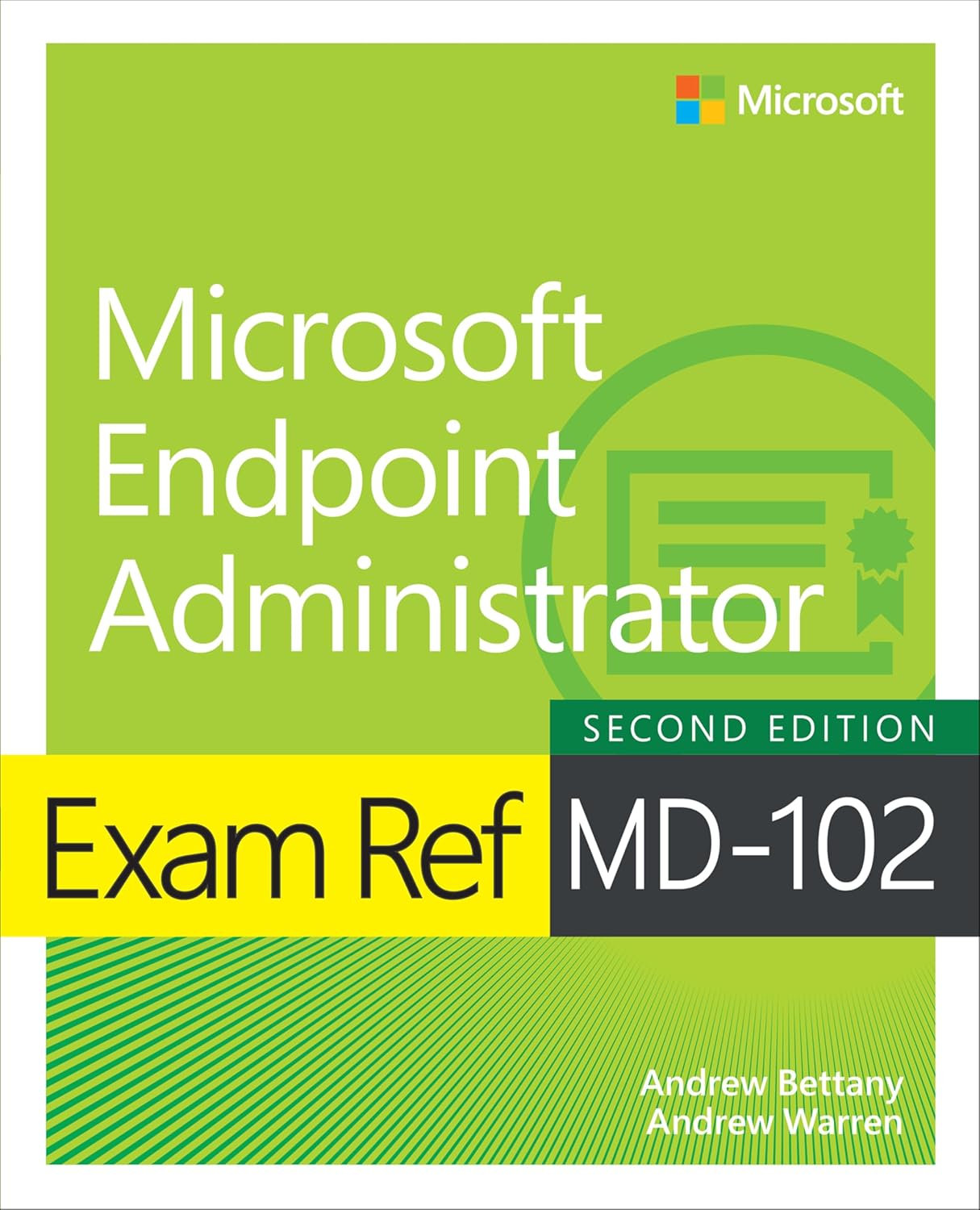
For MD-102 there is a book written specifically for the exam: the second edition of the Exam Ref, refreshed in January 2025.
Recommended
Exam Ref MD-102 Microsoft Endpoint Administrator
Direct from Microsoft Press, the official Exam Ref for the MD-102 and still the only book written for this exam, now in its second edition (January 2025). That edition predates the automation, monitoring, and reporting domain Microsoft added to the exam in July 2026, so pair it with the Learn paths for that newest area.
On-demand training lets you learn at your own pace, on your own schedule: expert-led video courses from Pluralsight or Udemy, or hands-on modules from Microsoft Learn, whenever you need them.
Not all platforms are the same. Pluralsight relies on vetted authors and curated content, while marketplaces vary in quality. I only recommend courses that are highly rated and closely aligned with the skills you need, and I still encourage reading the course details and reviews before enrolling.
Recommended
Microsoft Windows Endpoint Administrator (MD-102)
Free trial
The full certification path for MD-102, covering endpoint deployment, device and app management, and endpoint protection with Microsoft Intune. A strong, structured starting point whether you are new to Intune or filling gaps before the exam.
MD-102 Endpoint Administrator Associate course with SIMS!
John Christopher's popular MD-102 course, one of the highest-rated on Udemy, with instructor-led labs and hands-on simulations you can practice anytime. A good fit if you learn best by following along and doing rather than only reading.
These are practice exams, not dumps. Dumps ruin the value of a certification for everyone. Practice tests are a great way to check you are ready once you have studied everything in this guide.
MD-102 Practice Exams - Pass First Attempt (2026 Updated)
Six full-length, timed practice exams with answer explanations, last updated April 2026. That is before the automation, monitoring, and reporting domain Microsoft added to MD-102 in July 2026, so cover that newest area from the study notes and Learn paths instead. Use them near the end of your prep to confirm you are ready, not as a substitute for studying.
Microsoft Learn is a great free way to learn the MD-102 content. It is mostly text-based articles, with small quizzes at the end of every module.
The course syllabus below is Microsoft's own list of the learning paths and modules that cover the exam. When you want one topic rather than the whole curriculum, every skill in my study notes links the exact Microsoft Learn page for it.
Course MD-102T00-A: Manage and secure Microsoft 365 endpoints by using Intune
Free
Microsoft's official MD-102 course page. The syllabus lists every Microsoft Learn path and module the course teaches, and all of them are free to work through at your own pace.
This is the Microsoft Official Course, which you can schedule at a Microsoft learning partner. The classes are presented by Microsoft Certified Trainers. It is the best way to learn any topic, since you can ask a live instructor questions, and also the most expensive one.
Course MD-102T00-A: Manage and secure Microsoft 365 endpoints by using Intune
Instructor-led
The official Microsoft instructor-led course for MD-102, delivered by Microsoft Certified Trainers at learning partners. It covers the full exam in a guided, hands-on classroom format, ideal if you like asking a live instructor questions.
Some links on this page are affiliate links. If you use them, I may earn a commission at no extra cost to you.
Skills measured and study notes
83 skills, free to study here
0 of 83 studied
The MD-102 exam covers five main areas, from getting devices into Microsoft Intune to protecting them, deploying apps, and keeping everything healthy. I have broken down every skill Microsoft measures below, with plain explanations, the facts the exam likes to test, and a Microsoft Learn link for each one. This is the same way I prepare for a Microsoft exam myself: understand the skills measured first, then fill the gaps.
Tip: The two heaviest areas are getting devices ready and then managing them day to day, which together make up around half the exam. Almost everything is done in the Microsoft Intune admin center, so time spent clicking through the real console pays off more than any amount of reading.
Domain 1Prepare Infrastructure for Devices20-25% of the exam0 / 18 studied
This domain is about getting an identity for every device in Microsoft Entra ID, enrolling those devices into Microsoft Intune across every platform, and setting up the roles, compliance, and identity protections that everything else builds on.
Add devices to Microsoft Entra ID
01
Choose an appropriate device join type, including considerations such as device registration and Microsoft Entra join
Studied
Every managed device needs an identity in Microsoft Entra ID, and there are three ways to get one. Choosing the right one depends on who owns the device and whether the organization still has on-premises Active Directory.
What you need to know
Microsoft Entra registered is for personal or bring-your-own (BYOD) devices: the device gets an identity but the user signs in with a personal account, and this is the common path for iOS, Android, and personal Windows.
Microsoft Entra join is for organization-owned Windows 11 and Windows 10 devices that live only in the cloud, with no dependency on on-premises Active Directory.
Microsoft Entra hybrid join is the interim step for organizations that still need on-premises Active Directory, joining the device to both AD and Microsoft Entra ID.
All three can coexist in one tenant, and the join type controls single sign-on and which Conditional Access and Intune scenarios are available.
Exam tip: Cloud-only, organization-owned Windows devices should be Microsoft Entra joined. Reach for hybrid join only when an on-premises dependency, such as legacy Group Policy or an on-premises app, genuinely requires it.
Microsoft Entra join gives an organization-owned device a cloud identity and enables single sign-on to cloud and on-premises resources. It is the foundation for cloud-native endpoint management with Intune.
What you need to know
Users can join a new Windows device during the out-of-box experience (OOBE), or an existing device through Settings > Accounts > Access work or school.
Automatic MDM enrollment can join the device to Intune at the same time it joins Microsoft Entra ID, so one step delivers both.
By default any user can join up to a set number of devices, controlled by the Maximum number of devices per user setting in Microsoft Entra device settings.
Microsoft Entra joined devices get single sign-on to on-premises resources when the tenant is set up for it.
Microsoft Entra registration gives a device an identity without joining it, which is the model for personal and mobile devices. The user keeps signing in with their own account while the organization still gets a device object to reason about.
What you need to know
Registration is the default for BYOD Windows, and for iOS, iPadOS, and Android devices.
A registered device object lets you apply device-based Conditional Access and see the device in the admin center, without taking full control of a personal device.
Registration happens when a user adds a work account to a device or installs an app like the Company Portal.
Registered is the lightest-touch identity: the user, not the organization, owns the device.
Plan and implement groups for devices in Microsoft Entra ID, including dynamic group membership rules
Studied
Groups are how you target policies and apps in Intune, so planning them well saves a lot of repeated work. Dynamic device groups keep membership current automatically based on device attributes.
What you need to know
Assigned groups have members you add by hand; dynamic groups build their membership from a rule and update as devices change.
Dynamic device rules use device properties such as deviceOSType, deviceManufacturer, deviceModel, and enrollmentProfileName.
The enrollmentProfileName property is especially useful because it is set by the Windows Autopilot deployment profile or device preparation policy, so you can group devices by how they were provisioned.
Dynamic membership requires Microsoft Entra ID P1, and a device can be in a dynamic device group or a dynamic user group, but a single group cannot mix device and user rules.
Exam tip: For a rule that has to catch devices provisioned by a specific Autopilot profile, target the enrollmentProfileName property rather than a name or model.
Enrollment is the process that puts a device under Intune management by installing an MDM certificate that lets Intune push policy. Before devices enroll, you decide which platforms and how many devices are allowed.
What you need to know
Enrollment restriction policies control which platforms can enroll, whether personal devices are blocked, and a per-user device limit.
Every platform is allowed to enroll by default until you restrict it.
Device limit restrictions cap how many devices a single user can enroll (the tenant default is a set number per user).
Enrollment installs an MDM certificate and creates the device object that compliance and configuration policies then act on.
Automatic enrollment lets a Windows device enroll into Intune at the moment it is Microsoft Entra joined or registered, so the user does not do anything extra. It is what makes Windows Autopilot and bulk provisioning work.
What you need to know
Automatic enrollment is turned on under Microsoft Entra ID > Mobility (MDM), where you set the MDM user scope to Some or All.
With the scope set, Microsoft Entra join and Group Policy or provisioning enrollment automatically trigger Intune enrollment.
Automatic enrollment requires Microsoft Entra ID P1 or higher.
The MDM user scope decides which users' devices auto-enroll, so scoping it to a pilot group is a safe way to start.
Exam tip: If Windows devices join Microsoft Entra ID but never appear in Intune, the first thing to check is the MDM user scope, which is likely set to None.
Configure personal enrollment for macOS, iOS, iPadOS
Studied
Personal (BYOD) enrollment lets employees bring their own Apple devices under limited management, usually so they can reach email and company apps. The user drives the enrollment through the Company Portal.
What you need to know
BYOD iOS and iPadOS use user and device enrollment through the Company Portal app; macOS BYOD uses device enrollment through the Company Portal.
An Apple MDM push certificate must be added to the tenant before any Apple device can enroll, and it is renewed yearly.
Personal enrollment gives less control than Automated Device Enrollment because the device is not supervised.
For the strongest data protection on personal devices, pair enrollment with app protection policies, or use app protection without enrollment.
Configure enrollment profiles for Android devices, including fully managed, dedicated, corporate owned, work profile, enrollment restrictions and troubleshooting enrollment failures
Studied
Android Enterprise splits into distinct enrollment modes, and picking the right one is the whole game on Android. Each mode maps to who owns the device and whether there is a single user.
What you need to know
Mode
Ownership
Best for
Personally owned work profile
Personal (BYOD)
Employees using their own phone, work data kept in a separate profile
Corporate owned work profile
Organization
Company phone that also allows some personal use
Fully managed
Organization
Company phone with a single user, fully controlled
Dedicated
Organization
Userless or shared devices, such as kiosks and scanners
All Android Enterprise modes require a connection between Intune and Managed Google Play.
Enrollment restrictions can block personally owned Android devices while still allowing corporate ones.
Common enrollment failures trace back to a missing Managed Google Play connection, an unsupported OS version, or the device already being managed elsewhere.
Configure corporate enrollment for macOS and iOS devices by integrating Intune with Apple Business Manager
Studied
Automated Device Enrollment (ADE) enrolls organization-owned Apple devices bought through Apple Business Manager without anyone touching them. The device enrolls and supervises itself during Setup Assistant.
What you need to know
ADE requires an Apple Business Manager (or Apple School Manager) account, an ADE token synced to Intune, and an Apple MDM push certificate.
ADE devices are supervised by default, which unlocks stronger restrictions than BYOD enrollment allows.
Enrollment profiles from Intune are assigned to serial numbers synced from Apple Business Manager, so devices can ship straight to users.
ADE supports zero-touch, so a device turned on for the first time enrolls and applies policy automatically.
Exam tip: Supervision is the key word: ADE (corporate) devices are supervised and support restrictions that BYOD devices do not.
Configure enrollment for Android devices by integrating Intune with Samsung Knox Mobile Enrollment or Google Zero Touch
Studied
For zero-touch enrollment at scale on Android, Intune integrates with the OEM programs Samsung Knox Mobile Enrollment and Android zero-touch enrollment. Devices enroll automatically the first time they connect to the internet.
What you need to know
Both programs are for corporate-owned Android devices and remove the need to touch each device.
Samsung Knox Mobile Enrollment applies to Samsung devices; Android zero-touch is the broader OEM program across supported manufacturers.
Devices are registered by IMEI or serial number in the OEM portal and mapped to an Intune enrollment profile.
These programs pair with fully managed or dedicated modes, not with personal work profile enrollment.
Manage built-in and custom roles for Intune and Windows 365, including role assignments
Studied
Intune uses role-based access control (RBAC) so admins only see and change what their job requires. A role is a set of permissions; an assignment ties that role to admin groups and a scope of devices or users.
What you need to know
Built-in roles include Endpoint Security Manager, Help Desk Operator, and Read Only Operator; custom roles let you pick exact permissions.
A role assignment has member groups (the admins), scope groups (the users or devices they manage), and scope tags.
Permissions are cumulative across assignments: a read from one role plus read/write from another equals read/write.
Windows 365 has its own roles, such as Cloud PC Administrator and Cloud PC Reader, for managing Cloud PCs.
Configure scope tags and scoped administration for multi-admin environments
Studied
Scope tags decide which objects an admin can see, which is what makes distributed IT possible: a regional admin sees only their region's devices and policies. Roles say what you can do; scope tags say what you can see.
What you need to know
A scope tag is a free-form label you create, then attach to objects (policies, apps, devices) and to role assignments.
An admin sees an object only when they share a scope tag with it; an admin with no scope tags effectively has all of them.
When an admin creates an object, their scope tags are applied to it automatically.
You can assign up to 100 scope tags to a single object or role.
Exam tip: Scope tags filter visibility, not permissions. If a scoped admin cannot see a policy they should, check that the policy and the role assignment share a tag.
Multi-admin approval (also called access policies) requires a second administrator to approve certain sensitive changes before they take effect. It protects against a single compromised or mistaken admin account.
What you need to know
Multi-admin approval currently protects change-sensitive areas such as app deployments and script deployments.
You create an access policy that defines the protected resource and the approver group; a different admin than the requester must approve.
The requester cannot approve their own change, which enforces separation of duties.
Changes stay pending until approved, so it adds a deliberate checkpoint rather than blocking work outright.
Implement compliance policies for all supported device platforms by using Intune
Studied
A compliance policy defines the rules a device must meet, such as a minimum OS version, encryption, or a required PIN. Intune marks devices as compliant or noncompliant and can act on the result.
What you need to know
Compliance settings are platform-specific: for example, BitLocker and Secure Boot on Windows, or a minimum OS build on iOS.
Actions for noncompliance can notify the user, mark the device noncompliant after a grace period, remotely lock, or retire the device.
A tenant-wide compliance policy setting decides whether devices with no assigned policy are treated as compliant or noncompliant.
Compliance state is most useful when paired with Conditional Access, which blocks noncompliant devices from resources.
Exam tip: Set "Mark devices with no compliance policy assigned as" to Not compliant in a secure environment, so a device slips through only when you explicitly allow it.
Implement Microsoft Entra Conditional Access policies that require a compliance status
Studied
Conditional Access is the Microsoft Entra engine that decides, at each sign-in, whether to allow access and under what conditions. Requiring a compliant device is the most common way to tie Intune to real access control.
What you need to know
A Conditional Access policy is if/then: assignments (users, apps, conditions) lead to access controls (block, grant, require a compliant device or MFA).
The "Require device to be marked as compliant" grant control checks the Intune compliance state before granting access.
Conditional Access requires Microsoft Entra ID P1 or higher.
Report-only mode lets you see the impact of a policy before you turn it on.
Configure Windows Hello for Business by using Intune
Studied
Windows Hello for Business replaces passwords with a PIN or biometric tied to the device, giving phishing-resistant two-factor sign-in. Intune can turn it on tenant-wide or through a targeted policy.
What you need to know
You can enable it at enrollment through the Windows enrollment settings, or with a targeted account protection policy under Endpoint security.
The credential is protected by the device's TPM and is unlocked by a PIN, fingerprint, or facial recognition.
The PIN is device-local and never travels, which is why it resists phishing and replay.
Policy settings control PIN length and complexity, biometric use, and whether a TPM is required.
Implement and manage Windows Local Administrator Password Solution (Windows LAPS) by using Microsoft Intune and Microsoft Entra ID
Studied
Windows LAPS manages the built-in local administrator account by setting a unique password on each device and rotating it on a schedule. It stops the same local admin password being reused across the fleet.
What you need to know
Intune manages Windows LAPS through an account protection policy that uses the Windows LAPS configuration service provider (CSP).
Passwords can be backed up to Microsoft Entra ID or to on-premises Active Directory, and are stored encrypted.
LAPS manages one existing local admin account per device; it does not create accounts.
You can rotate a password on demand as a device action, and read the current password in the admin center with the right permissions.
Exam tip: LAPS protects against lateral movement attacks such as pass-the-hash, because a stolen local admin password only works on one device.
Manage the membership of local groups on Windows devices by using Intune
Studied
The Local user group membership policy controls who belongs to the built-in local groups, most importantly the local Administrators group. It is how you stop standard users quietly holding admin rights.
What you need to know
The policy lives under Endpoint security > Account protection as the Local user group membership profile.
Actions are Add, Remove, or Replace members of a built-in group such as Administrators.
Members can be Microsoft Entra users or groups, referenced so the same policy scales across devices.
Replace is the strongest action because it locks the group down to exactly the members you define.
Domain 2Manage and Maintain Devices25-30% of the exam0 / 27 studied
This is the largest domain. It covers deploying Windows with Windows Autopilot and Windows 365, shaping devices with configuration profiles, extending Intune with Suite add-ons, and running remote actions on devices already in the field.
Deploy and upgrade Windows clients by using cloud-based tools
19
Choose between Windows Autopilot deployment profiles and device preparation policies
Studied
Microsoft now offers two cloud provisioning models for Windows: the original Windows Autopilot deployment profiles and the newer Windows Autopilot device preparation policies. Knowing when to use each is a current exam topic.
What you need to know
Windows Autopilot (deployment profiles) relies on registering a device's hardware hash ahead of time so the service recognizes it during OOBE.
Device preparation policies do not require pre-registered hardware hashes; a user in the right group provisions the device, which simplifies setup.
Device preparation targets a user group and installs a defined set of essential apps and scripts during provisioning.
Device preparation is the more modern, lower-friction option, while classic Autopilot profiles still cover scenarios like self-deploying and pre-provisioning.
Choose between Windows Autopilot deployment modes, including user-driven, pre-provisioning, and self-deploying
Studied
Classic Windows Autopilot deployment profiles come in modes that decide how much a user does and whether the device is tied to a user. The mode is set in the deployment profile.
What you need to know
User-driven: the user signs in during OOBE and the device is associated with them; the most common mode.
Pre-provisioning (formerly white glove): IT or an OEM completes the device-setup phase first, so the user gets a device that is nearly ready.
Self-deploying: no user credentials are needed, so it suits kiosks, digital signage, and shared devices; it needs specific hardware such as a TPM 2.0.
All modes join Microsoft Entra ID and enroll in Intune; they differ in who authenticates and when.
Exam tip: Self-deploying mode requires TPM 2.0 and is the answer for userless or kiosk scenarios.
Apply a device name template by using Windows Autopilot
Studied
A device name template names devices consistently as they are provisioned, which keeps the admin center readable and helps dynamic grouping. It is set in the Autopilot deployment profile.
What you need to know
The template supports the %SERIAL% variable for the hardware serial number and %RAND:x% for a random string of length x.
The full name, including any fixed prefix, must be 15 characters or fewer for Windows.
A template like CTS-%SERIAL% produces predictable, sortable names.
Naming applies during Microsoft Entra join; it does not rename devices already deployed.
Implement Windows client deployment by using Windows Autopilot
Studied
Putting Autopilot into practice means registering devices, creating and assigning a profile, and letting the device provision itself at first boot. The result is a device that is Microsoft Entra joined, enrolled, and policy-managed with no image to build.
What you need to know
Devices are registered by hardware hash, which an OEM or reseller can upload, or you can capture and import yourself.
The deployment profile is assigned to a device group, and Intune assigns the profile to matching registered devices.
Autopilot reuses the existing Windows installation rather than reimaging, which is what makes it fast.
The user experience during OOBE is shaped by the profile and the Enrollment Status Page.
The Enrollment Status Page shows provisioning progress to the user and can block device use until required apps and policies finish installing. It is what turns provisioning from invisible into predictable.
What you need to know
The ESP has a device-setup phase and an account-setup phase, and you can require it to complete before the desktop is usable.
"Block device use until all apps and profiles are installed" enforces that required content lands before hand-off.
You can allow a reset or let the user retry when installation fails, which is safer during testing.
You can select which required apps must finish before the ESP releases the device.
Plan and implement device upgrades for Windows 11 by using Intune
Studied
Moving devices to Windows 11, or keeping them on a target version, is handled with a Windows feature update policy. It controls which feature version devices are offered and prevents unwanted jumps.
What you need to know
A feature update policy sets a target Windows feature version and holds devices there until you change it.
Devices must already meet the Windows 11 hardware requirements, such as TPM 2.0 and Secure Boot, to be offered the upgrade.
Feature update policies work alongside update rings, which control the restart and deferral experience.
You can phase a rollout so a pilot group upgrades before the whole fleet.
Exam tip: To upgrade to Windows 11 in a controlled way, use a feature update policy to set the target version, not an update ring; update rings manage timing, not the version.
Provision and configure Windows 365 Cloud PCs by using Intune, including provisioning policies, network connections, and image management
Studied
Windows 365 delivers Cloud PCs, which are Windows virtual machines assigned one per user and managed in Intune like any other endpoint. Provisioning is driven by a policy, not a manual VM build.
What you need to know
A provisioning policy defines the join type, the image, the network, and which users get a Cloud PC.
Cloud PCs can use a Microsoft-hosted network or an Azure network connection (ANC) for line of sight to on-premises resources.
Image management lets you provision from a gallery image or a custom image you upload.
A Cloud PC enrolls in Intune automatically and appears alongside physical devices, so the same configuration and compliance policies apply.
Implement Windows Backup and Restore by using Intune
Studied
Windows Backup carries a user's settings, apps, and preferences to a new or reset device, which shortens the time to productivity after a refresh. Intune can steer this experience for organization devices.
What you need to know
Windows Backup stores settings and app lists tied to the user's Microsoft Entra account so they restore on a new device.
The restore experience appears during OOBE, letting a user pick up where a previous device left off.
It complements Autopilot by reducing manual reconfiguration after a device swap.
Configuration is delivered through Intune policy targeted at Windows devices.
Create device configuration profiles for Windows devices, including importing ADMX files and using Group Policy analytics
Studied
Configuration profiles push settings to devices without Group Policy. For Windows, the Settings Catalog covers most needs, while ADMX import and Group Policy analytics help teams migrating from on-premises GPO.
What you need to know
The Settings Catalog is the modern, searchable list of thousands of Windows settings to build a profile from scratch.
You can import custom ADMX and ADML files to manage third-party app settings, such as a browser, that are not in the catalog.
Group Policy analytics imports an on-premises GPO and reports the percentage of its settings that have a matching MDM setting in Intune.
The analytics report flags each setting as ready for migration, not supported, or deprecated.
Exam tip: Group Policy analytics is the tool that tells you how much of an existing GPO can move to Intune before you migrate it.
Create device configuration profiles for Android devices
Studied
Android configuration profiles apply settings that match the enrollment mode, from device restrictions on fully managed devices to work profile controls on BYOD. The available settings depend on the Android Enterprise mode.
What you need to know
Profile types include device restrictions, Wi-Fi, VPN, email, and custom (OMA-URI) settings.
Fully managed and dedicated devices expose more restrictive controls than personally owned work profile devices.
Work profile policies apply only to the work side, leaving the personal side untouched.
Certificate profiles (SCEP or PKCS) deliver certificates for Wi-Fi and VPN authentication.
Create device configuration profiles for iOS/iPadOS devices
Studied
iOS and iPadOS profiles configure the settings Apple exposes through MDM, and supervised (ADE) devices unlock a larger set. Profiles cover everything from Wi-Fi to device feature restrictions.
What you need to know
Common profile types are device restrictions, Wi-Fi, VPN, email, and device features such as the home screen layout.
Supervised devices support restrictions, like single-app kiosk mode, that unsupervised devices do not.
Certificate profiles deliver the certificates that Wi-Fi and VPN profiles reference for authentication.
Settings are delivered as Apple configuration profiles under the hood.
Create device configuration profiles for macOS devices
Studied
macOS profiles configure Mac settings through MDM, and the Settings Catalog and preference-file options give broad coverage. Enrollment through ADE unlocks the most control.
What you need to know
Profile types include device restrictions, Wi-Fi, VPN, endpoint protection, and a preference file (.plist) for app settings.
The Settings Catalog is available for macOS and is the preferred way to build new profiles.
Platform single sign-on can be configured so users sign in to the Mac with their Microsoft Entra credentials.
Disk encryption for Mac is FileVault, managed as a disk encryption policy.
Create device configuration profiles for specialty devices, including Teams Rooms, HoloLens 2, and Zebra
Studied
Specialty and shared devices need purpose-built profiles rather than the standard desktop settings. Intune has dedicated handling for meeting-room, mixed-reality, and rugged devices.
What you need to know
Microsoft Teams Rooms devices are managed as a device category with room-specific configuration.
HoloLens 2 enrolls and is configured much like a Windows device, with mixed-reality-specific settings.
Zebra and other rugged Android devices use dedicated (userless) enrollment and can receive OEM firmware updates over the air.
Specialized device management is part of the Intune Suite and Intune Plan 2 add-on capabilities.
Target a profile by using assignment filters and enrollment time grouping
Studied
Filters and enrollment-time grouping narrow who gets a policy beyond a plain group assignment. They let one policy behave differently across a mixed fleet.
What you need to know
An assignment filter is a rule on device properties (such as OS version or device model) applied in include or exclude mode when you assign a policy.
Filters are evaluated at assignment time and keep you from creating a group for every small variation.
Enrollment time grouping (through the enrollmentProfileName property) lets Autopilot device preparation place devices into the right scope as they enroll.
Filters apply to configuration profiles, compliance policies, and app assignments.
Configure Endpoint Privilege Management including configuring elevation policies, monitoring elevated actions, and adjusting EPM settings
Studied
Endpoint Privilege Management (EPM) lets standard users run specific tasks with admin rights without being local admins. It supports least privilege while keeping people productive.
What you need to know
EPM has an elevation settings policy (which turns EPM on and sets defaults) and elevation rules policies (which define how specific files are elevated).
Elevation types include automatic, user-confirmed, and support-approved, where a help desk admin approves the request.
Reporting shows elevated actions so you can audit what was run with elevated rights.
EPM is an Intune Suite add-on and is also available with some Microsoft 365 E5 plans.
Exam tip: Support-approved elevation is the answer when a request must be reviewed by an admin before it runs, rather than trusting the user to confirm.
Manage applications by using the Enterprise App Catalog
Studied
Enterprise App Management provides a catalog of prepackaged Win32 apps that are ready to deploy from Intune, with install, requirement, and detection rules already filled in. It removes most of the manual packaging work.
What you need to know
You add an app by choosing it from the Enterprise App Catalog rather than uploading an installer.
Default install, requirement, and detection settings are provided automatically and can be edited.
Intune hosts the catalog apps in Microsoft storage, so you do not host the content yourself.
Catalog apps can be kept up to date more easily than manually packaged Win32 apps.
Remote Help is a cloud help-desk tool for secure screen sharing and remote control of managed devices, with role-based controls on what a helper can do. It replaces ad hoc remote tools with an audited, tenant-integrated one.
What you need to know
Remote Help is a Win32 app deployed to devices, and both helper and sharer sign in with organization credentials.
RBAC controls whether a helper can view only or take full control, and whether they can help on unenrolled devices.
Sessions can be gated by Conditional Access and are logged for auditing.
Remote Help supports Windows, and also macOS and Android, with platform-specific capabilities.
Plan and implement Microsoft Cloud PKI, including setting up cloud-based PKI, automating certificate issuance, and monitoring certificate health
Studied
Microsoft Cloud PKI is a managed certificate authority that issues and renews certificates for Intune devices without any on-premises PKI servers or connectors. It replaces the traditional AD Certificate Services plus Certificate Connector setup.
What you need to know
Cloud PKI can create a two-tier hierarchy with a root and an issuing certification authority (CA) entirely in the cloud.
It automates the certificate lifecycle: issuance, renewal, and revocation across Windows, iOS/iPadOS, macOS, and Android.
Certificate requests use SCEP, so the private key never leaves the device.
Monitoring and reporting cover certificate health and CA status, and it is an Intune Suite add-on.
Implement Microsoft Tunnel for Mobile Application Management, including configuring Tunnel Gateway, extending support to MAM devices, and monitoring tunnel connections
Studied
Microsoft Tunnel is a VPN gateway for Intune, and Tunnel for MAM extends it to unenrolled iOS and Android devices. It gives BYOD apps secure access to on-premises resources without full enrollment.
What you need to know
The Tunnel Gateway runs on a Linux server (in a container) and is the VPN endpoint devices connect to.
Tunnel for MAM supports personal Android and iOS devices that are protected by app protection policies rather than enrolled.
Access is scoped to the managed apps, so only work apps use the tunnel.
Tunnel connections can be monitored for health, and Tunnel for MAM is part of Intune Plan 2 and the Intune Suite.
Implement Microsoft Intune Advanced Analytics, including anomaly detection, proactive insights, and risk-based policy recommendations
Studied
Advanced Analytics is a set of analytics-driven features that help you understand and improve the endpoint experience, going beyond the standard Endpoint Analytics reports. It surfaces problems before users report them.
What you need to know
Anomaly detection watches for device-health and productivity regressions after configuration changes.
Device query and an enhanced device timeline give near-real-time and historical detail for troubleshooting a single device.
Battery health and other extended reports are part of the add-on.
Advanced Analytics is available with Intune Plan 2 and the Intune Suite.
Remote actions let you manage a device from the admin center without touching it. The four you reach for most differ sharply in how much they remove, so knowing them apart is a common exam point.
What you need to know
Action
What it does
Sync
Forces the device to check in and apply the latest policies
Restart
Reboots the device
Retire
Removes company data, apps, and profiles, and leaves personal data intact
Wipe
Resets the device to factory settings and removes everything
Actions take effect the next time the device checks in with Intune.
Retire is the right choice for a personal (BYOD) device leaving management, because it preserves personal content.
Wipe is for a lost, stolen, or repurposed device where everything should go.
Exam tip: Retire keeps personal data and removes only company data; Wipe resets the whole device. Match the action to whether the device is personal or corporate.
Bulk device actions run the same action against many devices at once, which is essential for fleets. They save you from repeating a task device by device.
What you need to know
Bulk actions support common tasks such as Sync, Restart, Retire, Wipe, Collect diagnostics, and Autopilot reset.
You can act on up to 100 devices per bulk action for physical devices.
Bulk Wipe, Retire, and Delete count toward the daily tenant limits for those actions.
For Cloud PCs, bulk actions can target a larger number of devices through a user group.
Update Microsoft Defender Antivirus security intelligence
Studied
This remote action tells a device to refresh its Microsoft Defender Antivirus definitions, so it recognizes the newest threats. It updates signatures without kicking off a scan.
What you need to know
The action updates the security intelligence (definition) files only; it does not start a scan.
It is useful when a device is behind on definitions and you want it current before running a scan.
Quick scan and full scan are separate remote actions.
The action applies the next time the device checks in.
Rotating the BitLocker recovery key replaces the stored key with a fresh one, which you do after a key may have been exposed. Intune can trigger this remotely on Windows devices.
What you need to know
Rotation is a device action for Windows 10 version 1909 or later and Windows 11.
The new recovery key is backed up to Microsoft Entra ID automatically.
Rotate a key after it has been viewed or shared for a recovery so the old one is no longer valid.
Recovery keys are visible in the admin center and in the Microsoft Entra device object with the right permissions.
When a device uses Windows LAPS, you can rotate its managed local administrator password on demand from the admin center. This is the manual counterpart to the scheduled rotation LAPS performs.
What you need to know
The action is available on devices that have a LAPS policy managing the local admin account.
After rotation, the new password is backed up to Microsoft Entra ID or on-premises Active Directory as the policy specifies.
Rotate the password after a help-desk session that exposed it, so it is immediately invalidated.
Reading and rotating the password requires the appropriate Intune permissions.
Device query returns live details from a single device using Kusto Query Language (KQL), so you can answer a support question without a remote session. It reads current device state on demand.
What you need to know
You run a query from a device's Monitor section, entering a KQL query and reading the results.
Device query returns near-real-time data such as running services, registry values, installed app versions, and processes.
Copilot in Intune can generate a KQL query from a natural-language request.
It reduces the need to remote-control a device for simple checks, which speeds up L1 and L2 support.
Collect device diagnostics and logs by using Microsoft Intune, including using the Troubleshooting blade for user-based diagnostics
Studied
Collect diagnostics gathers Windows logs from a device and uploads them to Intune without interrupting the user. The Troubleshooting and support blade then helps you follow a specific user's issue.
What you need to know
Collect diagnostics captures event logs, registry keys, and configuration data and makes them available to download from the admin center.
It runs in the background, so the user is not disturbed.
The Troubleshooting and support blade shows enrollment, policy, and app status for a selected user to speed up diagnosis.
Diagnostics are a read action and do not change the device.
Domain 3Protect Devices15-20% of the exam0 / 15 studied
This domain is endpoint security: antivirus, encryption, firewall, attack surface reduction, and security baselines, plus integrating Microsoft Defender for Endpoint and keeping every platform updated.
Configure endpoint security
46
Create antivirus policies by using Microsoft Intune
Studied
Antivirus policies under Endpoint security configure Microsoft Defender Antivirus on Windows (and Microsoft Defender for Endpoint settings on macOS and Linux). They give a focused view of just the antivirus settings.
What you need to know
Profiles include Microsoft Defender Antivirus settings, antivirus exclusions, the Windows Security experience, and Defender update controls.
Real-time protection, cloud-delivered protection, and scan schedules are all set here.
Endpoint security antivirus policies show only relevant settings, which is simpler than a full device configuration profile.
macOS and Linux antivirus is delivered through Microsoft Defender for Endpoint.
Create and manage disk encryption policies by using Microsoft Intune, including managing BitLocker recovery keys, configuring user self-service recovery, and monitoring encryption compliance status
Studied
Disk encryption policies turn on BitLocker (Windows) or FileVault (macOS) and manage the recovery keys. Encryption at rest is a baseline control and a frequent compliance requirement.
What you need to know
BitLocker settings include the encryption method, whether to encrypt automatically (silent encryption), and TPM requirements.
Recovery keys are escrowed to Microsoft Entra ID, and users can retrieve their own key through the self-service portal at the MyAccount page.
The encryption report shows encryption status across devices so you can spot failures.
Personal Data Encryption (PDE) adds file-level encryption on Windows 11, and FileVault is the macOS equivalent of BitLocker.
Exam tip: BitLocker recovery keys are backed up to Microsoft Entra ID, and users can recover their own key from their account page, which reduces help-desk calls.
Create firewall policies by using Microsoft Intune
Studied
Firewall policies manage the built-in host firewall on Windows and macOS from Endpoint security. They control which connections a device allows without touching device configuration profiles.
What you need to know
The Windows firewall profile configures the domain, private, and public profiles and can enable the firewall for each.
Firewall rules profiles define specific allow or block rules by port, program, or address.
Reusable settings groups let you define IP ranges or ports once and reference them across rules.
On macOS, the firewall profile enables and configures the built-in firewall.
Configure Attack surface reduction policies by using Microsoft Intune, including applying Zero Trust principles for endpoint protection
Studied
Attack surface reduction (ASR) shrinks the ways malware can get a foothold, using rules and protections that build on Microsoft Defender Antivirus. It is a core part of a Zero Trust "assume breach" posture.
What you need to know
ASR profiles include ASR rules, exploit protection, web protection, application control, app and browser isolation, and device control.
ASR rules require Microsoft Defender Antivirus to be the primary antivirus on the device.
Rules can be set to audit first, so you see impact before you block.
Device control governs peripherals such as USB storage, supporting least-privilege access to hardware.
Plan and implement security baselines by using Microsoft Intune
Studied
A security baseline is a preconfigured group of settings recommended by the relevant Microsoft product team, so you get a strong starting posture without choosing hundreds of settings yourself. Baselines exist for Windows, Microsoft Edge, and Microsoft Defender for Endpoint.
What you need to know
Baselines are versioned; you can review a new version and move devices to it over time.
You can customize any setting in a baseline rather than accepting the defaults.
Avoid configuring the same setting in a baseline and a separate endpoint security policy, which causes conflicts.
Baselines are a fast way to reach a Microsoft-recommended configuration and then tune from there.
Exam tip: When two policies set the same value differently, the device gets a conflict and neither value is guaranteed; keep a setting in one place.
Integrate Intune with Microsoft Defender for Endpoint, including configuring Endpoint Detection and Response (EDR) policies, investigating endpoint threats, and triaging incidents
Studied
Connecting Intune to Microsoft Defender for Endpoint brings threat detection and device risk into device management. Once connected, Defender risk can drive compliance, and EDR policy onboards devices.
What you need to know
The integration is a service-to-service connection between the Intune and Defender for Endpoint tenants.
Device risk from Defender can be used in a compliance policy, so a high-risk device becomes noncompliant.
EDR policy manages the onboarding configuration and detection settings.
Security tasks flow from the Defender team to Intune admins to remediate specific vulnerabilities.
Onboard devices into Microsoft Defender for Endpoint
Studied
Onboarding is what connects a device to Microsoft Defender for Endpoint so it sends security telemetry and can be protected and investigated. With Intune, onboarding is delivered as policy rather than a manual script per device.
What you need to know
The endpoint detection and response (EDR) policy uses onboarding packages to configure each platform.
Once the Intune-to-Defender connection exists, onboarding can be automatic for enrolled devices.
Onboarding enables advanced detection, investigation, and response in the Defender portal.
Device configuration policy can also onboard devices, but it does not support tenant-attached devices; EDR policy is preferred.
Configure App Control for Business policies by using Microsoft Intune
Studied
App Control for Business (built on Windows Defender Application Control) decides which applications are allowed to run, which is application allowlisting. It blocks untrusted code rather than chasing known-bad files.
What you need to know
Policies can trust apps by Microsoft signing, reputation (the Intelligent Security Graph), a managed installer, or a specific publisher or path.
Trusting Microsoft-signed and reputable apps is the simplest starting policy.
App Control is a strong control because it defaults to blocking anything not explicitly trusted.
It is configured under Endpoint security as the App Control for Business policy.
Update management in Intune spans Windows, Apple, and Android, and planning means choosing rings, deferrals, and deadlines that balance security with disruption. A good plan updates most devices quickly while keeping a safety pilot.
What you need to know
Windows updates use update rings for client behavior, plus feature, quality, and driver update policies for content.
A staged rollout (pilot, then broad) catches a bad update before it reaches everyone.
Apple and Android have their own update policies rather than rings.
Windows Autopatch can automate much of the Windows update lifecycle.
Create and manage update rings, feature updates, and quality updates for Windows devices by using Intune
Studied
Windows updates in Intune are split into update rings (how and when updates install) and content policies (which feature and quality updates are offered). Together they give end-to-end control of Windows servicing.
What you need to know
Update rings set deferral periods, active hours, deadlines, restart behavior, and user notifications.
Feature update policies set and hold a target Windows version, such as moving to Windows 11.
Quality update policies are cumulative monthly updates and support expedited deployment for urgent security fixes.
Rings are commonly built as stages (test, pilot, production) assigned to different device groups.
Exam tip: Use an update ring to control timing and restarts, a feature update policy to control the OS version, and a quality update policy (expedite) to rush a critical security fix.
Implement Windows Autopatch and configure Hotpatch policies
Studied
Windows Autopatch is a service that automates approving and rolling out Windows updates, and Hotpatch installs certain security updates without an immediate restart. Both aim to get devices secure faster with less admin effort.
What you need to know
Autopatch manages quality, feature, and driver updates, and can group devices for gradual rollouts (Autopatch groups).
Hotpatch applies eligible security updates without a restart, so devices reach compliance sooner.
Autopatch enables hotpatch by default on eligible devices, and you can opt out with a quality update policy.
Autopatch reporting shows update readiness and compliance across the fleet.
Create and manage update policies for iOS/iPadOS and macOS devices by using the Settings Catalog in Microsoft Intune
Studied
Apple updates are managed with update policies rather than rings, and the Settings Catalog now hosts the modern managed-update settings. Supervised devices give the most control over when updates install.
What you need to know
Apple update policies can delay visibility of an update and schedule when it installs.
The strongest enforcement applies to supervised (ADE) devices.
Declarative device management underpins the newer Apple software update settings in the Settings Catalog.
You can require a specific minimum OS version through compliance to pressure updates on unsupervised devices.
Manage Android updates by using configuration profiles or firmware-over-the-air (FOTA) deployments
Studied
Android OS updates are controlled differently depending on the enrollment mode, and rugged OEM devices can take firmware over the air. Fully managed and dedicated devices allow the most control.
What you need to know
On fully managed and dedicated devices, a device configuration profile can defer or schedule system updates.
Firmware-over-the-air (FOTA) delivers OEM firmware updates, for example through Zebra LifeGuard, and is part of Intune Plan 2 or the Suite.
Personally owned work profile devices give the organization little control over OS updates.
Maintenance windows can hold updates outside working hours on dedicated devices.
Configure Windows client Delivery Optimization by using Intune
Studied
Delivery Optimization reduces bandwidth by letting devices share update and app content with each other instead of every device downloading from the internet. It matters most on busy or constrained networks.
What you need to know
The default download mode uses HTTP plus peering within the same local network (NAT).
You can restrict peering to the same subnet or a group ID so peers are truly nearby.
Delivery Optimization applies to Windows updates, Microsoft Store apps, and Intune Win32 app content.
Settings are delivered through a configuration profile or as part of update policy.
Monitoring tells you whether updates are actually landing, which devices are behind, and why. Intune and Autopatch reports turn a rollout from hopeful into measurable.
What you need to know
Windows update reports show ring assignment, update status, and failures per device.
Autopatch reports add readiness, compliance, and device alerts, with data refreshing within a few hours.
Feature update reports show which devices have reached the target version.
Reports are the evidence you use to decide whether to widen a phased rollout.
Domain 4Manage and Secure Applications15-20% of the exam0 / 12 studied
This domain covers the app lifecycle in Intune: preparing and deploying apps across platforms, deploying and managing Microsoft 365 Apps, and protecting company data inside apps with app protection and app configuration policies.
Deploy and update apps
61
Prepare applications for deployment by using Intune
Studied
Before an app deploys cleanly, it needs the right packaging, assignment type, and detection rules so Intune knows when it is installed. Preparation is where most deployment failures are prevented.
What you need to know
Win32 apps are wrapped into an .intunewin package with the Microsoft Win32 Content Prep Tool before upload.
Detection rules (file, registry, or MSI code) tell Intune whether the app is already present.
Requirement rules (OS version, architecture, free disk space) gate which devices are eligible.
Assignment types are Required, Available for enrolled devices, and Uninstall.
Deploy apps by using Intune, including Win32 apps, line-of-business (LOB) apps, and Microsoft Store apps
Studied
Intune deploys several Windows app types, and choosing the right one affects reliability, updates, and the install experience. Win32 is the most capable format for complex installers.
What you need to know
Win32 apps (.intunewin) support dependencies, supersedence, custom detection, and install-order control through the Intune Management Extension.
Line-of-business (LOB) apps are added from a single installer file (such as an .msi) and are simpler but less flexible than Win32.
Microsoft Store apps are searched and added directly from the admin center and update themselves.
Do not mix Win32 and LOB installs during Autopilot, because both use the Windows Installer service and can conflict.
Exam tip: For an installer that needs dependencies, supersedence, or ordered installation, package it as a Win32 app rather than an LOB app.
Microsoft 365 Apps (Word, Excel, PowerPoint, Outlook, and more) install as a single suite app type on Windows, so you configure the whole suite in one place. Intune handles the Click-to-Run install for you.
What you need to know
The Microsoft 365 Apps (Windows 10 and later) app type lets you pick apps, architecture, update channel, and languages.
Content downloads from the Office CDN (officecdn.microsoft.com) directly to the device.
The update channel (such as Current or Monthly Enterprise) controls how often features arrive.
Required assignment installs silently; Available lets users install from the Company Portal.
Configure policies for Office apps by using Microsoft Intune or the Microsoft 365 Apps admin center
Studied
Beyond installing Office, you shape its behavior with policies, which can come from Intune's Policies for Microsoft 365 or from the Microsoft 365 Apps admin center's cloud policy service. Both apply settings to Microsoft 365 Apps.
What you need to know
Policies for Microsoft 365 in Intune (Apps > Policies for Microsoft 365) apply Office settings to users on any device they sign in to.
The Microsoft 365 Apps admin center hosts the Office cloud policy service, which can also enforce settings.
Office settings applied through the settings catalog can conflict with a Microsoft 365 Apps deployment, so avoid setting the same value twice.
Cloud policy follows the user, so settings apply even on unmanaged devices where the user signs in.
Deploy Microsoft 365 Apps as part of a Windows Autopilot deployment, including using the Office Deployment Tool (ODT) or Microsoft Intune
Studied
Installing Microsoft 365 Apps during Autopilot means users get Office ready on first sign-in. How you package it affects whether the Enrollment Status Page tracks it reliably.
What you need to know
To have the ESP track Office during enrollment, deploy Microsoft 365 Apps as a Win32 app, because the Microsoft 365 Apps type is not managed by the Intune Management Extension.
The Office Deployment Tool (ODT) uses a configuration XML to control which apps, channel, and languages install.
Deploying the built-in Microsoft 365 Apps type during ESP alongside a Win32 app can cause an install concurrency failure.
Required assignment ensures Office installs automatically during provisioning.
Manage Microsoft 365 Apps by using the Microsoft 365 Apps admin center
Studied
The Microsoft 365 Apps admin center is the dedicated place to manage Office servicing, health, and inventory across the estate. It complements Intune deployment with servicing insight.
What you need to know
Servicing profiles automate keeping devices current on their update channel.
Inventory shows installed Office versions, architectures, and add-ins across devices.
The cloud policy service delivers Office policy settings that follow the user.
It is the right console for Office update health, while Intune handles the install and assignment.
Deploy apps from platform-specific app stores by using Intune, including Apple Volume Purchase Program and Google Play
Studied
Mobile apps come from managed stores, and Intune connects to Apple and Google so you can assign store apps and licenses centrally. This is how you deploy paid and free store apps without users buying them.
What you need to know
Apple Volume Purchase (Apps and Books, formerly VPP) uses a token synced to Intune to assign purchased app licenses to devices or users.
Device-based VPP licensing installs an app without requiring a personal Apple ID.
Managed Google Play is the store for Android Enterprise, and approved apps are assigned through Intune.
Store apps generally update themselves, unlike manually packaged Win32 apps.
Monitor app deployment status and troubleshoot installation failures by using Microsoft Intune
Studied
App monitoring tells you which installs succeeded, which failed, and why, so you can fix a rollout instead of guessing. Every assigned app has status reporting.
What you need to know
The app's Device install status and User install status views show success, failure, and pending counts.
Win32 install failures often surface as error codes you can trace in the Intune Management Extension log (IntuneManagementExtension.log) on the device.
Detection rules that do not match the installed state make an app report as failed or repeatedly reinstall.
Collect diagnostics and the troubleshooting blade help investigate a specific user's failed install.
Plan and implement app protection and app configuration policies
70
Plan and implement app protection policies for managed and unmanaged (BYOD) devices by using Microsoft Intune
Studied
App protection policies (APP), also called mobile application management (MAM), protect company data inside an app regardless of whether the device is enrolled. They are the core of a BYOD data-protection strategy.
What you need to know
Policies enforce actions such as requiring a PIN to open the app, encrypting app data, and blocking copy or save to personal locations.
Because they protect data at the app layer, they work on unenrolled personal devices as well as enrolled ones.
A selective wipe removes only the company data from a protected app, leaving personal data alone.
Policies apply per platform (iOS and Android) and target apps that support the Intune SDK, such as the Microsoft 365 mobile apps.
Exam tip: App protection policies protect data even without enrollment, which is why they are the answer for BYOD where you cannot or should not fully manage the device.
Implement Microsoft Entra Conditional Access policies for app protection policies
Studied
App-based Conditional Access requires that a user reach company data only through an approved app that has an app protection policy applied. It links the identity check to the data-protection check.
What you need to know
The "Require app protection policy" grant control blocks access unless the app is protected by APP.
This is how you allow BYOD access to Microsoft 365 without enrolling the device.
It works together with the "Require approved client app" control to force use of managed apps like Outlook.
Conditional Access requires Microsoft Entra ID P1 or higher.
Plan and implement app configuration policies for managed apps and managed devices
Studied
App configuration policies preset an app's settings so users do not have to, which removes setup errors and help-desk calls. They deliver values the app reads on first run.
What you need to know
There are two delivery channels: managed devices (enrolled) and managed apps (through the app protection layer, including unenrolled devices).
Settings are supplied as key and value pairs defined by the app developer.
Common uses include preconfiguring a server URL, restricting Outlook to organization accounts, or setting a default configuration.
Managed-app configuration can apply even without enrollment, mirroring app protection policies.
Domain 5Optimize Endpoint Operations by Using Automation, Monitoring, and Reporting10-15% of the exam0 / 11 studied
This newest domain is about running an endpoint estate efficiently: automating tasks with PowerShell, Microsoft Graph, and Security Copilot agents, and monitoring health with Endpoint Analytics, reporting, and alerts.
Automate management tasks
73
Automate Intune management tasks by using PowerShell and Microsoft Graph
Studied
Intune is built on Microsoft Graph, so anything in the admin center can be scripted, and PowerShell scripts can also run directly on Windows devices. Automation is how you manage at scale and enforce settings the UI does not expose.
What you need to know
The Intune Management Extension runs PowerShell scripts on enrolled Windows devices, once or on a schedule, in system or user context.
Microsoft Graph exposes Intune objects (devices, policies, apps) for scripted management, often through the Microsoft Graph PowerShell SDK.
Scripts can be signed and require signing through an update ring or policy setting.
Graph is the same API the admin center uses, so automation stays in sync with the console.
Investigate threats identified by Security Copilot agents in Intune
Studied
Copilot in Intune brings generative AI security analysis into device management, surfacing risky devices and helping you investigate faster. It reads your Intune data to explain what is happening and why.
What you need to know
Copilot in Intune is licensed through Microsoft Security Copilot.
It can summarize a device's state, explain policies and settings, and help investigate device issues in plain language.
It can generate KQL for device query from a natural-language request.
It reads your tenant data at query time; it does not train foundation models on your content.
Analyze device performance by using Security Copilot agents in Intune
Studied
Copilot can turn raw device and analytics data into a readable picture of performance, so you spend less time assembling reports. It helps you get from a symptom to a likely cause quickly.
What you need to know
Copilot can summarize device performance signals and highlight anomalies worth attention.
It works alongside Endpoint Analytics and Advanced Analytics data.
Natural-language prompts replace hand-built queries for common questions.
Its usefulness depends on the Intune and analytics data already being collected.
Review and respond to Security Copilot agent recommendations to make management decisions
Studied
Copilot does more than describe: it suggests actions, and the admin decides whether to act. Treating its output as a recommendation to verify, not an order to follow, is the right posture.
What you need to know
Recommendations are grounded in your tenant data, but you confirm them before acting.
Copilot can propose remediations, policy changes, or investigation steps.
The admin remains accountable for the change, so verify against the actual device or policy.
Copilot speeds the decision; it does not replace change control or approvals.
Custom compliance settings let you check things the built-in compliance settings do not, using a PowerShell discovery script plus a JSON rule. This closes gaps for organization-specific requirements.
What you need to know
A custom compliance policy pairs a PowerShell detection script with a JSON file that defines the expected values and remediation messages.
The script runs on the device and returns data that Intune evaluates against the JSON rules.
Results feed the normal compliance state, so they can drive Conditional Access.
This is how you enforce a requirement, such as a specific registry value, that has no native setting.
Implement reporting and data visibility in Microsoft Intune, including customizing reports and filters, using workbooks and dashboards, and exporting reporting data
Studied
Intune reporting gives visibility into compliance, configuration, apps, and updates, and the data can be filtered, exported, or pulled into external tools. Good reporting is how you prove and improve the state of the estate.
What you need to know
Reports are organized by area (device compliance, configuration, apps, updates) with operational and organizational report types.
You can filter and customize report columns, and export data to CSV.
The Microsoft Graph reporting APIs let you export report data programmatically for a data warehouse or workbook.
Azure Monitor workbooks can visualize Intune data sent through a diagnostic setting.
Monitor endpoint performance by using Endpoint Analytics, including proactive remediations, device health scores, and app startup performance
Studied
Endpoint Analytics scores the user experience across devices, from startup time to app reliability, so you can find and fix what slows people down. It turns felt slowness into numbers you can act on.
What you need to know
Reports include startup performance, application reliability, work-from-anywhere, and resource performance.
Scores are benchmarked, so you can compare your devices against a baseline.
Endpoint Analytics contributes to the Microsoft Adoption Score technology-experiences category.
Devices are enrolled into Endpoint Analytics from Intune, or through Configuration Manager for co-managed devices.
Configure and manage proactive remediation scripts, including detecting and fixing common device issues, and scheduling remediation runs
Studied
Remediations (proactive remediations) are script pairs, one to detect a problem and one to fix it, that run on a schedule so issues are resolved before users call. They automate the routine break-fix work.
What you need to know
A remediation has a detection script and a remediation script; the fix runs only when detection finds the problem.
Remediations can run on a schedule (for example, daily) or on demand as a device action (Run remediation).
They can run in system or user context depending on what they check or change.
Output and status are reported so you can see how many devices detected and fixed the issue.
Analyze endpoint reliability and user experience scores, including startup performance, restart frequency, and application reliability metrics
Studied
Reliability metrics tell you whether devices are stable: how often they crash or restart unexpectedly, and which apps misbehave. They point you at the devices and apps hurting productivity.
What you need to know
Application reliability tracks app crashes and hangs to surface unstable apps across the fleet.
Restart frequency and startup performance highlight devices with a poor boot experience.
Scores are relative to a benchmark, so you can prioritize the worst outliers.
Findings often feed a remediation or a configuration change to fix the root cause.
Monitor tenant health and Intune service communications, including reviewing service health dashboards, message center notifications, and establishing operational baselines
Studied
Staying ahead of service changes and outages keeps management running smoothly. Intune surfaces its own service health and upcoming changes so you are not caught out.
What you need to know
Tenant administration > Tenant status shows connector status, service health, and Message center posts inside Intune.
The Microsoft 365 Message center announces upcoming changes and required actions.
An operational baseline (normal enrollment counts, compliance rates) makes it easy to spot when something drifts.
Service health explains whether a problem is on Microsoft's side before you troubleshoot your own configuration.
Configure alerts and notifications for policy and compliance changes, including setting up alert rules for compliance drift, enrollment failures, and configuration conflicts
Studied
Alerts turn passive dashboards into active signals, so the right person hears about compliance drift or enrollment failures quickly. They shorten the time between a problem and a response.
What you need to know
Intune alert rules can watch conditions such as noncompliant devices, failed enrollments, and device inactivity.
Alerts can send email notifications to selected recipients.
Alerting on enrollment failures and compliance drift catches fleet-wide issues early.
Configuration conflicts (two policies setting the same value) surface in reports and should be resolved by consolidating the setting.
Microsoft Intune admin center > Devices > Enrollment > Windows Autopilot
Create compliance policies
Microsoft Intune admin center > Devices > Compliance
Create Conditional Access policies
Microsoft Intune admin center > Endpoint security > Conditional access
Create configuration profiles
Microsoft Intune admin center > Devices > Configuration
Configure endpoint security policies
Microsoft Intune admin center > Endpoint security
Manage security baselines
Microsoft Intune admin center > Endpoint security > Security baselines
Manage Windows updates
Microsoft Intune admin center > Devices > Windows updates
Add and assign apps
Microsoft Intune admin center > Apps > All apps
Create app protection policies
Microsoft Intune admin center > Apps > App protection policies
Provision Windows 365 Cloud PCs
Microsoft Intune admin center > Devices > Provision Cloud PCs
Manage roles and scope tags
Microsoft Intune admin center > Tenant administration > Roles
Run PowerShell scripts and remediations
Microsoft Intune admin center > Devices > Scripts and remediations
View Endpoint Analytics
Microsoft Intune admin center > Reports > Endpoint analytics
Check tenant and service health
Microsoft Intune admin center > Tenant administration > Tenant status
Additional tips
The best thing you can do after reading this guide is to start a free Microsoft Intune trial and enroll a test device or two. Follow the tutorials in the Learn paths inside your own tenant and the exam questions will feel familiar.
A free Microsoft Intune trial so you can enroll a test device, build the policies in this guide, and see the admin center for yourself before exam day.
The MD-102 is an associate-level exam that assumes real experience with Microsoft Intune and Windows, so most endpoint admins prepare in about four to six weeks of focused study. If you are newer to Intune, give yourself longer and spend the extra time in a real tenant, because this exam rewards hands-on familiarity with the admin center.
Do I need hands-on experience with Microsoft Intune to pass?
Yes. This is a hands-on, role-based exam, and the questions lean on knowing where things live and how they behave in the Microsoft Intune admin center. If you do not have a work tenant to practice in, start a free Microsoft Intune trial and enroll a device or two so the console feels familiar on exam day.
What is the difference between the MD-102 and the older MD-100 and MD-101 exams?
The MD-102 replaced the two-exam path of MD-100 (Windows Client) and MD-101 (Managing Modern Desktops) with a single exam for the Endpoint Administrator role. It folds Windows deployment, device and app management, and endpoint protection into one exam centered on Microsoft Intune. Most of the older concepts still apply, but the MD-102 skills measured are the current source of truth.
Which certification do I earn by passing the MD-102?
Passing the MD-102 earns the Microsoft 365 Certified: Endpoint Administrator Associate certification. Like other Microsoft associate certifications it is valid for one year, and you renew it for free with a short online assessment on Microsoft Learn (opens in a new tab) before it expires. You can renew starting six months before your expiration date.
How often is the MD-102 updated?
Microsoft refreshes exam content periodically, and the MD-102 skills measured were last updated on July 24, 2026. Always review the current skills measured on Microsoft Learn (opens in a new tab) before you book, since that list is the definitive guide to what the exam covers.
Maintained by Vlad Catrinescu, reviewed September 2026 · All study guides
Subscribe to the Vlad Talks Tech Newsletter
Don't miss out on the latest Microsoft and certification news, conference and
certification discounts, tutorials featuring some of your favorite
Microsoft MVPs, and much more!
Not sure yet? Subscribe and find out why THOUSANDS around the globe subscribe.



 Recommended